Custom Fees, Cost Backfill & Cost Breakdown for Purchase Orders
Copy link & title
Update Time: 01 Jul 2026 12:12
Not sure what the freight will cost until after the goods arrive? Can't tell whether a cost spike came from freight or tax? BigSeller's Purchase Order feature now supports custom fees, cost backfill, and itemized cost breakdown — helping you cost your products more accurately, in more detail, and without the wait.
Why You Need This
Sellers managing purchase costs often run into three problems: built-in fee types don't cover everything, freight forwarders can't confirm costs until later, and once a cost spikes, it's hard to tell why. This update solves all three — add your own fee types, backfill costs after the fact, and break costs down by item so you always know where the money went.
The Master Switch: SKU Cost Breakdown
This setting decides whether your account tracks and displays costs by item.
Path: Inventory > Inventory Settings > Inventory Management > SKU Cost Breakdown
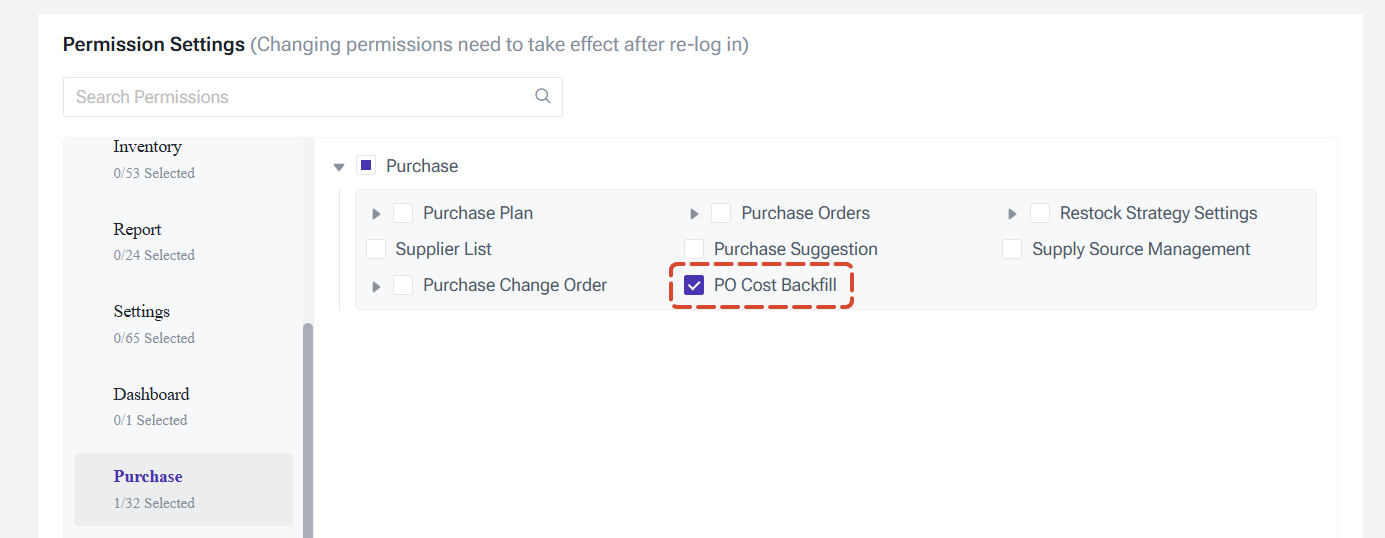
When enabled, costs in Inventory List and Batch Stock are broken down into fee items (SKU Cost, First-Mile Fee, Freight, Tax, etc.), and you can no longer edit the total cost directly — only the individual fee items. When disabled, only the total cost is shown, and it can be edited directly.
⚠️ Notes
Why You Need This
Sellers managing purchase costs often run into three problems: built-in fee types don't cover everything, freight forwarders can't confirm costs until later, and once a cost spikes, it's hard to tell why. This update solves all three — add your own fee types, backfill costs after the fact, and break costs down by item so you always know where the money went.
The Master Switch: SKU Cost Breakdown
This setting decides whether your account tracks and displays costs by item.
Path: Inventory > Inventory Settings > Inventory Management > SKU Cost Breakdown
When enabled, costs in Inventory List and Batch Stock are broken down into fee items (SKU Cost, First-Mile Fee, Freight, Tax, etc.), and you can no longer edit the total cost directly — only the individual fee items. When disabled, only the total cost is shown, and it can be edited directly.
⚠️ Notes
- This switch can only be toggled once every 2 hours.
- Turning it off clears the itemized fee amounts on Inventory List and Batch Stock; you'll need to re-enter them if you turn it back on later.
- The switch doesn't affect historical data — it only applies going forward.
We recommend settling on your fee categorization approach before turning this on. If you turn it off after using it for a while, the itemized breakdown is lost and only the total cost remains.
1. Custom Fees on Purchase Orders
When creating or editing a Purchase Order, use the new "Add Fee" button in the Cost Information section to add your own fee types, each with its own allocation method (by quantity, by price, by weight, or by volume).
Applies to: regular Purchase Orders (owned/3PL warehouse) and 1688 Purchase Orders.
Editable when:
Applies to: regular Purchase Orders (owned/3PL warehouse) and 1688 Purchase Orders.
Editable when:
- ✅ Draft,To Ship, On The Way— custom fees can be freely edited
- ❌ Completed, Cancelled, and other statuses — custom fees can no longer be edited
Also supported in bulk import: the Purchase Order import template now includes custom fee name/amount columns (up to 10 sets), so you can maintain purchase costs in bulk.
💡 How are fees allocated for combination SKUs? The per-unit fee for a combo SKU is automatically split across its component SKUs based on their quantity and cost allocation ratio — no manual calculation needed.
💡 How are fees allocated for combination SKUs? The per-unit fee for a combo SKU is automatically split across its component SKUs based on their quantity and cost allocation ratio — no manual calculation needed.
2. Cost Backfill: Fix Costs After Receiving
This is the core capability of this update. Even after a Purchase Order has been partially received or completed, you can still backfill or correct fee amounts — the system will automatically recalculate the weighted average cost and batch cost.
Who Can Use This?
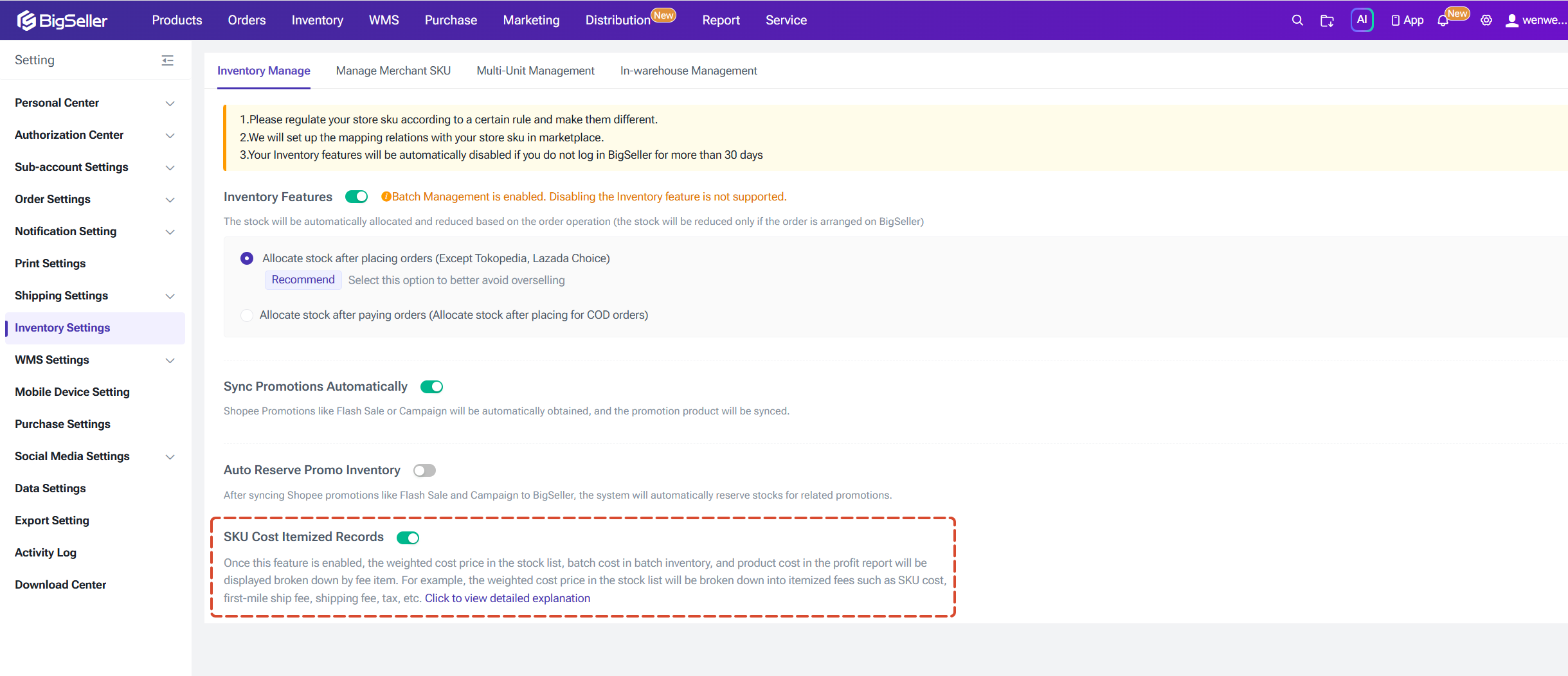
Requires the "Purchase Order Cost Backfill" permission (enabled by default for the main account; sub-accounts need it assigned manually under Permission Settings).
Where to Find It
Who Can Use This?
Requires the "Purchase Order Cost Backfill" permission (enabled by default for the main account; sub-accounts need it assigned manually under Permission Settings).
Where to Find It
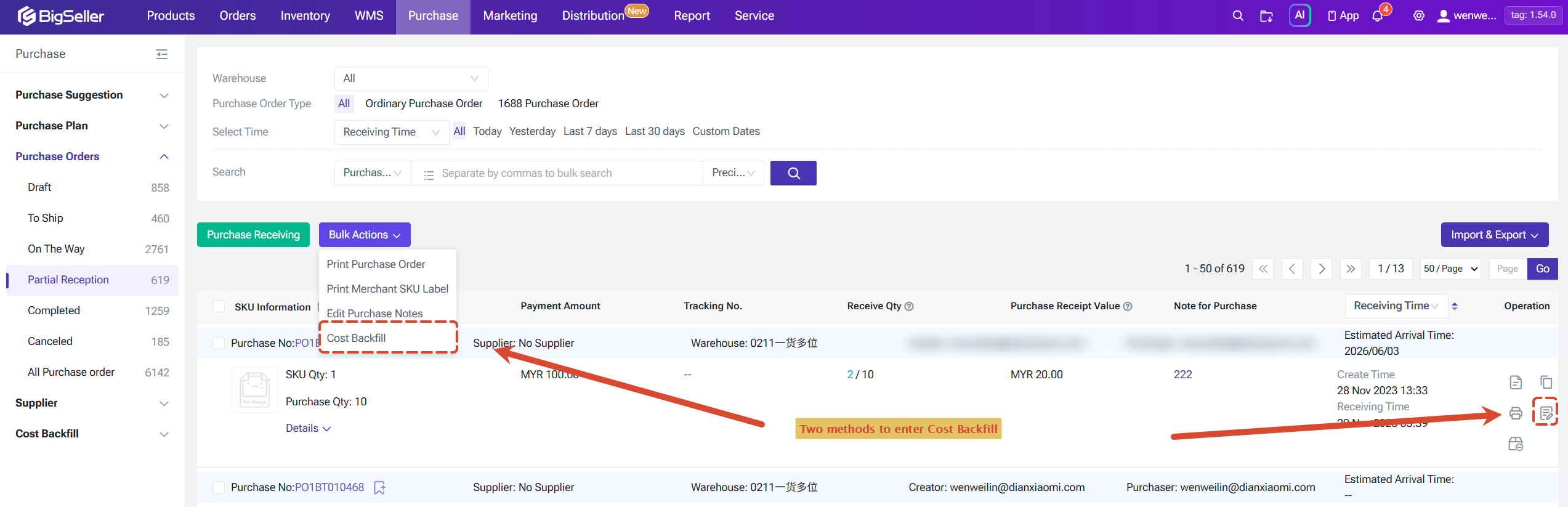
- In Purchase Orders > Partially Received / Completed, a "Cost Backfill" icon appears in the action column (next to Print);
- Or select multiple Purchase Orders and use Bulk Actions > Cost Backfill.
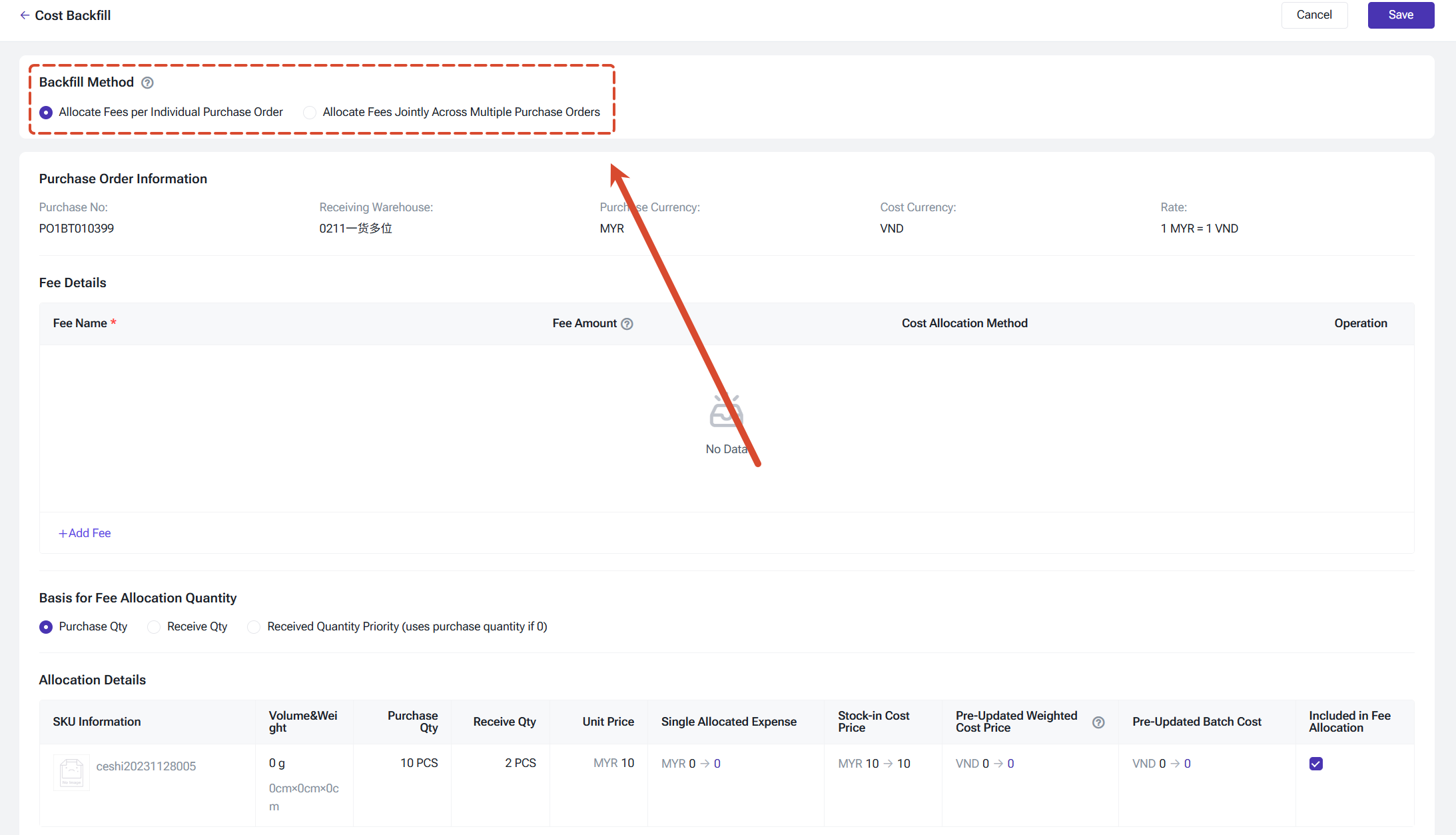
Single Purchase Order Backfill
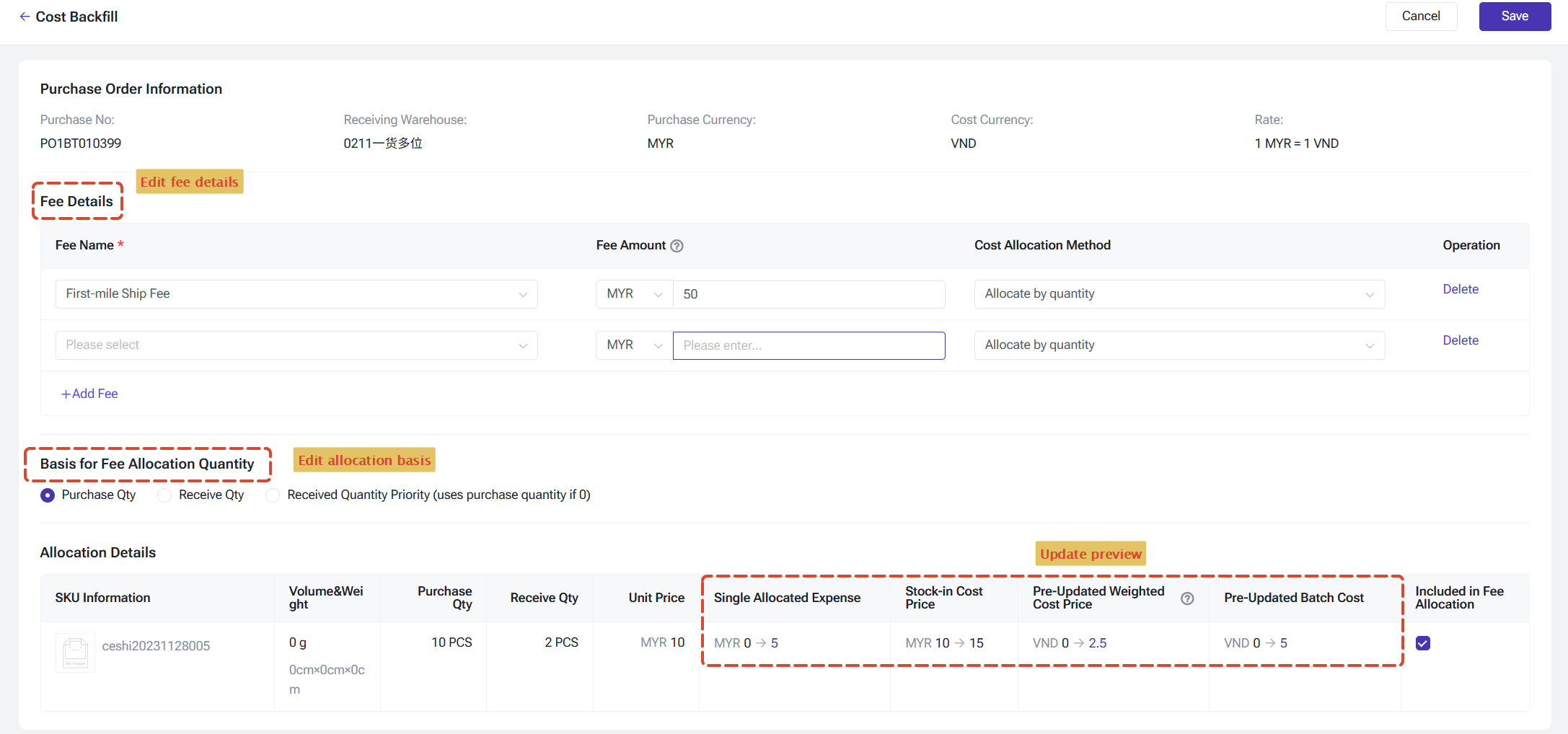
For one Purchase Order, you can:
- Edit existing fee amounts or add new custom fees;
- Choose to allocate by purchased quantity, received quantity, or received quantity (falling back to purchased quantity when received quantity is 0);
- Preview each SKU's updated per-unit fee, projected weighted average cost, and projected batch cost in real time (old value → new value);
- SKUs not yet received are flagged "Not received — will apply the updated cost once received" and are excluded from this recalculation.
Bulk Backfill: Two Allocation Modes
When you need to backfill one fee across multiple Purchase Orders at once (e.g. a container's freight split across several orders), choose from:
- Allocate per Purchase Order: each order's fee is allocated independently — best when fees are already tracked separately per order;
- Allocate across Purchase Orders: enter one total fee amount, and the system allocates it across all SKUs in the selected orders based on quantity — best when one shipping cost covers multiple orders.
Track Every Backfill
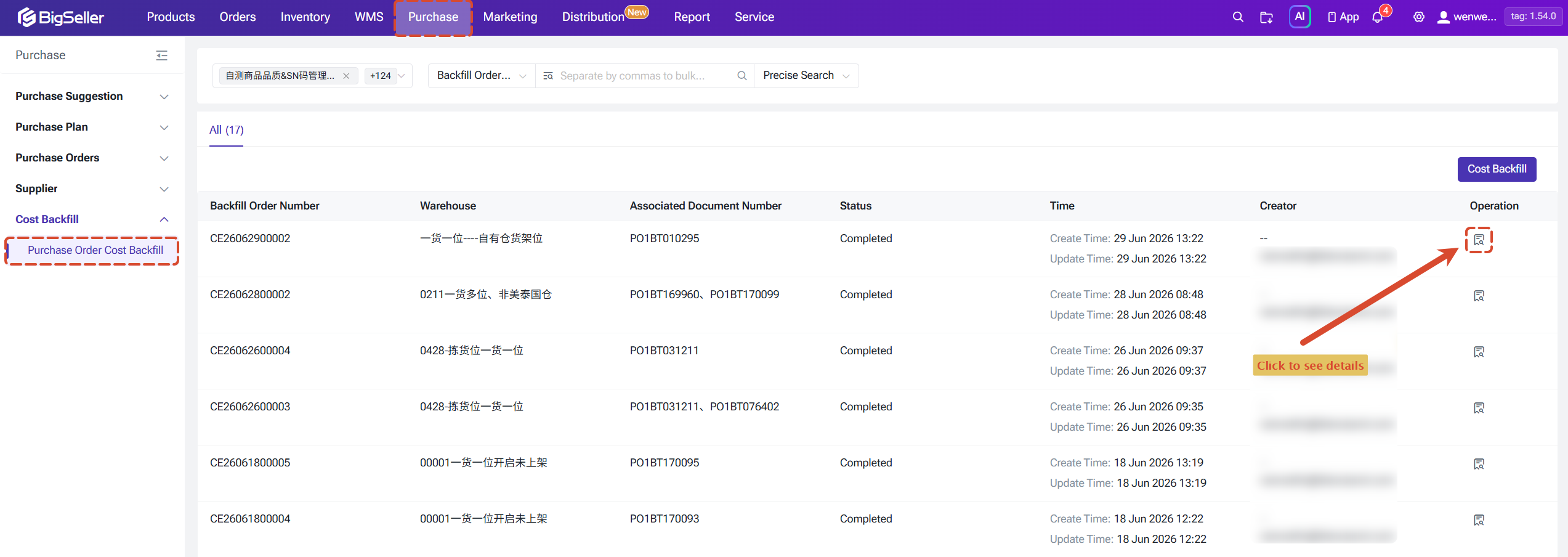
Each cost backfill generates a record you can review anytime under Purchase > Cost Backfill, including the backfill number, warehouses involved, related Purchase Order numbers, status, creator, and creation time. Click "Details" to see the full breakdown.
How Is the Weighted Cost Recalculated?
A quick example:
A SKU starts with 10 units in stock at a weighted cost of 5. Purchase Order A brings in 100 units at a unit price of 4.5, plus 0.5 in allocated shipping fee — landing at a cost of 5.5. After receiving, the weighted cost becomes (10×5 + 100×5.5) ÷ 110 ≈ 5.46.
If the freight forwarder later revises the shipping fee down from 50 to 35, and 30 units have already shipped out (80 remain in stock), the system deducts the over-allocated shipping fee proportionally from the remaining stock and recalculates a more accurate weighted cost — without touching the cost of units already shipped.
💡 Batch cost backfill is simpler: the new amount simply overwrites the original batch cost — no weighted calculation involved.
3. Cost Breakdown
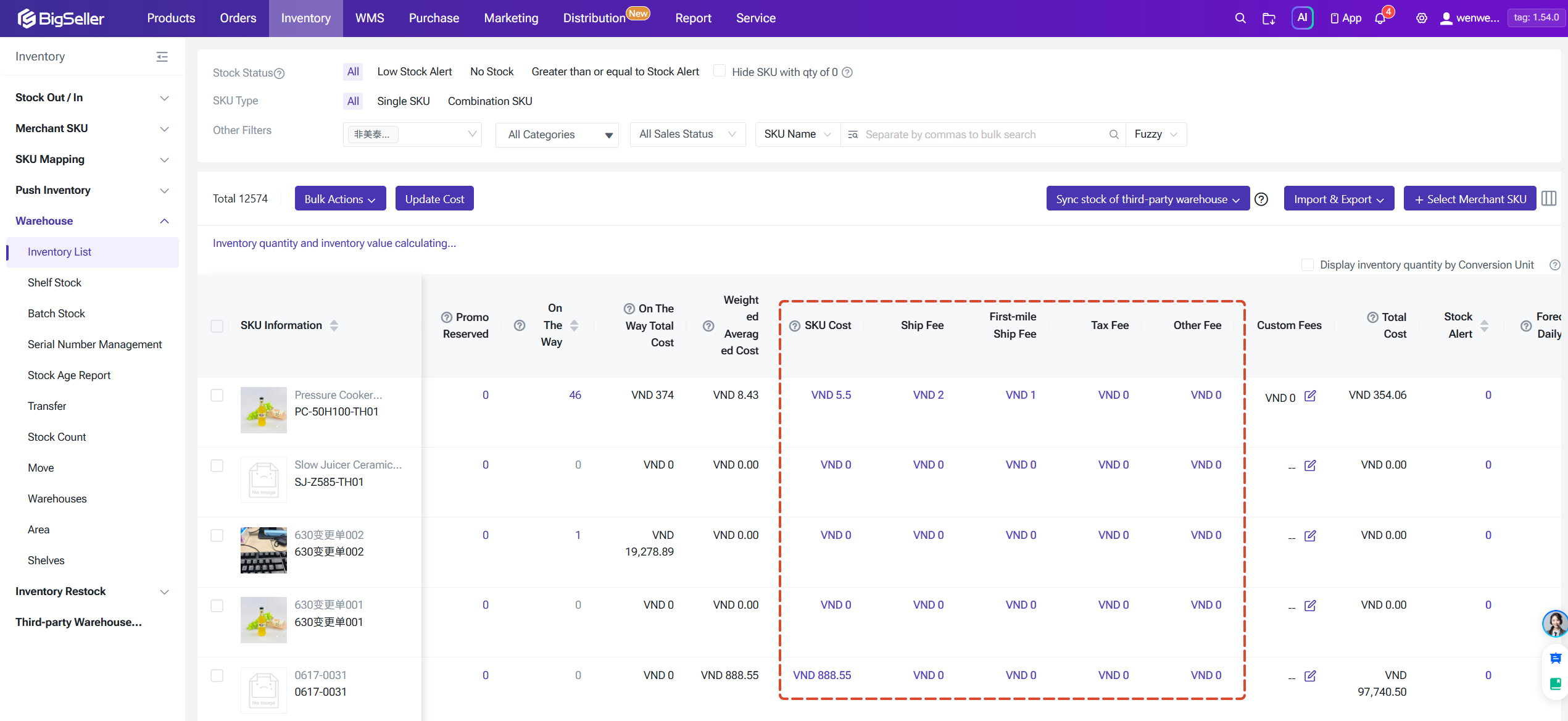
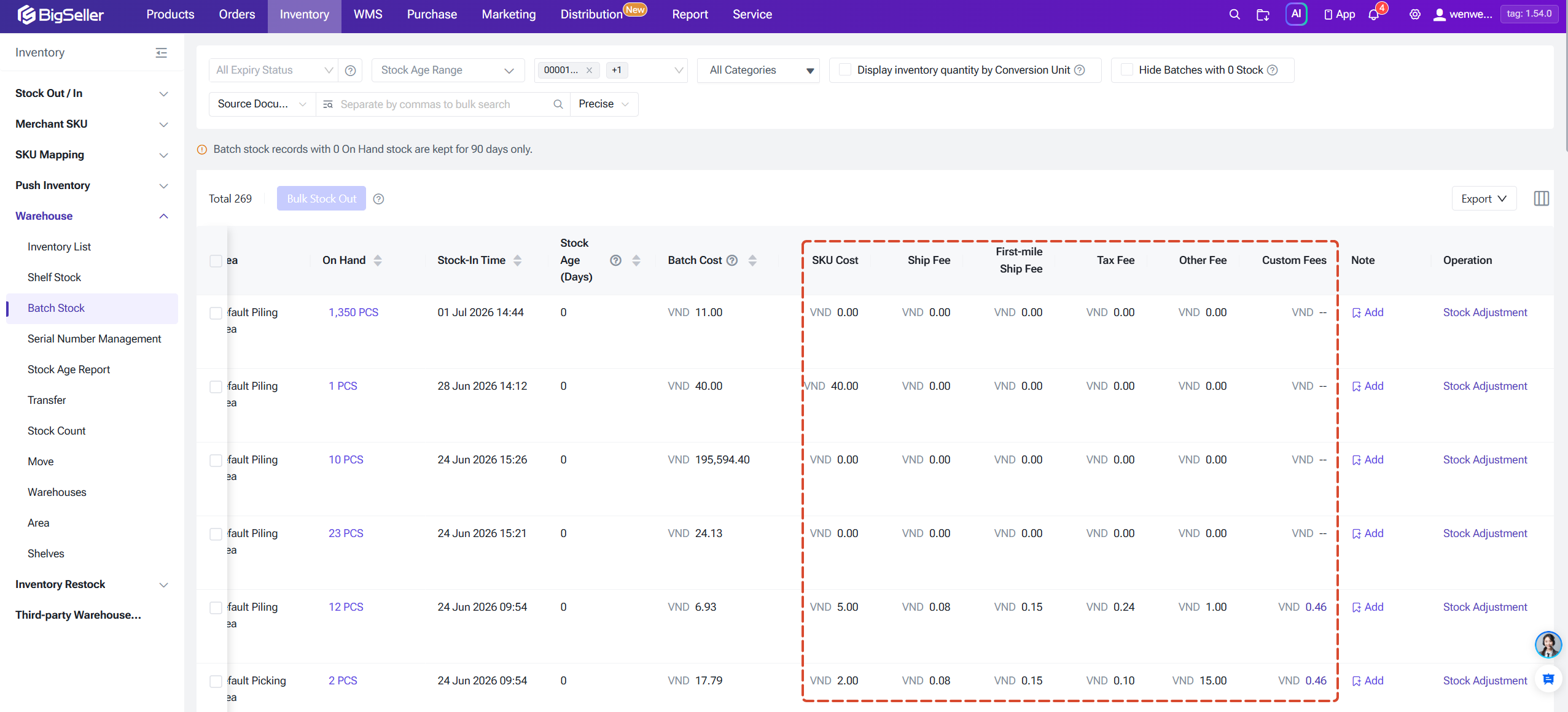
Once SKU Cost Breakdown is enabled, itemized fees appear (instead of just a total) in:
- Inventory List: weighted average cost broken into SKU Cost, Freight, First-Mile Fee, Tax, Other Fees, and custom fees;
- Batch Stock: batch cost shown with the same itemized breakdown;
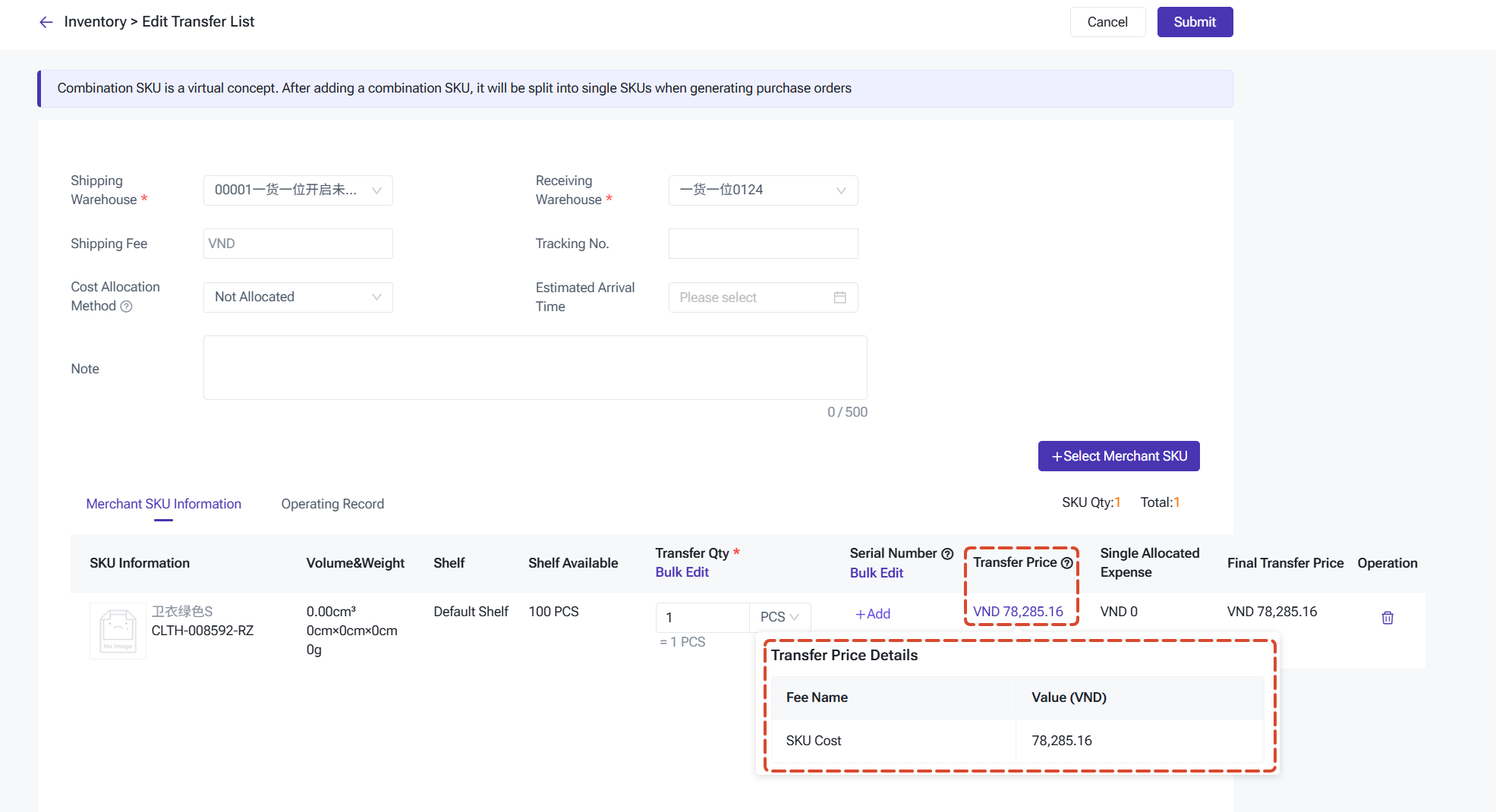
- Transfer List: click the transfer price to see a snapshot of each fee item at the time of transfer;
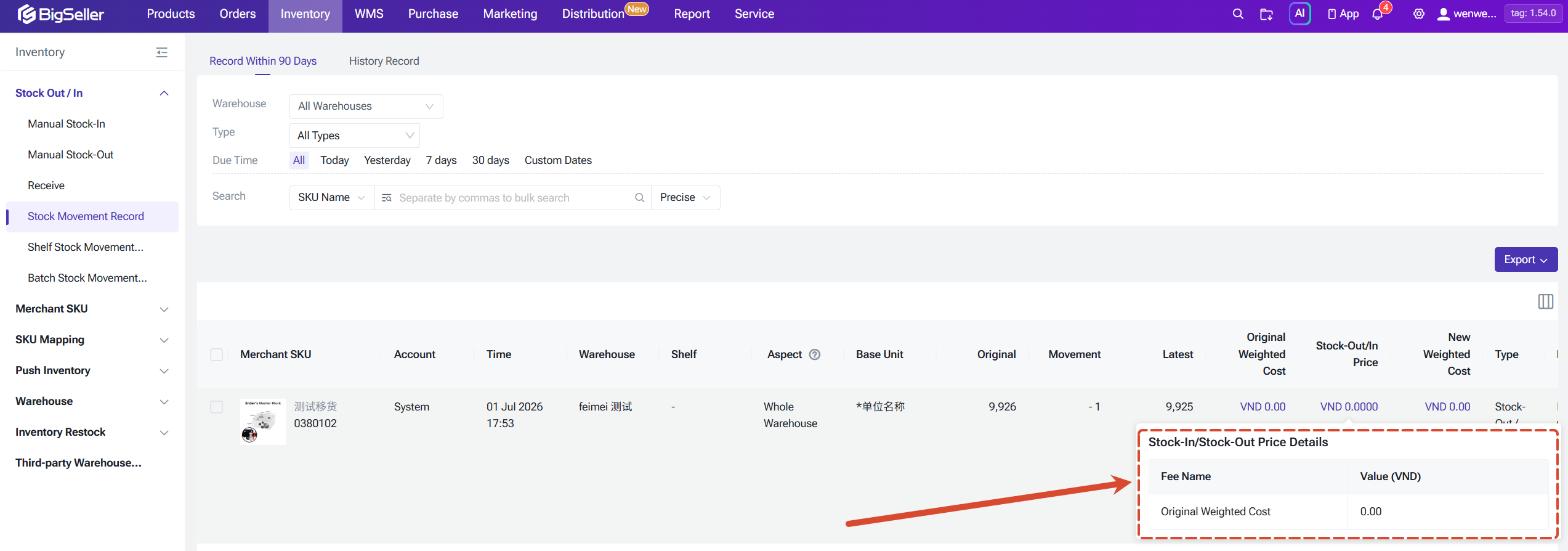
- Stock Movement Records / Batch Stock Movement Records: click the original cost, in/out cost, or current cost to see the fee breakdown;
- Profit Reports (Order / Store / Merchant Profit): SKU cost shown by fee item, with custom columns supporting these items in profit calculation formulas;
- Inventory List / Profit Report import & export: templates now include Freight, First-Mile Fee, Tax, Other Fees, and custom fee columns.
With the switch off, all of the above stay unchanged and show only the total cost.
📌 Note: Once enabled, you can no longer edit the total cost directly — only the individual fee items (the system sums them automatically), which keeps the breakdown accurate and traceable.
4. Permission Settings
Under Settings > Permission Settings, the Purchase module now includes a "Purchase Order Cost Backfill" permission:
- Main account: enabled by default;
- Sub-accounts: disabled by default — must be assigned manually before they can use Cost Backfill.
We recommend granting this permission only to team members responsible for purchase cost reconciliation, to avoid accidental changes to inventory cost data.
Is this content helpful?
Thank you for your feedback. It drives us to provide better service.
Please contact us if the document can't answer your questions