Introduction to Scheduled Budget - Automatic Time-Based Ads Budget Adjustments
Update Time: 07 Apr 2026 08:16
- Customize budget by time slot: Set different budgets for different times of day.
- Automatically adjust budgets: Once set, the system adjusts your ad budgets at the specified times.
- Reduce manual work: Save time and avoid errors by letting the system handle routine budget change.

-
Users with Shopee Ads Management permission automatically get Shopee Platform access in Schedule Budget.
-
Users with TikTok Ads Management permission automatically get TikTok Platform access in Schedule Budget.
1. Steps to Set Up a Scheduled Budget Template


Step 2: Fill in the template name, region, platform, and other basic information.

1) Choose an adjustment mode: Fixed Value or Percentage.

2) Recurring Rule: Select Daily, Weekly, or No Setting.

3) Edit Time-Based Rules: Click and drag to select time periods, then add specific budget adjustment strategies.


4) Specify Date Rules: Mainly used for holidays or major promotions. These rules take priority over daily/weekly cycles. Click and drag the cells below to select multiple time slots for batch setup.

[New] Pause Ads: The ad is paused during the specified time period, with no budget allocated. After the time period ends, the ad will automatically resume. Add automatic pause and automatic resume log recording.
|
Adjustment Methods |
Strategy |
What It Does |
Example Display |
|
By Fixed Value |
No Action |
Keeps the budget from the previous time period unchanged. No adjustments are made during this time slot. |
00:00–06:00 No Action |
|
Custom Budget |
Set a specific budget for the time slot. |
00:00–06:00 Custom Budget PHP 1 |
|
|
Base Budget |
Return to the ad's base budget. |
00:00–06:00 Base Budget |
|
|
Increase/Decrease Base Budget (Amount) |
Increases / Decreases the base budget by a set amount, without exceeding a specified maximum. |
00:00–06:00 Increase Base Budget 1 PHP (max 2 PHP) |
|
|
Increase/Decrease Base Budget (Percent) |
Increases / Decreases the base budget by a set percentage, without exceeding a specified maximum. |
00:00–06:00 Increase Base Budget 5% (max 2 PHP) |
|
|
Unlimited (Shopee Only) |
Set budget to Unlimited during the time slot (Shopee only). |
00:00–06:00 Unlimited |
|
|
By Percentage |
Use Base Budget |
Allocate a percentage of your original budget across time slots. |
00:00–06:00 Use 10% of Base Budget |
|
/ |
Pause Ads |
Pause ads with zero budget, and resume automatically after the time period ends |
00:00–06:00 Pause Ads |
💡 Adjust by Percentage Core Concepts
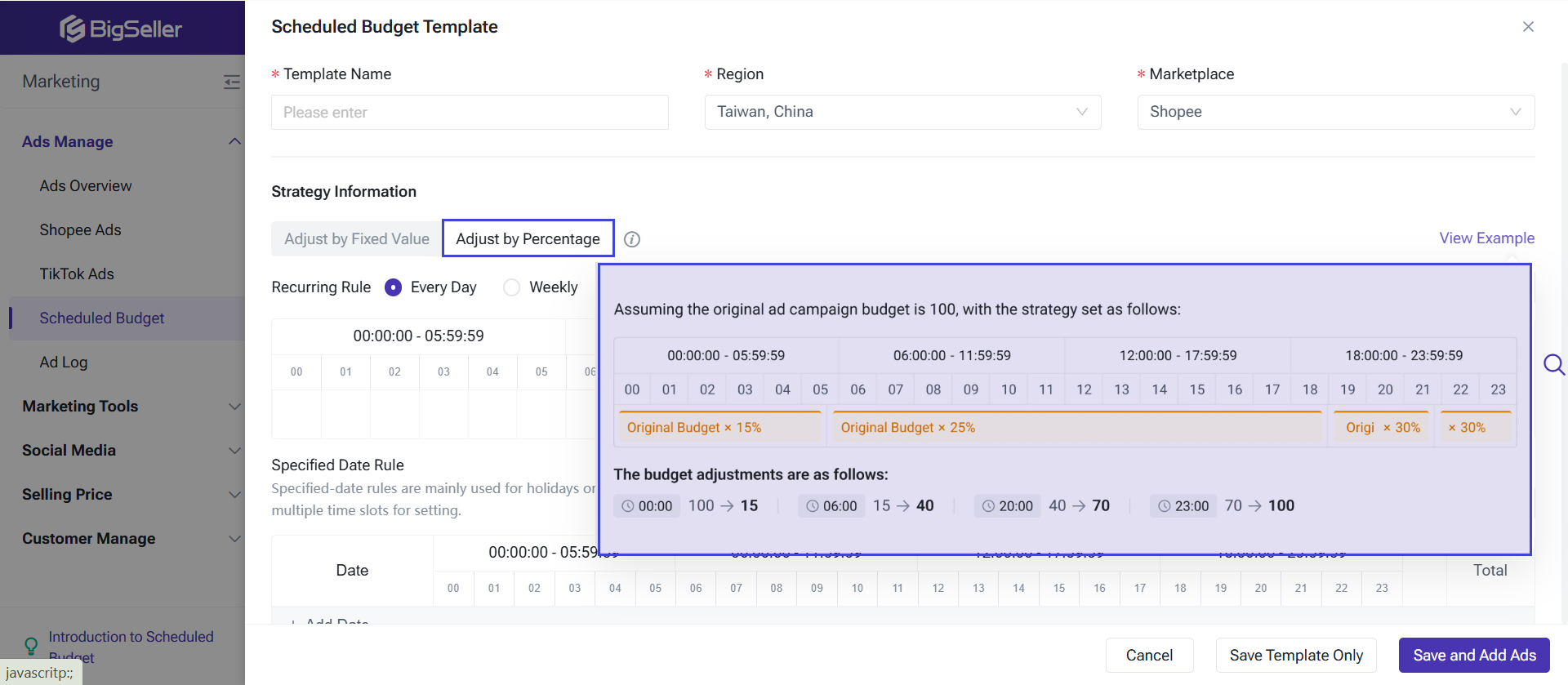
- Base Budget: A reference value used for configuring budget rules in time-based budgeting strategies
, for example, 100 PHP. - Time Period Ratio: The percentage of the base budget you want to allocate to each time period in a day.
Example
Assume the day is divided into 3 time periods: A, B, and C.
Base budget = 100 PHP
The ratios for each time period are set as follows:
-
A = 10%
-
B = 30%
-
C = 60%
How the System Allocates the Budget
- Time Period A
Calculation: 100 × 10% = 10 PHP
This means the maximum spend during period A is 10 PHP.
- Time Period B
Calculation: Sum of all previous periods + current period (10% + 30%) × 100 = 40 PHP
This means the maximum spend by the end of period B is 40 PHP.
Note: This is a cumulative budget. By the end of B, total allowed spending is 40 PHP. Since A already spent 10 PHP, B can actually spend 30 PHP more.
- Time Period C
Calculation: 10% + 30% + 60% = 100% (Budget: 100 × 100% = 100 PHP)
By the time it reaches period C, the full base budget of 100 PHP has been allocated (A + B + C = 100%).

Step 5: Go to the template list and enable the template.

2. Other Available Actions

2) Search, Copy, or Delete the Template

- Search: by template name; filter by status or last modified date.
- Copy: duplicate an existing template to create a new one.
- Delete: permanently remove a template (cannot be undone).
3) View Ads Budget Strategy Details


4) Add Ads to the Template: Go to the template and click Add Ads > Add or remove ads.

Notes: The same ad cannot belong to multiple templates.
- Shopee: The store site of the ad must be the same as the template’s site.
- TikTok: The ad account’s site must be the same as the template’s site.
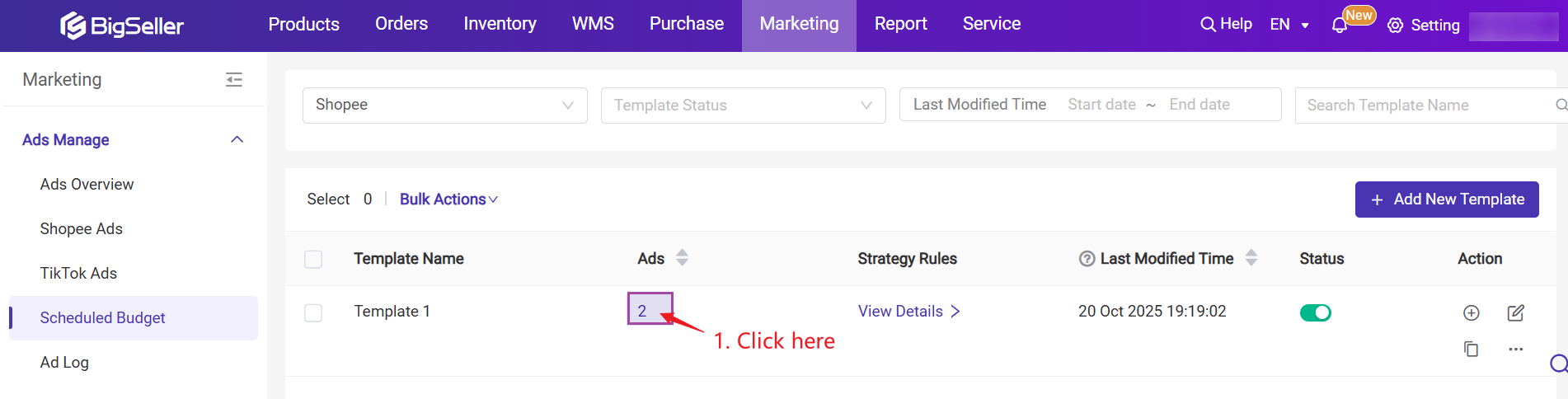
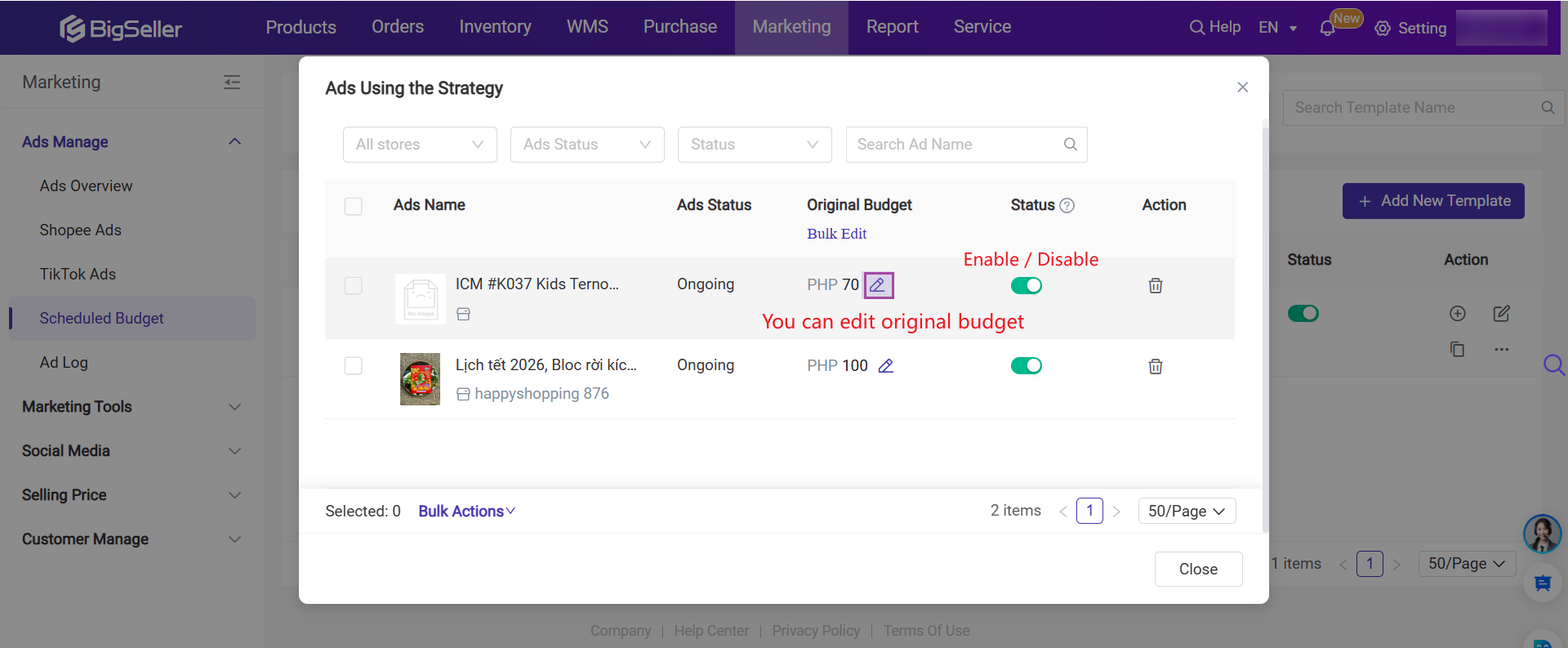
- Click here to see all ads associated with this budget template. In the pop-up window, you can edit the base budget, delete ads, enable or disable ads.
6) Check Ads Log
- All actions related to a template—such as creating, editing, deleting, enabling/disabling, or adding/removing ads—are recorded in the log.
- When the system executes the template (i.e., adjusts ad budgets according to the schedule), each execution attempt is also logged, even if the budget adjustment fails.

3. FAQ
Q: Why did the budget adjustment fail, showing “The budget set is invalid” in the Ads Log?A: The budget you set is lower than the platform’s minimum requirement. Please set a higher budget.
▶ Video Tutorial
Is this content helpful?
Thank you for your feedback. It drives us to provide better service.
Please contact us if the document can't answer your questions