How to Use Shopee/TikTok Ads Auto Rules?
Copy link & title
Update Time: 28 Apr 2026 03:24
BigSeller's Auto Rule feature lets you configure automated rules for your ads. Once triggered, the system executes preset actions automatically — significantly reducing manual effort. Key capabilities include:
- Automatically adjust ad budgets based on changes in ad-level metrics.
- Built-in template library covering common ad scenarios — apply a template with one click when creating a new rule.
- Receive system notifications whenever a rule is triggered, so you always know what's happening with your ad budgets.
Before using this feature, please authorize and sync your Shopee and/or TikTok ad accounts. If you don't have a TikTok ad account yet, you can register one directly through BigSeller.
Note: The number of rules you can create depends on your VIP level. Check the Subscription page for details.
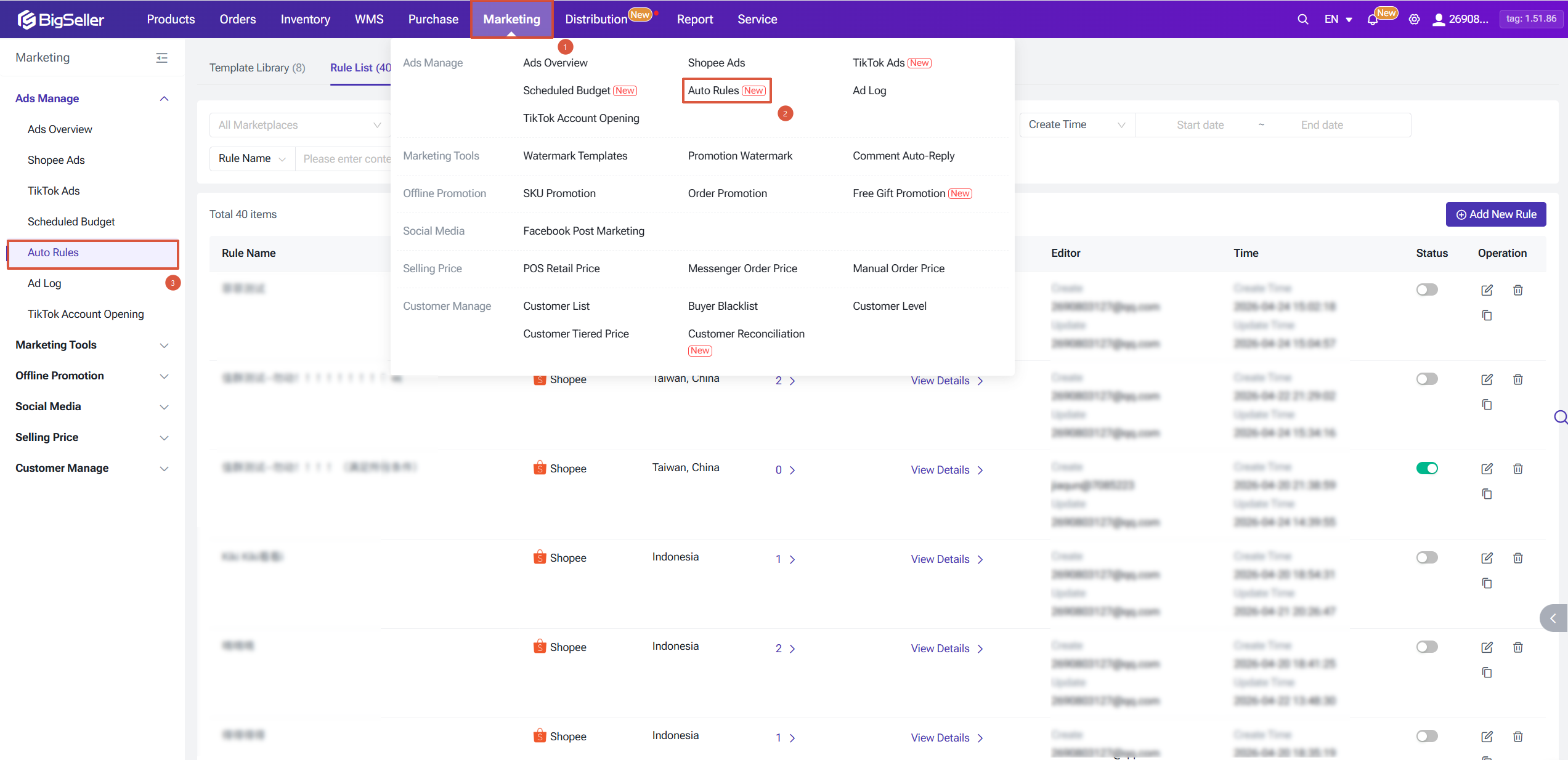
Navigation: Marketing > Ads Manage > Auto Rules
Note: The number of rules you can create depends on your VIP level. Check the Subscription page for details.
Navigation: Marketing > Ads Manage > Auto Rules
1. Template Library
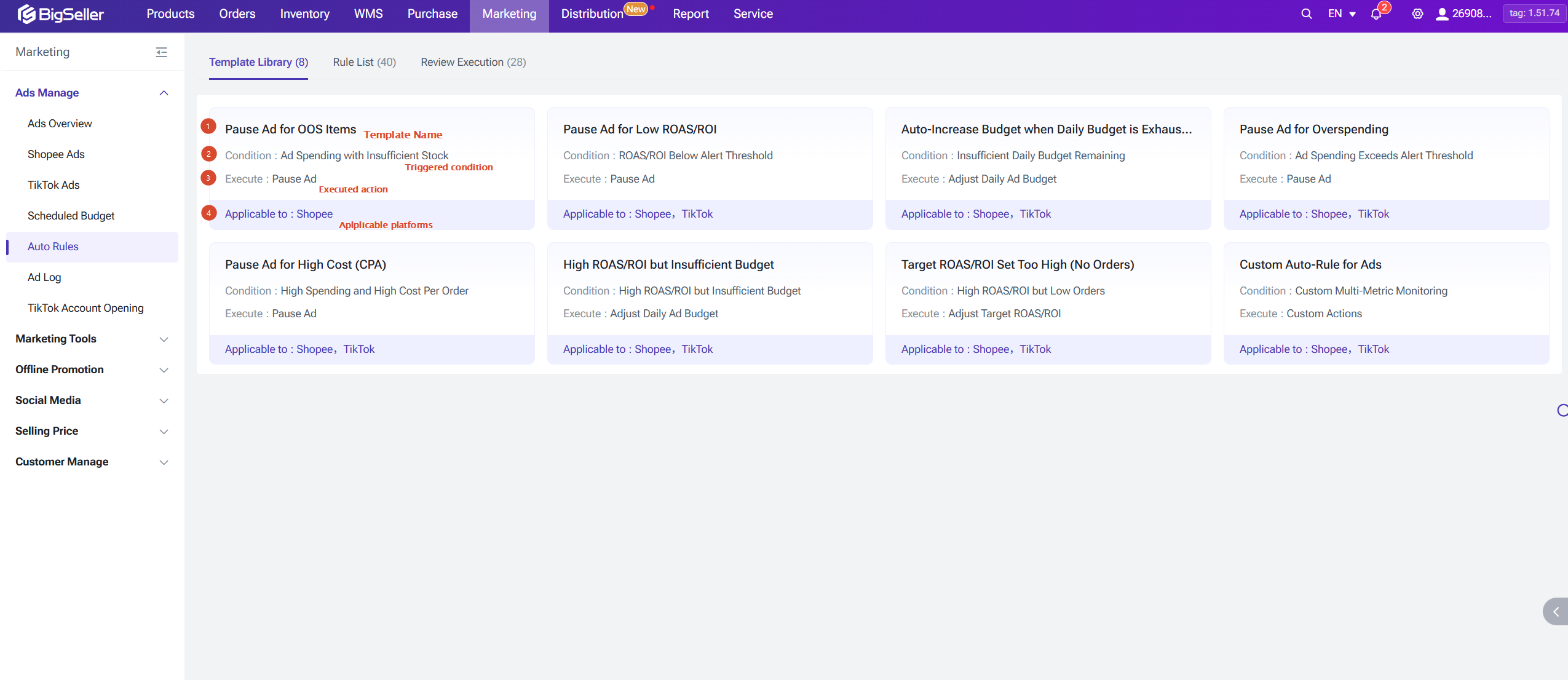
BigSeller provides 8 built-in ad rule templates to help you get started. If you're unsure what kind of rule to create, start from the template library.
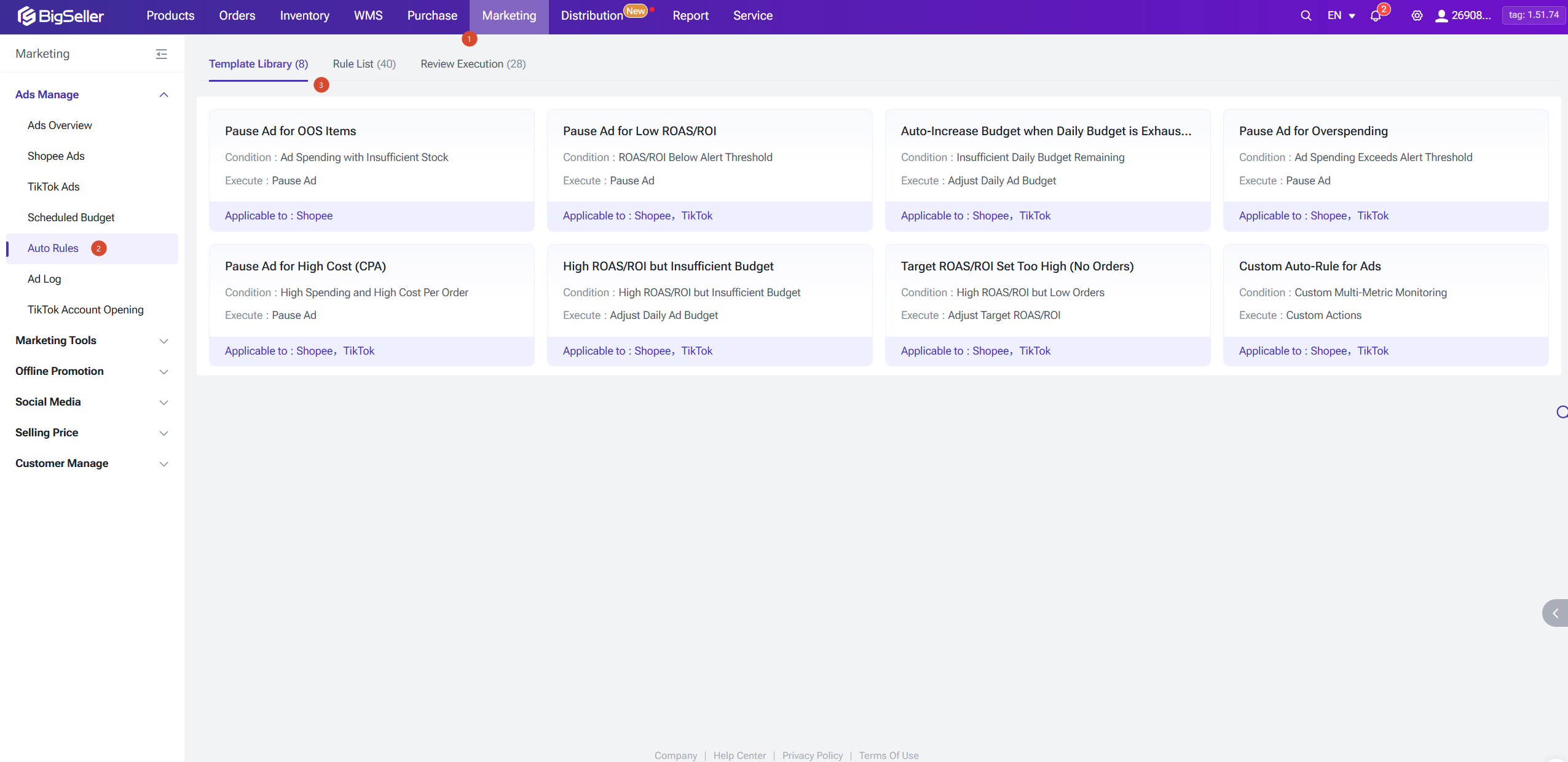
Step 1 Open the Template Library
Go to Auto Rule > Template Library
Step 2 Choose a template
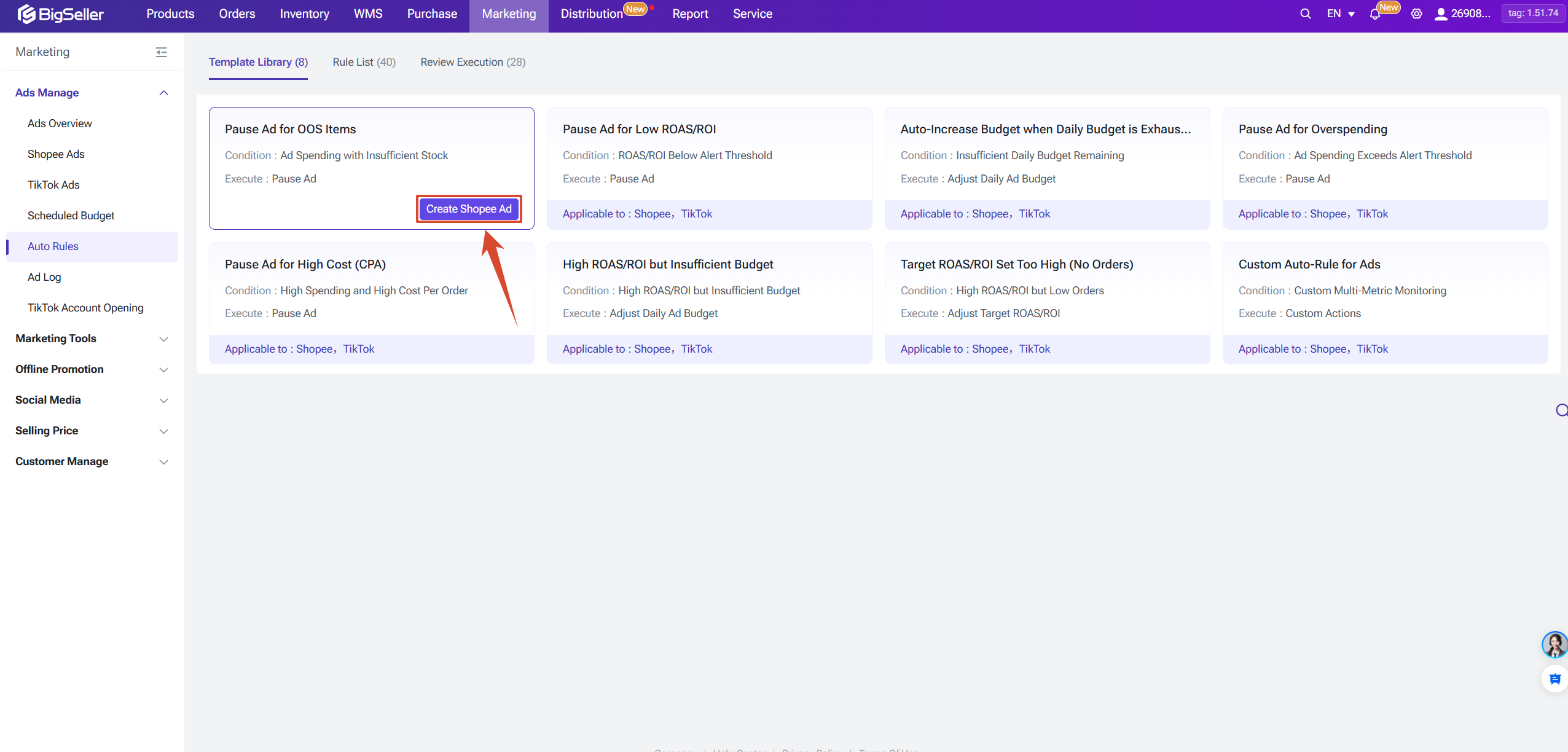
Browse the available templates and select one that fits your needs, then click to create a rule based on it.
Step 3 Edit the auto rule details
The rule editor is organized into the following sections.
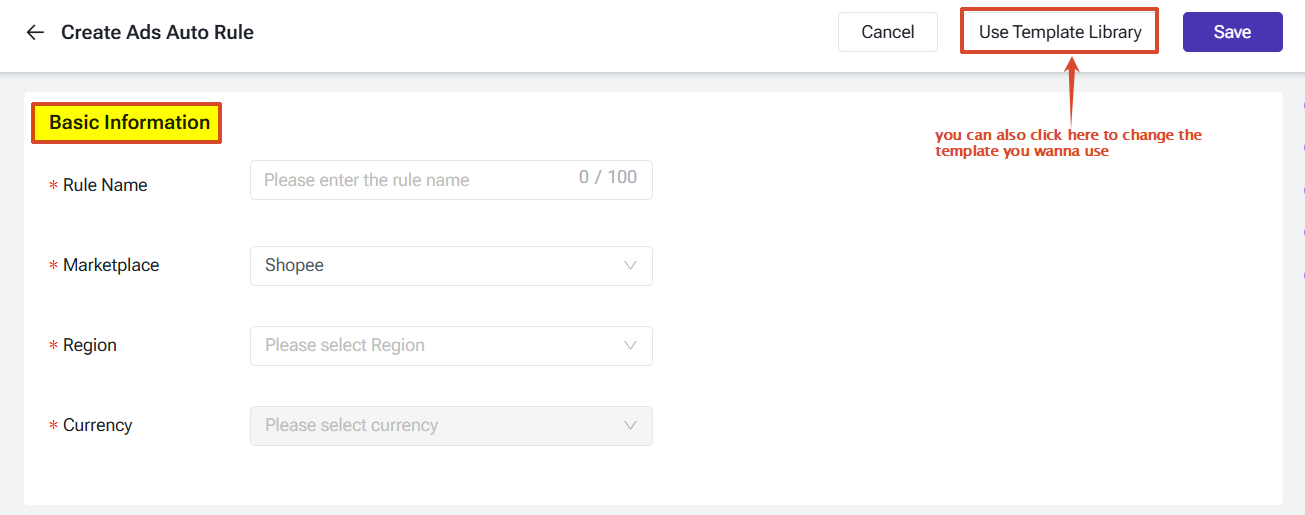
1) Basic Information
Enter the rule name, marketplace (Shopee or TikTok), site, and currency.
2) Execution Strategy
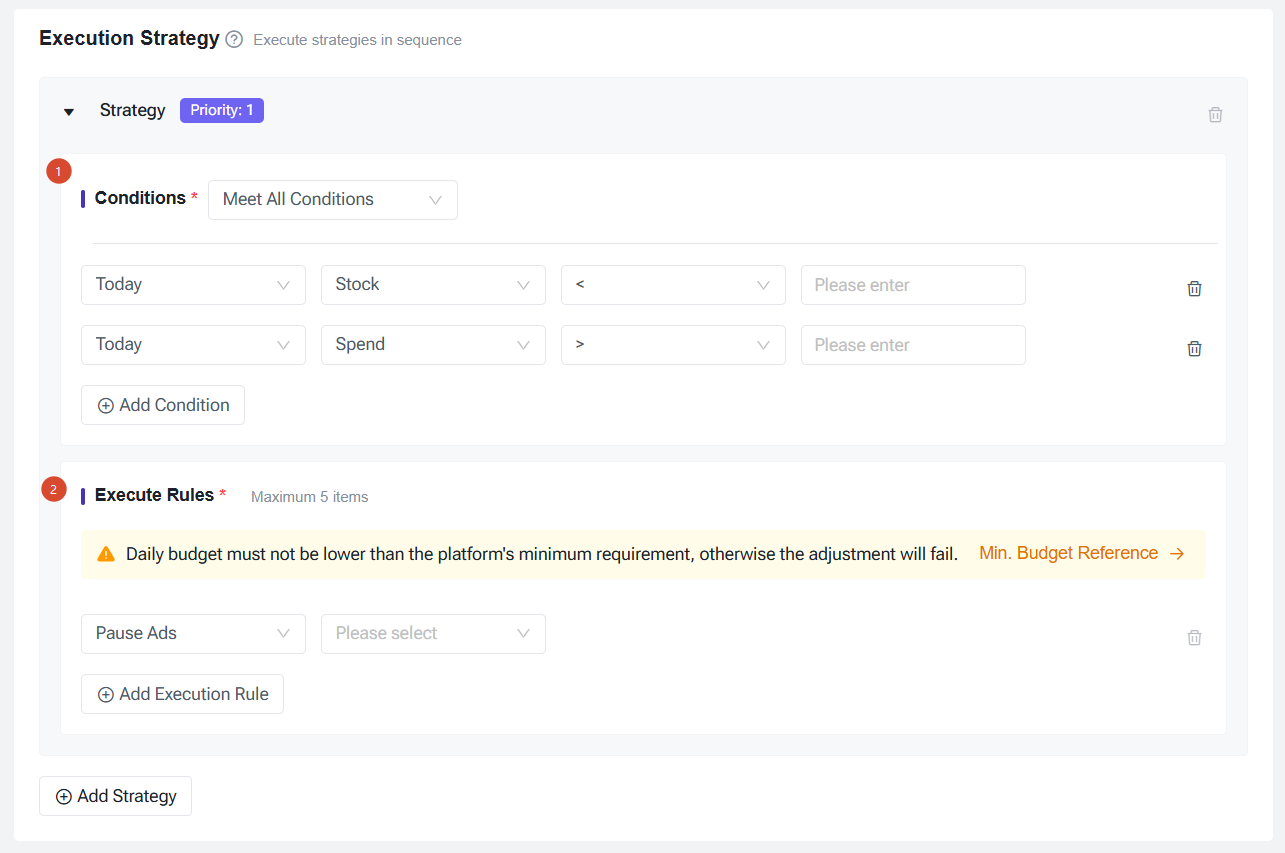
Define the conditions that trigger the rule and the action to take when conditions are met. You can configure up to 5 execution strategies per rule. If an ad meets the trigger conditions of multiple strategies, the highest-priority strategy executes. Priority follows the order strategies are created — add your most important strategy first.
① Condition
Choose whether the rule fires when all conditions are met, or when any one condition is met. Conditions can be based on changes in any ad metric over a selected time window: today, last 3 days, 7 days, 14 days, or 30 days. You can add up to 5 conditions per strategy.
Step 1 Open the Template Library
Go to Auto Rule > Template Library
Step 2 Choose a template
Browse the available templates and select one that fits your needs, then click to create a rule based on it.
Step 3 Edit the auto rule details
The rule editor is organized into the following sections.
1) Basic Information
Enter the rule name, marketplace (Shopee or TikTok), site, and currency.
2) Execution Strategy
Define the conditions that trigger the rule and the action to take when conditions are met. You can configure up to 5 execution strategies per rule. If an ad meets the trigger conditions of multiple strategies, the highest-priority strategy executes. Priority follows the order strategies are created — add your most important strategy first.
① Condition
Choose whether the rule fires when all conditions are met, or when any one condition is met. Conditions can be based on changes in any ad metric over a selected time window: today, last 3 days, 7 days, 14 days, or 30 days. You can add up to 5 conditions per strategy.
② Action
Specify what action to take when conditions are met. Supported actions:
Specify what action to take when conditions are met. Supported actions:
- Adjust Daily Budget
- Adjust Base Budget
- Adjust Target ROAS
- Pause Ads
3) Target Objects
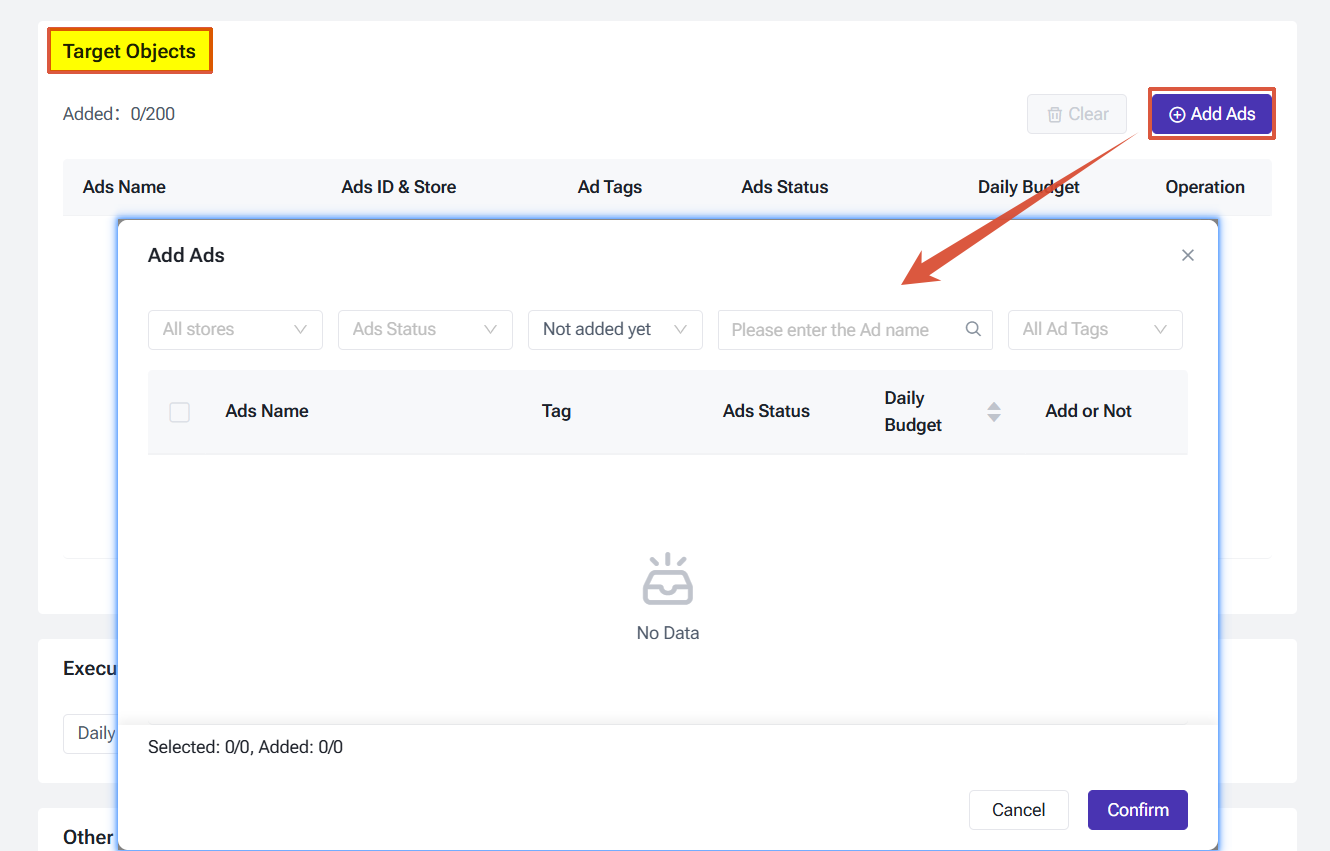
Select the ads to include in this rule. You can add up to 200 ads. Use the available filters (e.g., Ad Tag) to quickly locate the ads you want.
4) Execution Frequency
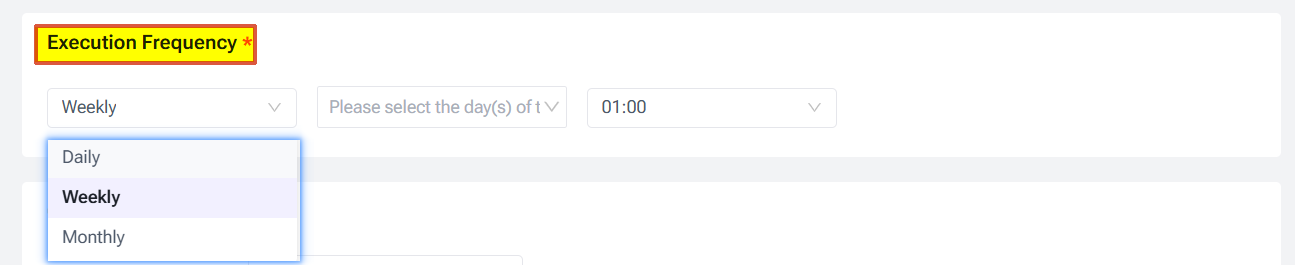
Set how often the rule runs: daily, weekly, or monthly. When set to daily, you can configure up to 6 time points per day.
5) Other Settings
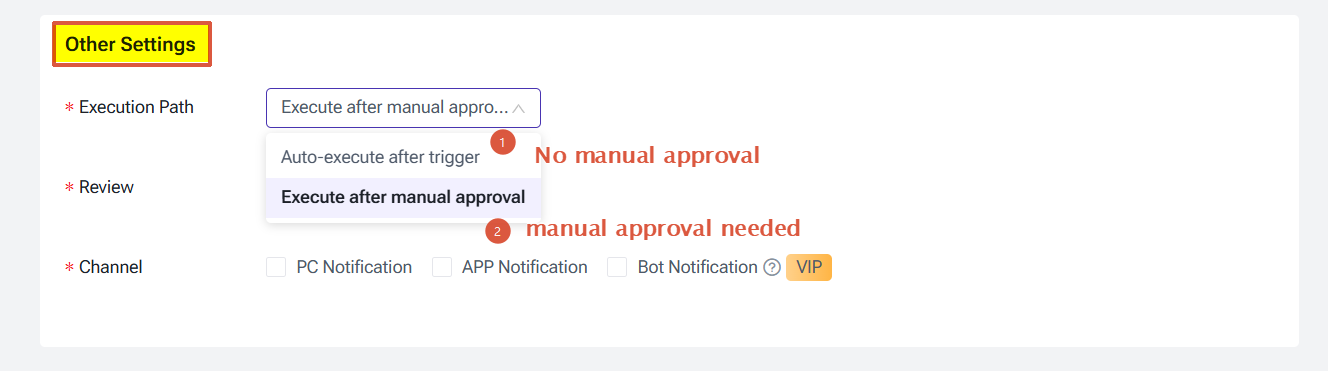
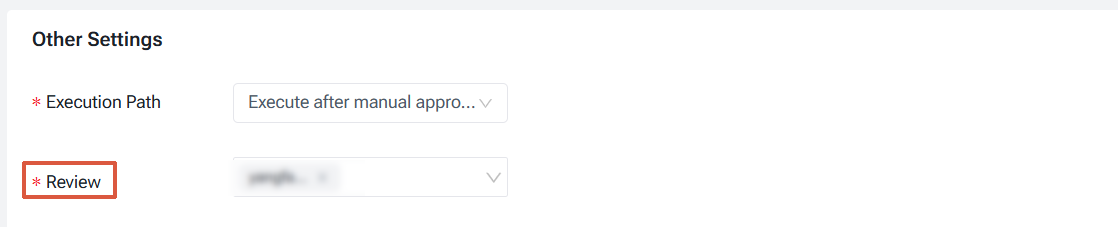
Execution Path: Choose whether the rule executes automatically when triggered, or requires manual approval before taking effect. If you select Execute after manual approval, each triggered instance will be held in a review queue — you will need to designate a reviewer.
Notification channels: Select how you want to be notified when a rule triggers.
- PC Notification: Appears in the Alert Center
- APP Notification: Push notification via the BigSeller mobile app
- Bot Notification: Webhook push to DingTalk, Feishu, or WeCom — enter your Webhook URL and Secret Key
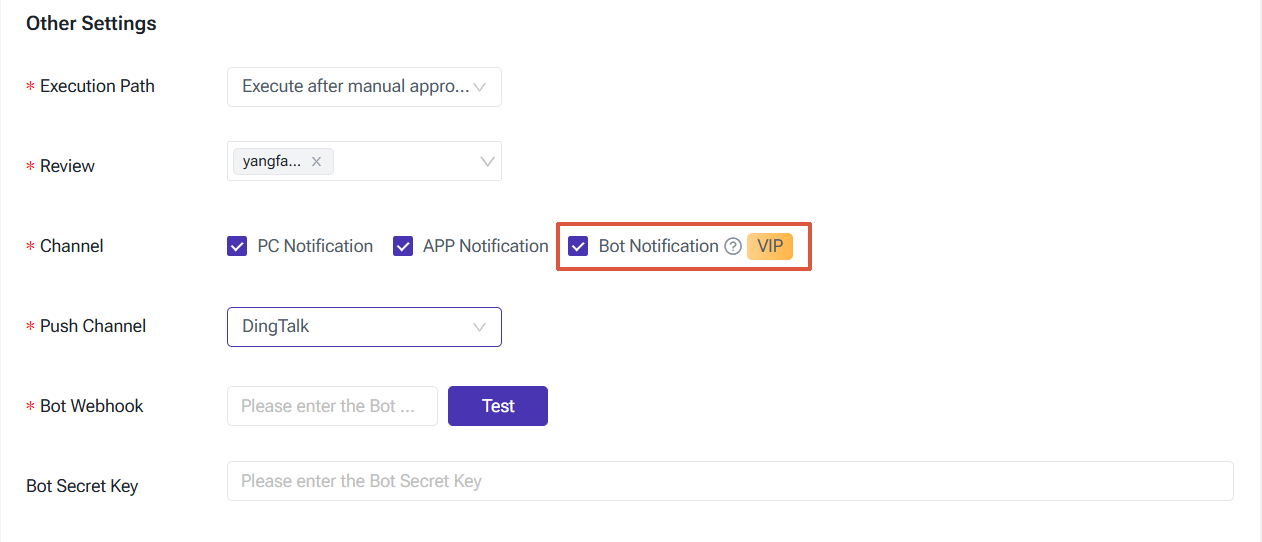
Once everything is configured, click Save in the top-right corner.
2. Rule List
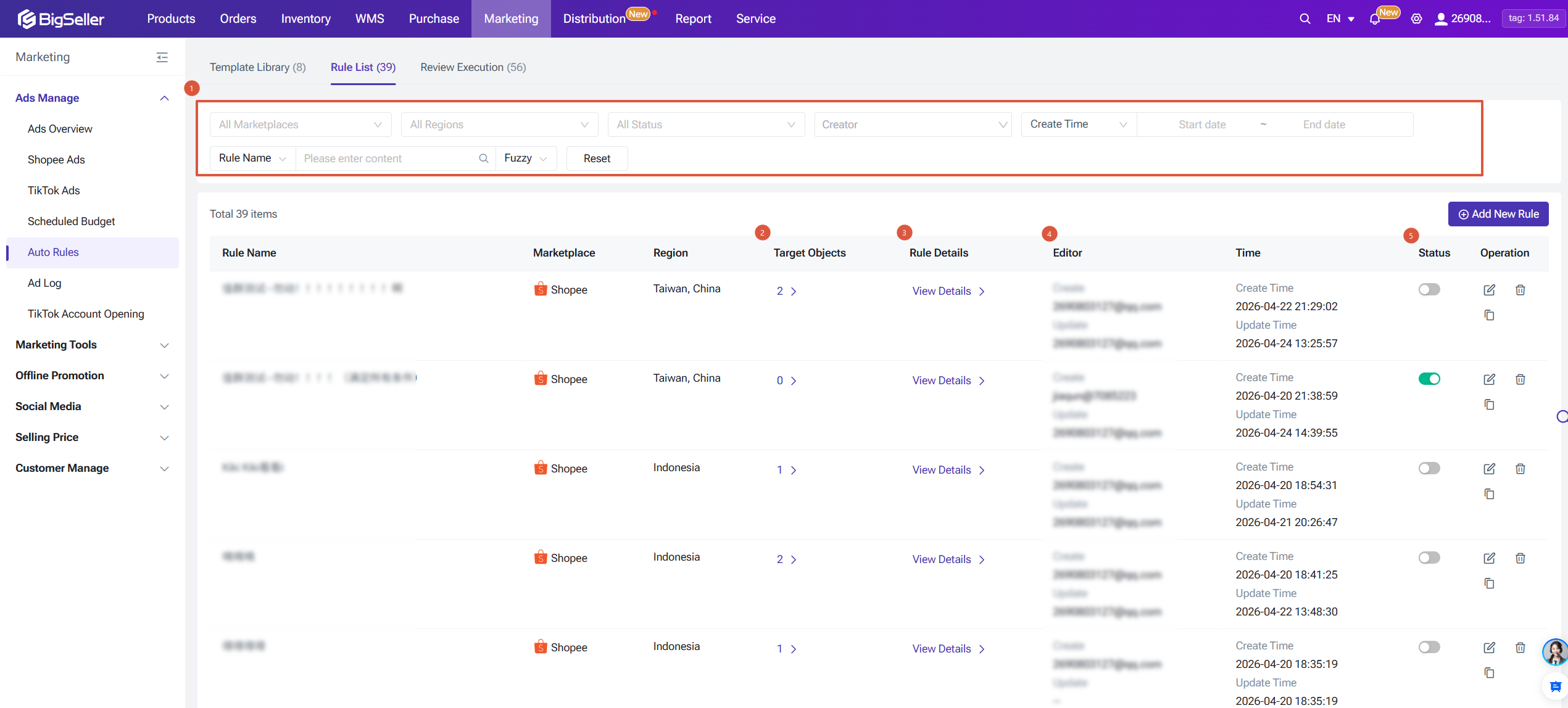
All created rules are displayed on the Rule List page. You can also create new rules directly from this page without using a template.
① Filters — quickly locate a specific rule
② Target Objects — click to view the specific ads included in a rule
③ Rule Details — click to view the full rule configuration: conditions, strategies, and more
④ Editor — shows who created or last updated the rule
⑤ Status — toggle on/off to enable or disable a rule
① Filters — quickly locate a specific rule
② Target Objects — click to view the specific ads included in a rule
③ Rule Details — click to view the full rule configuration: conditions, strategies, and more
④ Editor — shows who created or last updated the rule
⑤ Status — toggle on/off to enable or disable a rule
3. Review Execution
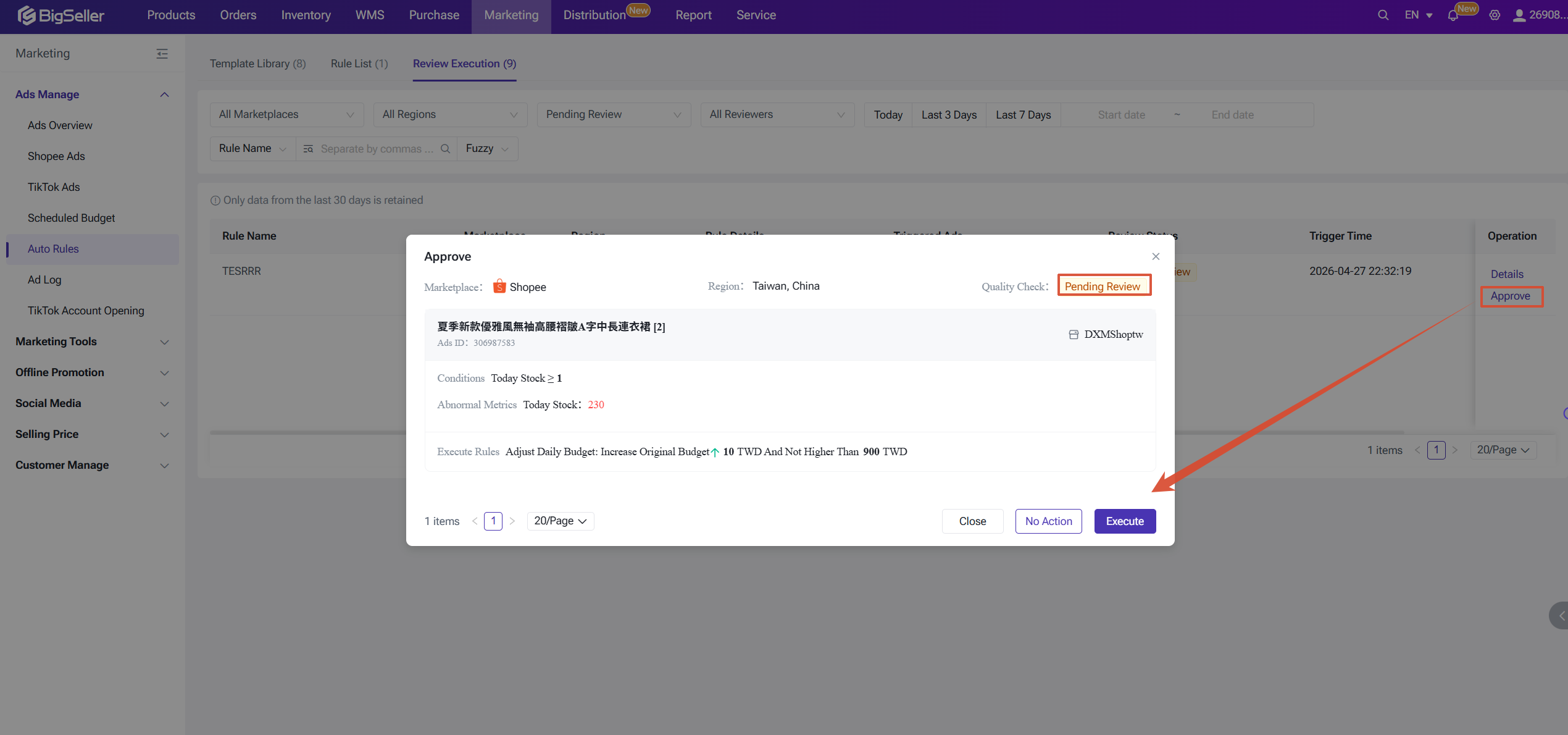
If a rule is configured to require manual approval before execution, triggered instances will appear on the Review Execution page. The designated reviewer can approve or reject the execution of an ad rule. You can filter by review status or reviewer, and approve or reject each triggered instance individually.
To view the detailed trigger log for a specific ad, navigate to the Ad Logs page.
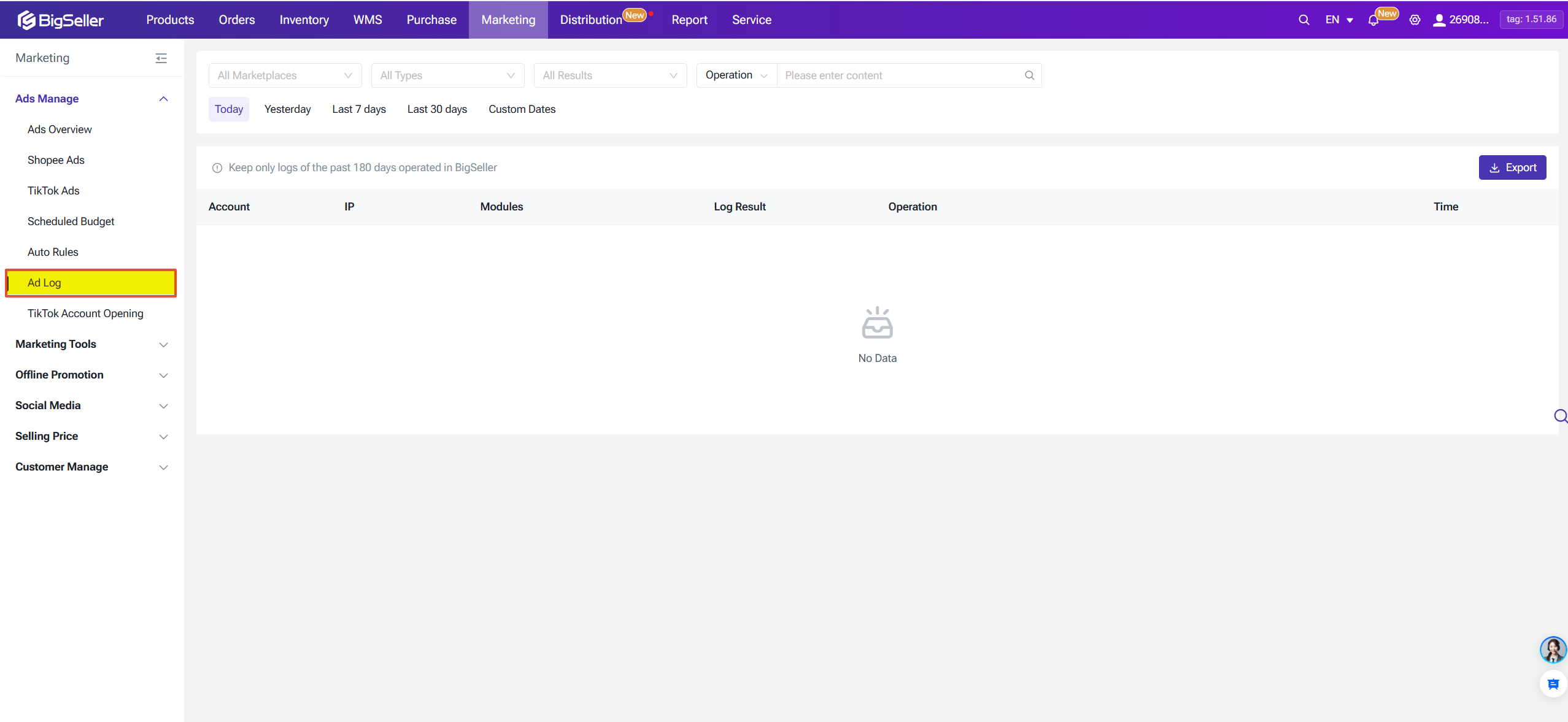
To view the detailed trigger log for a specific ad, navigate to the Ad Logs page.
Is this content helpful?
Thank you for your feedback. It drives us to provide better service.
Please contact us if the document can't answer your questions