How to Manage Shopee AMS Open Campaign?
Copy link & title
Update Time: 30 Jun 2026 08:29
With BigSeller's newly launched Shopee Affiliate Marketing Solution (AMS), sellers can manage Shopee Open Campaigns directly in BigSeller — no more switching back and forth to Seller Centre. Manage multiple stores in one place, configure commission rates in bulk, and sync campaign data with a single click.
What is a Shopee Open Campaign?
An Open Campaign is the core feature of Shopee's Affiliate Marketing Solution. Once a seller sets a commission rate, all registered Shopee affiliates — including KOLs, KOCs, traffic owners, and content creators — can freely promote the seller's products. Commission is only paid when a valid order is generated (cost-per-sale model). It is the third largest traffic source on Shopee after ads and livestreams, offering a low-cost, high-reach channel for driving sales.
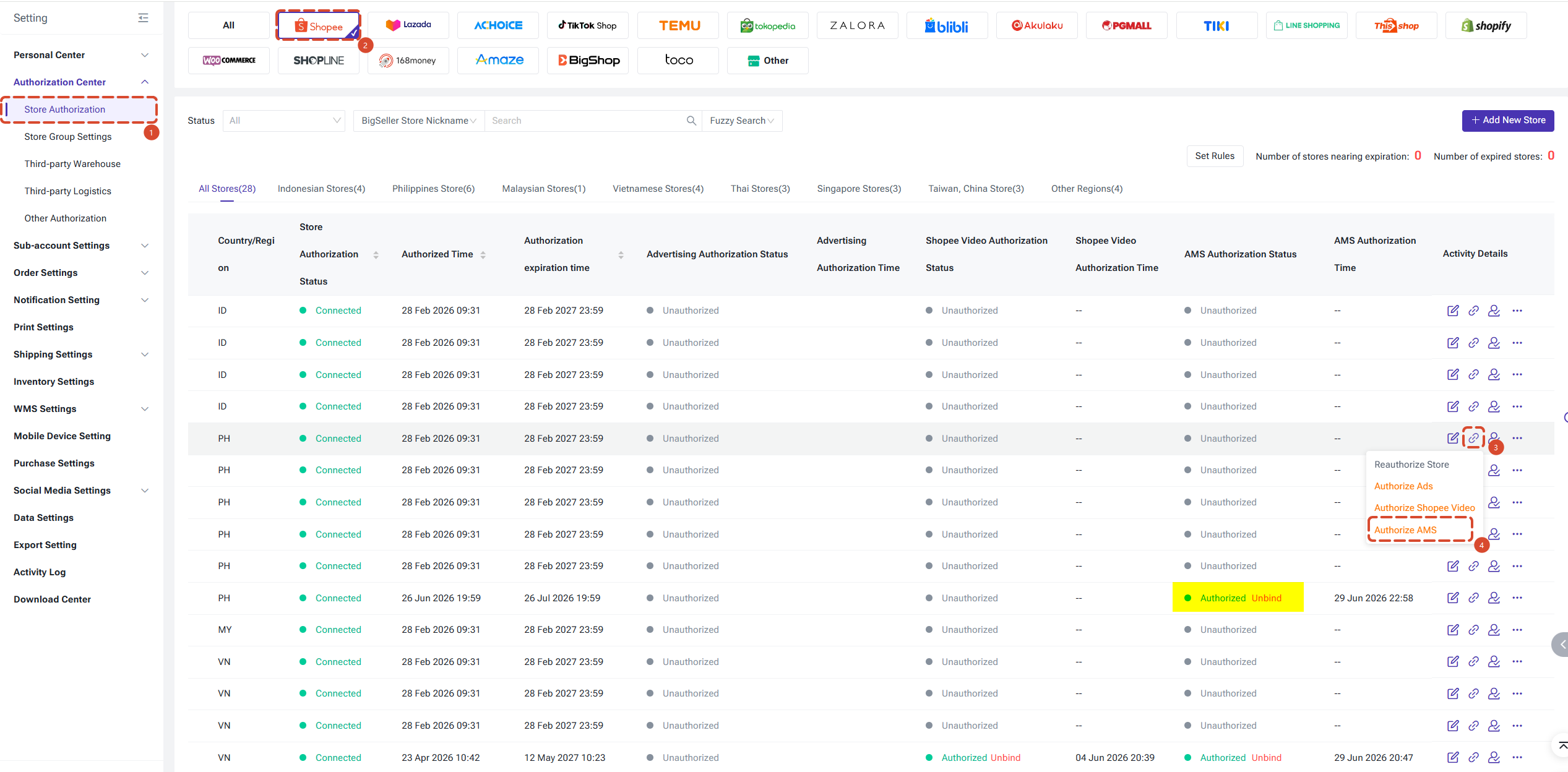
Path: Settings > Authorization Centre > Store Authorization
1) Find the Shopee store you want to authorize and click [Authorize AMS].
2) In the confirmation pop-up, click [Confirm]. The system will redirect you to the Shopee authorization page.
3) Once authorized, the store's AMS Authorization Status column will show "Authorized" along with the authorization timestamp. Authorized stores can also be de-authorized at any time.
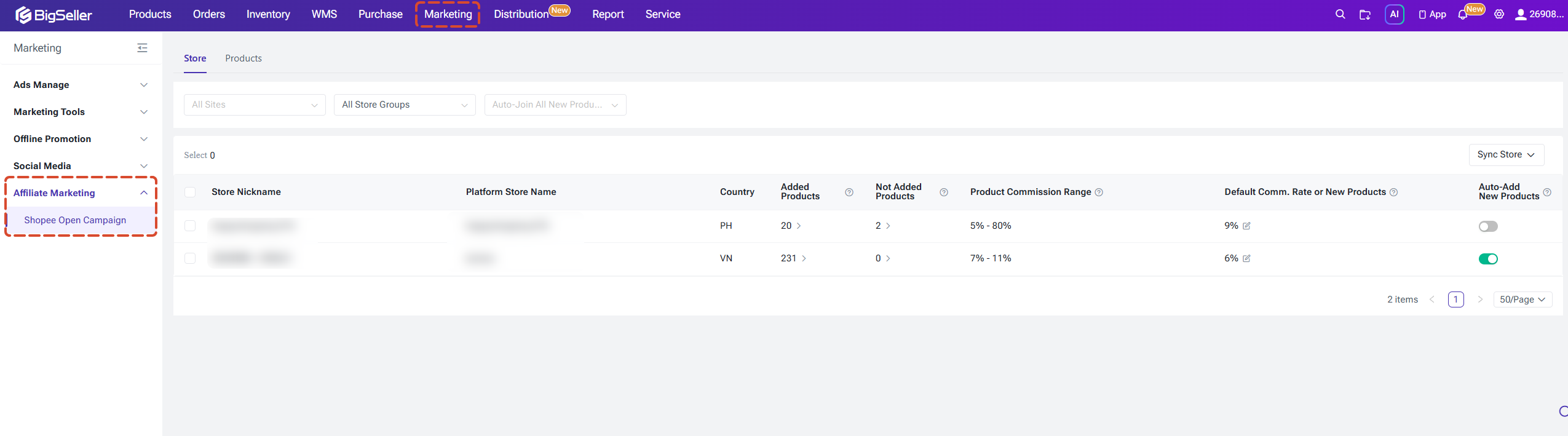
The Shopee Open Campaign feature consists of 2 pages: Store and Product
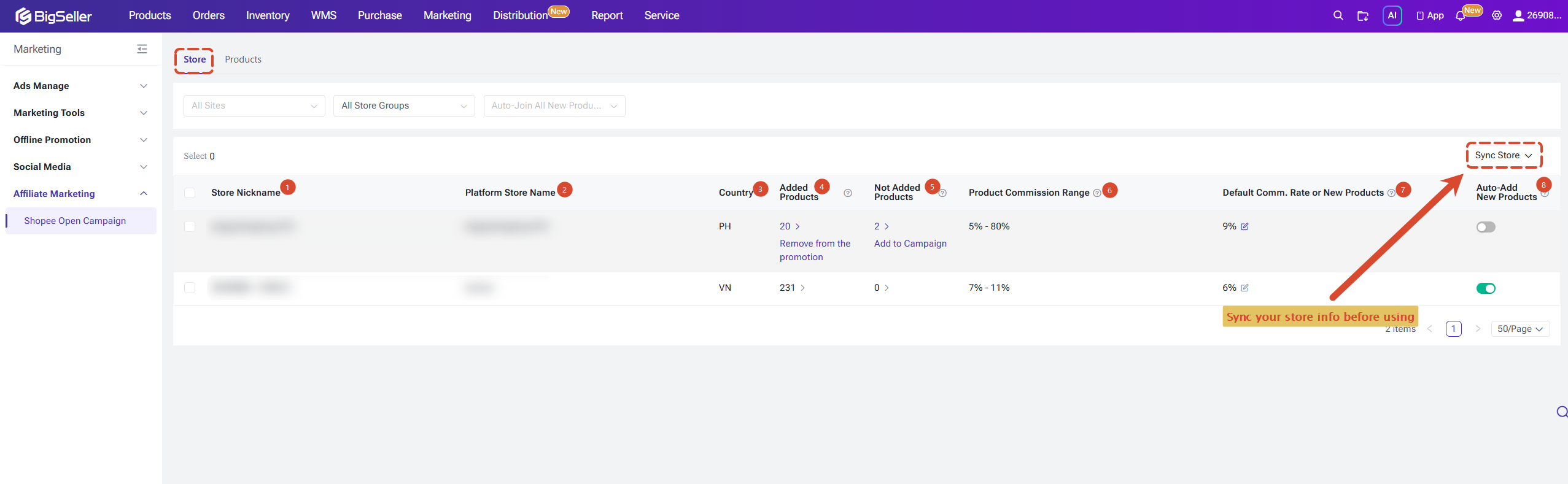
Before the page displays any data, click [Sync Stores] in the top-right corner to pull the latest information. After syncing, the list shows the following:
Clicking the number under Added Products or Not Added Products will jump directly to the Product Tab with the corresponding status pre-filtered.
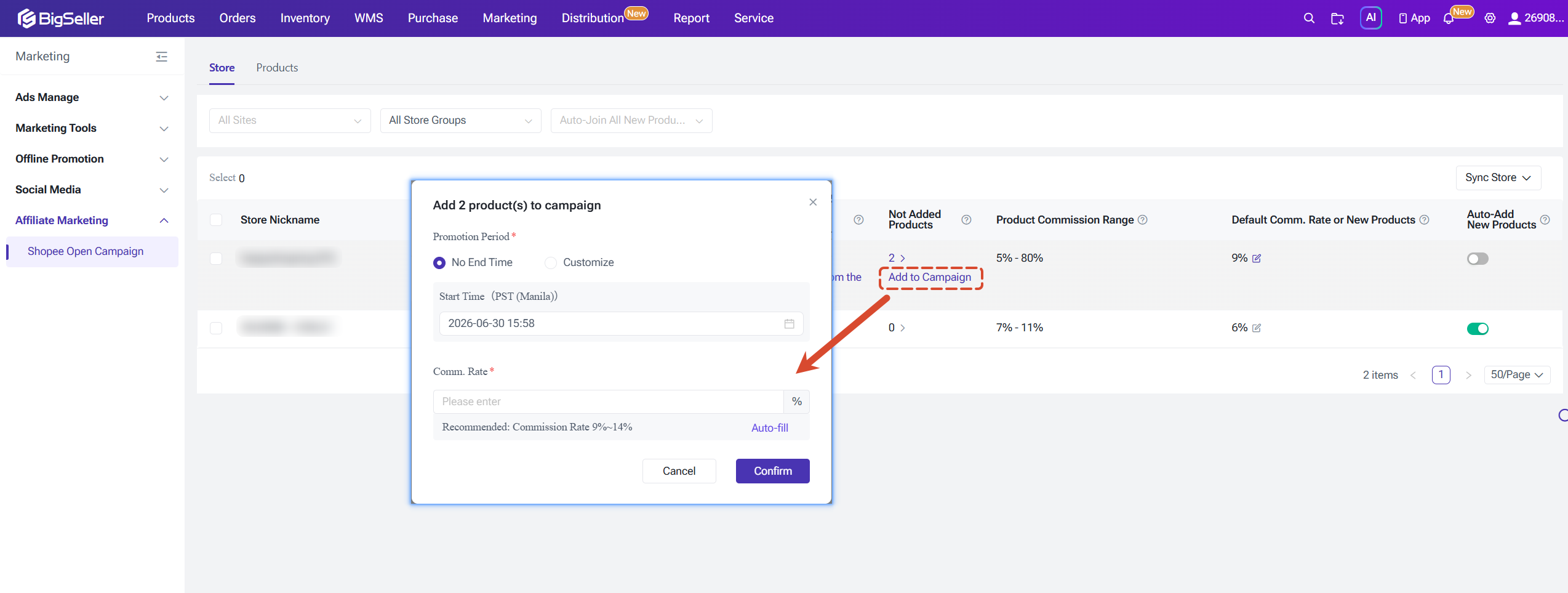
In this page, you can add all eligible products in a store to the Open Campaign in one click.
1) Find the target store in the list and click [Add] next to the Not Added Products count.
2) In the pop-up, configure the following:
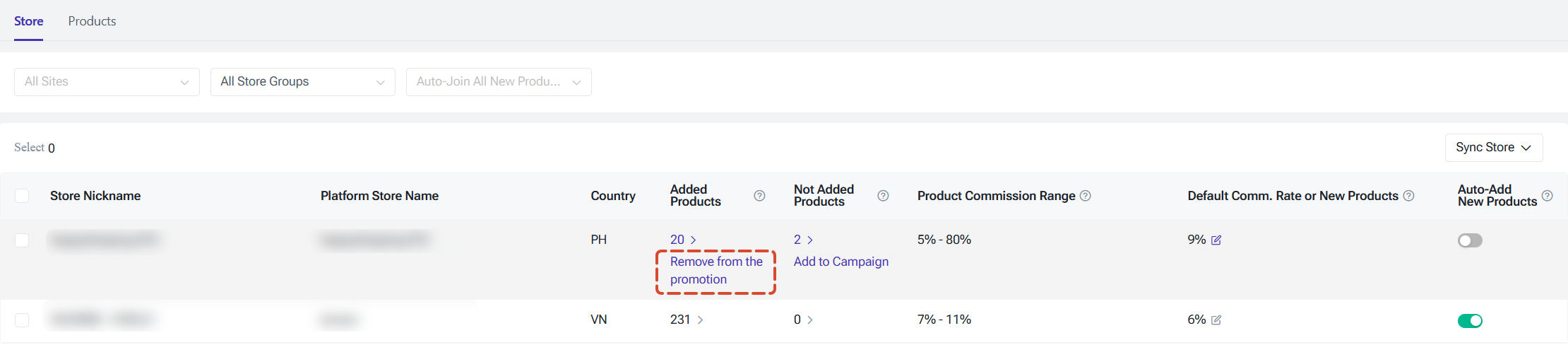
Remove All Store Products from Open Campaign
Remove all enrolled products in a store from the Open Campaign in one click.
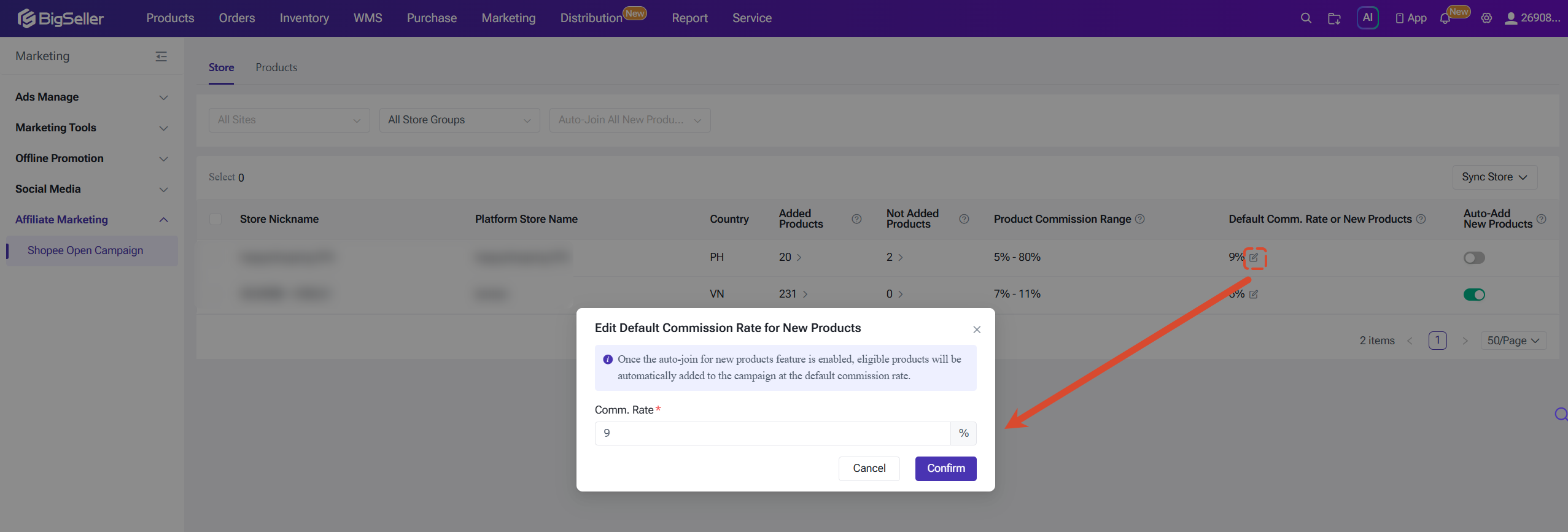
Update Commission Rate for All Store Products
Apply a single commission rate to all products already enrolled in the Open Campaign for a given store.
Click the edit icon next to the Commission Rate Range to make it.
Enable Auto-Add New Products
When enabled, all newly listed eligible products in that store will be automatically added to the Open Campaign — no manual action needed.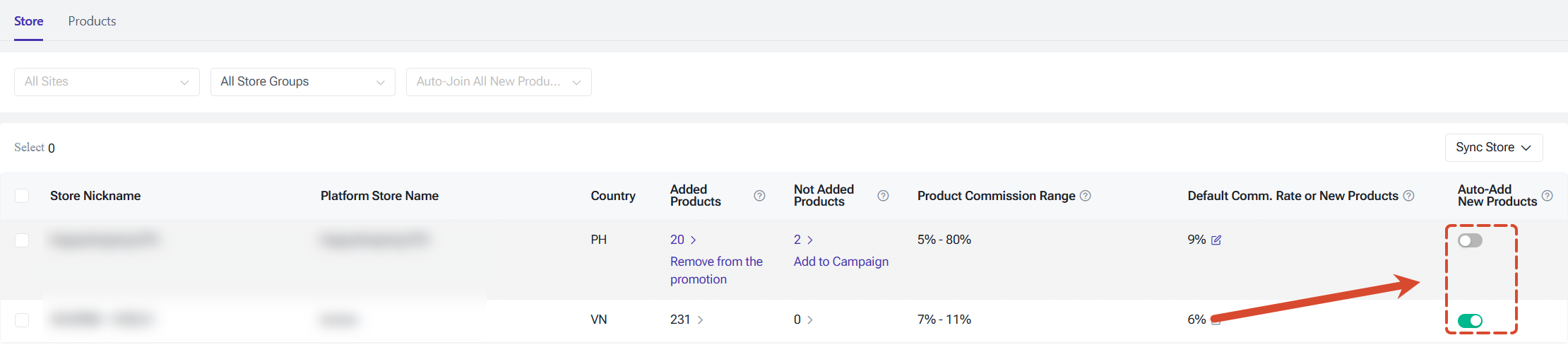
Note: The Product Tab does not have its own sync button. Please sync your stores in the Store Tab first, then switch to the Product Tab to view the data.
After syncing, the list shows the following:
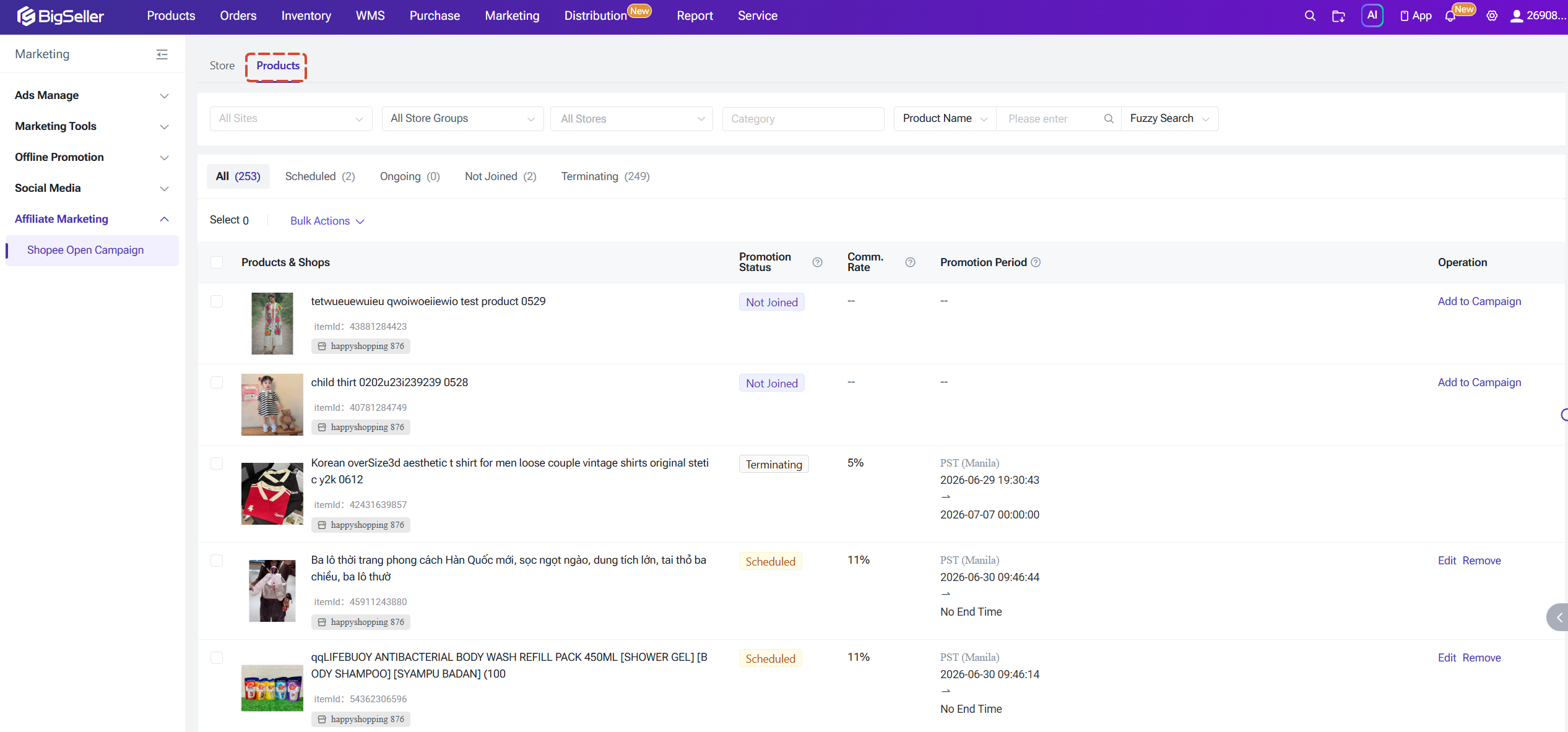
Promotion Status Definitions:
● Not Added: the product has not been enrolled in any Open Campaign
● Scheduled: a campaign has been created but has not started yet
● Ongoing: the campaign is currently active
● Terminating: a 7-day wind-down period after removal; affiliate orders generated during this period are still subject to commission settlement
Add a Product to Open Campaign
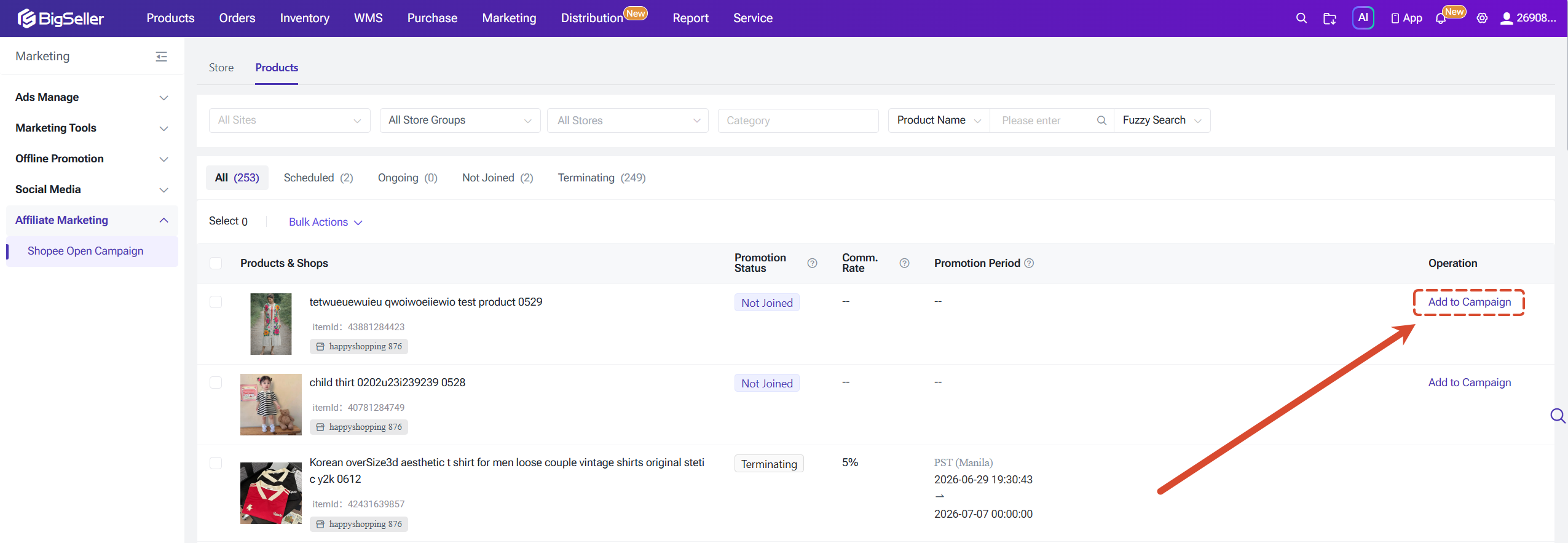
For products with a Not Added status, click [Add] in the Actions column:
Edit Commission Rate and Promotion Period
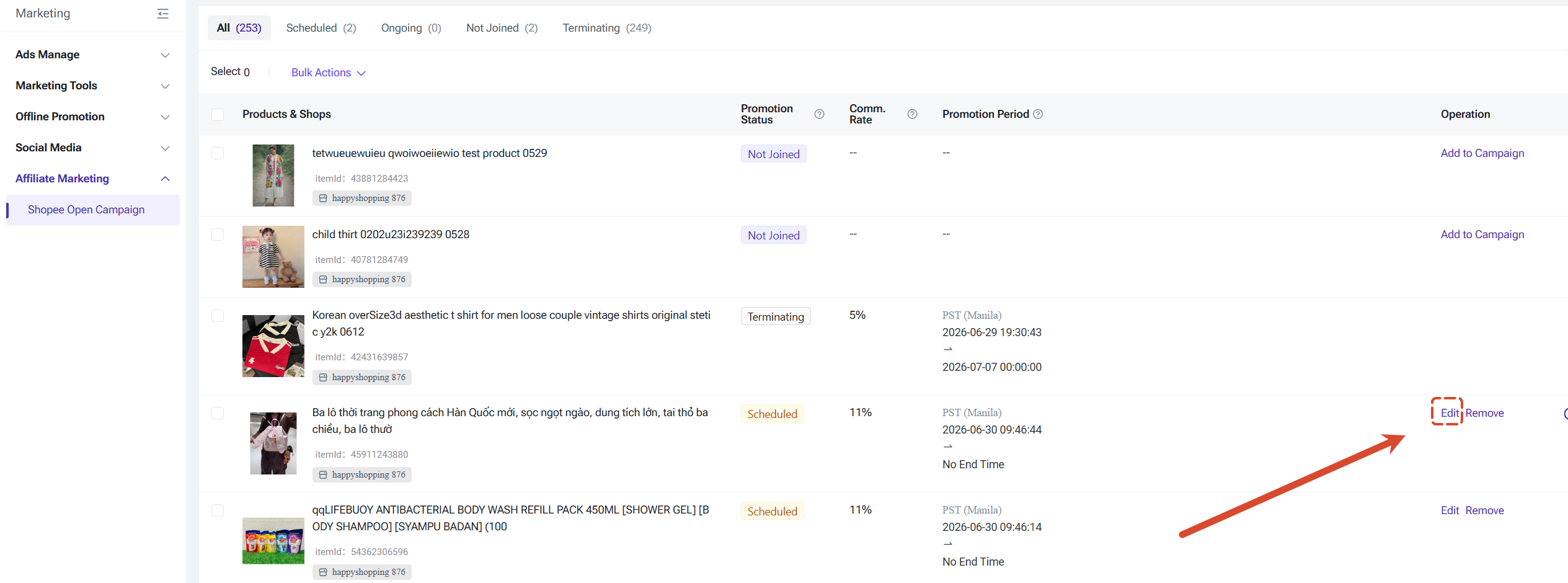
For products with a Scheduled or Ongoing status, click [Edit] in the Actions column:
Remove a Product
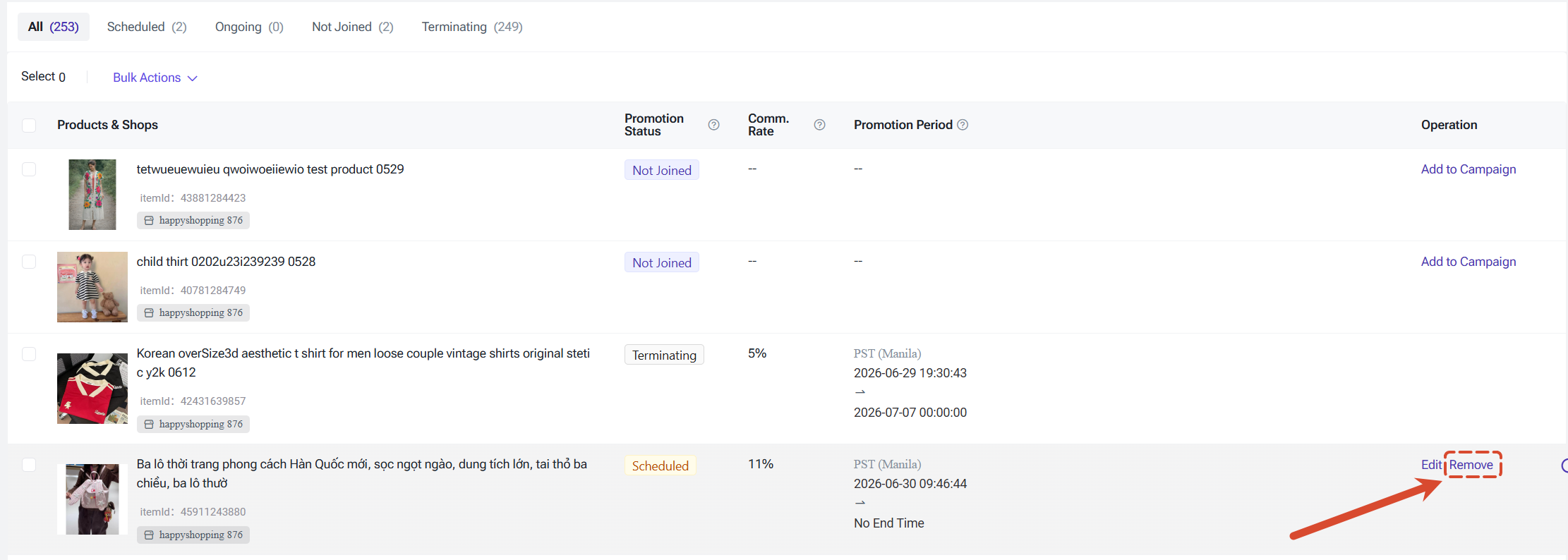
For enrolled products, click [Remove] in the Actions column:
Bulk Actions
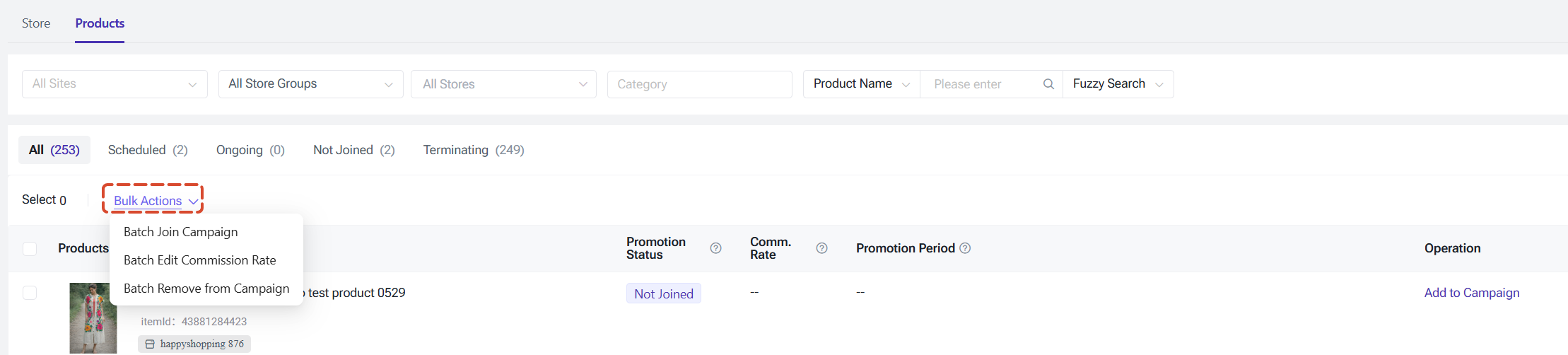
The product list supports multi-select (within the current page). Click the header checkbox to select all products on the page.
Admins can assign the following permissions to different roles under Settings > Permission Settings > Edit Role:
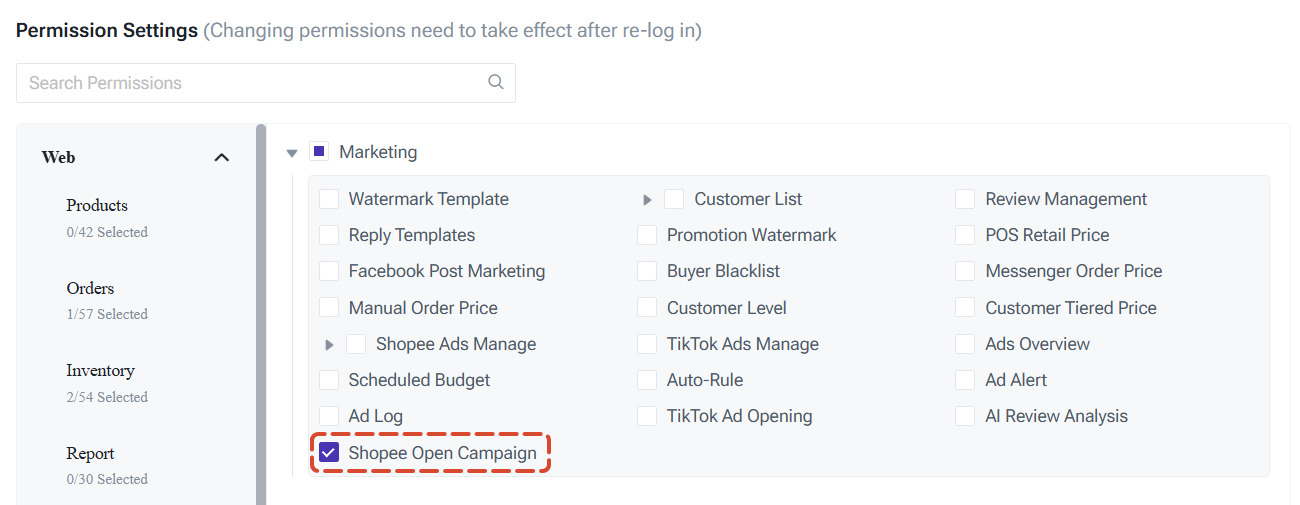
Marketing module:
● Shopee Open Campaign (view and operation access)
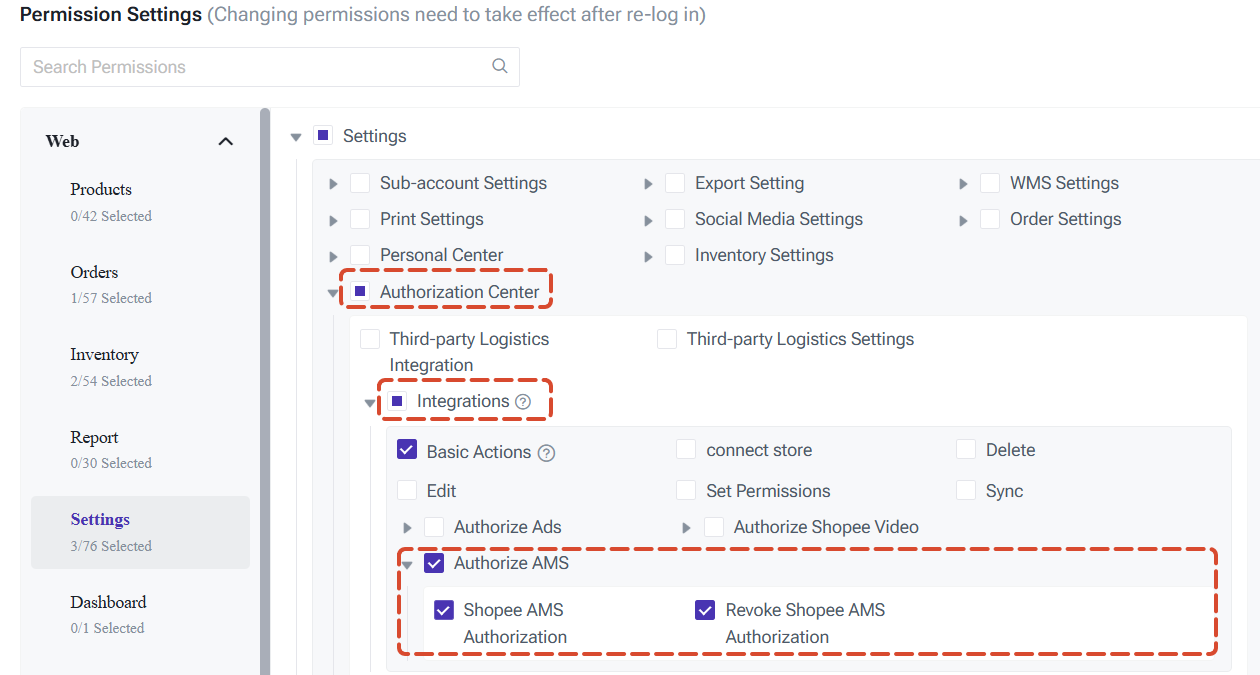
Authorization Centre (Settings > Authorization Centre > Store Authorization):
● Shopee AMS Authorization
● Revoke Shopee AMS Authorization
It is recommended to restrict AMS authorization and Open Campaign operation permissions to core roles such as operations and marketing staff.
What is a Shopee Open Campaign?
An Open Campaign is the core feature of Shopee's Affiliate Marketing Solution. Once a seller sets a commission rate, all registered Shopee affiliates — including KOLs, KOCs, traffic owners, and content creators — can freely promote the seller's products. Commission is only paid when a valid order is generated (cost-per-sale model). It is the third largest traffic source on Shopee after ads and livestreams, offering a low-cost, high-reach channel for driving sales.
1. Before You Start: Complete AMS Authorization
In addition to the standard Shopee store authorization, each store must also complete a separate AMS authorization before using Affiliate Marketing features.Path: Settings > Authorization Centre > Store Authorization
1) Find the Shopee store you want to authorize and click [Authorize AMS].
2) In the confirmation pop-up, click [Confirm]. The system will redirect you to the Shopee authorization page.
3) Once authorized, the store's AMS Authorization Status column will show "Authorized" along with the authorization timestamp. Authorized stores can also be de-authorized at any time.
2. Accessing the Feature
Path: Marketing > Affiliate Marketing > Shopee Open CampaignThe Shopee Open Campaign feature consists of 2 pages: Store and Product
2.1 Manage Campaign Settings at the Store Level
The Store Tab gives you a store-level overview of each shop's affiliate campaign status, and lets you add, remove, or update commission rates for all products in a store at once. This is ideal when you need to apply uniform settings across an entire store quickly.Before the page displays any data, click [Sync Stores] in the top-right corner to pull the latest information. After syncing, the list shows the following:
Clicking the number under Added Products or Not Added Products will jump directly to the Product Tab with the corresponding status pre-filtered.
In this page, you can add all eligible products in a store to the Open Campaign in one click.
1) Find the target store in the list and click [Add] next to the Not Added Products count.
2) In the pop-up, configure the following:
- Promotion Period (optional): if left blank, the campaign starts 10 minutes after confirmation with no end date; filling in only a start date also sets the end date to unlimited.
- Commission Rate (required): up to 50%, supports two decimal places. The pop-up also displays the store's platform-suggested commission rate for reference.
- Click [Confirm]. The system will enrol all eligible products at the set commission rate, and a task progress window will appear to show the execution status in real time.
Remove All Store Products from Open Campaign
Remove all enrolled products in a store from the Open Campaign in one click.
- Find the target store and click [Remove] next to the Added Products count.
- Click [Confirm] in the confirmation pop-up to remove all products in that store from the Open Campaign.
Update Commission Rate for All Store Products
Apply a single commission rate to all products already enrolled in the Open Campaign for a given store.
Click the edit icon next to the Commission Rate Range to make it.
Enable Auto-Add New Products
When enabled, all newly listed eligible products in that store will be automatically added to the Open Campaign — no manual action needed.
- How to enable: Click the toggle in the Auto-Add New Products column for the target store.
- The commission rate applied when auto-adding is the store's Default Commission Rate.
2.2 Manage Campaigns at the Product Level
The Product Tab gives you a product-level view of each item's Open Campaign status, commission rate, and promotion period, and supports adding, editing, and removing individual or multiple products. This is ideal when you need granular control over each product's campaign configuration.Note: The Product Tab does not have its own sync button. Please sync your stores in the Store Tab first, then switch to the Product Tab to view the data.
After syncing, the list shows the following:
Promotion Status Definitions:
● Not Added: the product has not been enrolled in any Open Campaign
● Scheduled: a campaign has been created but has not started yet
● Ongoing: the campaign is currently active
● Terminating: a 7-day wind-down period after removal; affiliate orders generated during this period are still subject to commission settlement
Add a Product to Open Campaign
For products with a Not Added status, click [Add] in the Actions column:
Edit Commission Rate and Promotion Period
For products with a Scheduled or Ongoing status, click [Edit] in the Actions column:
Remove a Product
For enrolled products, click [Remove] in the Actions column:
Bulk Actions
The product list supports multi-select (within the current page). Click the header checkbox to select all products on the page.
3. Permission Settings
Admins can assign the following permissions to different roles under Settings > Permission Settings > Edit Role:Marketing module:
● Shopee Open Campaign (view and operation access)
Authorization Centre (Settings > Authorization Centre > Store Authorization):
● Shopee AMS Authorization
● Revoke Shopee AMS Authorization
It is recommended to restrict AMS authorization and Open Campaign operation permissions to core roles such as operations and marketing staff.
Is this content helpful?
Thank you for your feedback. It drives us to provide better service.
Please contact us if the document can't answer your questions