How to Create Shopee Targeted Campaigns?
Copy link & title
Update Time: 27 Jul 2026 11:13
Shopee Targeted Affiliate Campaigns are a type of affiliate marketing campaign that allows sellers to collaborate with selected affiliate partners (creators) to promote specific products.
Unlike open affiliate campaigns, targeted campaigns allow sellers to proactively select suitable affiliate partners, invite them to promote selected products, and set commission rates to attract participation. When affiliates generate orders through their promotion channels, they will receive the corresponding commission.
With BigSeller, you can:
Unlike open affiliate campaigns, targeted campaigns allow sellers to proactively select suitable affiliate partners, invite them to promote selected products, and set commission rates to attract participation. When affiliates generate orders through their promotion channels, they will receive the corresponding commission.
With BigSeller, you can:
- Select suitable affiliate partners to promote your products more precisely;
- Set flexible commission rates for different products and better control promotion costs;
- Manage Shopee targeted campaigns across multiple stores in one place and track campaign status easily.
This feature is ideal for Shopee sellers who want to increase product exposure and boost sales through affiliate marketing.
1. Access Shopee Targeted Campaigns
Go to Marketing > Affiliate Marketing > Shopee Targeted Campaigns.
Before using this feature, you need to authorize your Shopee AMS store first.
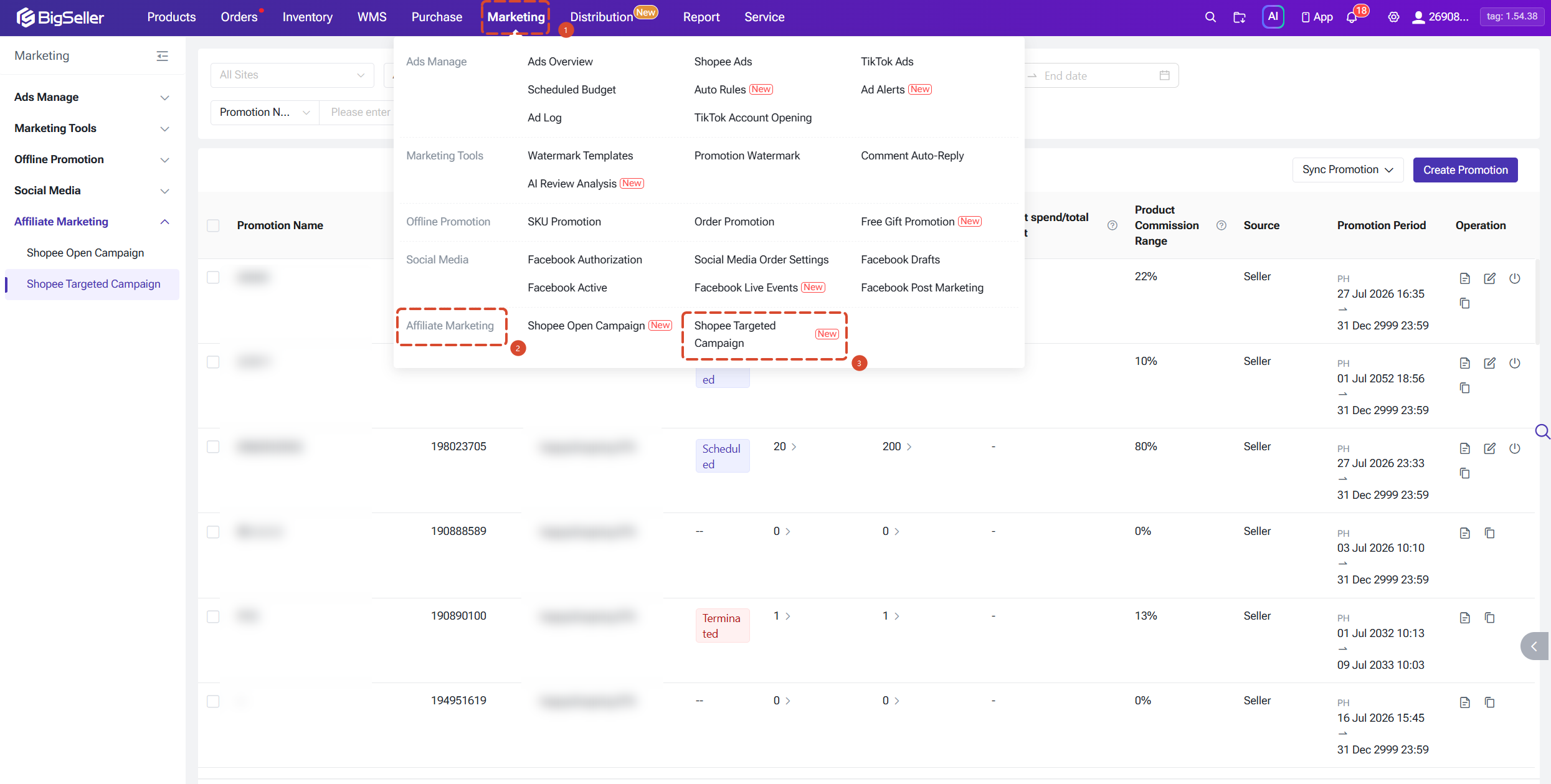
After authorization, BigSeller will automatically sync your Shopee affiliate campaign data, allowing you to view and manage targeted campaigns directly in BigSeller.
Before using this feature, you need to authorize your Shopee AMS store first.
After authorization, BigSeller will automatically sync your Shopee affiliate campaign data, allowing you to view and manage targeted campaigns directly in BigSeller.
2.Create a Shopee Targeted Campaign
Click Create Promotion to start creating a targeted campaign.
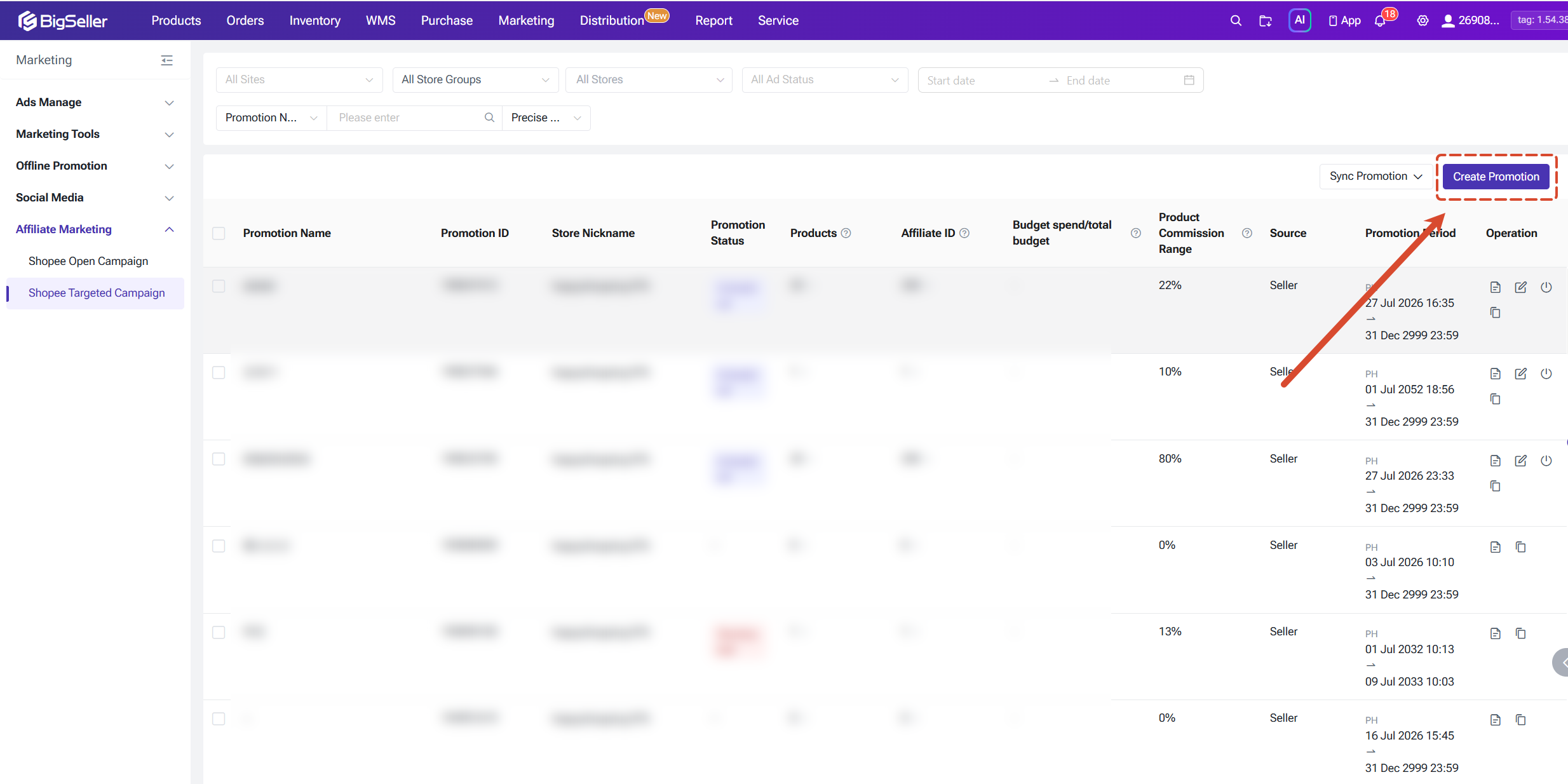
The creation process includes the following steps:
① Set campaign information;
② Add products and configure commission rates;
③ Select affiliate partners;
④ Write an invitation message and publish the campaign.
Step 1: Set Campaign Information
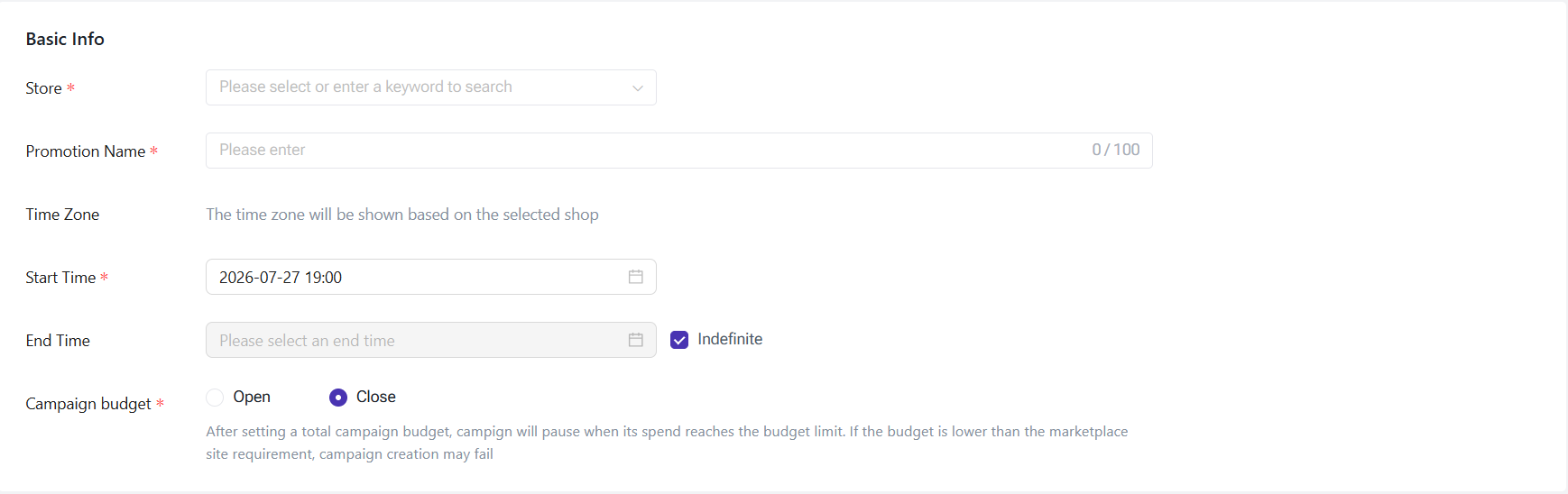
First, select the Shopee store where you want to create the targeted campaign.
After selecting a store, the system will automatically load the corresponding site, time zone, currency, available products, and affiliate partners.
Then configure the campaign details.
Campaign Name
Enter a campaign name to help you identify and manage different campaigns.
Campaign Period
Set the promotion period for the campaign.
The creation process includes the following steps:
① Set campaign information;
② Add products and configure commission rates;
③ Select affiliate partners;
④ Write an invitation message and publish the campaign.
Step 1: Set Campaign Information
First, select the Shopee store where you want to create the targeted campaign.
After selecting a store, the system will automatically load the corresponding site, time zone, currency, available products, and affiliate partners.
Then configure the campaign details.
Campaign Name
Enter a campaign name to help you identify and manage different campaigns.
Campaign Period
Set the promotion period for the campaign.
- Start Time: Required;
- End Time: Optional.
If no end time is entered, the campaign will run without an expiration date.
Campaign Budget
You can enable a campaign budget based on your promotion needs.
Once enabled, the campaign will automatically pause when the spending reaches the budget limit, helping you control promotion costs.
Requirements:
Campaign Budget
You can enable a campaign budget based on your promotion needs.
Once enabled, the campaign will automatically pause when the spending reaches the budget limit, helping you control promotion costs.
Requirements:
- Only positive integers are supported;
- Decimal values are not supported;
- The budget range follows Shopee site requirements.
Step 2: Add Products and Set Commission Rates
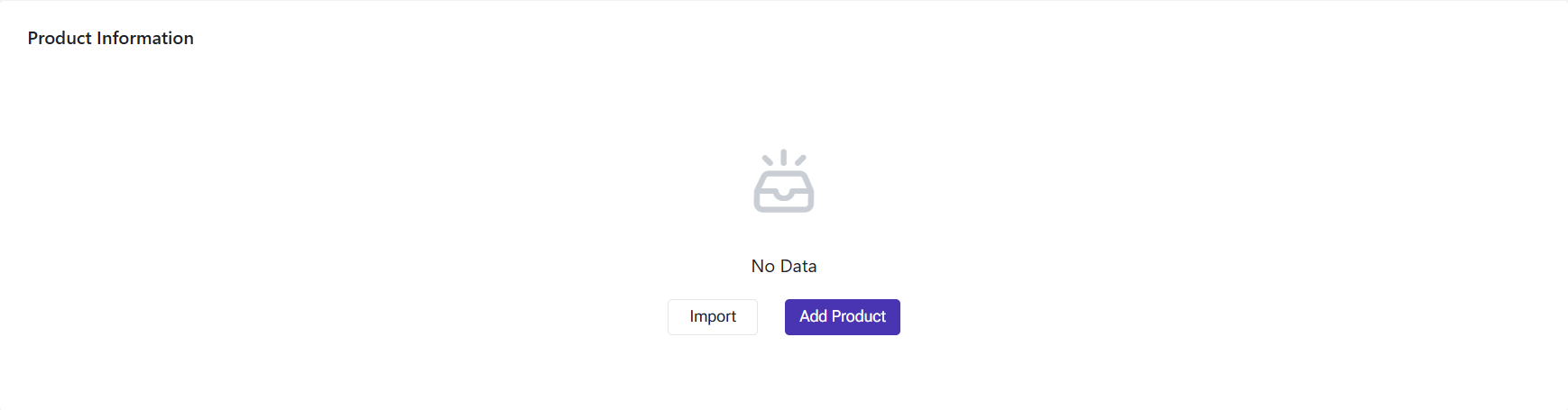
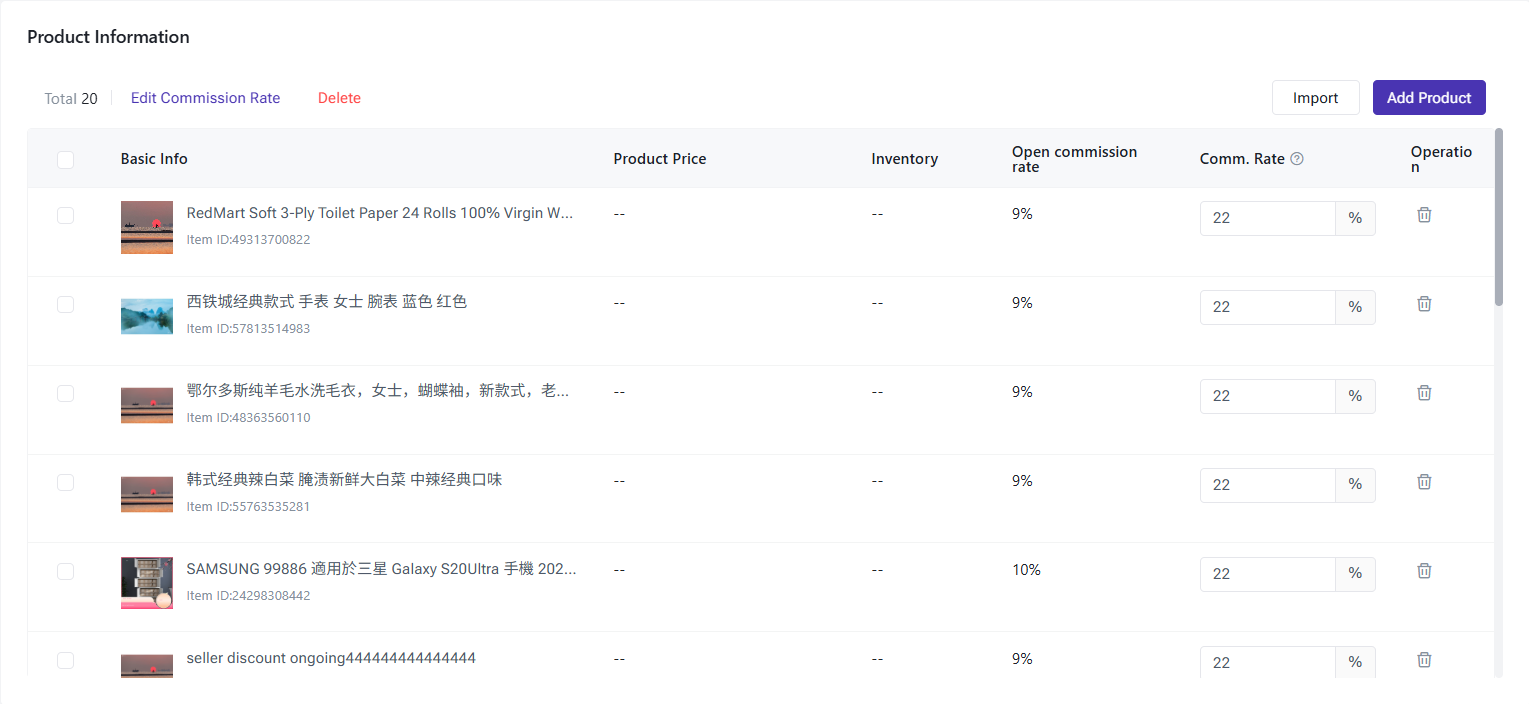
In the Product Information section, add the products you want affiliate partners to promote.
You can:
- Add products manually;
- Import products in bulk.
After adding products, you need to set the commission rate for each product.
The commission rate refers to the percentage of commission that affiliates will receive after successfully promoting your products and generating orders.
For example:
If a product is sold for $100 and the commission rate is set to 10%, the affiliate will receive $10 commission after generating a successful order.
When setting commission rates, please note:
- Each product must have a commission rate configured;
- The maximum commission rate is 80%;
- It is recommended to set a commission rate higher than the Shopee public campaign commission rate; otherwise, campaign creation may fail.
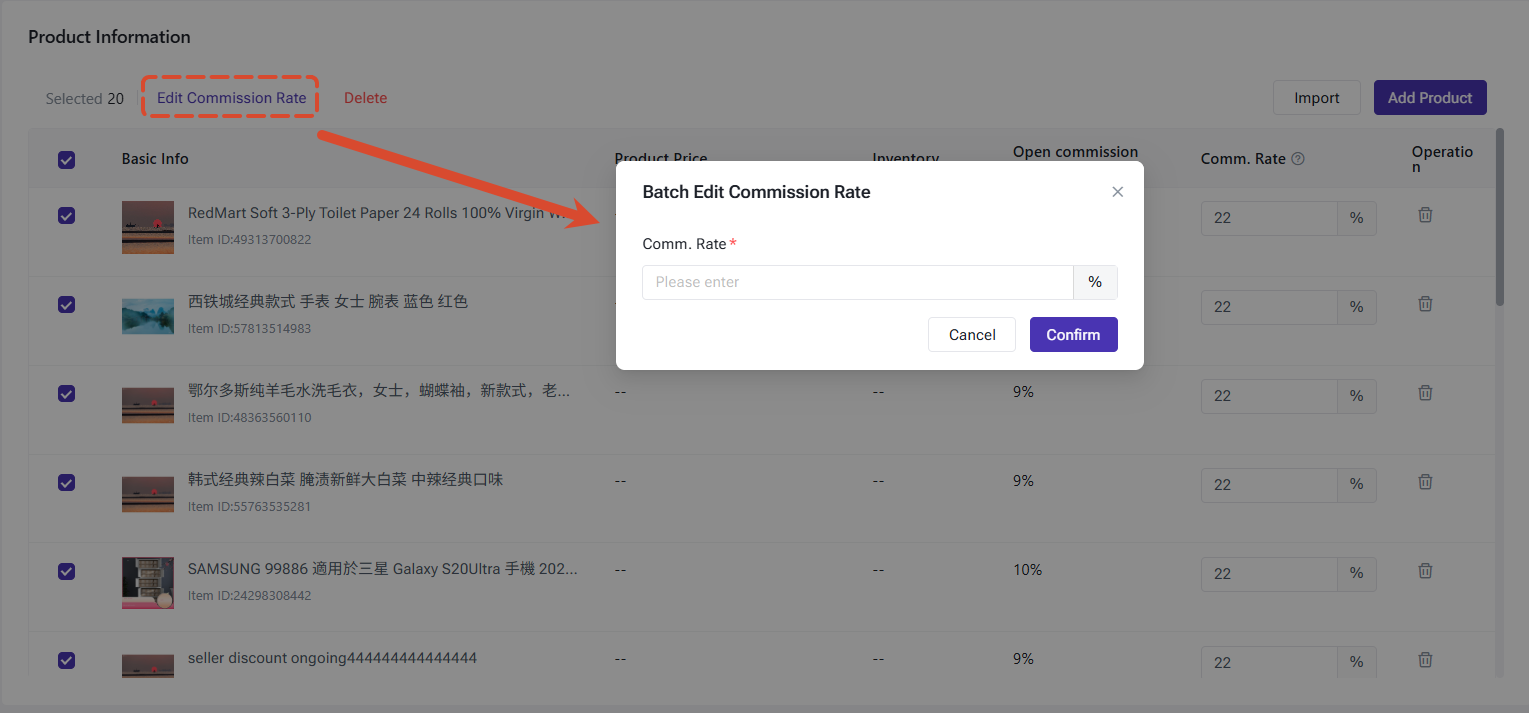
If multiple products use the same commission rate, you can use Bulk Edit to set the commission rate faster.
Step 3: Select Affiliate Partners
In the Affiliate Partners section, select Shopee creators you want to collaborate with. BigSeller provides two ways to select affiliate partners:
① Recommended Affiliate Partners
View high-quality affiliate partners recommended by Shopee.
You can check affiliate information, including partnership performance and historical promotion data. This helps you quickly find creators who are suitable for your products.
② Store Favorite Affiliates
Select affiliate partners that you have saved and managed in Shopee AMS.
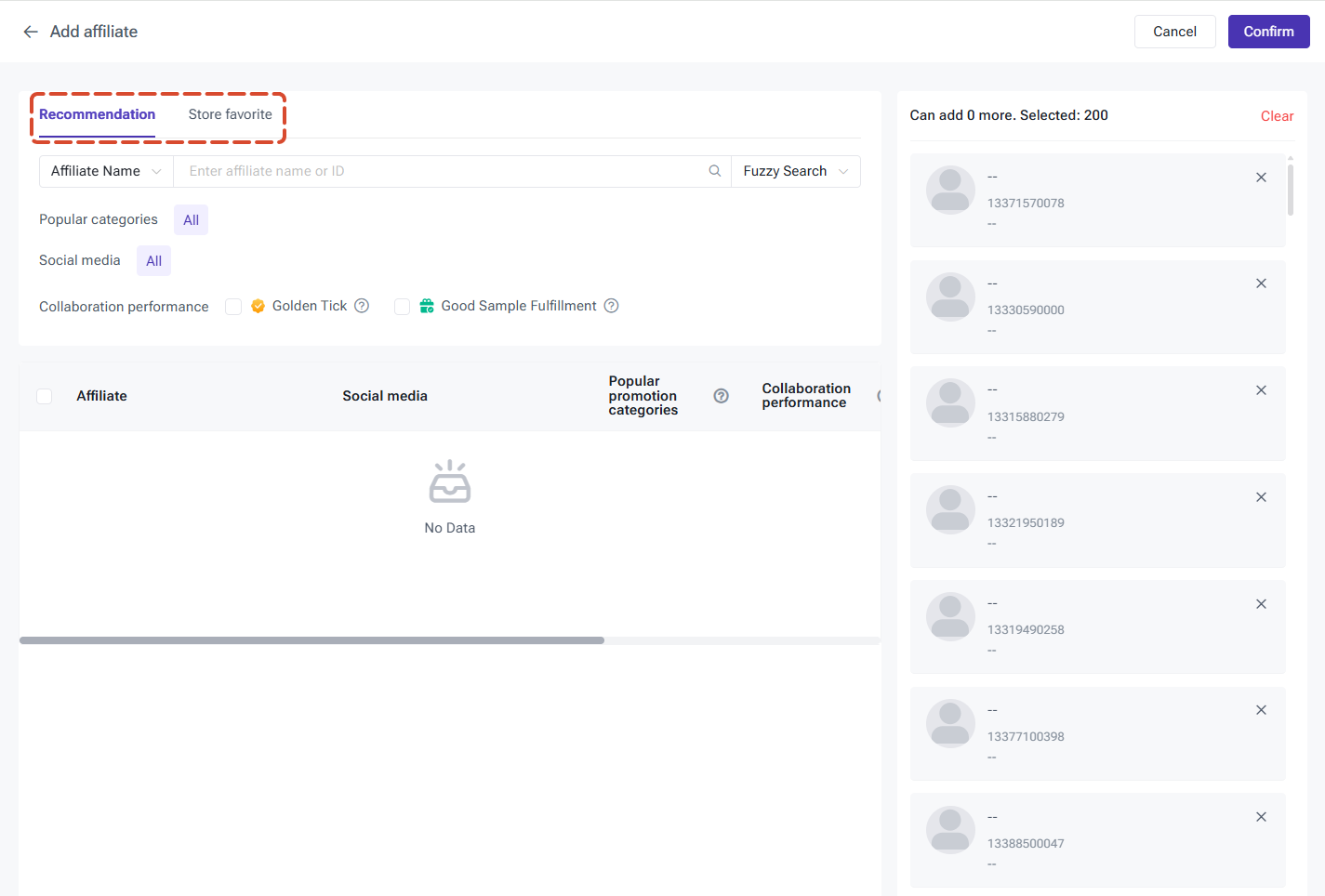
You can also filter suitable affiliate partners. When selecting affiliate partners, you can filter them by:
- Popular promotion categories;
- Social media platforms;
- Partnership performance.
You can also review historical promotion metrics, including:
- Total clicks;
- Total orders;
- Sales amount.
These insights help you choose affiliate partners with stronger promotion performance and better product matching.
Note: Each targeted campaign supports adding up to 200 affiliate partners.
Step 4: Write Invitation Message and Publish Campaign
Enter the invitation message that will be sent to selected affiliate partners.
You can include:
Note: Each targeted campaign supports adding up to 200 affiliate partners.
Step 4: Write Invitation Message and Publish Campaign
Enter the invitation message that will be sent to selected affiliate partners.
You can include:
- Product highlights;
- Commission benefits;
- Collaboration details.
Requirements:
- Required;
- Supports up to 200 characters.

After completing all settings, click Publish to create the campaign.
Once published, the invitation message will be sent to selected affiliate partners. After accepting the invitation, affiliates can start promoting your products.
3. Manage and Sync Shopee Targeted Campaigns
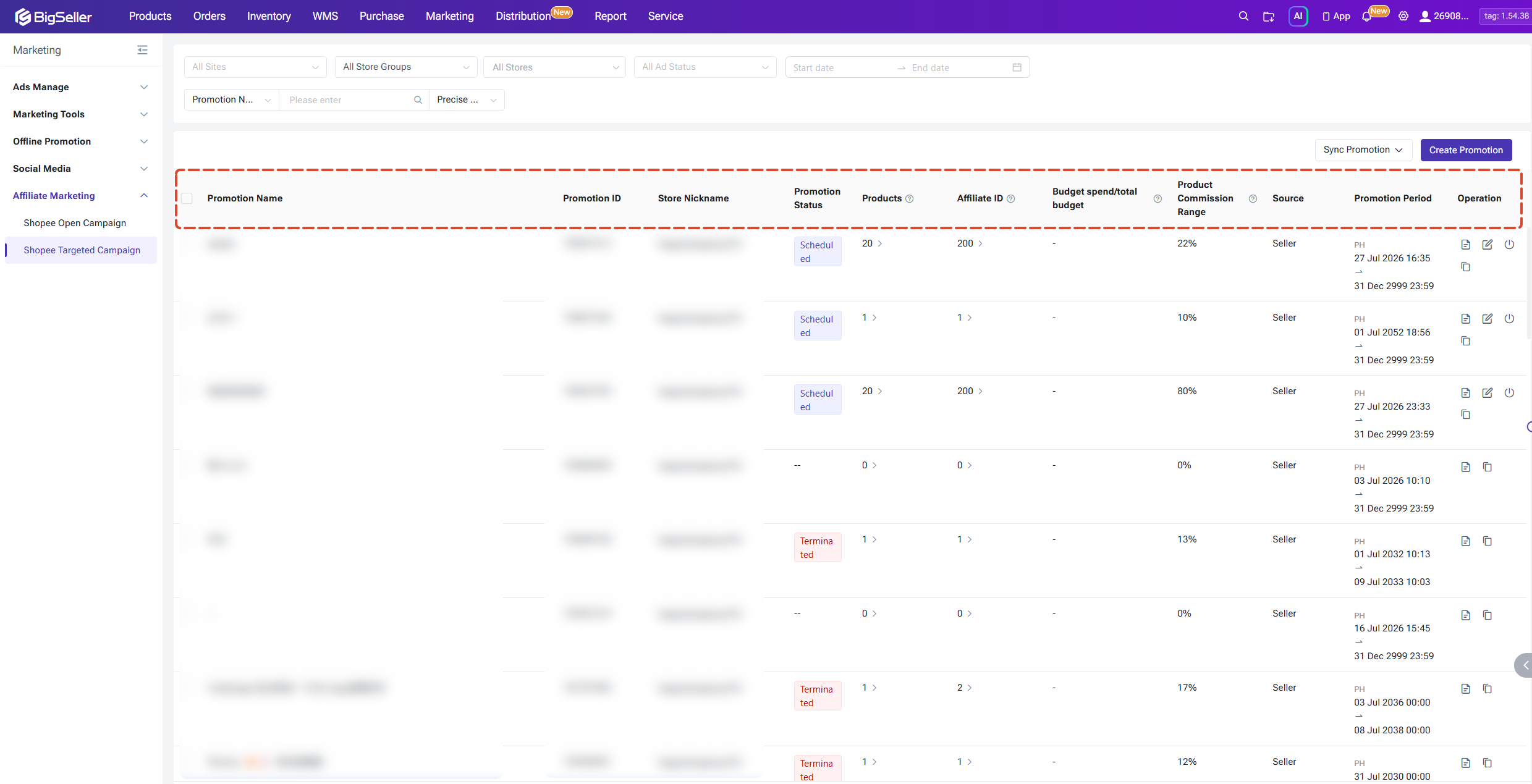
After creating campaigns, you can view and manage all targeted campaigns from the Shopee Targeted Campaigns page.
1) View Campaign Information
The campaign list displays all campaign details. You can quickly find campaigns using filters and searching conditions.
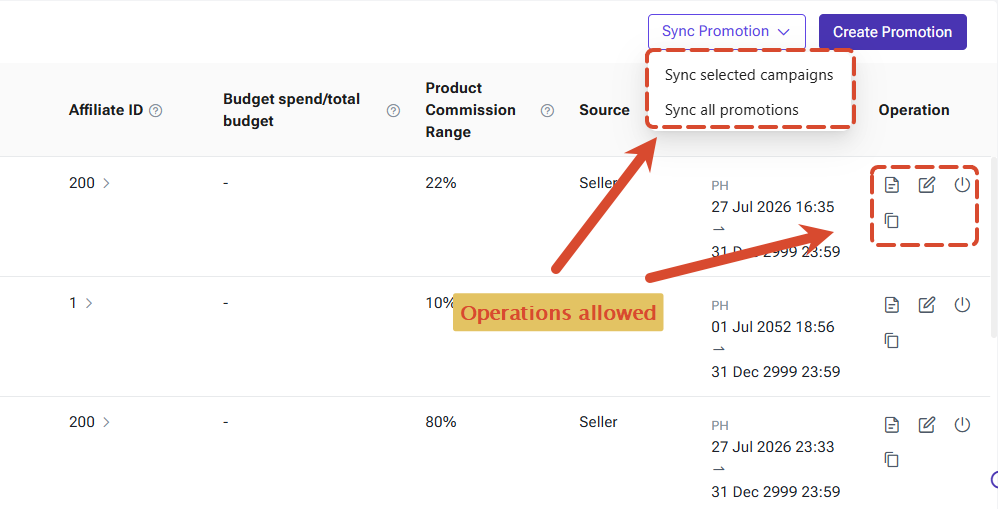
2) Manage Campaigns
Different actions are available based on the campaign status.
View Campaign
1) View Campaign Information
The campaign list displays all campaign details. You can quickly find campaigns using filters and searching conditions.
2) Manage Campaigns
Different actions are available based on the campaign status.
View Campaign
- View campaign details, including:
- Promoted products;
- Product commission rates;
- Affiliate partners;
- Campaign period;
- Campaign budget.
Edit Campaign
You can modify:
You can modify:
- Campaign name;
- Campaign period;
- Campaign budget;
- Promoted products;
- Product commission rates;
- Affiliate partners.
Copy Campaign
Copy an existing campaign configuration to quickly create a new targeted campaign.
After copying, you can adjust the campaign details and publish it again.
Terminate Campaign
For campaigns in Scheduled, Ongoing, or Paused status, you can click Terminate to stop the promotion.
After termination, affiliate partners will no longer be able to promote products through this campaign.
Sync Campaign Data
If there is new campaign data from Shopee, click Sync Campaigns to update the information in BigSeller.
You can choose:
Copy an existing campaign configuration to quickly create a new targeted campaign.
After copying, you can adjust the campaign details and publish it again.
Terminate Campaign
For campaigns in Scheduled, Ongoing, or Paused status, you can click Terminate to stop the promotion.
After termination, affiliate partners will no longer be able to promote products through this campaign.
Sync Campaign Data
If there is new campaign data from Shopee, click Sync Campaigns to update the information in BigSeller.
You can choose:
- Sync Selected Campaigns;
- Sync All Campaigns.
After synchronization, BigSeller will update the latest campaign status, product information, and affiliate partner information.
Is this content helpful?
Thank you for your feedback. It drives us to provide better service.
Please contact us if the document can't answer your questions