How to Record Videos During Packing and Shipping Process?
Copy link & title
Update Time: 17 Aug 2026 07:40
BigSeller Video Recording allows you to automatically record warehouse operations during Scan Package, Scan to Inspect, and Scan to Ship processes (normal order & WMS order), and save the videos to your local computer.
With this feature enabled, BigSeller can automatically start and stop recording based on your scanning operations, helping you keep complete order processing records for handling customer disputes, logistics claims, platform appeals, and internal management.
You can use this feature with regular USB cameras or Bluetooth cameras without requiring additional complex equipment.
With this feature enabled, BigSeller can automatically start and stop recording based on your scanning operations, helping you keep complete order processing records for handling customer disputes, logistics claims, platform appeals, and internal management.
You can use this feature with regular USB cameras or Bluetooth cameras without requiring additional complex equipment.
Before Using Video Recording
Before enabling the Video Recording feature, please make sure:
- The latest BigSeller Plugin is installed and running.
- A supported camera is connected.
- Camera access permission is enabled on your computer.
- The video storage location has been configured.
- Your computer has enough storage space for saving videos.
Supported camera types:
- USB cameras
- Bluetooth cameras
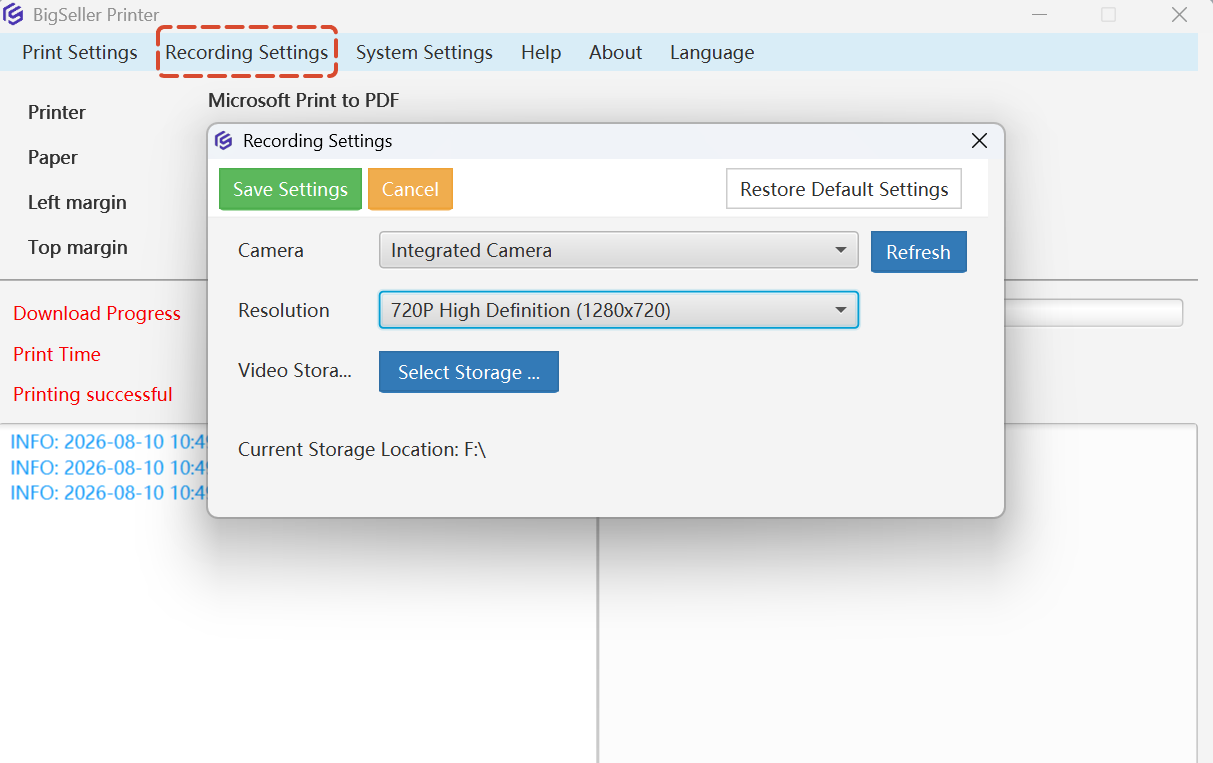
You can configure the recording details in BigSeller Plugin > Record Setting:
How to Use Video Recording
1. Record Videos During Scan Package
Step 1: Enable Video Recording
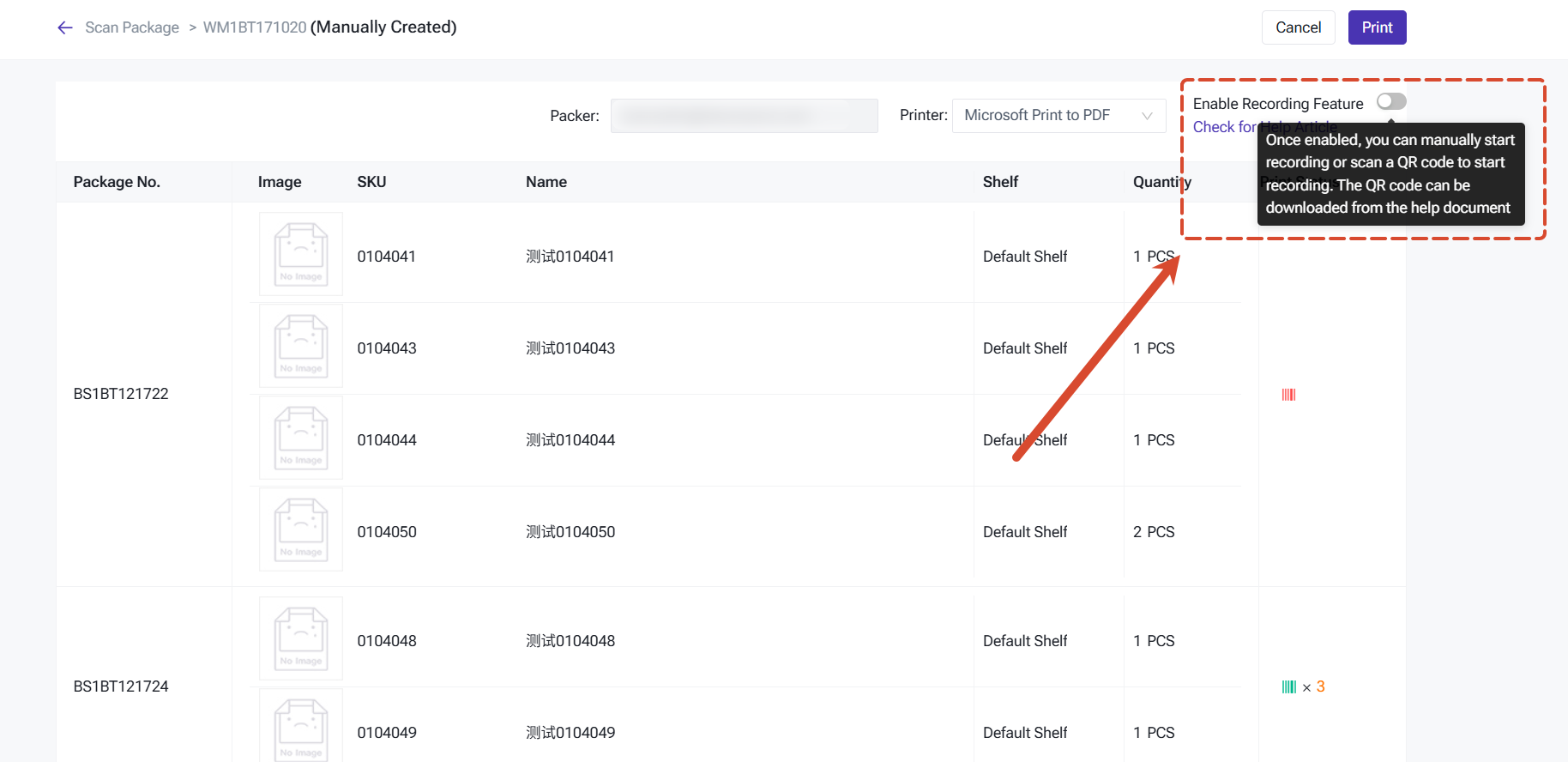
1) Go to WMS > Scan Package.
2) Turn on Enable Video Recording.
3) After enabling it, the video preview window will appear on the page.
Step 2: Automatically Start and Stop Recording
After enabling Video Recording, BigSeller will automatically control recording based on your scanning actions:
Step 1: Enable Video Recording
1) Go to WMS > Scan Package.
2) Turn on Enable Video Recording.
3) After enabling it, the video preview window will appear on the page.
Step 2: Automatically Start and Stop Recording
After enabling Video Recording, BigSeller will automatically control recording based on your scanning actions:
- When a Merchant SKU label, Picking Basket No, Pick List or order information is scanned and matched with a package, recording starts automatically.
- When you switch to another package, the current package recording ends automatically, and recording for the next package starts.
For example:
- When a warehouse staff member is packing Order A and then scans a product from Order B, BigSeller will automatically end the recording for Order A and start recording the packing process for Order B.
2. Record Videos During Scan to Inspect
Enable Video Recording
1) Go to WMS > Scan to Inspect or Order > In Process Orders.
2) Open the settings and enable Enable Video Recording.
3) After scanning an order number and matching it with a package, recording will start automatically.
Recording Rules
Enable Video Recording
1) Go to WMS > Scan to Inspect or Order > In Process Orders.
2) Open the settings and enable Enable Video Recording.
3) After scanning an order number and matching it with a package, recording will start automatically.
Recording Rules
- Recording starts when an order number is scanned and matched with a package.
- Recording ends automatically when you switch to another package.
3. Record Videos During Scan to Ship
Enable Video Recording
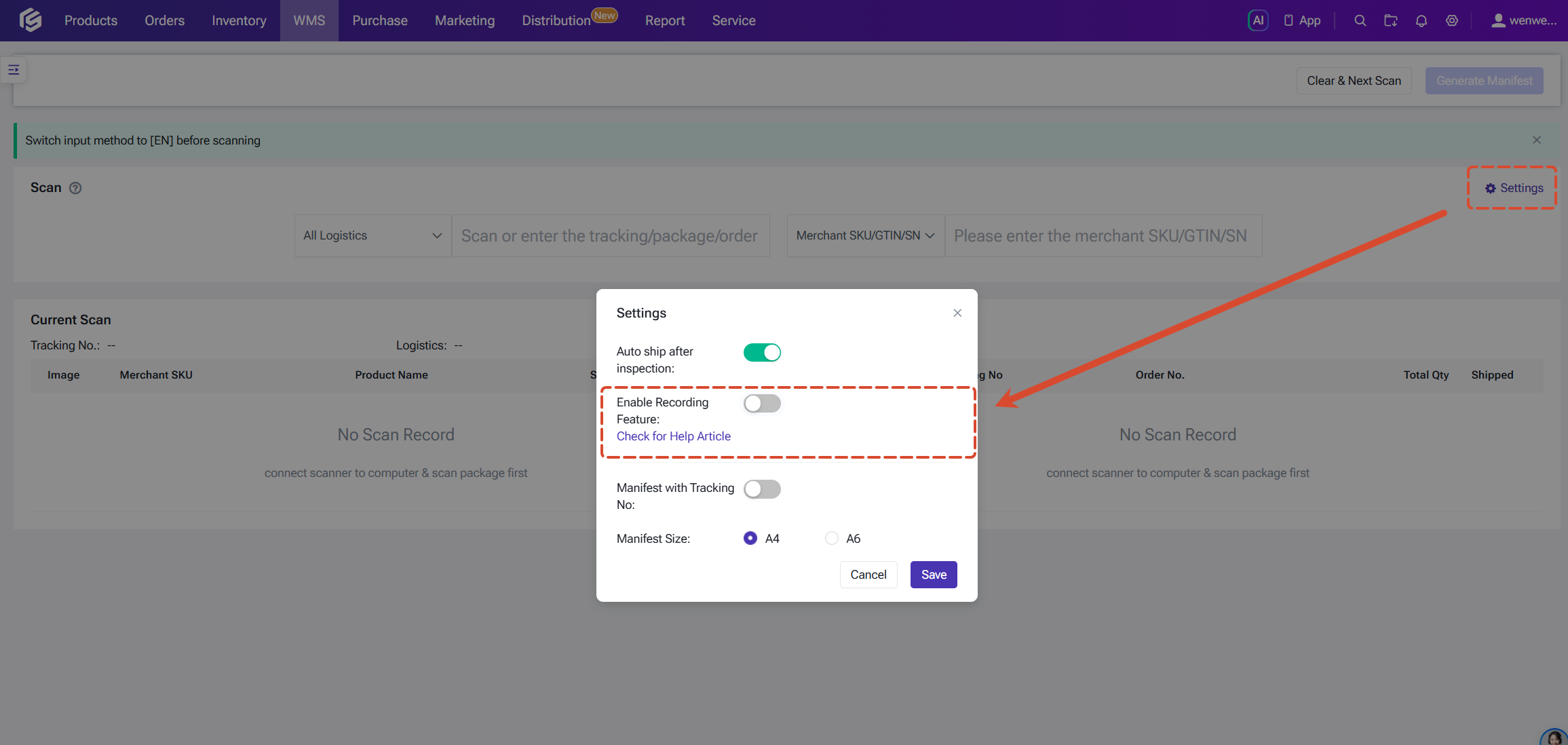
1) Go to WMS > Scan to Ship or Order > In Process Orders.
2) Open the settings and enable Enable Video Recording.
3) After scanning an order number and matching it with a package, recording will start automatically.
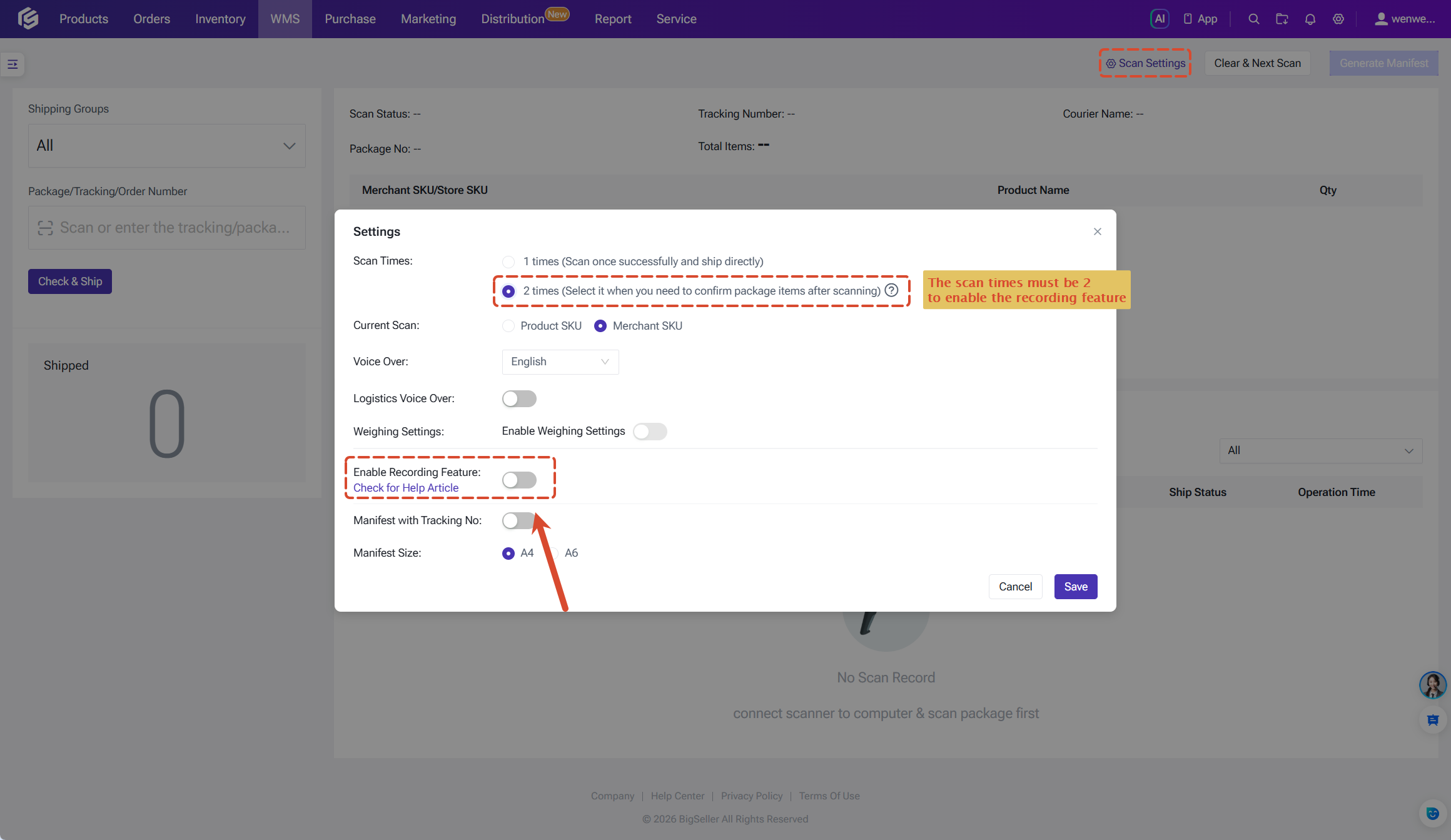
Important Note
- Video Recording for Scan to Ship is only available when Scan Times is set to 2.
- If you change the Scan Times setting to another option, Video Recording will be automatically disabled.
How to Control Recording Manually
Besides automatic recording, BigSeller also supports manual recording control.
In the video preview window:
In the video preview window:
- Click Start Recording to manually start recording.
- Click End Recording to stop the current recording.
You can also use scanning commands to control recording:
- Start the video: Start recording.
- End the video: End recording.


This is useful when you need to record specific warehouse operations manually.
How to View Recorded Videos
After recording is completed, the video will be automatically saved to the configured storage location as an MP4 file.
The storage structure is:
Month Folder
↓
Date Folder
↓
Video File
Video files are named based on:
The storage structure is:
Month Folder
↓
Date Folder
↓
Video File
Video files are named based on:
- Order Number_Tracking Number
This allows warehouse staff to quickly locate the corresponding recording using order information.
Is this content helpful?
Thank you for your feedback. It drives us to provide better service.
Please contact us if the document can't answer your questions