How to Process Facebook Live Orders in BigSeller?
Copy link & title
Update Time: 16 Sep 2026 09:14
BigSeller now supports the Facebook Live order processing feature that automatically captures and processes orders from your Facebook Live sessions!
After a buyer places an order, the system automatically generates an order link and sends it to the buyer via Messenger to collect their shipping details — no manual data entry required. This significantly improves order processing efficiency in live streaming scenarios, eliminates reliance on comment keyword matching, and reduces rule maintenance overhead.
Supported marketplaces: Thailand, Vietnam, Taiwan (China), Malaysia, and Philippines
Note: The Facebook Live management feature is available for free plan and above. To use more public Pages, you can upgrade your plan.
After a buyer places an order, the system automatically generates an order link and sends it to the buyer via Messenger to collect their shipping details — no manual data entry required. This significantly improves order processing efficiency in live streaming scenarios, eliminates reliance on comment keyword matching, and reduces rule maintenance overhead.
Supported marketplaces: Thailand, Vietnam, Taiwan (China), Malaysia, and Philippines
Note: The Facebook Live management feature is available for free plan and above. To use more public Pages, you can upgrade your plan.
Important Prerequisites
Before using the Facebook Live order feature, make sure the following conditions are met:
1. Complete Facebook Page business asset authorization: Go to Authorization Center → Other Authorizations → Facebook Authorization, and authorize the relevant Pages and business assets.
2. Create Merchant SKU in BigSeller and sync to Facebook: Ensure that the products (Merchant SKU) you intend to sell during your live stream have been added to BigSeller and synced with your Facebook Page's product catalog. This allows the system to correctly match products when buyers place orders.
3. Configure payment methods: Go to BigSeller Dashboard → Social Media Settings → Facebook Payment Method Settings, and configure your accepted payment methods (prepayment, cash on delivery, etc.).
Before using the Facebook Live order feature, make sure the following conditions are met:
1. Complete Facebook Page business asset authorization: Go to Authorization Center → Other Authorizations → Facebook Authorization, and authorize the relevant Pages and business assets.
2. Create Merchant SKU in BigSeller and sync to Facebook: Ensure that the products (Merchant SKU) you intend to sell during your live stream have been added to BigSeller and synced with your Facebook Page's product catalog. This allows the system to correctly match products when buyers place orders.
3. Configure payment methods: Go to BigSeller Dashboard → Social Media Settings → Facebook Payment Method Settings, and configure your accepted payment methods (prepayment, cash on delivery, etc.).
Once you confirgured the above settings, you may start to process your Facebook live orders on BigSeller.
Step 1: View Automatically Created Live Orders
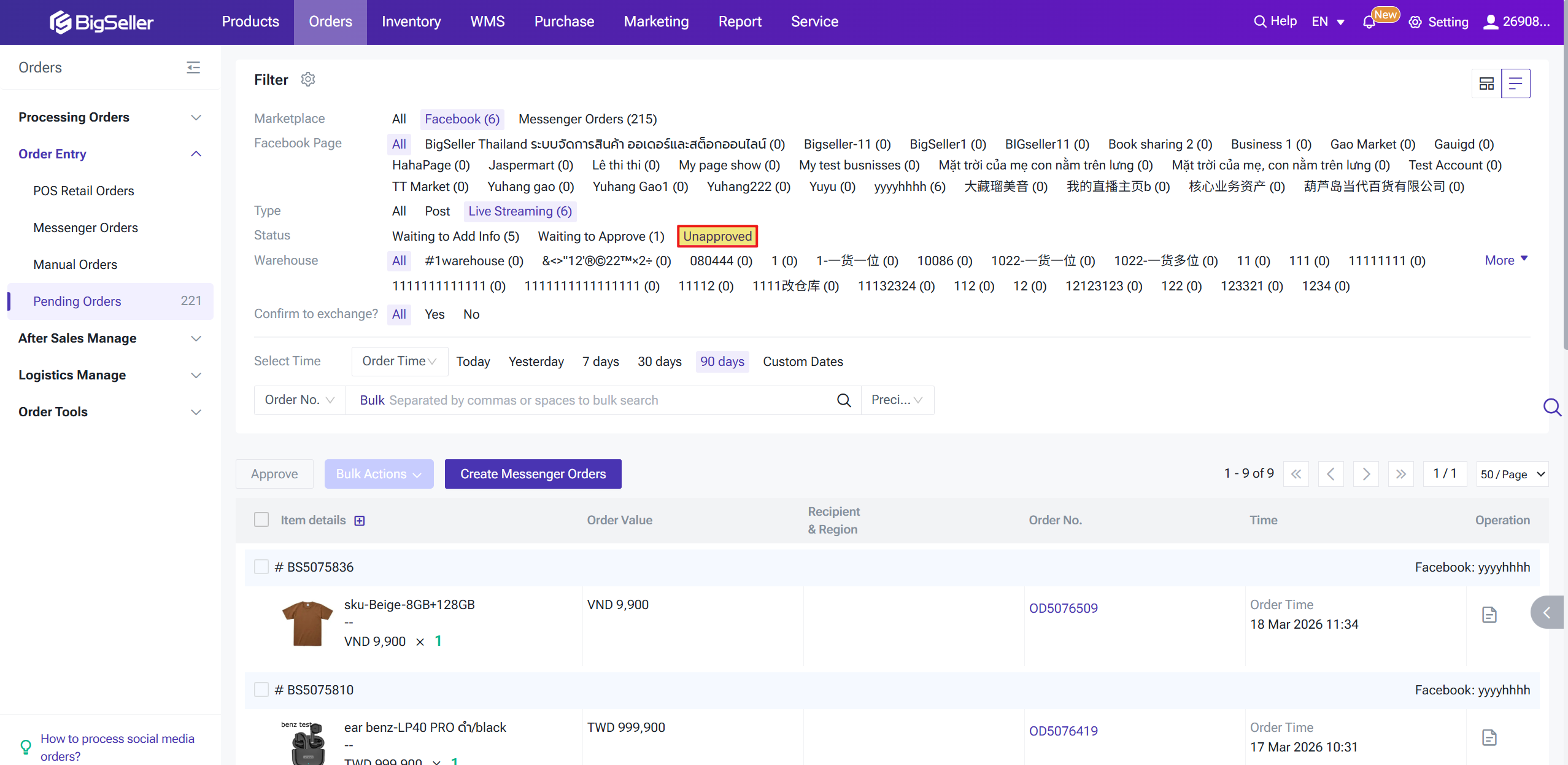
Go to Orders → Order Entry →Pending Orders. In the filter bar, set Platform to Facebook and Type to Live. All automatically created live orders will be displayed here.
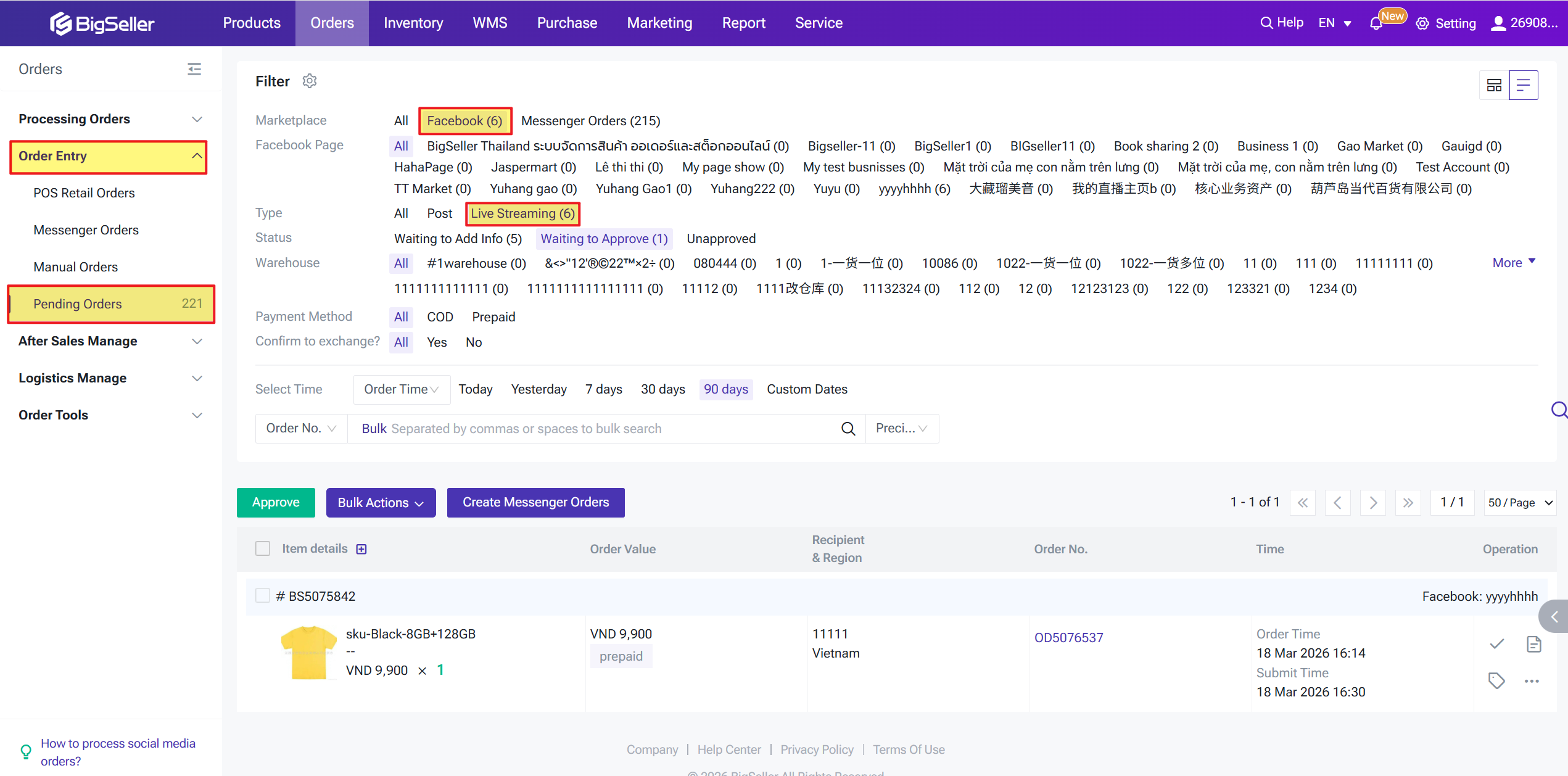
Step 2: Wait for Buyers to Complete Their Information
Once an order enters BigSeller, the system will automatically match it to a warehouse (based on your warehouse assignment rules) and create a pending information facebook live order, which will appear in the Facebook – Waiting to Add Info list.
The system will automatically send an order link to the buyer via Messenger once an order is created, where the buyer can fill in their recipient name, phone number, shipping address, and selects a payment method (prepayment requires uploading a payment receipt). Sellers can also manually copy the link and send it to the buyer directly. Once the buyer complete the related information, orders will be automatically move to "Waiting to Approve"
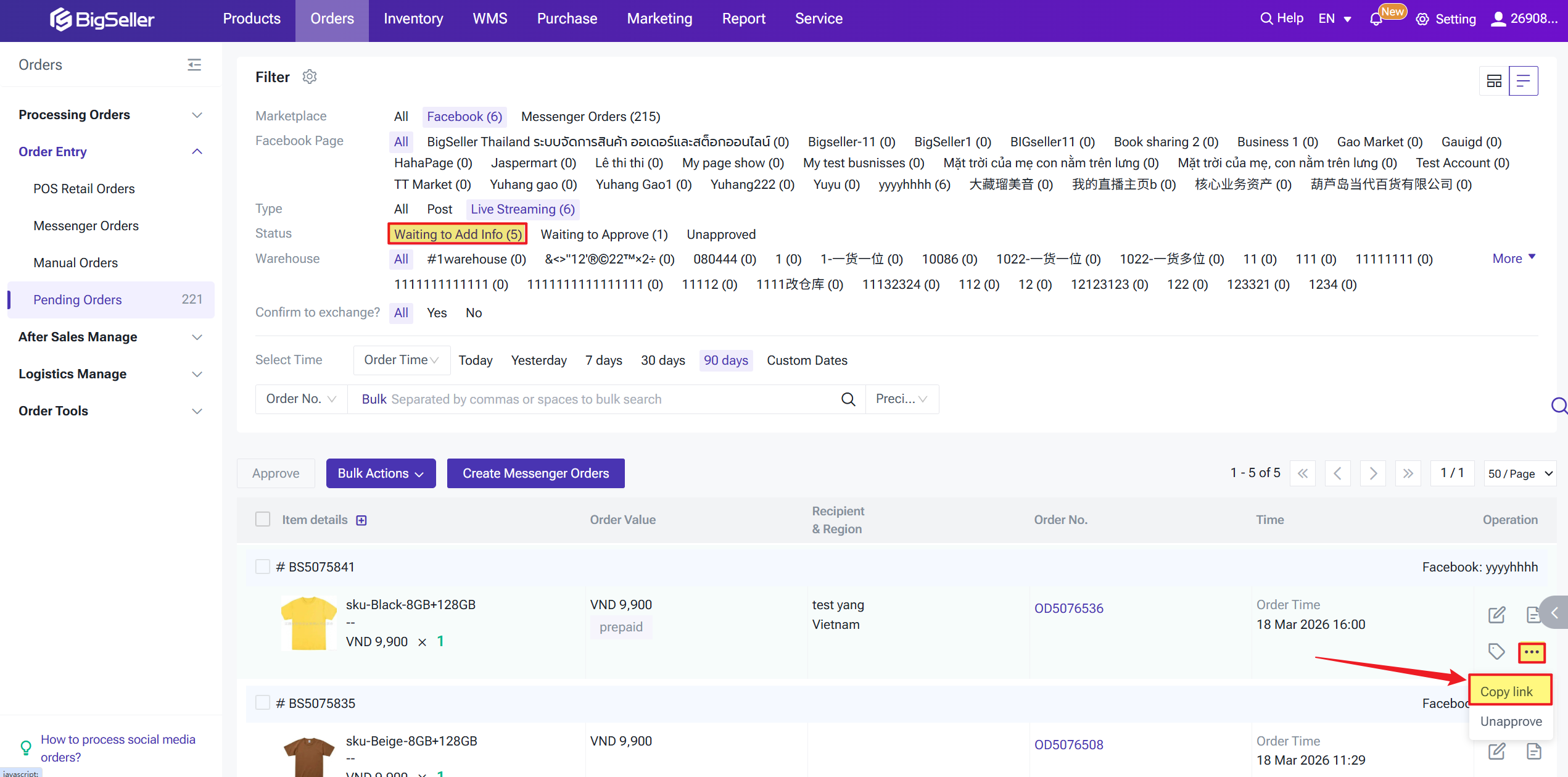
Buyers who place orders during a live stream are tagged as occasional customers by fault.
Sellers can view and edit buyer order information on this page. After confirming the details with the buyer, the following actions are available in the editing page:
The system will automatically send an order link to the buyer via Messenger once an order is created, where the buyer can fill in their recipient name, phone number, shipping address, and selects a payment method (prepayment requires uploading a payment receipt). Sellers can also manually copy the link and send it to the buyer directly. Once the buyer complete the related information, orders will be automatically move to "Waiting to Approve"
Buyers who place orders during a live stream are tagged as occasional customers by fault.
Sellers can view and edit buyer order information on this page. After confirming the details with the buyer, the following actions are available in the editing page:
- Save & Waiting to Add Info: Saves the current information; the order remains in Waiting to Add Info list for futher information adding.
- Save & Pending Approve: Saves the current information and moves the order to the Pending Approve list for a secondary confirmation by the seller or a supervisor.
- Save & Approve: Saves the current information and approves the order directly, skipping secondary review. The order moves immediately to the Processing - New Orders list.
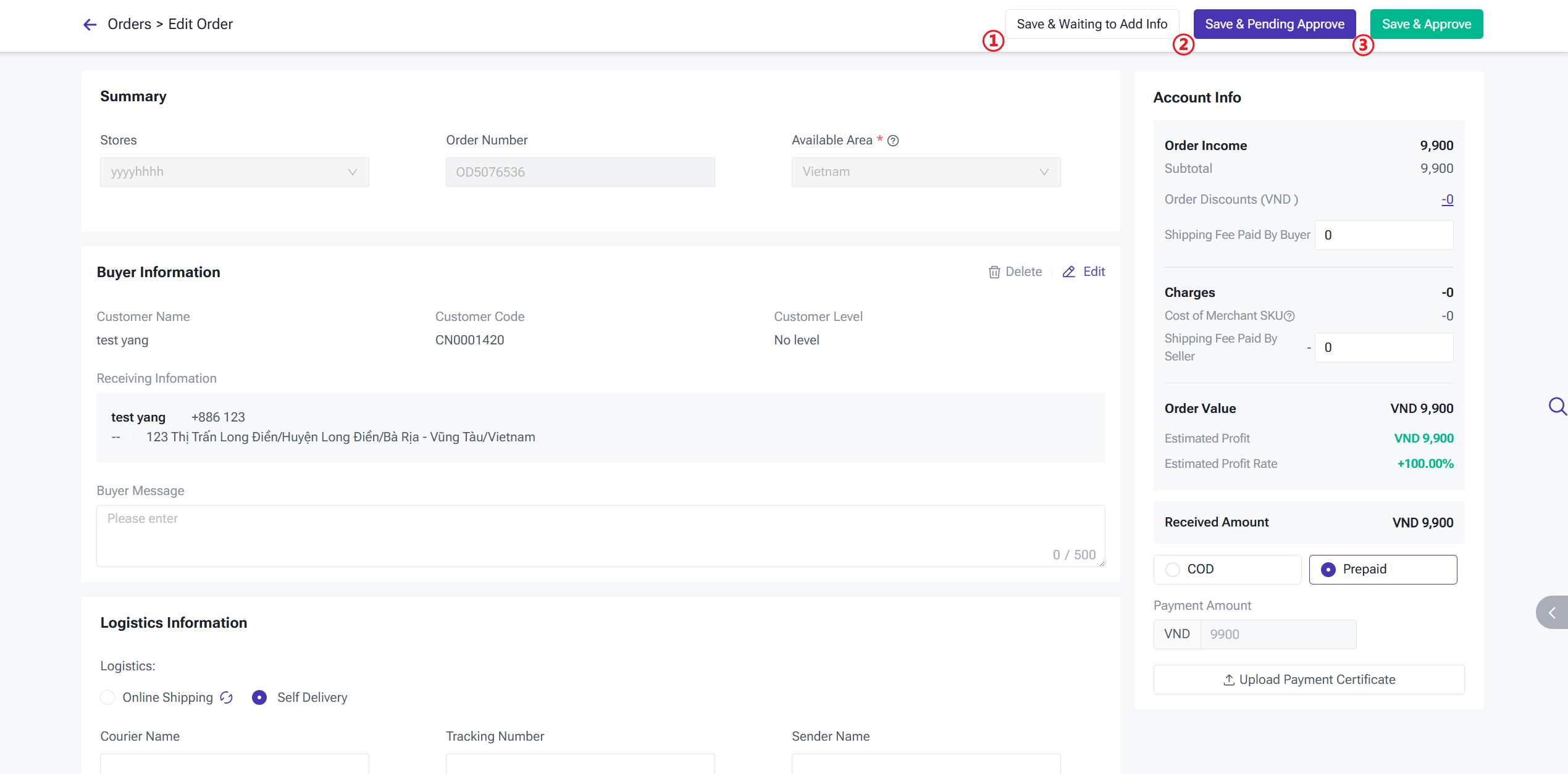
Step 3: Seller Reviews the Order
Sellers can perform a secondary review of completed orders from the Pending Approve page. You can locate the order in the Pending Approve list, click Edit, and verify the product details, amount, and payment receipt.
If everything is correct, click Approve. If there are issues, make corrections first and then approve, or click Reject to decline the order.
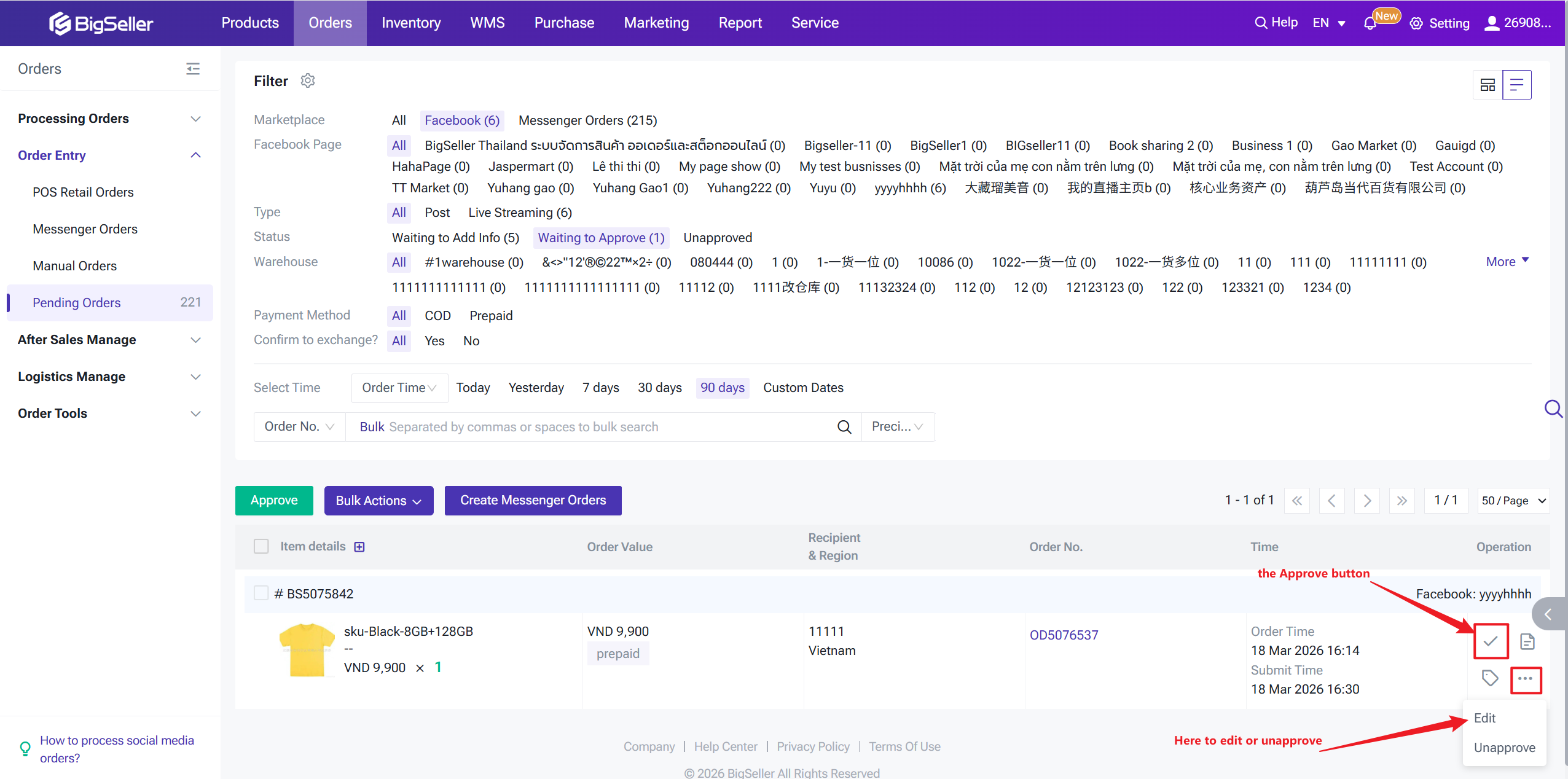
Rejected orders will move to the Rejected list. If reprocessing is needed, you can ask the buyer to place a new order.
If everything is correct, click Approve. If there are issues, make corrections first and then approve, or click Reject to decline the order.
Rejected orders will move to the Rejected list. If reprocessing is needed, you can ask the buyer to place a new order.
Step 4: Arrange Shipment
Approved orders will move to New Orders list, and inventory is allocated simultaneously. If stock is insufficient, the order will enter the Out of Stock list. You can do regular packing and label printing for these orders, just like other social media orders.
For Seller Delivery orders, the seller must provide shipping information (carrier and tracking number) first. Once it reaches the Shipped status, the buyer's order link will automatically update to "Shipped." Once the order reaches Shipped status, the buyer's order link will also be automatically updated to reflect "Shipped."
For Seller Delivery orders, the seller must provide shipping information (carrier and tracking number) first. Once it reaches the Shipped status, the buyer's order link will automatically update to "Shipped." Once the order reaches Shipped status, the buyer's order link will also be automatically updated to reflect "Shipped."
FAQ
Q: I see an authorization prompt when filtering by "Live Stream" order type. What should I do?
A: This means your Facebook Page business assets are not yet authorized. Click the Authorize FB Permissions button in the pop-up to complete the process, then refresh the page.
Q: Why can't I see an order in BigSeller after a buyer has placed it?
A: Please check: ① If the Facebook Page authorization is complete; ② If the products are recorded in BigSeller and mapped to the Facebook catalog; ③ Ensure you have filtered by Platform: Facebook and Type: Live in the Pending list. If the issue persists, contact BigSeller Customer Service.
Q: What if the buyer says they didn't receive the order link?
A: The system sends messages via Messenger. If the buyer hasn't interacted with your Page before, the message might be in their "Message Requests" folder. Guide them to check that folder, or manually copy the link from the order details and send it to them.
Q: Can I re-approve an order that was marked as "Unapproved"?
A: Currently, orders in the Unapproved list cannot be re-initiated. We recommend asking the buyer to place a new order or manually creating a new Messenger Order on BigSeller.
Q: Do Facebook Live orders support printing shipping labels?
A: Yes. In the To Process stage, they function like standard orders. However, note that if the shipping method is 3PL (Third-party Logistics), printing is not supported in the To Process stage; it is only available for Seller Delivery.
Q: How do I handle orders where products come from different warehouses?
A: The system will alert you if products belong to different warehouses. It is recommended to split the items into separate orders or adjust the inventory to a single warehouse before processing.
A: This means your Facebook Page business assets are not yet authorized. Click the Authorize FB Permissions button in the pop-up to complete the process, then refresh the page.
Q: Why can't I see an order in BigSeller after a buyer has placed it?
A: Please check: ① If the Facebook Page authorization is complete; ② If the products are recorded in BigSeller and mapped to the Facebook catalog; ③ Ensure you have filtered by Platform: Facebook and Type: Live in the Pending list. If the issue persists, contact BigSeller Customer Service.
Q: What if the buyer says they didn't receive the order link?
A: The system sends messages via Messenger. If the buyer hasn't interacted with your Page before, the message might be in their "Message Requests" folder. Guide them to check that folder, or manually copy the link from the order details and send it to them.
Q: Can I re-approve an order that was marked as "Unapproved"?
A: Currently, orders in the Unapproved list cannot be re-initiated. We recommend asking the buyer to place a new order or manually creating a new Messenger Order on BigSeller.
Q: Do Facebook Live orders support printing shipping labels?
A: Yes. In the To Process stage, they function like standard orders. However, note that if the shipping method is 3PL (Third-party Logistics), printing is not supported in the To Process stage; it is only available for Seller Delivery.
Q: How do I handle orders where products come from different warehouses?
A: The system will alert you if products belong to different warehouses. It is recommended to split the items into separate orders or adjust the inventory to a single warehouse before processing.
Is this content helpful?
Thank you for your feedback. It drives us to provide better service.
Please contact us if the document can't answer your questions