BigSeller Distribution: I am a Distributor
Copy link & title
Update Time: 10 Jun 2026 09:28
BigSeller's Distribution feature allows distributors (sub-agents, wholesalers, and dropshippers) to connect with suppliers directly in the system. Once connected, you can:
- Claim products from your supplier and list them on Shopee, Lazada, TikTok Shop, and other platforms.
- Auto-sync incoming orders and forward them to your supplier for fulfillment.
- Automatically track costs and reconcile payments — no more manual screenshots or off-system bookkeeping.
Before you start, the following points need to be noticed:
1) Account & Plan Requirements
1) Account & Plan Requirements
- The Distribution module has two roles: Supplier and Distributor. Suppliers must be on plan V2 or above; Distributors have no plan restriction.
- Your account must have the Inventory feature enabled. To use distribution feature, please activate Inventory first.
- You need the Distributor permission set. If you cannot see the relevant menu items, ask your main account administrator to grant access in Permission Settings.
2) First-Time Setup Checklist
Complete these two steps before you can start selling:
Complete these two steps before you can start selling:
- Go to My Suppliers and establish a partnership with at least one supplier.
- Claim the supplier's products and create or map the corresponding Merchant SKUs in BigSeller. Once been claimed, the products can be listed on Shopee, Lazada, TikTok Shop, etc.
3) Limitations at a Glance
- Already-claimed distribution products cannot be re-enabled for distribution (no sub-distributing).
- Combination SKU are not supported.
- Distributors cannot top up balance directly. Please ask your supplier to add credit on their end via Manual Bookkeeping.
- Orders will be blocked at the "pushing to supplier" step if your balance is too low.
4) Suggestions
- System notifications will be triggered by the following events: Partnership Application review results, Supplier termination of cooperation, and price changes of distributed products. Please ensure that subscriptions are enabled for both PC web messages and APP push notifications.
- Please check My Distribution Products > Expired regularly and delist any inactive products from your storefronts promptly.
- On the BigSeller mobile app you can quickly view stock levels, distribution prices, and supplier details for on-the-go management.
- If you work with multiple suppliers, Please add notes to each entry in My Suppliers for easy identification.
After getting familiar with the above information, you may officially start your distribution business as a distributor.
1. Link with a Supplier
Linking with a supplier is the mandatory first step. Currently the only way to connect is via a supplier-generated invitation link.
Step 1: Get the invitation link
You can contact the supplier and ask them to generate an Distributor Invitation link in their BigSeller account. They can send it to you via WeChat, WhatsApp, email, or any other channel.
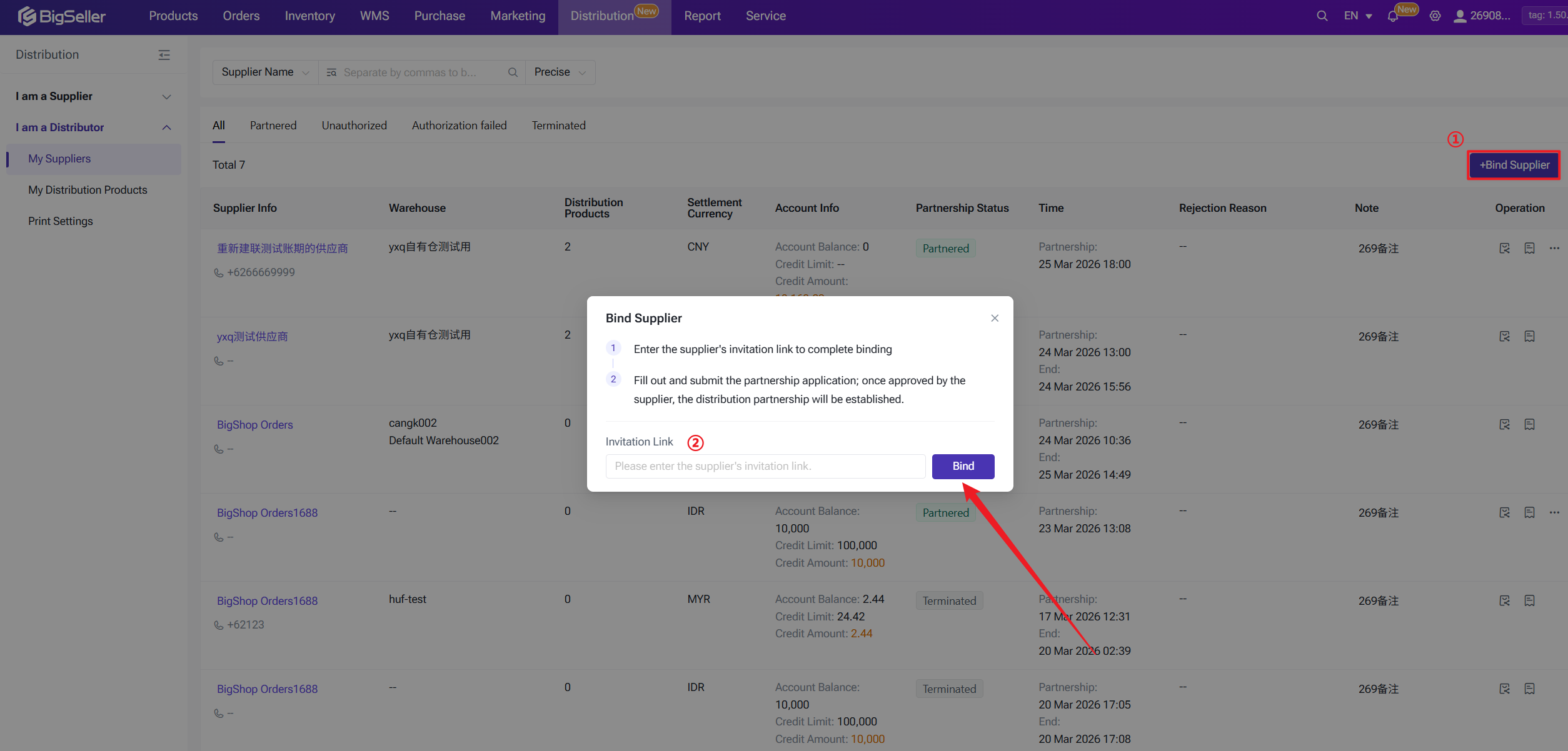
Step 2: Submit the link in BigSeller
Log in to BigSeller → Distribution → I Am a Distributor → My Suppliers → + Bind Supplier. Paste the invitation link and submit. Wait for the supplier to approve your request.
Step 3: Confirm partnership
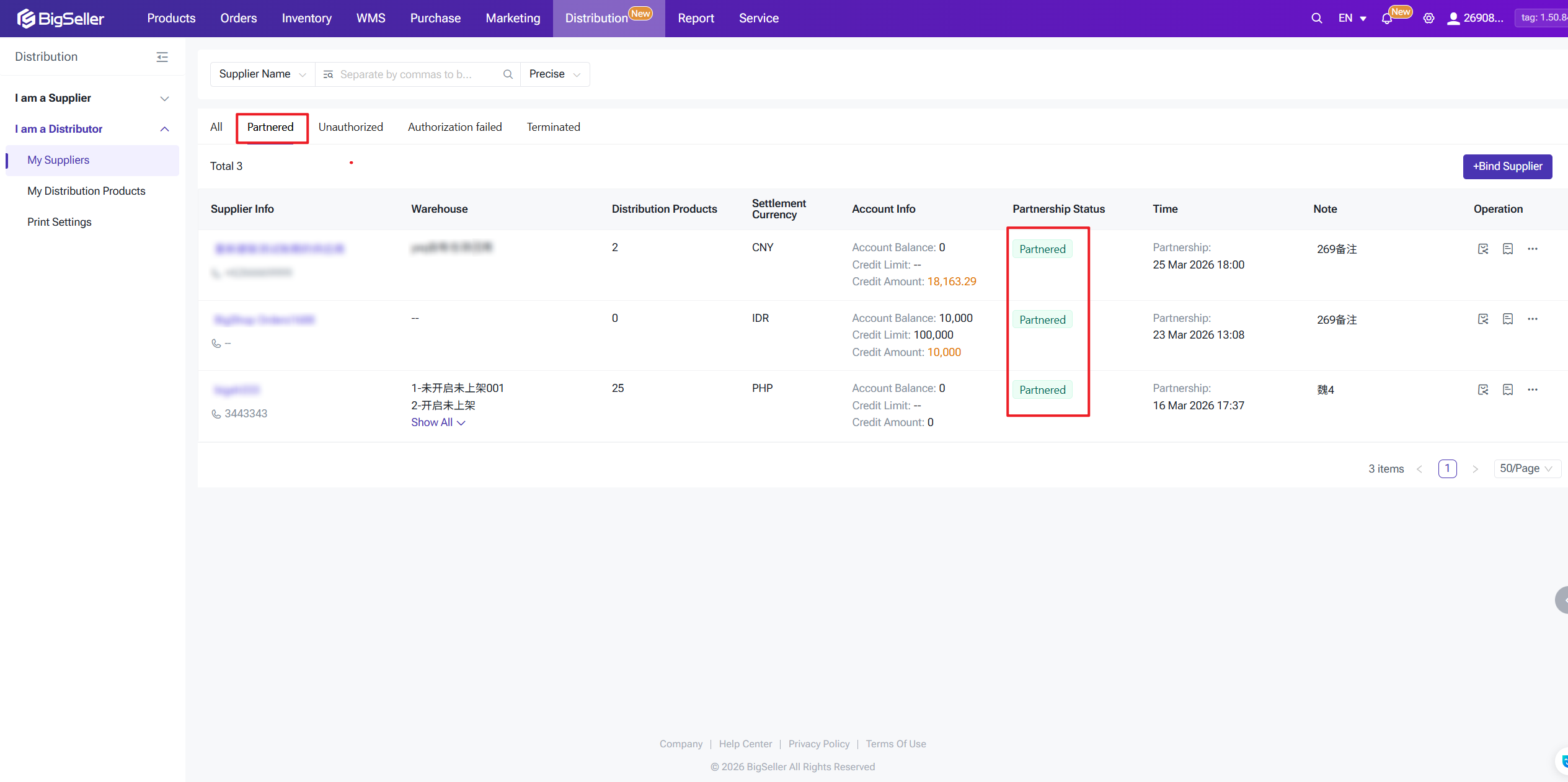
Once approved, the supplier's status in My Suppliers changes to Partnered. If rejected, you can view the reason and reach out to the supplier again. You will receive a system notification (PC in-app message and app push) for both outcomes.
Step 1: Get the invitation link
You can contact the supplier and ask them to generate an Distributor Invitation link in their BigSeller account. They can send it to you via WeChat, WhatsApp, email, or any other channel.
Step 2: Submit the link in BigSeller
Log in to BigSeller → Distribution → I Am a Distributor → My Suppliers → + Bind Supplier. Paste the invitation link and submit. Wait for the supplier to approve your request.
Step 3: Confirm partnership
Once approved, the supplier's status in My Suppliers changes to Partnered. If rejected, you can view the reason and reach out to the supplier again. You will receive a system notification (PC in-app message and app push) for both outcomes.
2. Manage Your Distribution Products
Once linked, you can go to My Distribution Products to claim items and bring them into your local product library. Products are grouped into three tabs:
1) Claimed
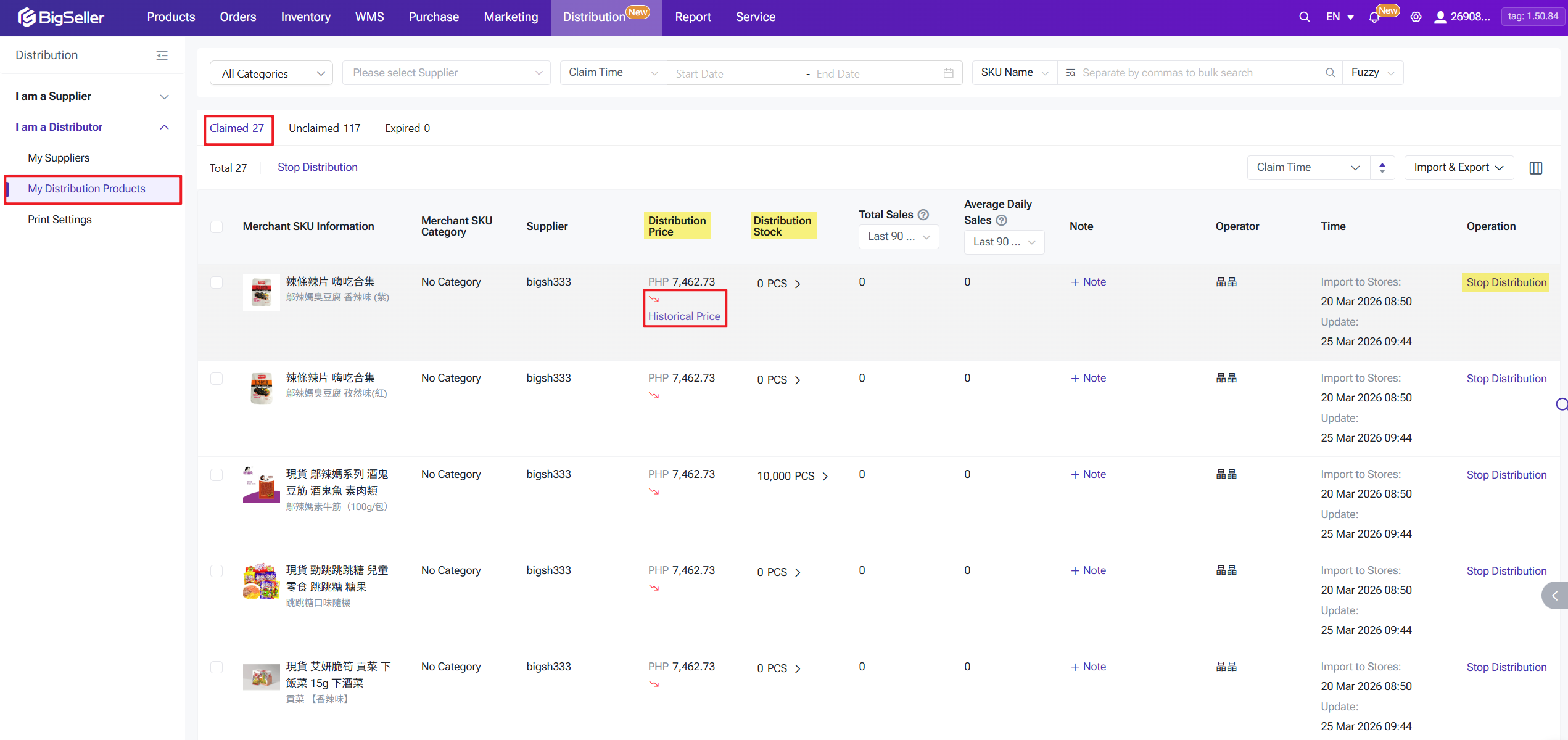
Products you have already claimed from your suppliers. You may think of it as a combination of Merchant SKU list and Inventory list. You can import & export the claimed SKUs, or stop certain SKU's distribution.
1) Claimed
Products you have already claimed from your suppliers. You may think of it as a combination of Merchant SKU list and Inventory list. You can import & export the claimed SKUs, or stop certain SKU's distribution.
- Distribution Price: The current price set by the supplier. The system records up to the last 30 price changes for your reference.
- Distribution Stock: Sum of available inventory across all supplier warehouses. Click to open the Inventory List filtered to this SKU.
2) Unclaimed
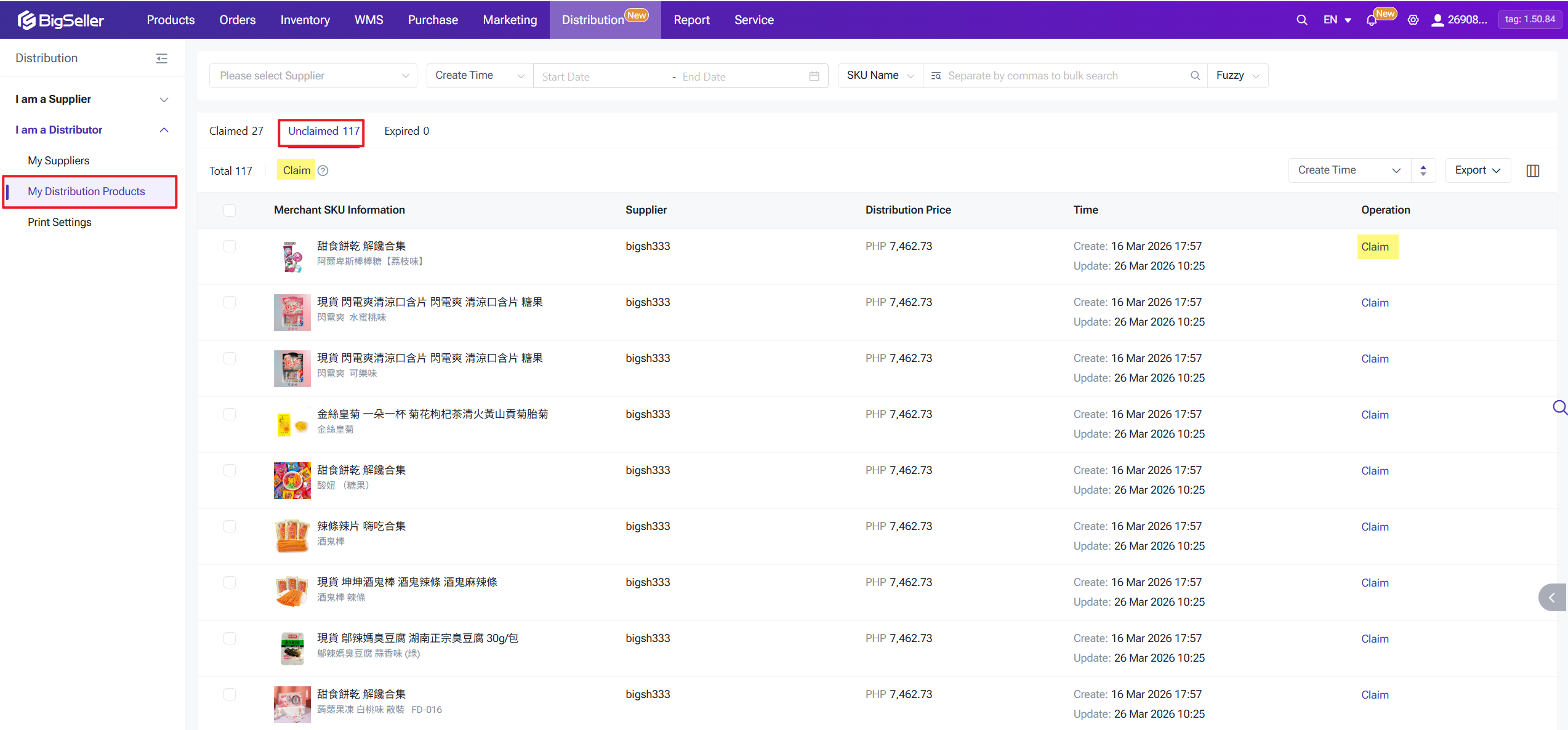
Products visible to you (based on the supplier's visibility rules) that you have not yet claimed. In the Unclaimed tab, click Claim next to any product. You can also select multiple products and bulk-claim them.
- If a local SKU with the same SKU name already exists, it will be automatically regarded as the claimed item.
- If no matching local SKU exists, a new local SKU is created automatically.
After claiming, go to Merchant SKUs page and map the new distribution SKU to your Shopee / Lazada / TikTok Shop store SKU. Once mapped, the product is ready to list and sell.
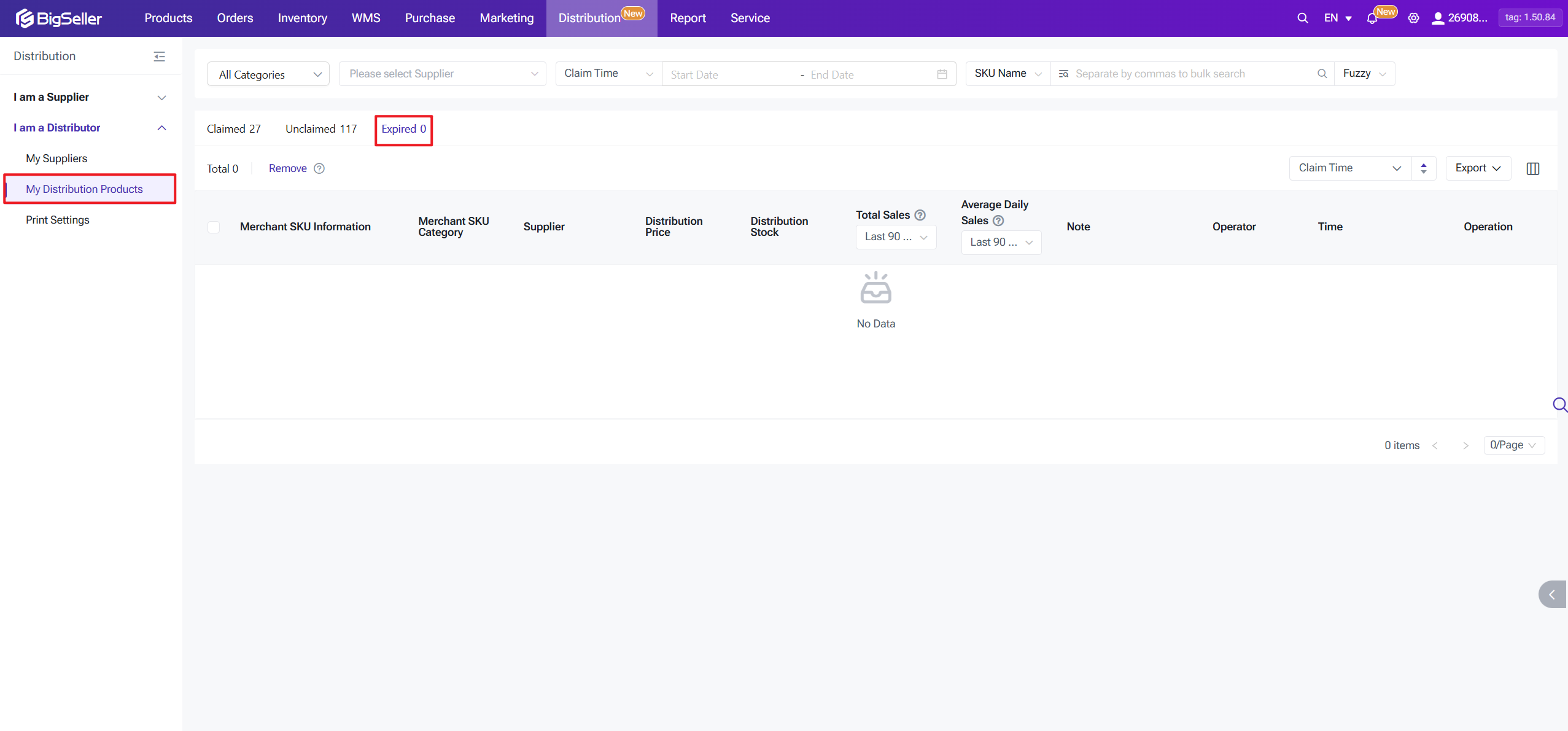
3 ) Expired
Products no longer available — either because the supplier ended your partnership or turned off distribution for that item. You can click Remove to clear an inactive product from this list. Its status reverts to Unclaimed.
4) Create Distribution Combination SKU
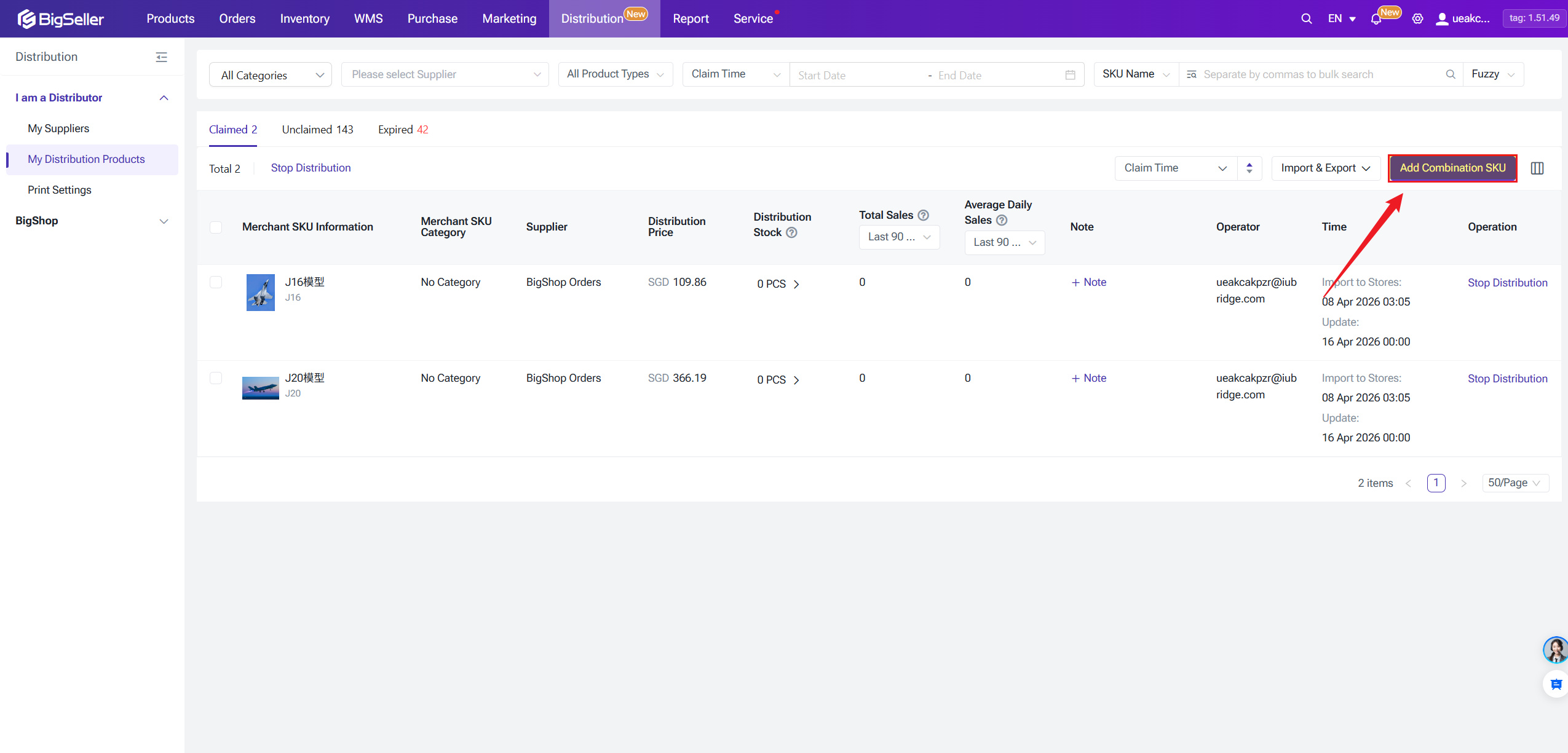
After claiming distribution products, you can also create Combination SKUs for distribution.
⚠ Important Notes
3 ) Expired
Products no longer available — either because the supplier ended your partnership or turned off distribution for that item. You can click Remove to clear an inactive product from this list. Its status reverts to Unclaimed.
4) Create Distribution Combination SKU
After claiming distribution products, you can also create Combination SKUs for distribution.
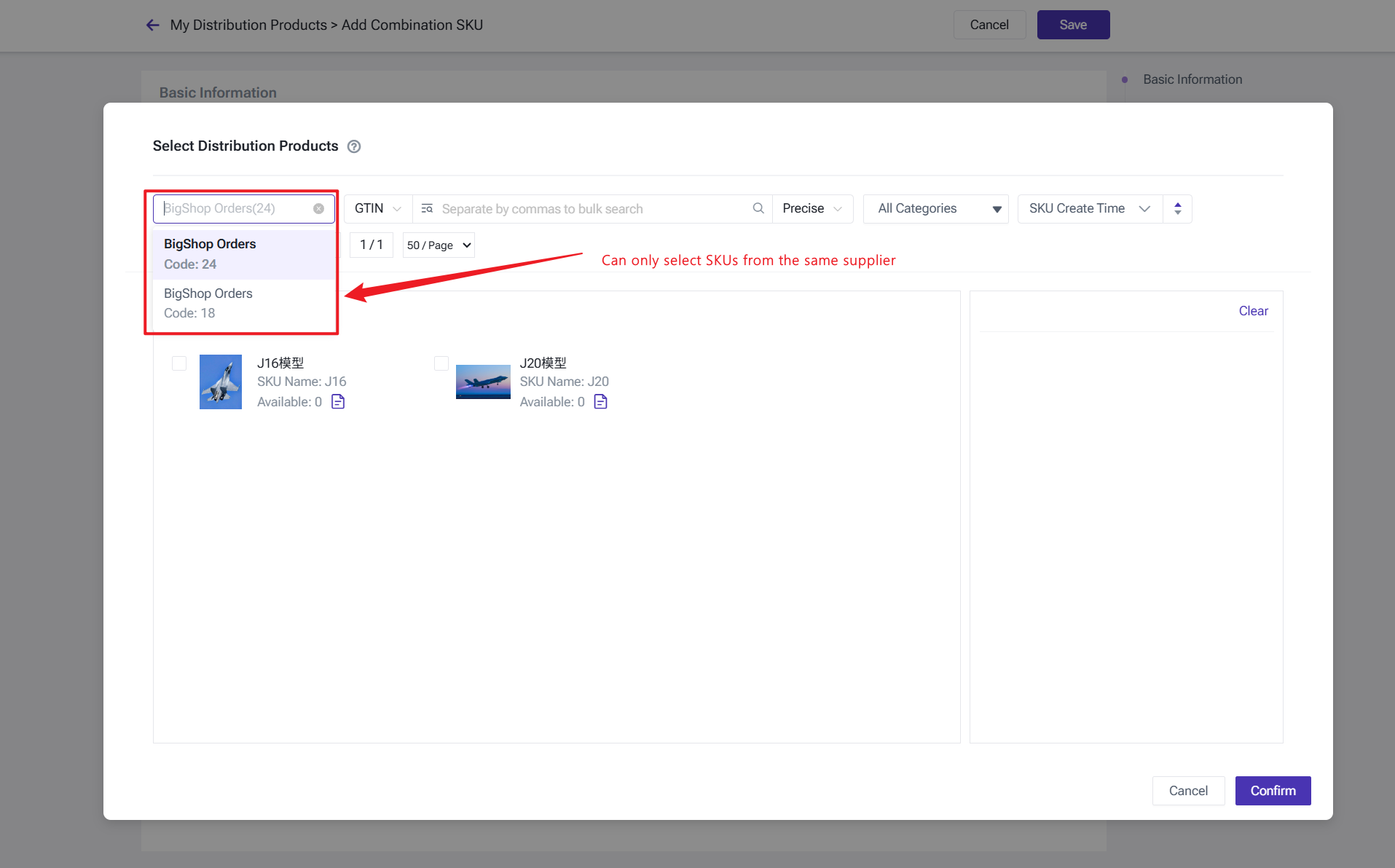
- Supplier Consistency: Only products from the same supplier can be used to form a Combination SKU.
- Price Calculation: Distribution Price of Combination SKU = Sum of (Sub-SKU Quantity * Sub-SKU Distribution Price).
- Inventory & Warehouse: Once created, the Distribution Combination SKU is automatically Mapped to all warehouses associated with that supplier for inventory calculation.
- Weighted Cost: The "Weighted Cost Price" in the inventory list will be set to the Distribution Price of the Combination SKU.
- Invalidation Rule: If any sub-SKU within the combination becomes "Expired," the entire Distribution Combination SKU will be moved to the Expired status.
- Inventory Logic: The inventory of a Distribution Combination SKU follows the same logic as standard combination SKUs (i.e., it takes the minimum available value among its sub-SKUs).
You can create a Combination SKU directly from the My Distribution Products > Claimed page.
When selecting items, the system restricts choices to Merchant SKUs belonging to the same supplier.
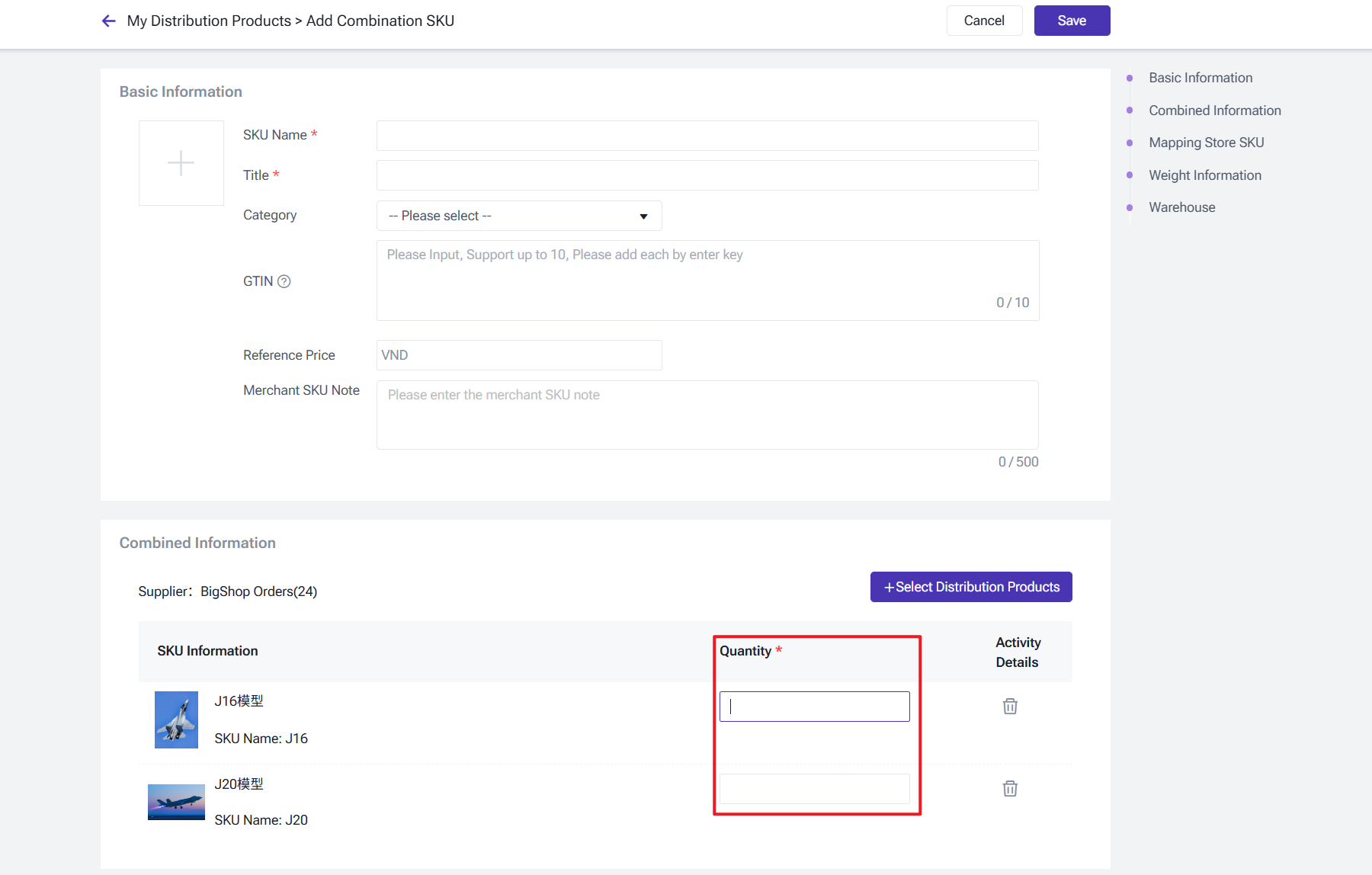
You only need to input the Quantity for each sub-SKU. Since distribution products do not involve traditional purchase or outbound processing, there is no need to fill in a Cost Allocation Ratio.
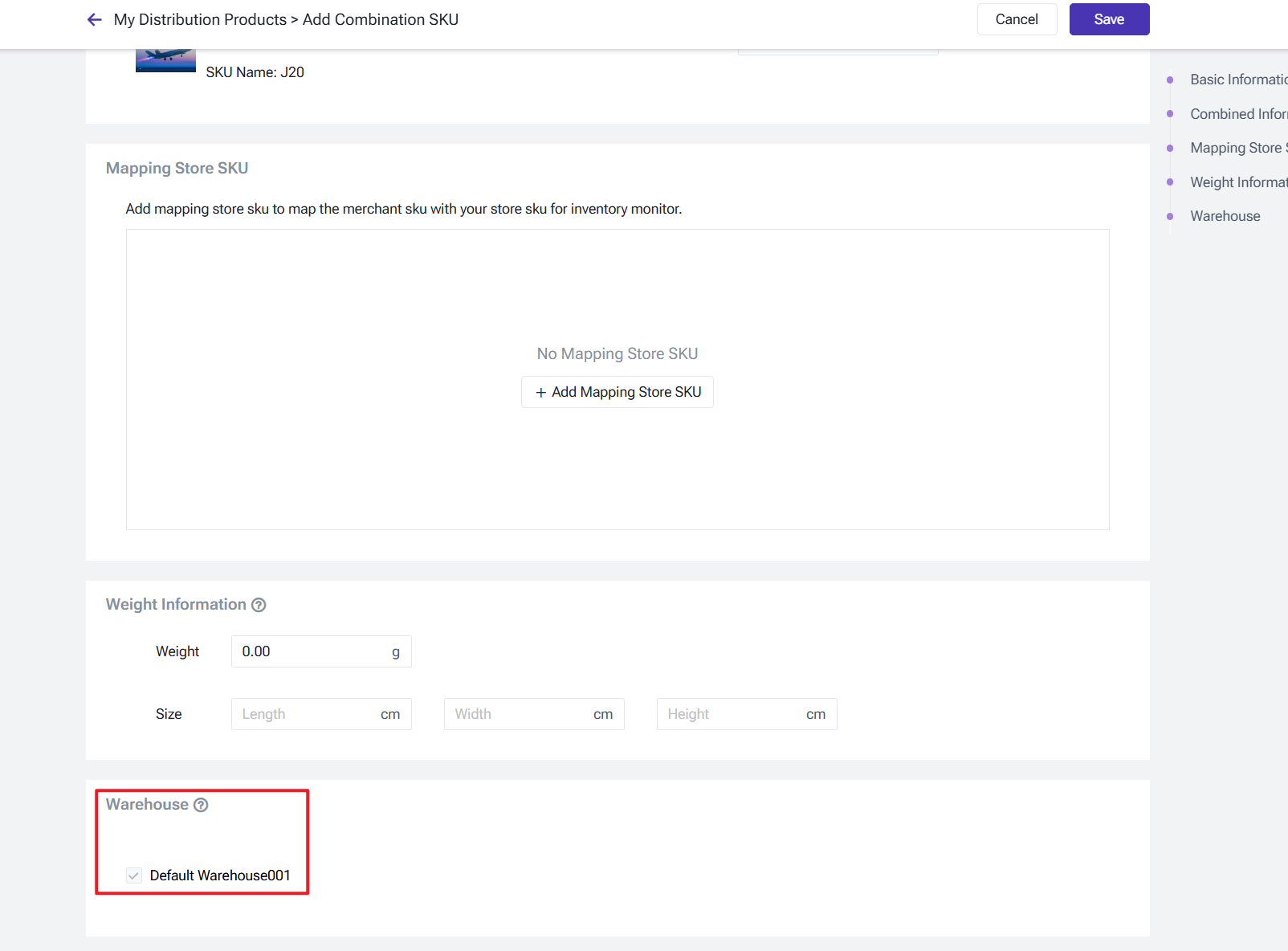
The warehouses for a Distribution Combination SKU cannot be customized. The system will automatically assign the SKU to the warehouses associated with that specific supplier.
Management & Maintenance
When selecting items, the system restricts choices to Merchant SKUs belonging to the same supplier.
You only need to input the Quantity for each sub-SKU. Since distribution products do not involve traditional purchase or outbound processing, there is no need to fill in a Cost Allocation Ratio.
The warehouses for a Distribution Combination SKU cannot be customized. The system will automatically assign the SKU to the warehouses associated with that specific supplier.
Management & Maintenance
- Visibility: Once created, the SKU will automatically appear on the Merchant SKU page.
- Available Actions: You can edit, copy, or delete the Distribution Combination SKU.
- Stopping Distribution: You cannot directly stop the distribution of a Combination SKU. To make the Combination SKU invalid, you must stop the distribution of its individual sub-SKUs.
3. Inventory Sync
The stock levels are automatically synced from the supplier's corresponding SKUs. Instead, distributors only need to set up the mapping relationship with the supplier's warehouse.
1) Warehouse Mapping
When you and a supplier link up, BigSeller automatically creates one Supplier Warehouse on your side for each fulfillment warehouse the supplier has assigned to you (1-to-1 mapping).
1) Warehouse Mapping
When you and a supplier link up, BigSeller automatically creates one Supplier Warehouse on your side for each fulfillment warehouse the supplier has assigned to you (1-to-1 mapping).
- When the supplier pushes inventory updates, each fulfillment warehouse's stock is pushed to the corresponding Supplier Warehouse on your side.
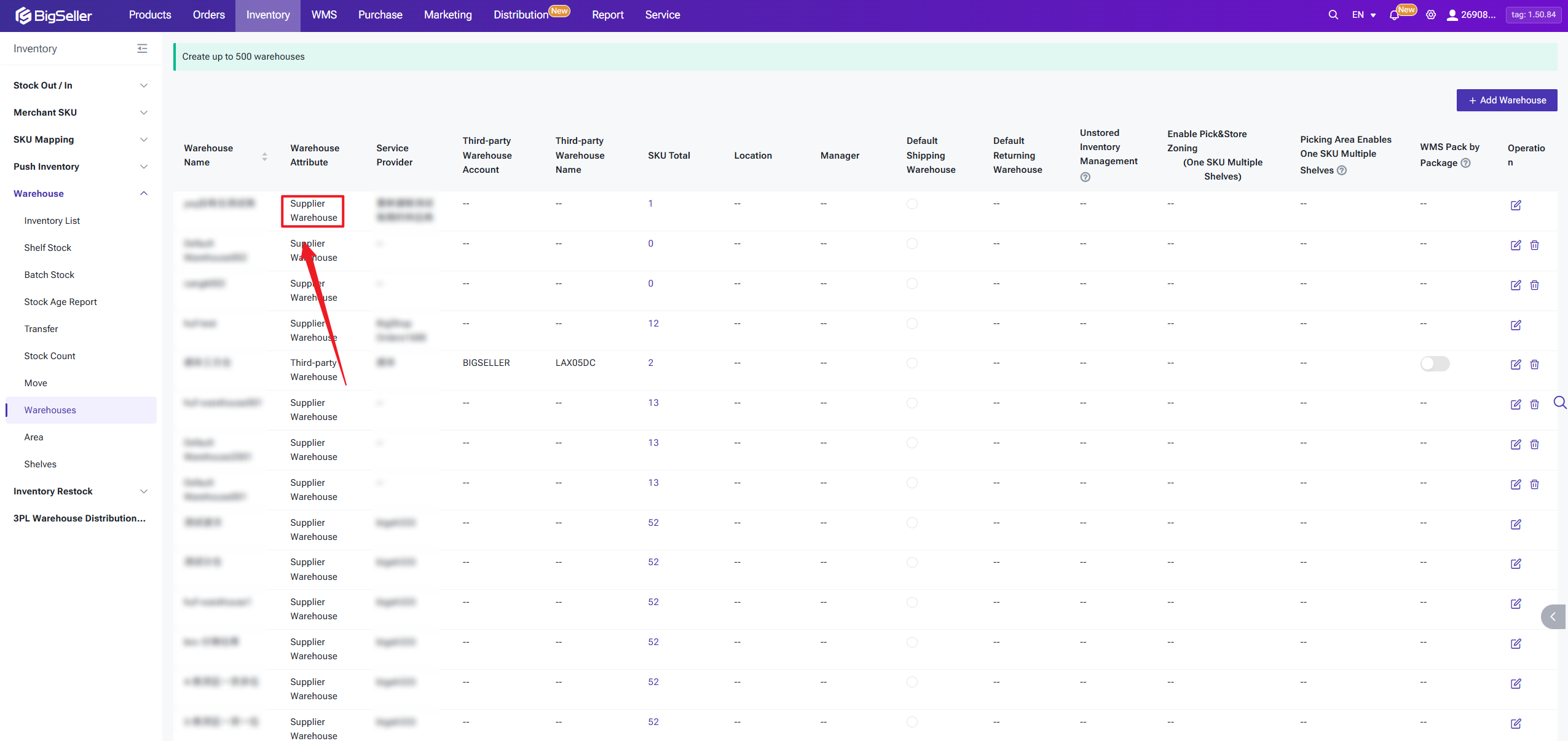
However, if a supplier adds or changes a fulfillment warehouse after the initial link, your side will NOT auto-update. You must manually add the new warehouse and establish the mapping.
Common scenarios:
- Supplier changes your assigned warehouse: Create the new Supplier Warehouse manually, map it, and update your store's pick-up address to match.
- Partnership ends then resumes: Warehouse data is reset. Re-linking triggers a check to see whether new Supplier Warehouses need to be created.
2) Inventory List
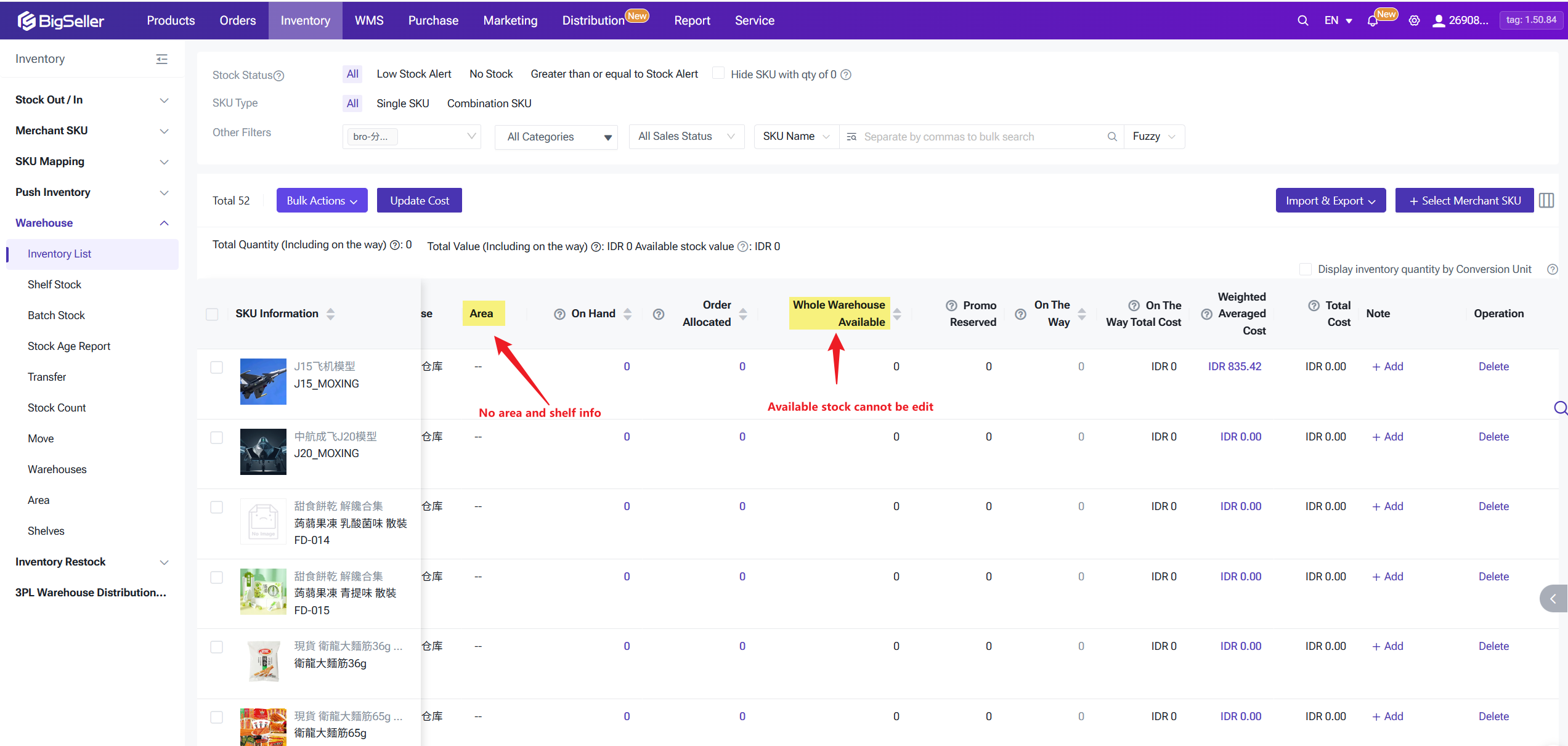
You may also check your claimed product's stock level across each supplier warehouse in Inventroy>Warehouse>Inventory List. Because supplier warehouses are virtual, the following operations are disabled:
- In-warehouse actions: On Shelf, pick, restock, shelf change
- Purchase suggestions and purchase orders
Distribution product costs are excluded from the moving weighted average cost calculation. The initial cost is set to the distribution price (converted to your selling currency using fixed exchange rates first, then live rates if no fixed rate is set).
3) Stock & Batch Stock Movement Record
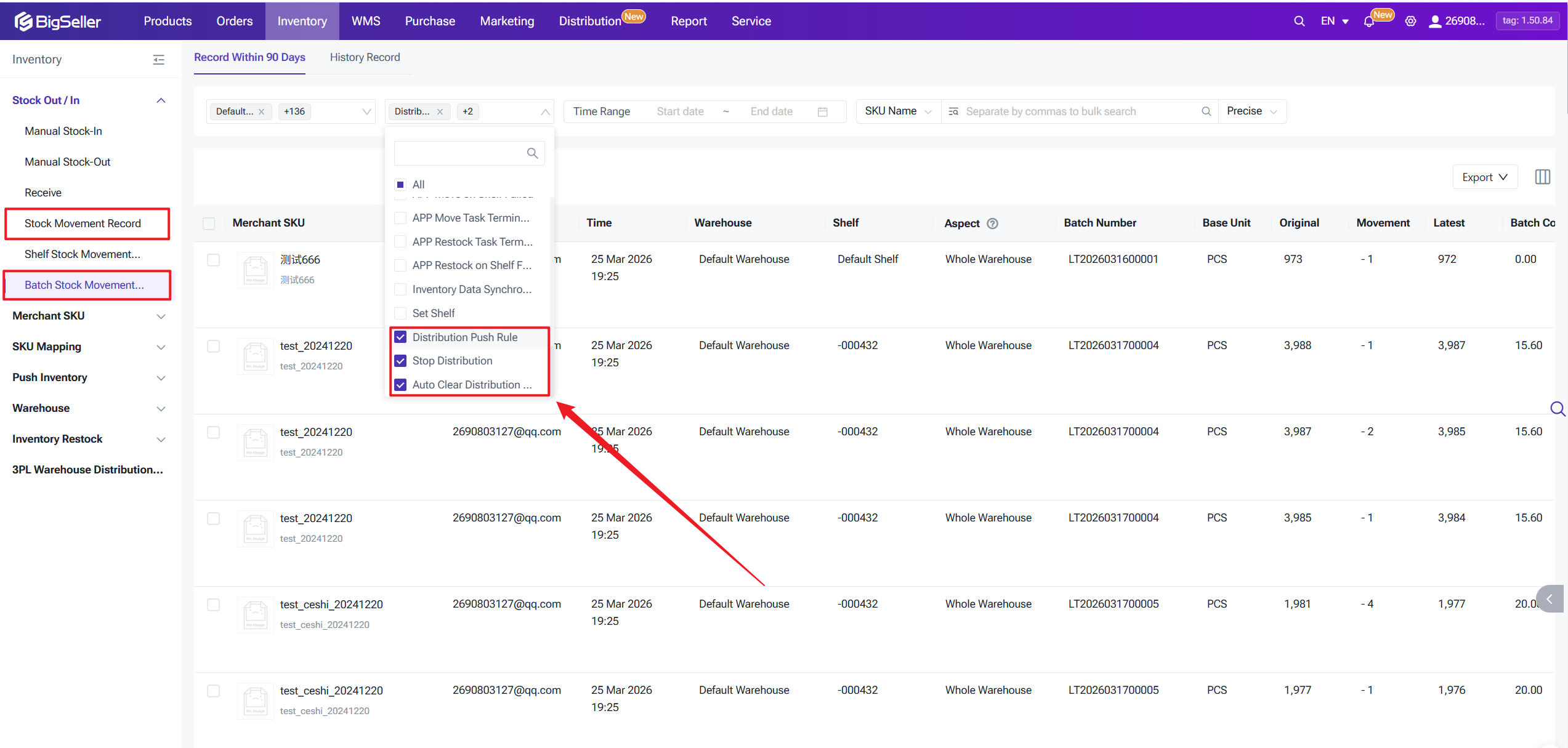
For distribution orders, the following event types are tracked in Stock & Batch Stock Movement Record lists:
3) Stock & Batch Stock Movement Record
For distribution orders, the following event types are tracked in Stock & Batch Stock Movement Record lists:
- Distribution Stock Push: The supplier pushes an inventory update from their end. A corresponding log entry is created on your side.
- Stop Distribution: You stop distribution for a product. The available stock in the supplier warehouse is cleared to zero and a log entry is generated.
- Distribution Stock Auto-Cleared: Available stock is automatically cleared to zero when any of the three scenarios below occurs.
The Distribution Stock Auto-Cleared event is triggered when any of the following happens, and locked quantity is released back to available stock as a result:
- Supplier modifies your assigned distribution warehouses: All distribution product stock in warehouses that are no longer in the updated warehouse list is cleared to zero.
- Supplier ends the partnership with you: All distribution product stock across every supplier warehouse belonging to that supplier is cleared to zero.
- You stop distribution for a product: All available stock for that product across all corresponding supplier warehouses is cleared to zero.
4. Order Processing
When a buyer places an order on Shopee, Lazada, TikTok Shop, etc., BigSeller syncs it automatically. You then need pack and push the order to your supplier, who handles picking, printing labels, and shipping.
Step 1: Pack Orders
You can manually click "Pack" to process orders, or use our Auto Pack feature, which can automatically pack/arrange your orders, eliminating the need for any manual processing.
Each order can have only one shipping warehouse. If an order contains SKUs from different warehouses, the platform may split it automatically. If not, you must split it manually in BigSeller or handle it in your seller center. Also, distribution orders cannot be moved to Shipped by one-click.
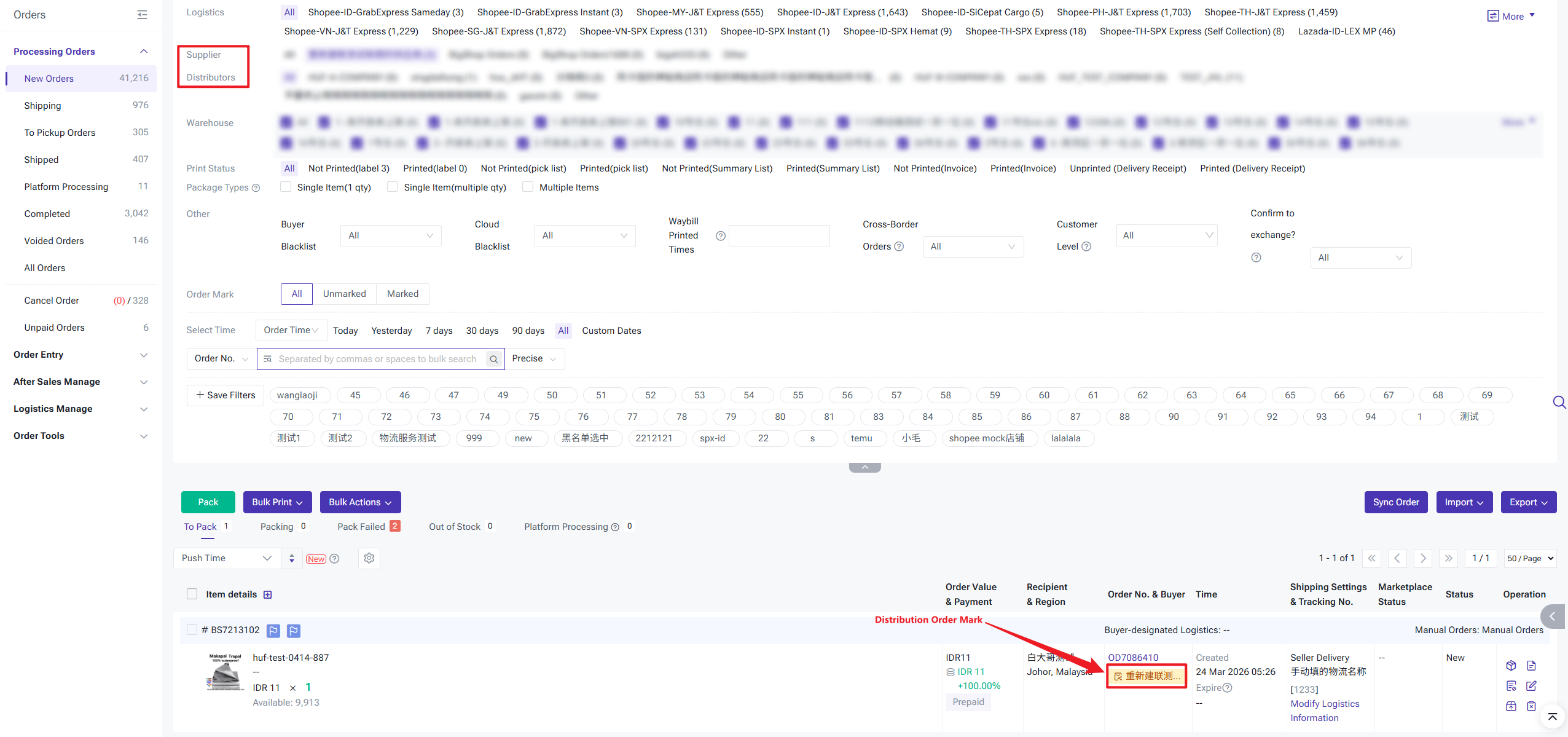
Shipping method options:
Step 1: Pack Orders
You can manually click "Pack" to process orders, or use our Auto Pack feature, which can automatically pack/arrange your orders, eliminating the need for any manual processing.
Each order can have only one shipping warehouse. If an order contains SKUs from different warehouses, the platform may split it automatically. If not, you must split it manually in BigSeller or handle it in your seller center. Also, distribution orders cannot be moved to Shipped by one-click.
Shipping method options:
- Platform Logistics (default): BigSeller uses the platform's assigned carrier by default.
- Seller Delivery: You can select seller delivery if you want the supplier to choose the carrier. No tracking number is required at push time — the supplier will upload it after shipping. (Not available on Temu.)
Step 2: Pushing Orders
After packing/arrangement, orders can be pushed automatically or manually in In Processing Orders/Shipping - Distribution List.
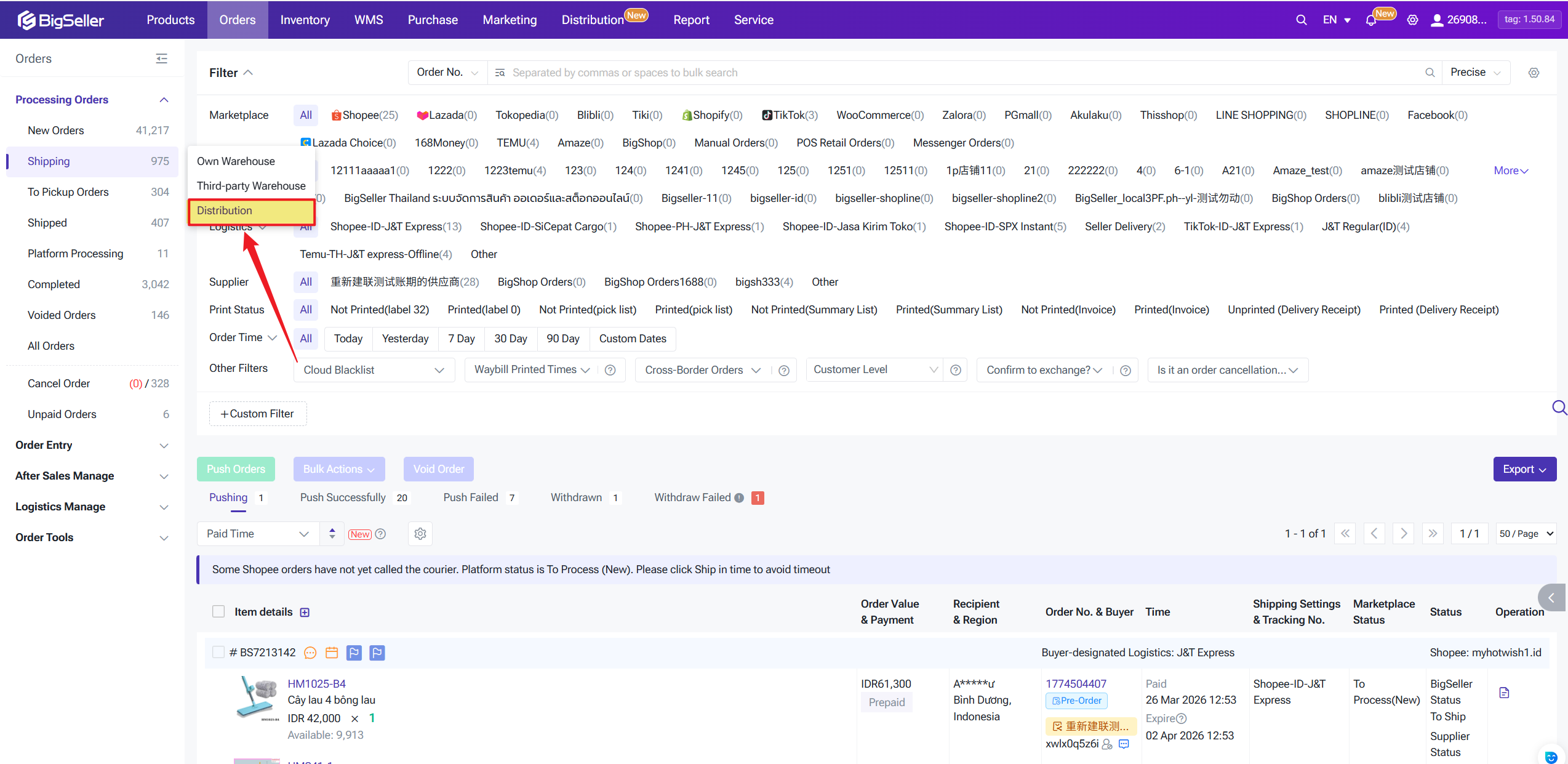 When you push, the system checks:
After packing/arrangement, orders can be pushed automatically or manually in In Processing Orders/Shipping - Distribution List.
When you push, the system checks:- Whether you are still in a Partnered status with the supplier
- Whether all SKUs in the order are correctly mapped
- Whether your account balance is sufficient (including stock-out handling fees and shipping fees)
- Whether your credit limit is sufficient (if credit term feature is enabled)
If all these checking are passed, distribution orders will move to [Pushing]. You can also re-push the orders in Pushed Failed status.
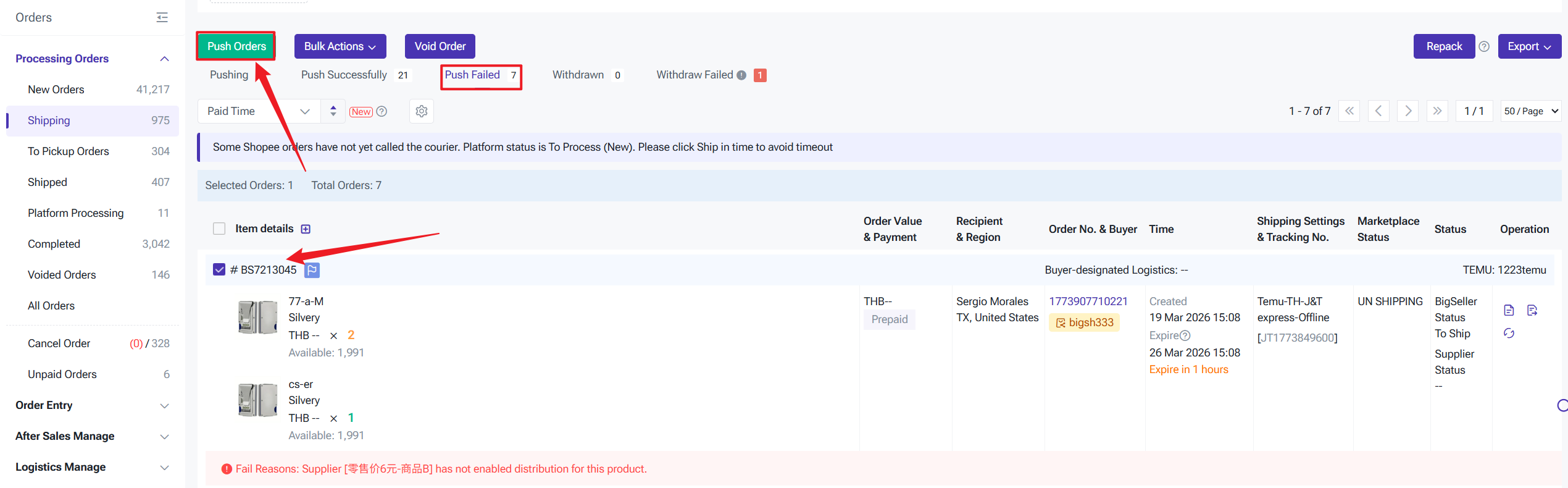
When orders are in Pushed Successfully list, BigSeller will automatically sync the order status from Supplier side. You may aslo manually click Refresh to obtain the latest status.
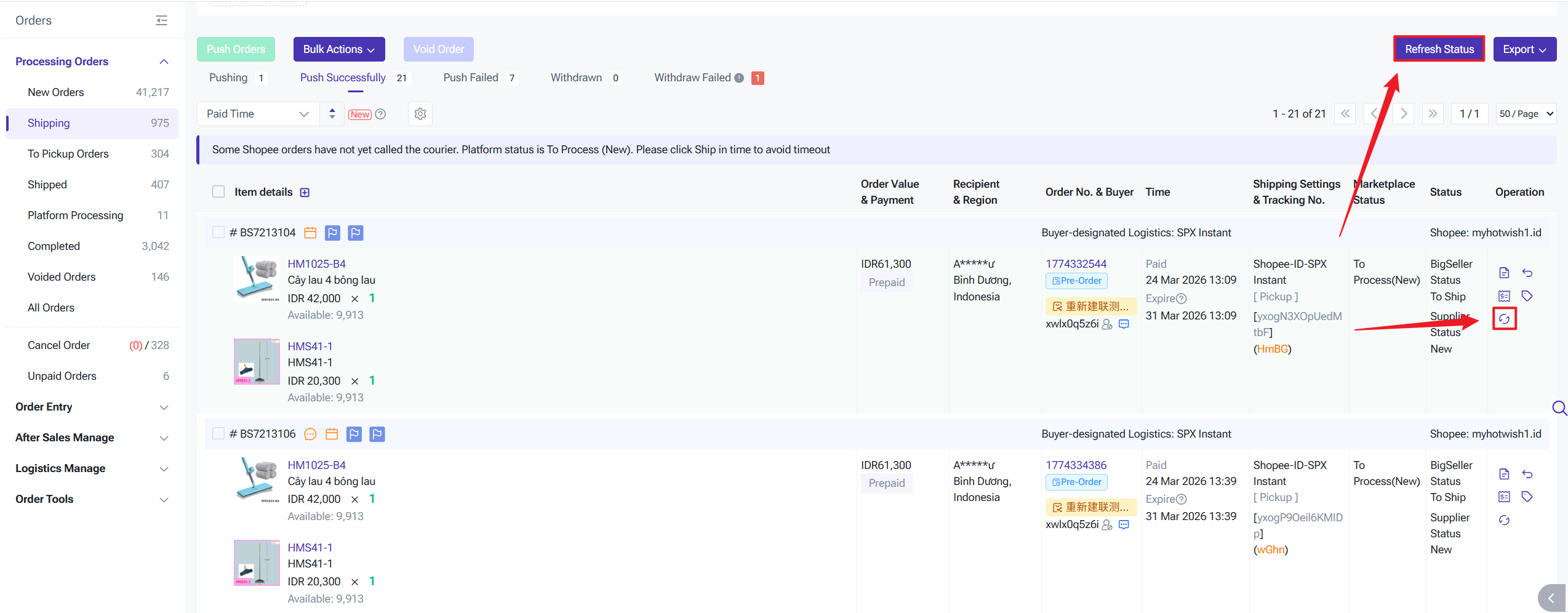
Pushing an order will immediately deduct the distribution fees (distribution price × quantity + handling fees + shipping fees). Ensure your balance is sufficient before pushing.
After being pushed to the supplier, if distributions are cancelld or in Cancellation Request in In Processing Order/Shipped status, or even before, on Both distributor and supplier sides, the pushed orders will be automatically withdrawed.
However, Canceled Order Stock-In is not supported. That is, for orders cancelled after In Processing/Shipping status, distributors cannot just cancel on their side. You need maunally use the Withdrawal flow — charges are refunded automatically on successful withdrawal.
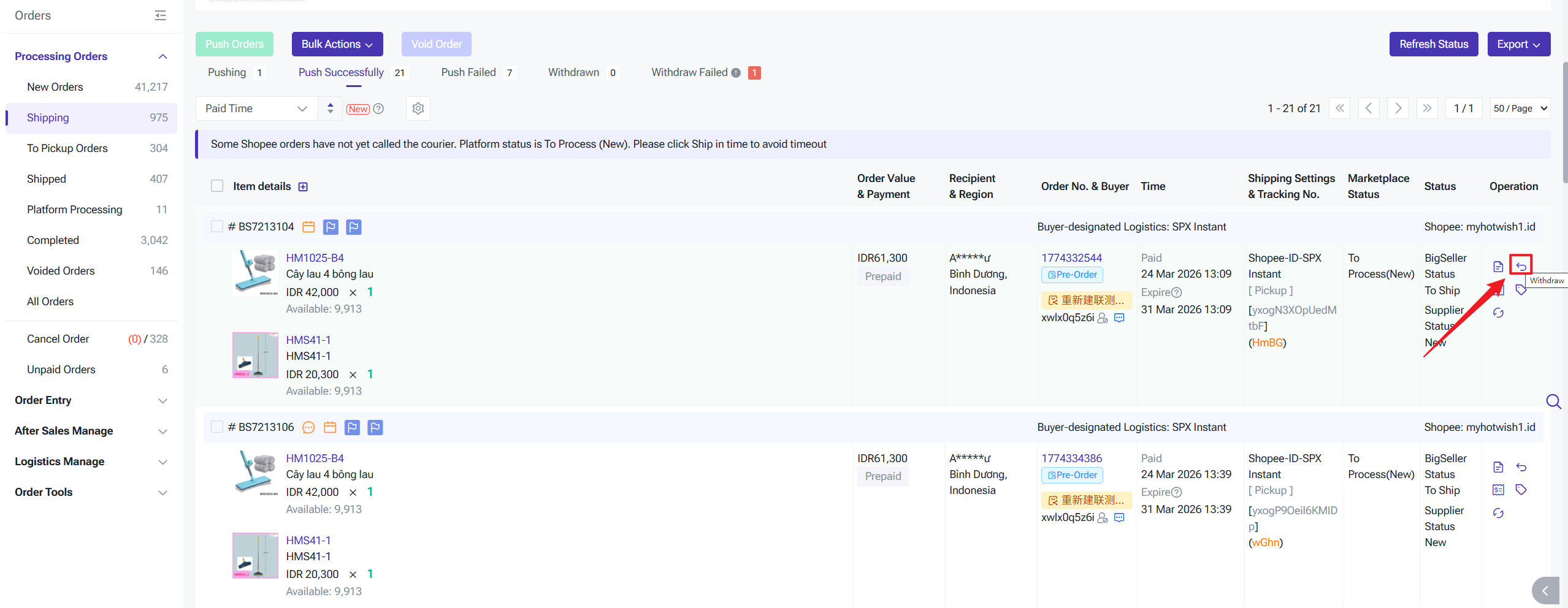
After the push is successful, please wait for the supplier to process the order. Once the supplier ships the order, it will move to the "To Pickup Orders" list; after the order status becomes "Shipped," it will enter the "Shipped" list.
Step 3: Print Setting
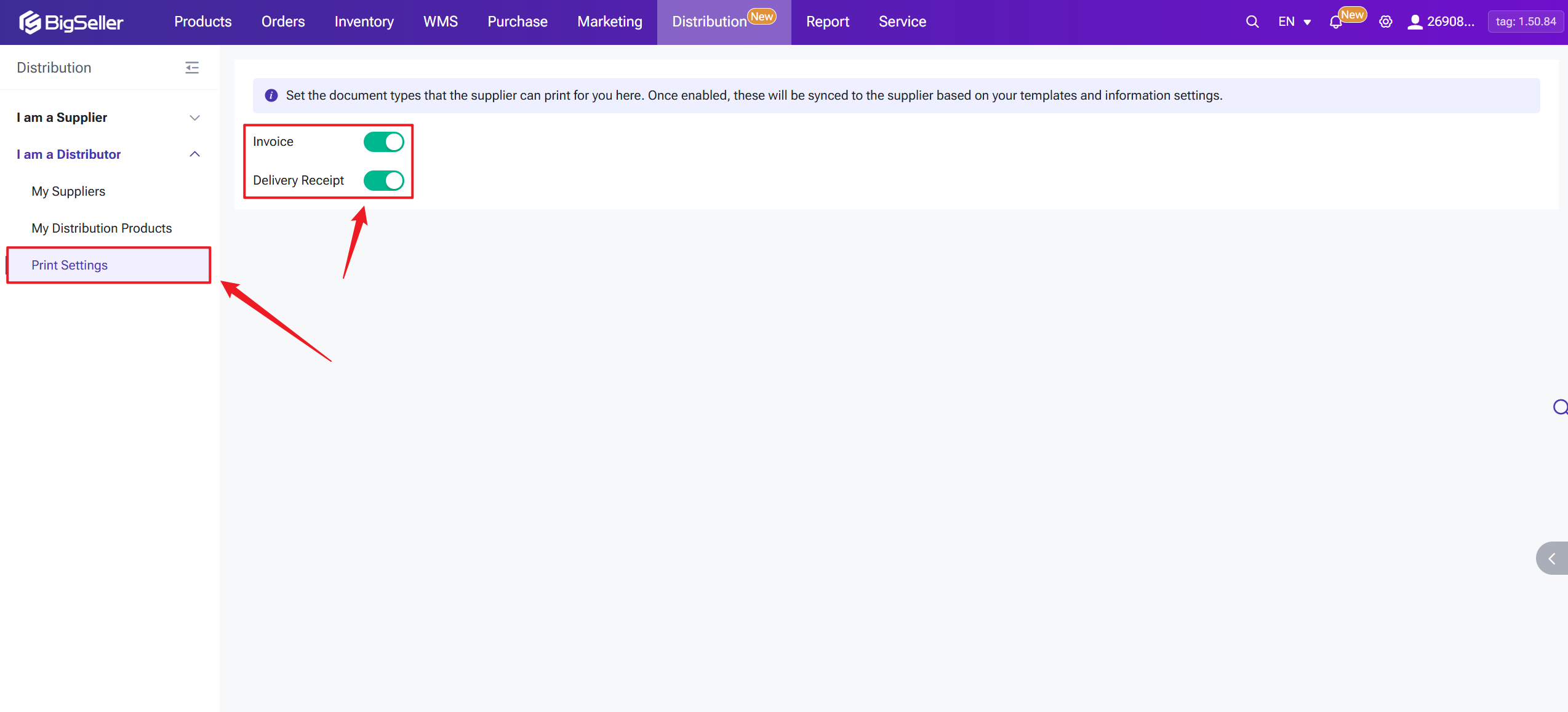
You can configure the document types for distribution orders in Distribution>I am a Distributor>Print Settings. Invoice and delivery receipt are supported.
The document set here will be synced to the supplier based on your templates and information settings.
When orders are in Pushed Successfully list, BigSeller will automatically sync the order status from Supplier side. You may aslo manually click Refresh to obtain the latest status.
Pushing an order will immediately deduct the distribution fees (distribution price × quantity + handling fees + shipping fees). Ensure your balance is sufficient before pushing.
After being pushed to the supplier, if distributions are cancelld or in Cancellation Request in In Processing Order/Shipped status, or even before, on Both distributor and supplier sides, the pushed orders will be automatically withdrawed.
However, Canceled Order Stock-In is not supported. That is, for orders cancelled after In Processing/Shipping status, distributors cannot just cancel on their side. You need maunally use the Withdrawal flow — charges are refunded automatically on successful withdrawal.
After the push is successful, please wait for the supplier to process the order. Once the supplier ships the order, it will move to the "To Pickup Orders" list; after the order status becomes "Shipped," it will enter the "Shipped" list.
Step 3: Print Setting
You can configure the document types for distribution orders in Distribution>I am a Distributor>Print Settings. Invoice and delivery receipt are supported.
The document set here will be synced to the supplier based on your templates and information settings.
5. Distribution Reconciliation
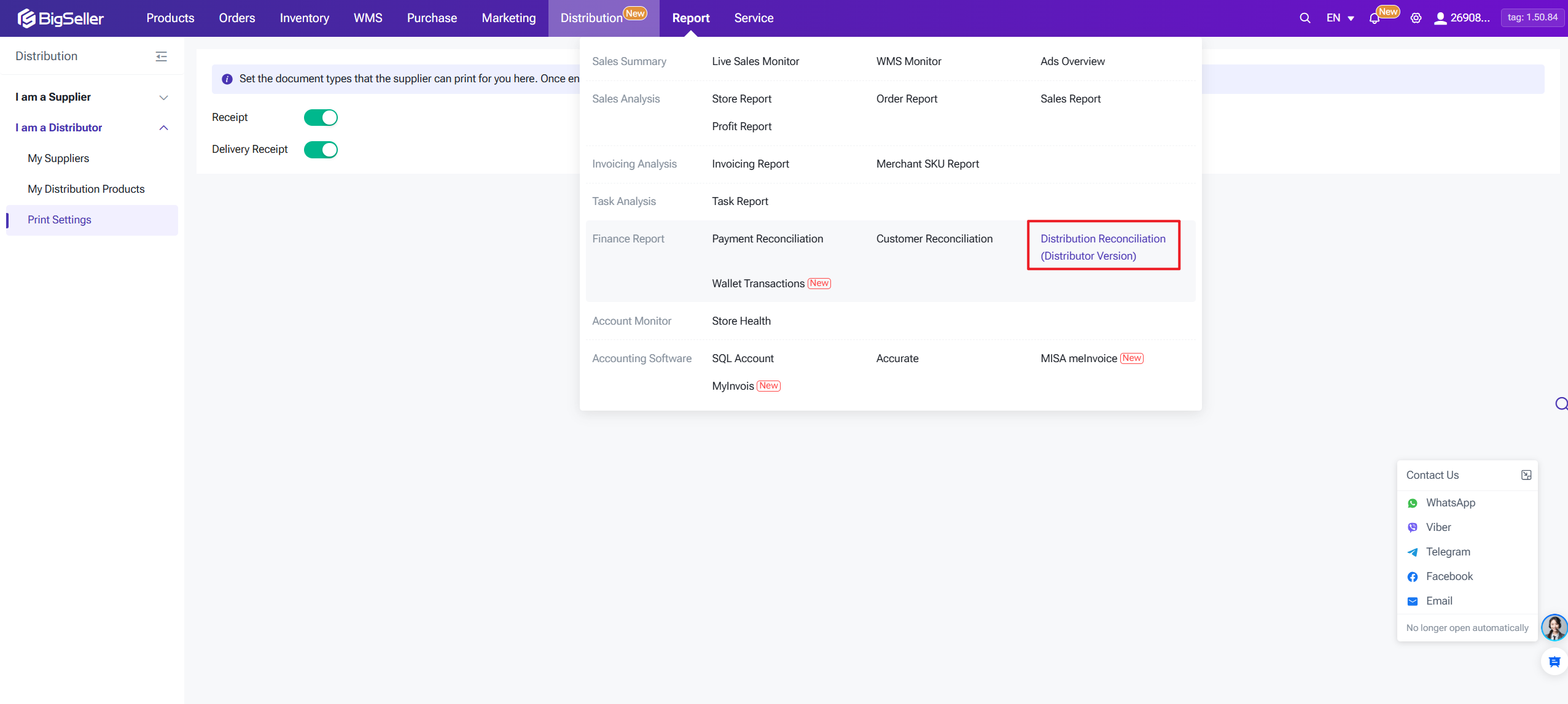
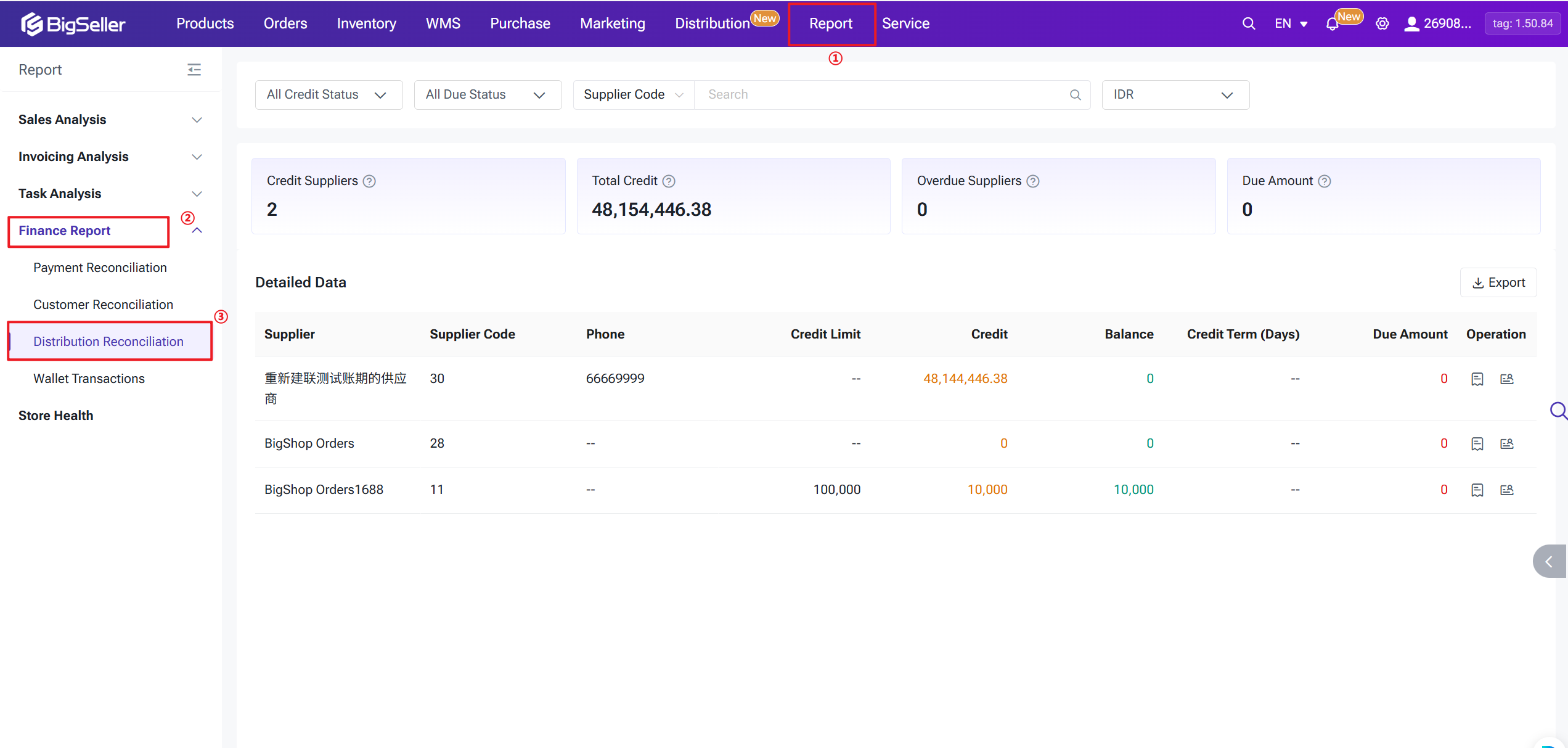
Distributors can view detailed expense breakdowns, account balances, and credit status with each supplier at any time within BigSeller's Distribution Reconciliation Report
1) Supplier Balance Overview
This page lists each supplier and shows your account balance, credit amount, credit limit, and settlement currency for that supplier. Distributors cannot top up directly. To add credit, ask your supplier to perform a Manual Bookkeeping → Add Balance operation on their end.
2) Reconciliation Details
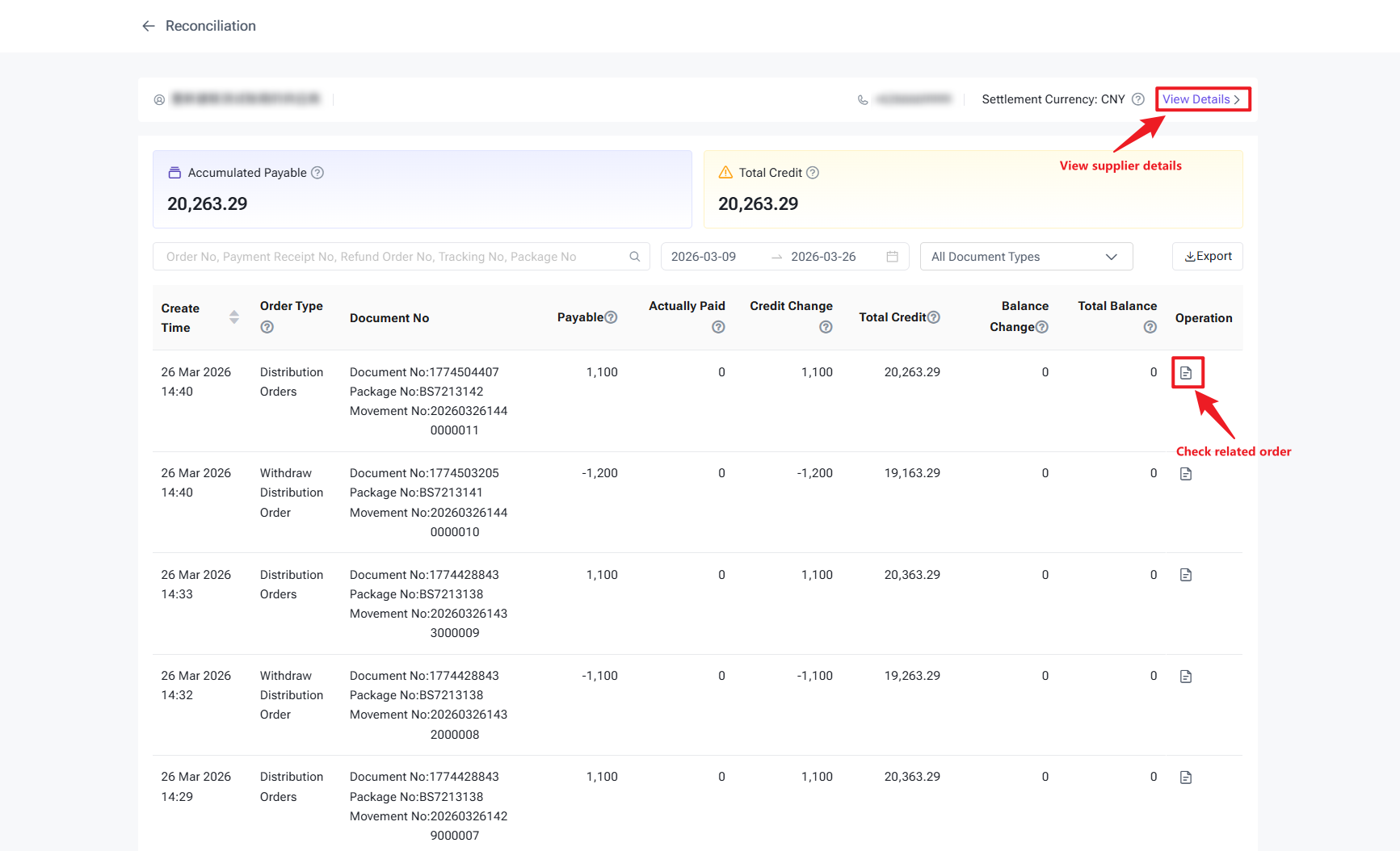
Click Transaction Details on any supplier row to see the full payment history: order charges, withdrawal refunds, after-sale refunds, and more. Every record has a unique transaction ID. Both you and your supplier see the same figures — fully transparent.
1) Supplier Balance Overview
This page lists each supplier and shows your account balance, credit amount, credit limit, and settlement currency for that supplier. Distributors cannot top up directly. To add credit, ask your supplier to perform a Manual Bookkeeping → Add Balance operation on their end.
2) Reconciliation Details
Click Transaction Details on any supplier row to see the full payment history: order charges, withdrawal refunds, after-sale refunds, and more. Every record has a unique transaction ID. Both you and your supplier see the same figures — fully transparent.
- Records are displayed in the settlement currency. If historical records used a different currency, they are converted to the settlement currency for display.
- If your balance runs out, the system will block the order push feature and show an "Insufficient Balance" error before any charge is made.
6. FAQ
Q: What is a "Distribution Fee" in my reconciliation transaction details? Can I get a refund?
The distribution fee covers the stock-out handling fee and the logistics processing fee — both configured by your supplier. If you initiate a withdrawal and the withdrawal succeeds, both fees will be refunded to your account balance automatically.
Q: I submitted a partnership request days ago and it still shows "Pending Authorization." What should I do?
The supplier has not yet reviewed your application. Contact them directly to follow up, or check the current status in My Suppliers → Pending Authorization. You will receive a system notification once they decide.
Q: One of my distribution products shows "Expired." What does that mean?
Expired means the supplier has removed that product from distribution (or ended the partnership). You cannot push new orders for it. Existing orders can still be fulfilled, but you should delist the product from your storefront as soon as possible to prevent buyers from placing orders you cannot ship.
Q: I got an "Insufficient Balance" error when pushing an order. What now?
Ask your supplier to add credit to your account via Manual Bookkeeping → Add Balance on their end. If your account has a credit limit enabled, also check whether your remaining credit is sufficient. Distributors cannot top up on their own at this time.
Q: The order was pushed successfully but the supplier hasn't shipped yet. Can I nudge them or cancel?
Yes — contact the supplier directly to follow up. If the order cannot be fulfilled, find it in the Push Successful list, click Withdrawl, and submit a recall request. Once the recall succeeds, any fees charged are automatically refunded to your balance.
Q: The supplier changed the distribution price. Will my listed products be affected?
Your live storefront prices will not change automatically. However, all future order pushes will use the new distribution price to calculate fees. We recommend reviewing and adjusting your storefront prices promptly to protect your margins.
The distribution fee covers the stock-out handling fee and the logistics processing fee — both configured by your supplier. If you initiate a withdrawal and the withdrawal succeeds, both fees will be refunded to your account balance automatically.
Q: I submitted a partnership request days ago and it still shows "Pending Authorization." What should I do?
The supplier has not yet reviewed your application. Contact them directly to follow up, or check the current status in My Suppliers → Pending Authorization. You will receive a system notification once they decide.
Q: One of my distribution products shows "Expired." What does that mean?
Expired means the supplier has removed that product from distribution (or ended the partnership). You cannot push new orders for it. Existing orders can still be fulfilled, but you should delist the product from your storefront as soon as possible to prevent buyers from placing orders you cannot ship.
Q: I got an "Insufficient Balance" error when pushing an order. What now?
Ask your supplier to add credit to your account via Manual Bookkeeping → Add Balance on their end. If your account has a credit limit enabled, also check whether your remaining credit is sufficient. Distributors cannot top up on their own at this time.
Q: The order was pushed successfully but the supplier hasn't shipped yet. Can I nudge them or cancel?
Yes — contact the supplier directly to follow up. If the order cannot be fulfilled, find it in the Push Successful list, click Withdrawl, and submit a recall request. Once the recall succeeds, any fees charged are automatically refunded to your balance.
Q: The supplier changed the distribution price. Will my listed products be affected?
Your live storefront prices will not change automatically. However, all future order pushes will use the new distribution price to calculate fees. We recommend reviewing and adjusting your storefront prices promptly to protect your margins.
Is this content helpful?
Thank you for your feedback. It drives us to provide better service.
Please contact us if the document can't answer your questions