How to Manage a Thaimart Store?
Update Time: 16 Oct 2026 07:58
After connecting your Thaimart store to BigSeller, you can conveniently publish products, manage orders, and manage stock through the BigSeller system.
1. Connect the Store
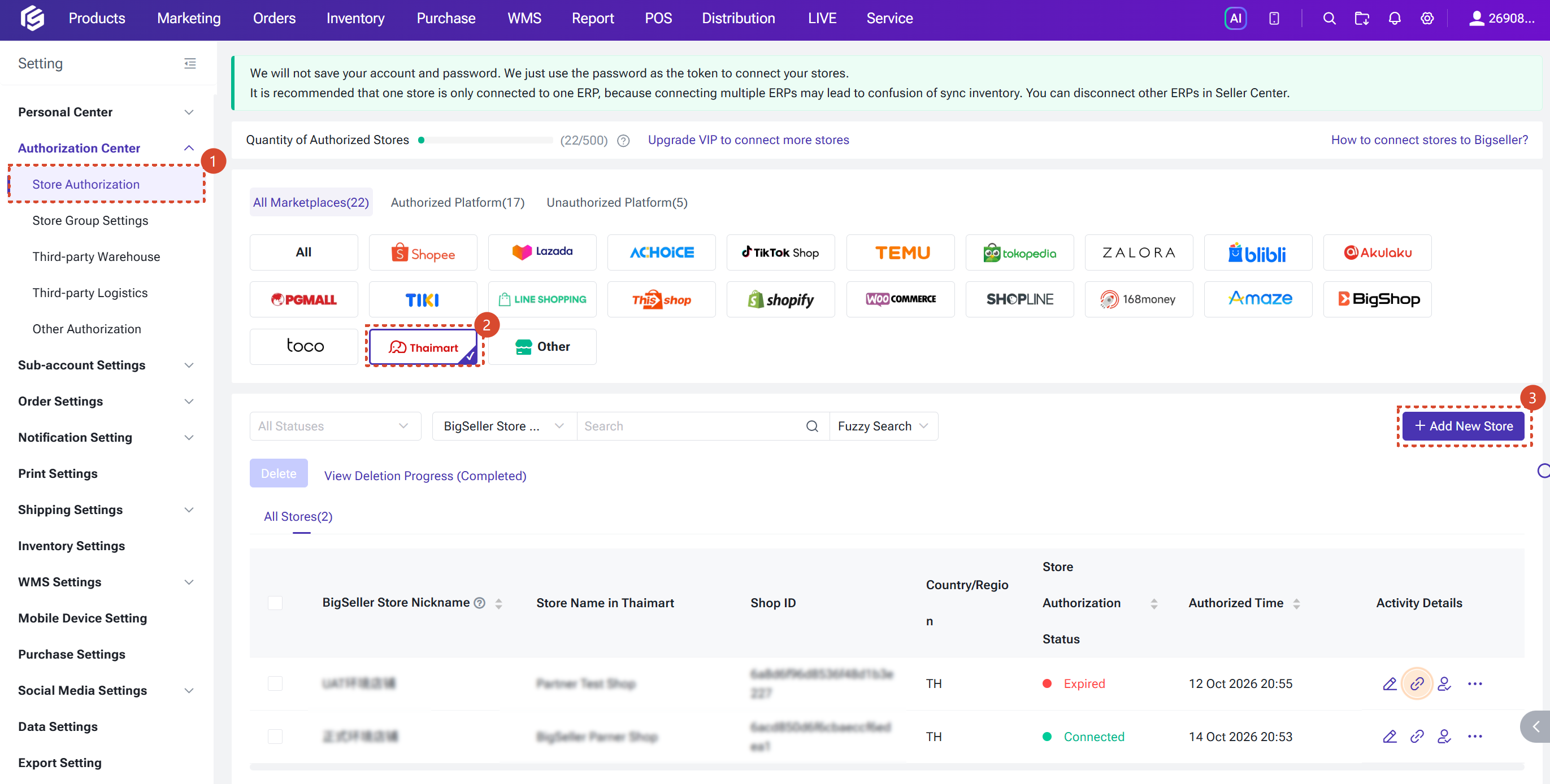
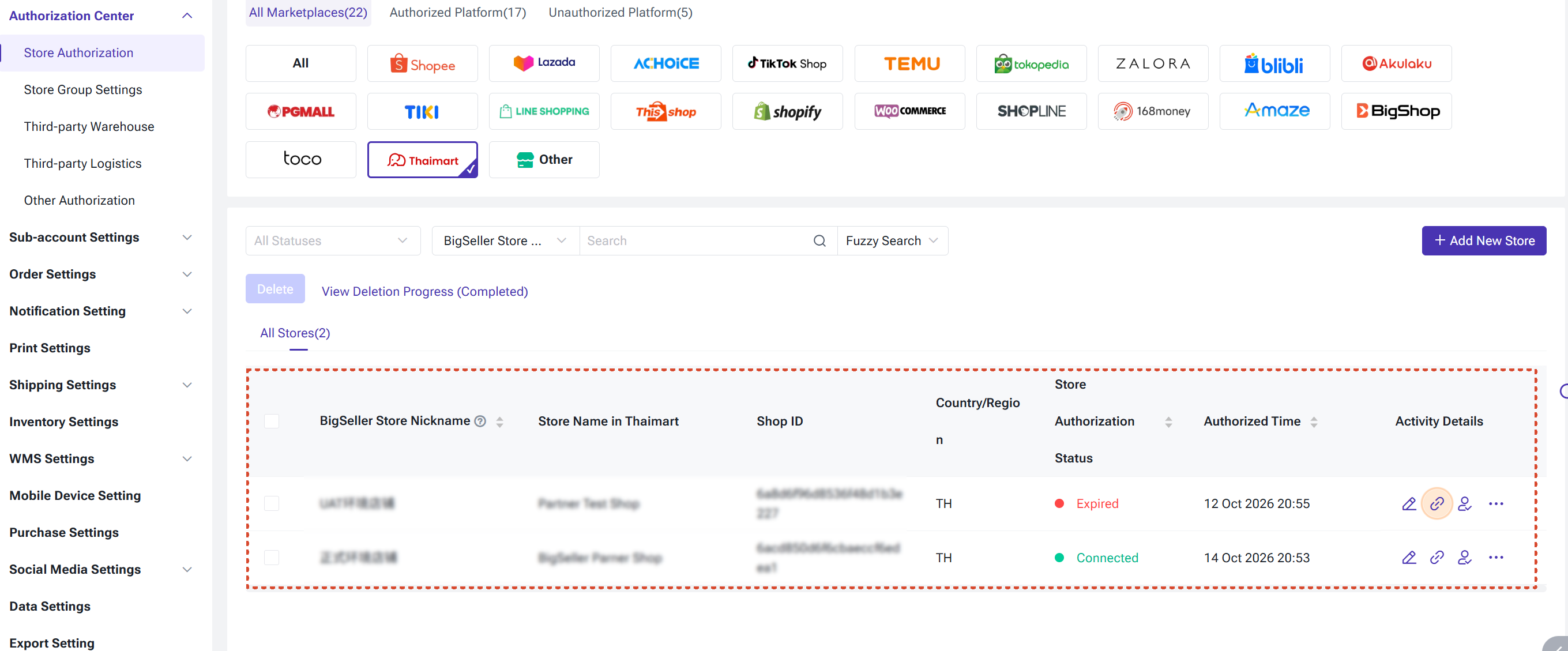
Go to "Settings" > "Store Authorization" > "Thaimart" > "Add New Store"
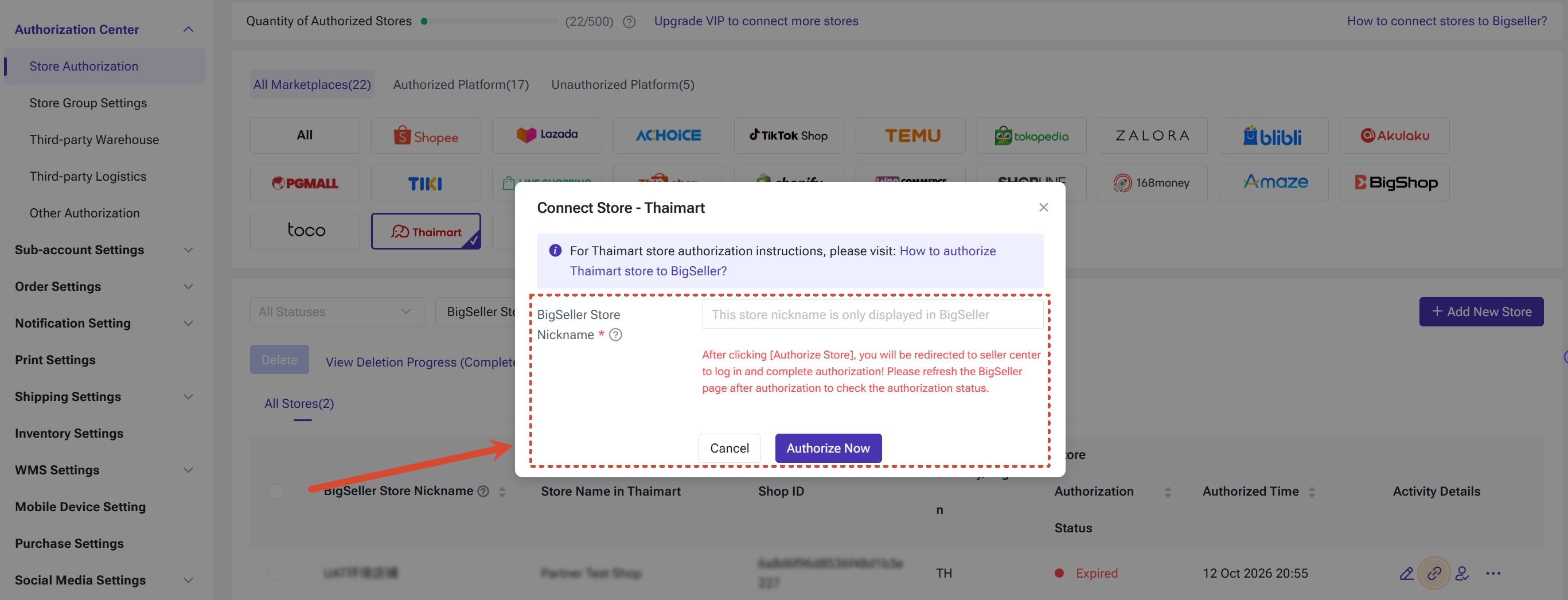
Enter the nickname of the store to be displayed in BigSeller > click "Connect Now"
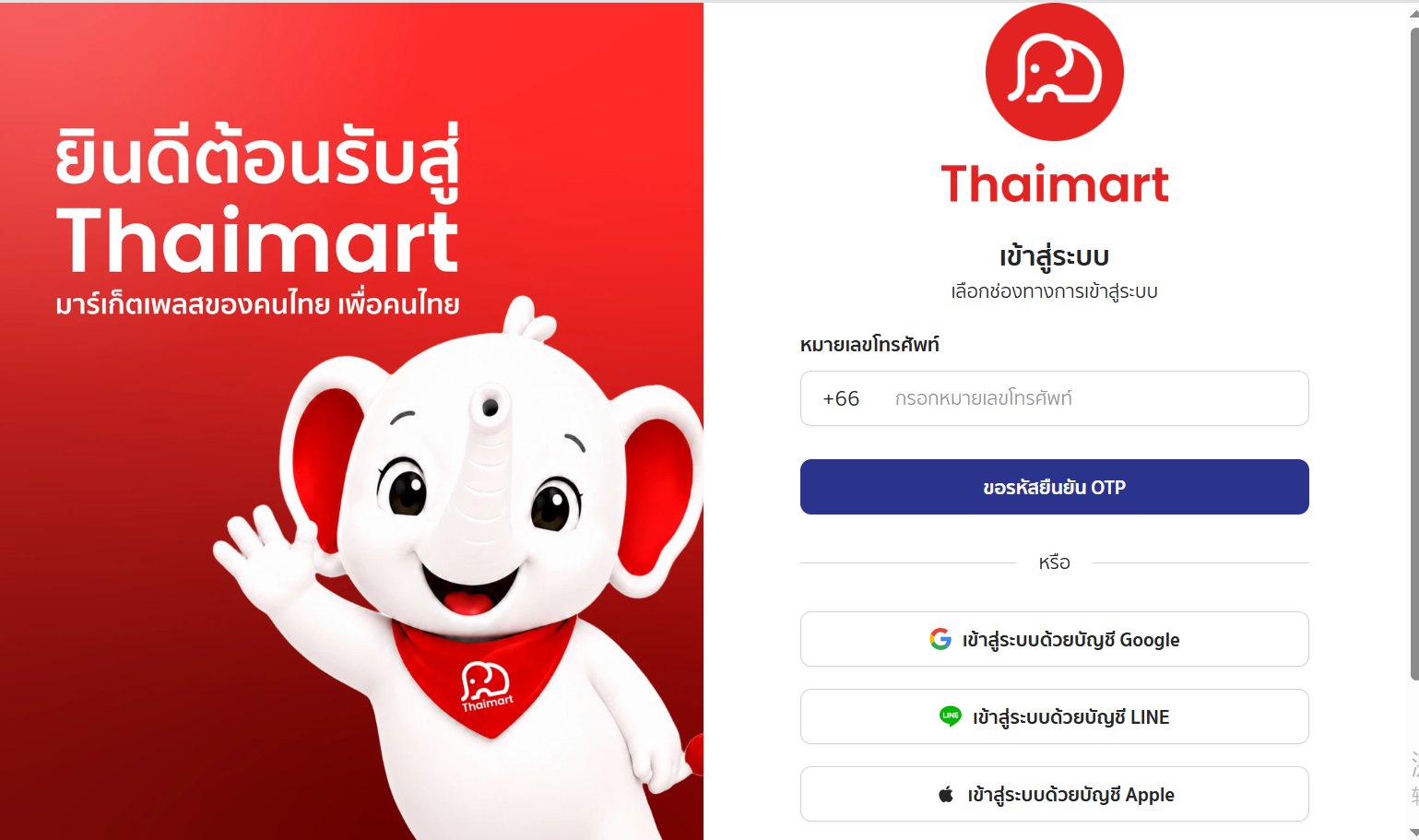
Then you will need to log in to Thaimart
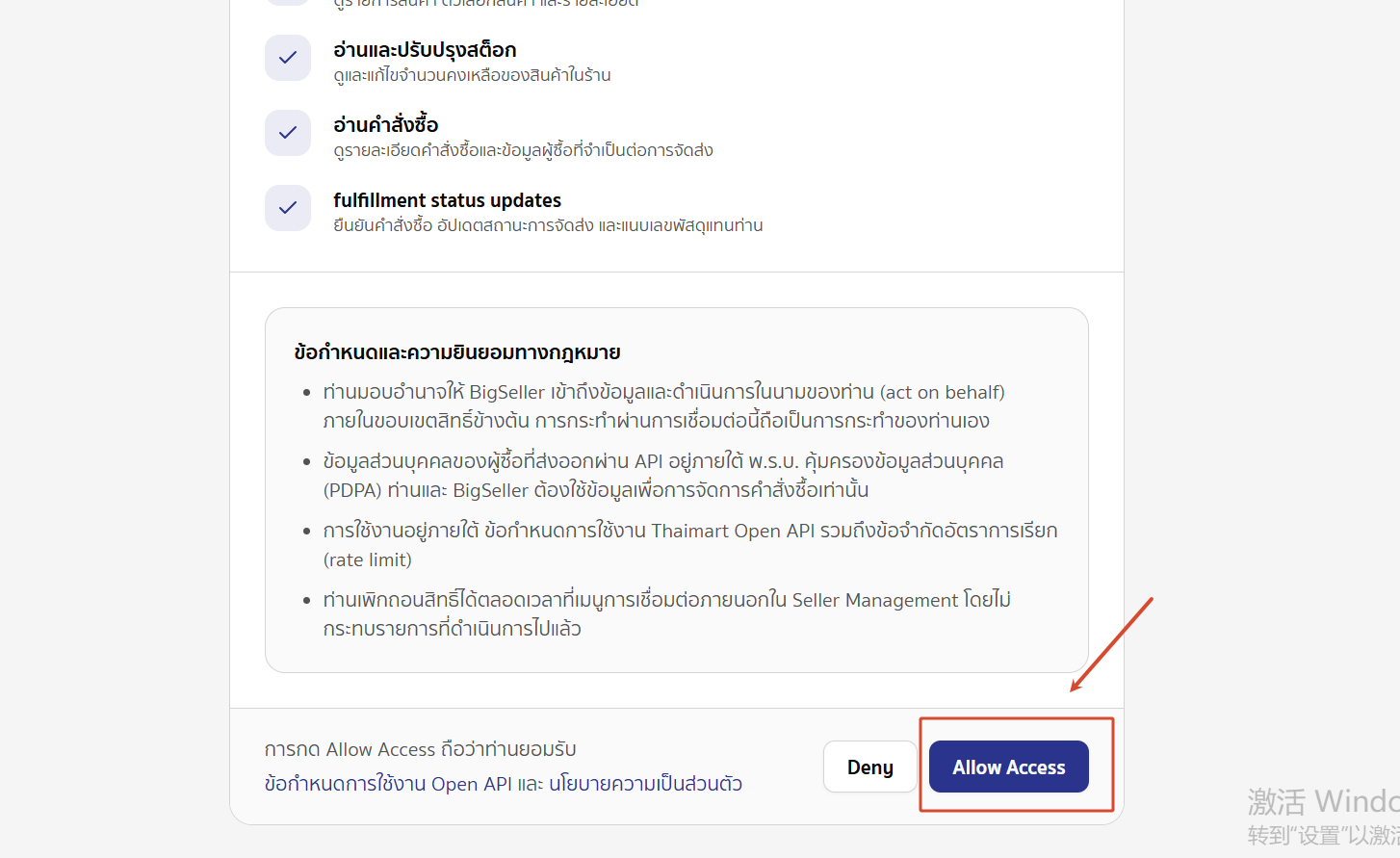
Click "Allow Access"
After the connection is completed, you can check the connection status and other information in the store list.
2. Publish Products
Copying listings between Thaimart and other platforms is supported, and importing products from listings that you have scraped from other platforms is also supported.
👉 Click here to see details of the Copy Listing feature
👉 Click here to see details of the Product Scraper feature
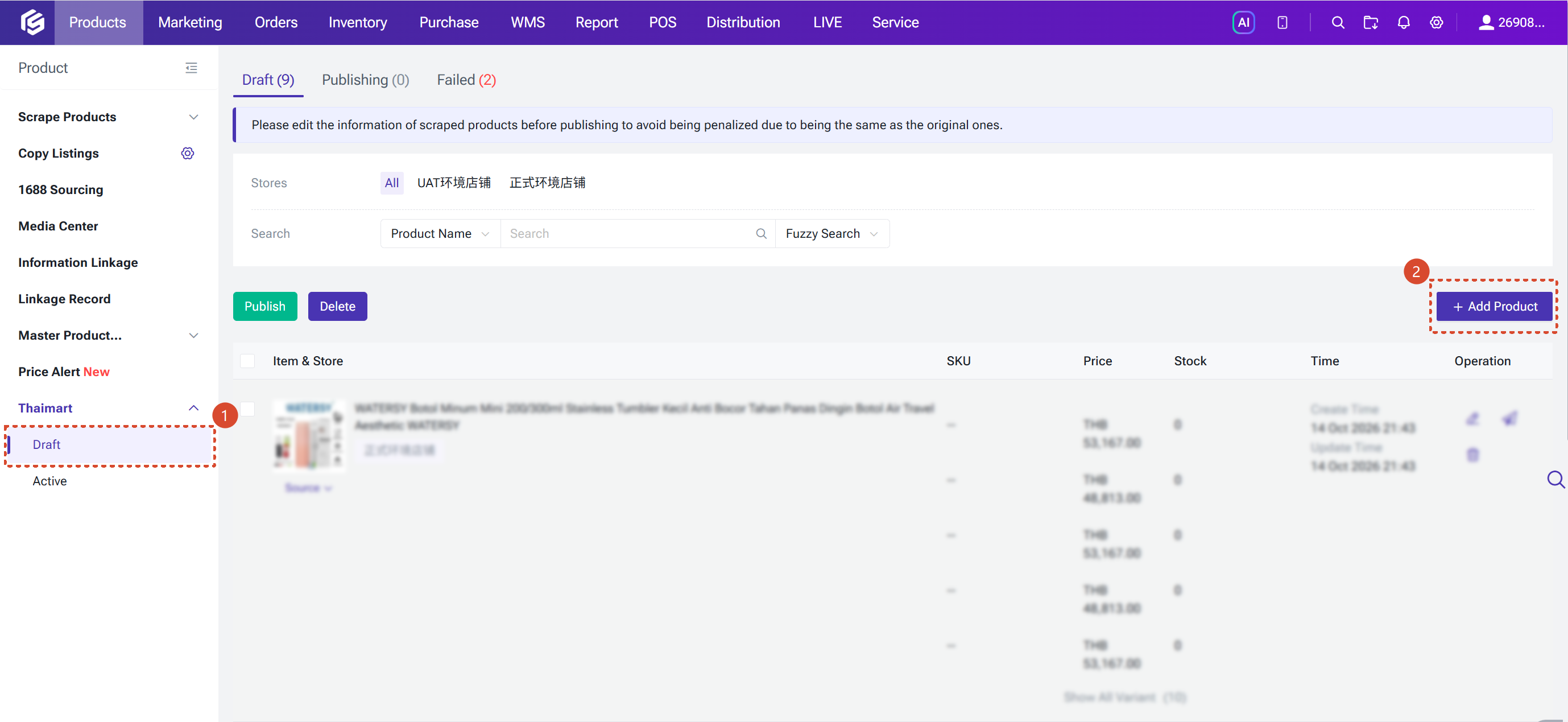
- Go to "Products" > "Thaimart" > "Draft" > "Add Product"
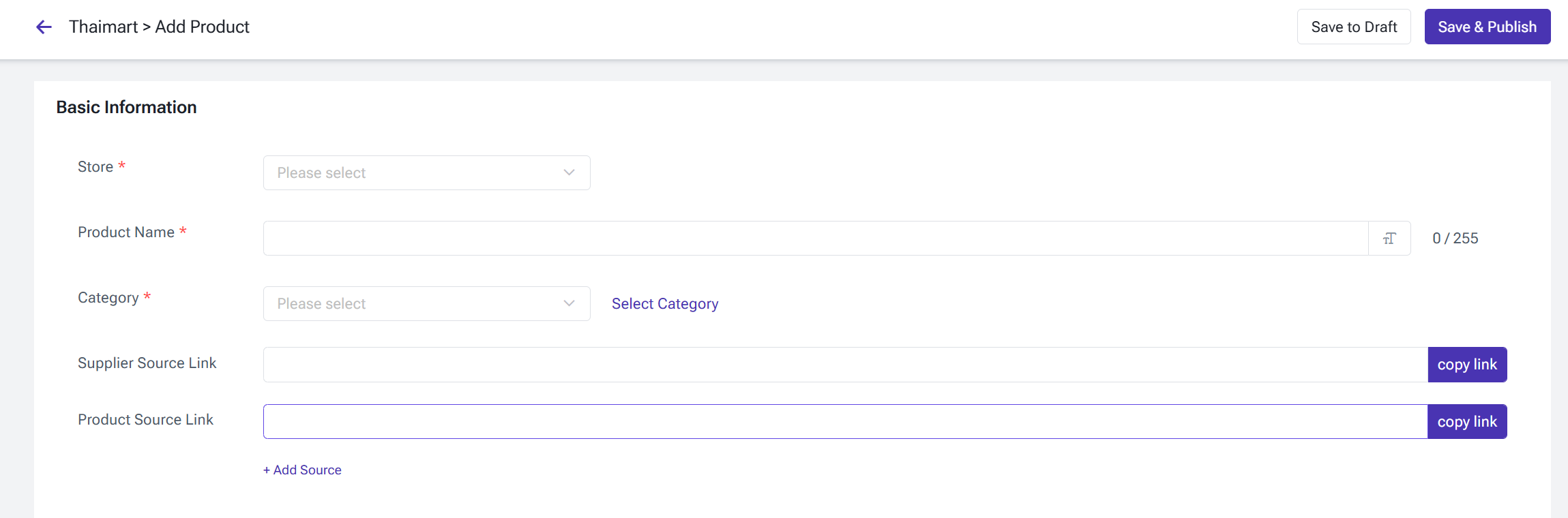
- Fill in the Basic Information of the product
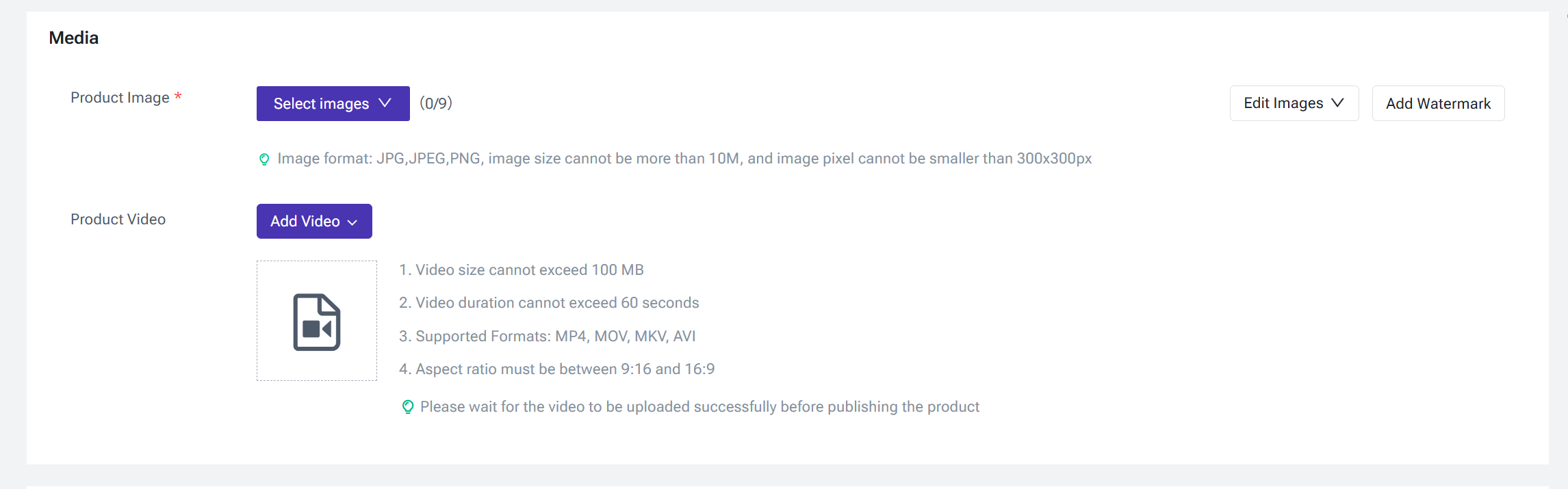
Upload the product images and videos
- Fill in the product description
💡 Note: If you want to add images to the product description, the image files must meet the following requirements: File format: JPG, JPEG, PNG; file size no more than 10M; image size must not be smaller than 300x300px (same as the requirements for product images)
Set the product variations
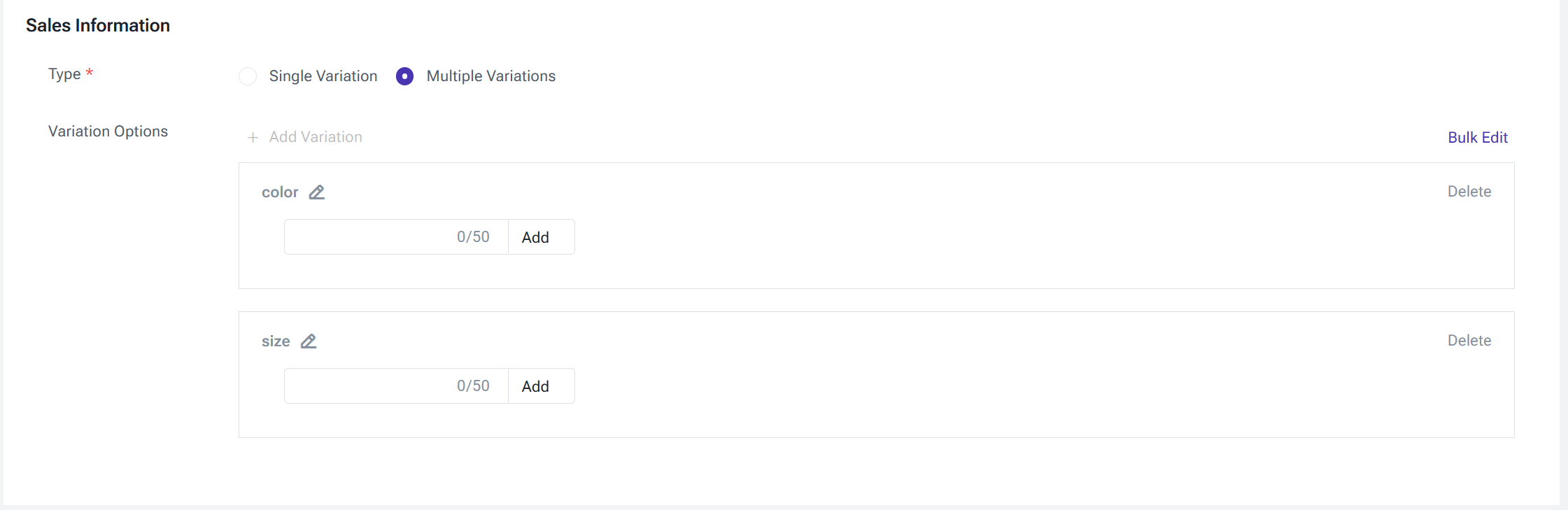
- Set the SKU number, stock, price, weight, and images of each SKU
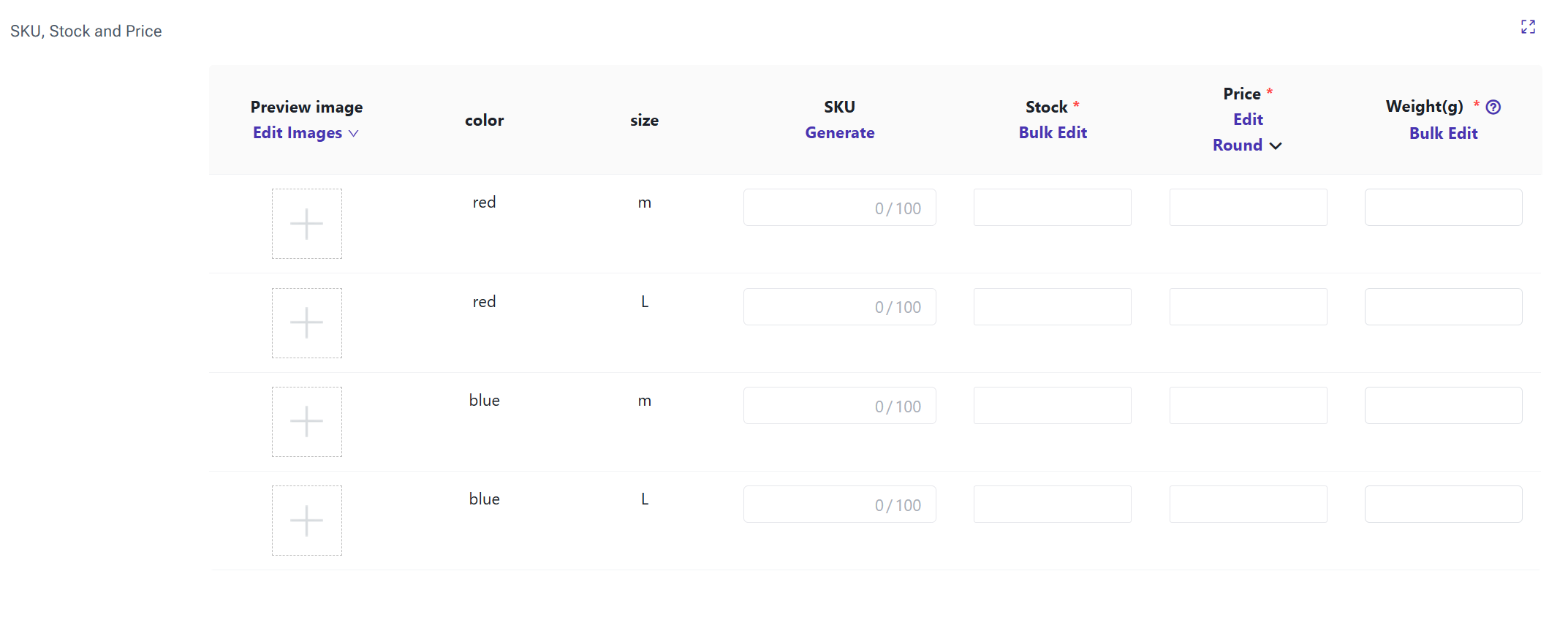
Fill in the parcel size information, set the product sales status, and then click "Save & Publish" or "Save to Draft"
💡 Note:
◾ If the sales status is off: after you publish the product, it will be displayed under "Active" > "Published"
◾ If the sales status is on: after you publish the product, it will be displayed under "Active" > "Archived"
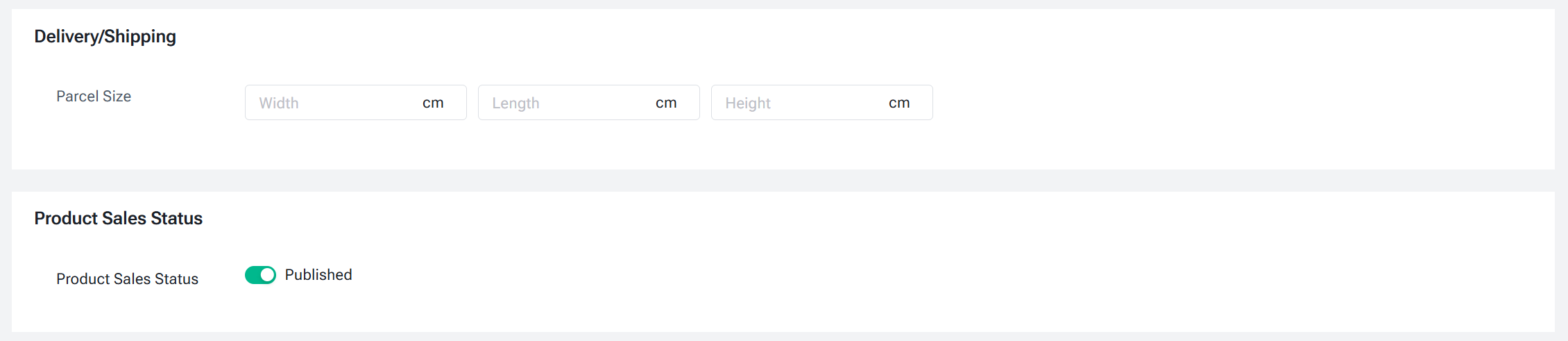
For products that fail to publish, you can check the reasons, edit the information, and publish again under the "Failed" menu.
Under the "Active" menu, you can check the product status, edit details, delist products, and sync product information.
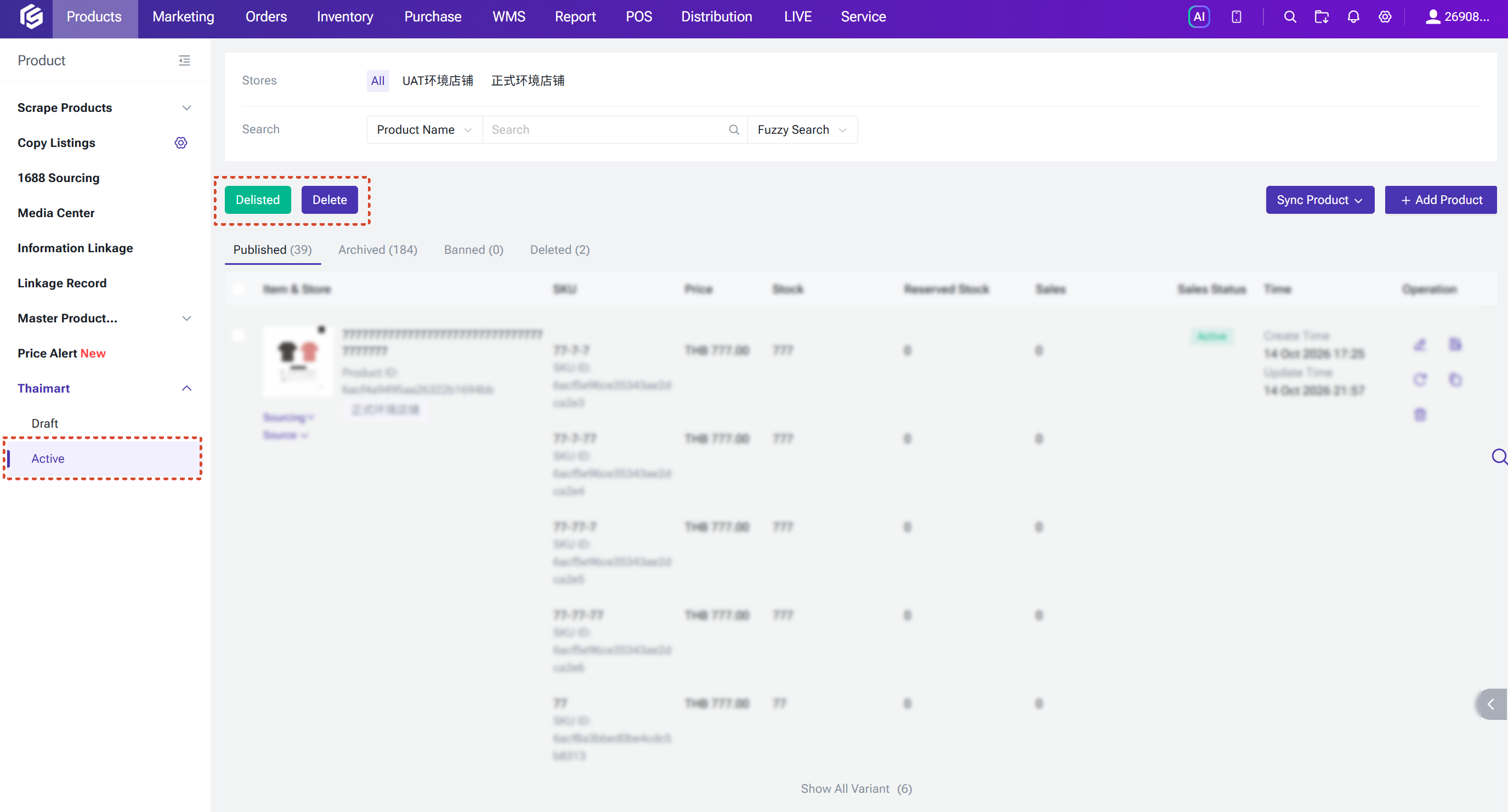
💡 Note:
◾ The "Deleted" status means that you may have deleted the product in Seller Center, but the product has not yet been removed from the BigSeller system.
◾ If you delete a product in BigSeller, the deletion will not affect the product in Seller Center.
3. Manage Orders
You can manage orders following the normal system workflow. 👉 Click here to see how to process orders via BigSeller
💡 Things to note about Thaimart orders
◾ Currently, only Prepaid orders are supported.
◾ You must "Confirm" the order within 3 days; otherwise, the order may be automatically canceled by the platform.
◾ Currently, in BigSeller you can only process orders that use the platform's shipping service; seller-arranged shipping is not yet supported.
◾ The shipping service or shipping method cannot be modified via BigSeller yet; you need to make changes in Seller Center.
◾ Order splitting is not yet supported.
◾ Pushing orders to the Fulfillment Warehouse is not yet supported.
◾ Estimated profit display is not yet supported.
2. Printing shipping labels
◾ Custom shipping labels are not yet supported.
◾ How far back you can print shipping labels depends on how long the platform stores the label files.
3. After-sales orders
◾ Canceling orders via BigSeller is not yet supported.
◾ For orders with refund or return requests, you need to accept or reject the request in Seller Center, and you can record the information and stock in the returned items using the "Manual After-Sales Order Creation" feature in BigSeller.
👉 Click here to see how to use it
◾ Under the "Canceled Orders" menu, you can check orders canceled by buyers or the platform, including orders that were canceled while still in the "Unpaid" status.
4. Manage Stock
Is this content helpful?
Thank you for your feedback. It drives us to provide better service.
Please contact us if the document can't answer your questions