How to process Shopee Unpackaged orders (Taiwan)?
Copy link & title
Update Time: 24 Sep 2026 08:07
"Unpackaged orders" is a packaging-free delivery option introduced by Shopee Taiwan (蝦皮店到店 - 無包裝環境友善物流). When buyers place an order with this delivery option, the item is shipped without any outer box/bag or cushioning materials, with only the platform-designated shipping label attached.
BigSeller now supports auto-identifying such orders, helping you quickly distinguish them during order processing and ship them correctly — avoiding wasted packaging materials or non-compliance with the platform's logistics requirements.
Please note the following key points and procedures when processing Unpackaged orders in BigSeller:
BigSeller now supports auto-identifying such orders, helping you quickly distinguish them during order processing and ship them correctly — avoiding wasted packaging materials or non-compliance with the platform's logistics requirements.
Please note the following key points and procedures when processing Unpackaged orders in BigSeller:
- Unpackaged orders follow the normal order arrangement process.
- It is recommended to print shipping labels for regular orders and Unpackaged orders separately.
- You do not need to distinguish between the North Zone and the South Zone when printing pick lists.
- When printing TO Labels, you do not need to select specific orders, but you must filter the order type as Unpackaged.
- Pushing TO Labels is not yet supported for distribution orders and third-party warehouse orders. Distributors or third-party warehouse sellers need to download the TO Labels and send them to suppliers or third-party warehouses.
Step-by-Step Guide
1. Sync Orders
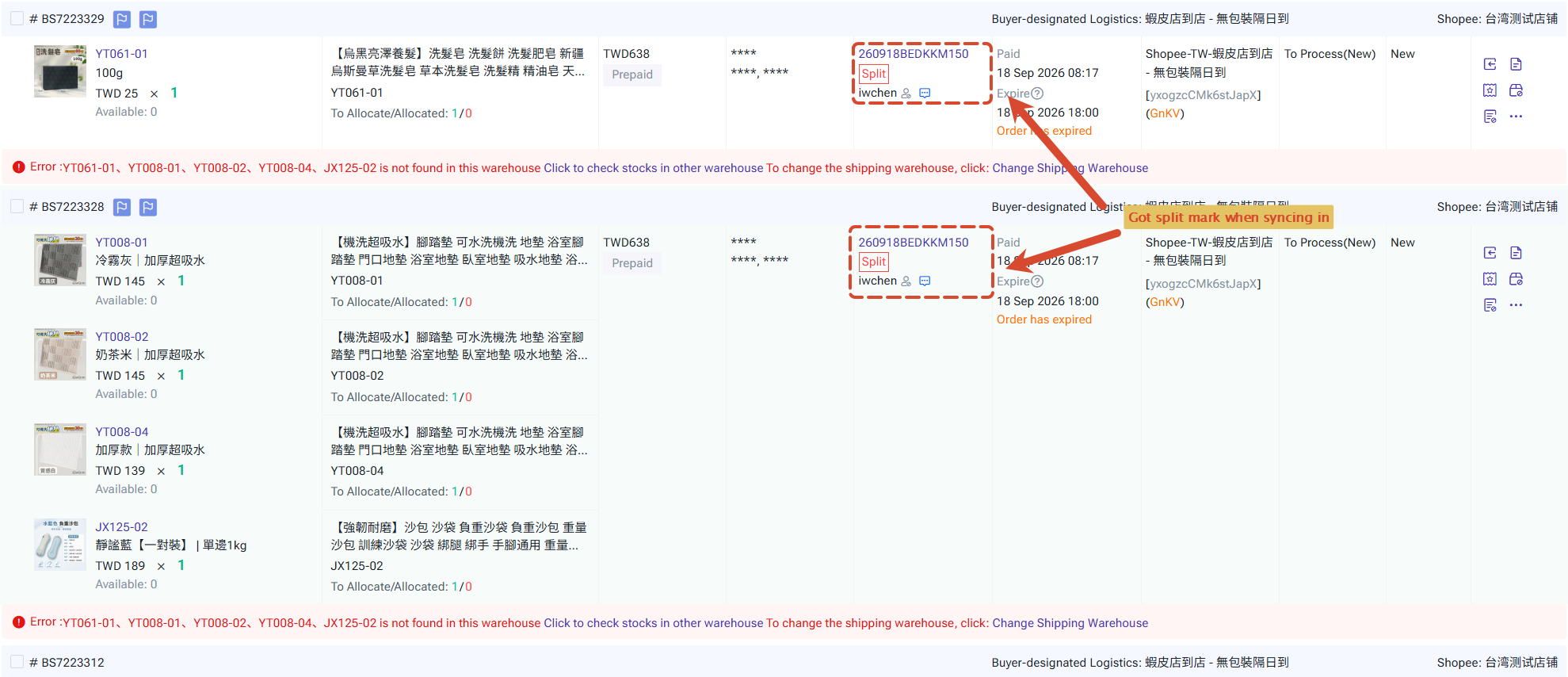
Once Unpackaged orders are synced into BigSeller, they will be split automatically. Note: BigSeller supports splitting each order only once. You cannot split a package that has already been split.
2. Pack Orders
The packing process is the same as for regular orders. You can arrange these orders as usual.
3. Print Labels
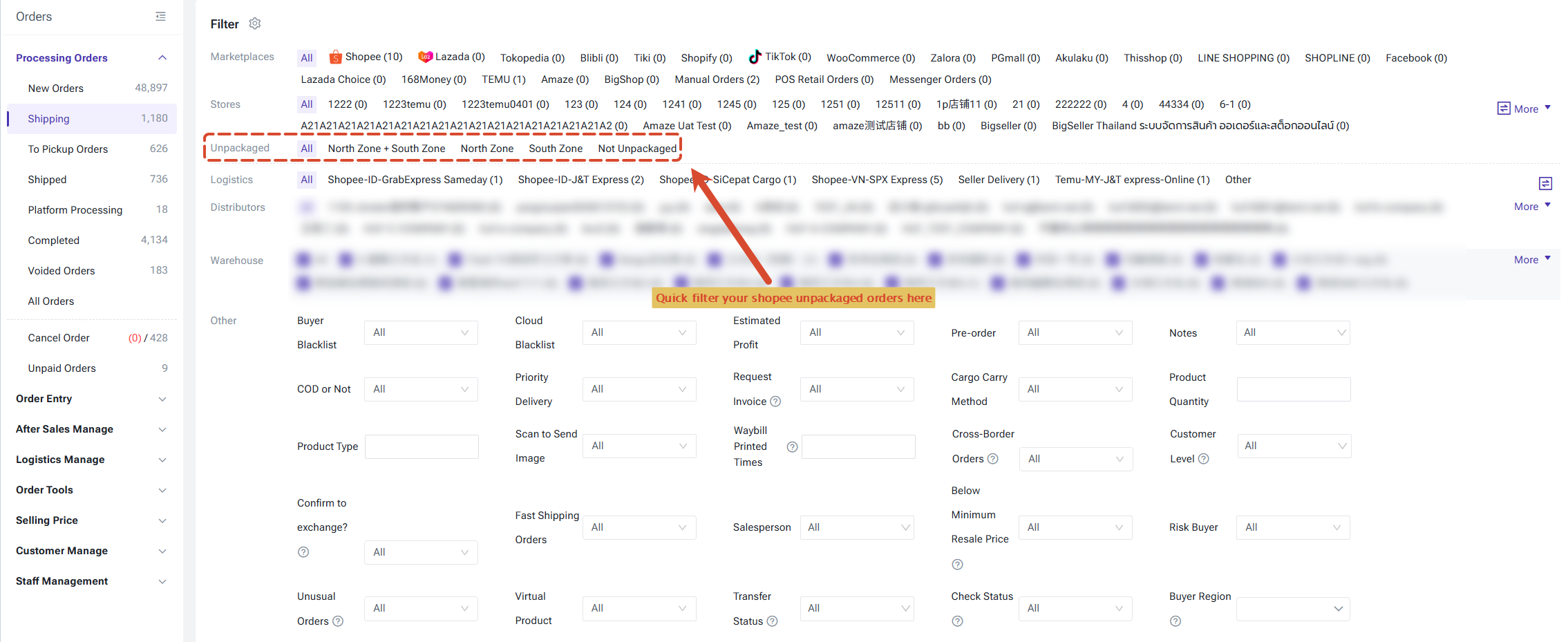
After arranging the orders, you can filter Unpackaged orders in the In Processing Orders list, then print shipping labels, pick lists, and TO Labels.
3.1 Print Shipping Labels
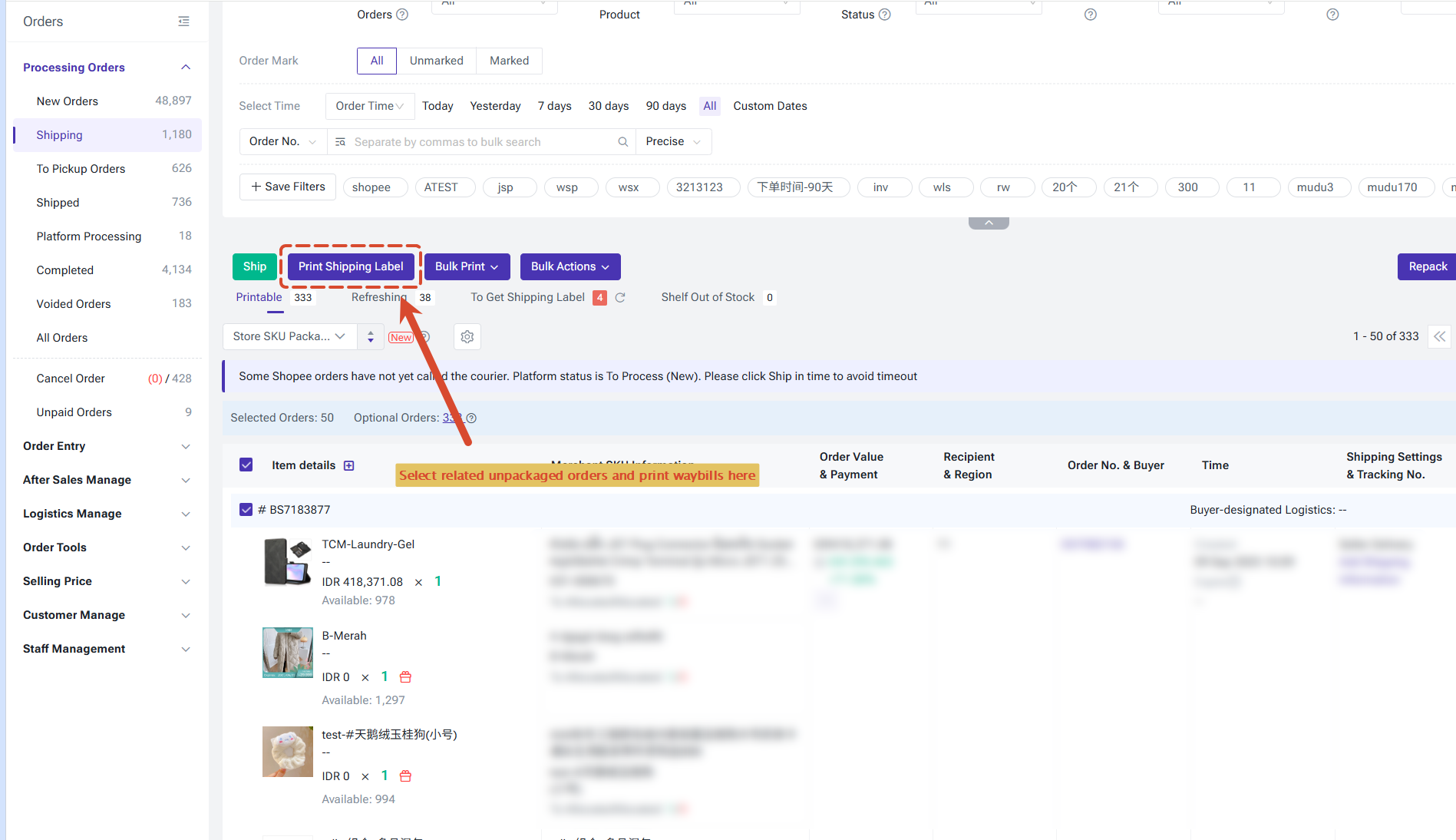
Select the Unpackaged orders and print their shipping labels. It is recommended to print them separately from regular orders.
3.2 Print Pick Lists and Summary Lists
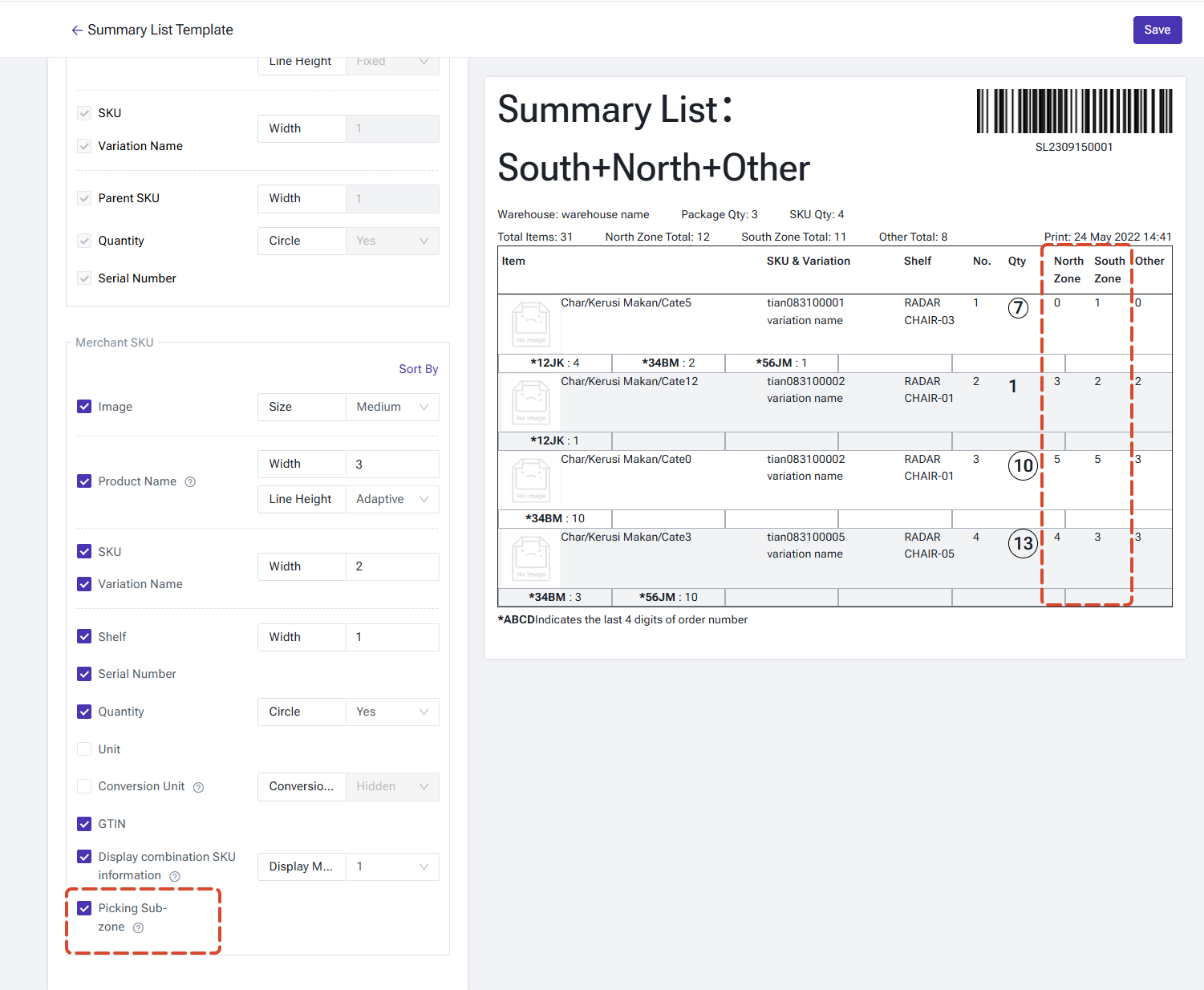
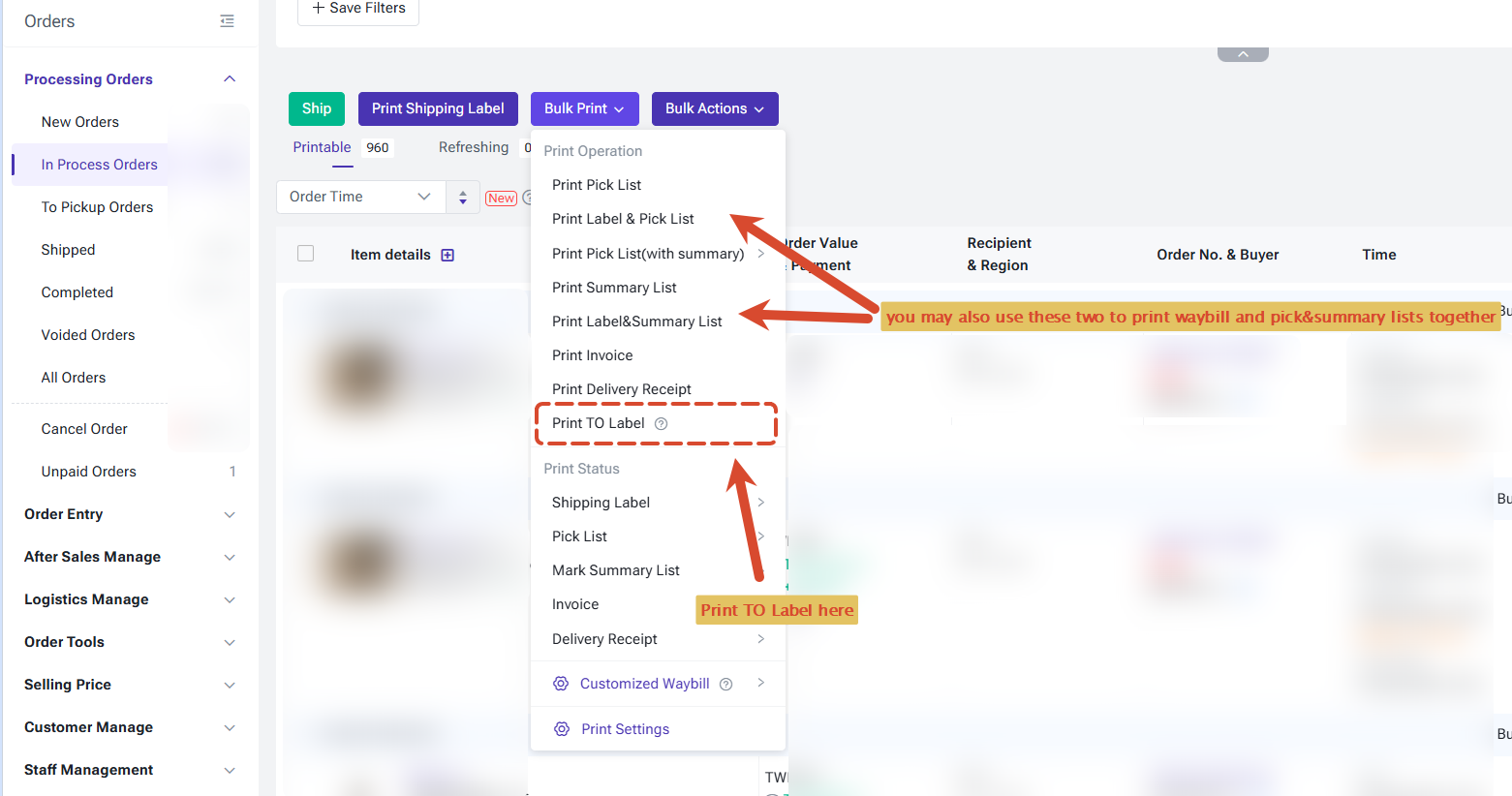
You may also print Pick list and Summary lists by Bulk Print button, and the summary list support displaying picking zones (North and Sourth).
3.3 Print TO Labels
Pushing TO Labels is not yet supported for distribution orders and third-party warehouse orders. If needed, distributors or third-party warehouse sellers should first download the TO Labels and send them to suppliers or third-party warehouses.
Is this content helpful?
Thank you for your feedback. It drives us to provide better service.
Please contact us if the document can't answer your questions