How to Set Up and Use Ksher Payment in BigSeller?
Copy link & title
Update Time: 15 Sep 2026 09:24
BigSeller now allows buyers to pay through Ksher without transferring money to your bank account.
It reduces the workload of manually recording information and verifying amounts, making it faster and more accurate to track the payment status, reconcile accounts, and manage the payments received through each channel.
It reduces the workload of manually recording information and verifying amounts, making it faster and more accurate to track the payment status, reconcile accounts, and manage the payments received through each channel.
Points to Note
1. Currently, messenger orders, Facebook orders, and POS orders are supported.
2. Distributor top-up/recharge is supported (for users who have enabled the Distribution feature).
3. BigSeller does not currently support refunding buyers directly for orders paid through the Ksher online payment channel when processing after-sales orders.
2. Distributor top-up/recharge is supported (for users who have enabled the Distribution feature).
3. BigSeller does not currently support refunding buyers directly for orders paid through the Ksher online payment channel when processing after-sales orders.
Step by Step Guide
1. Connect Your Ksher Account
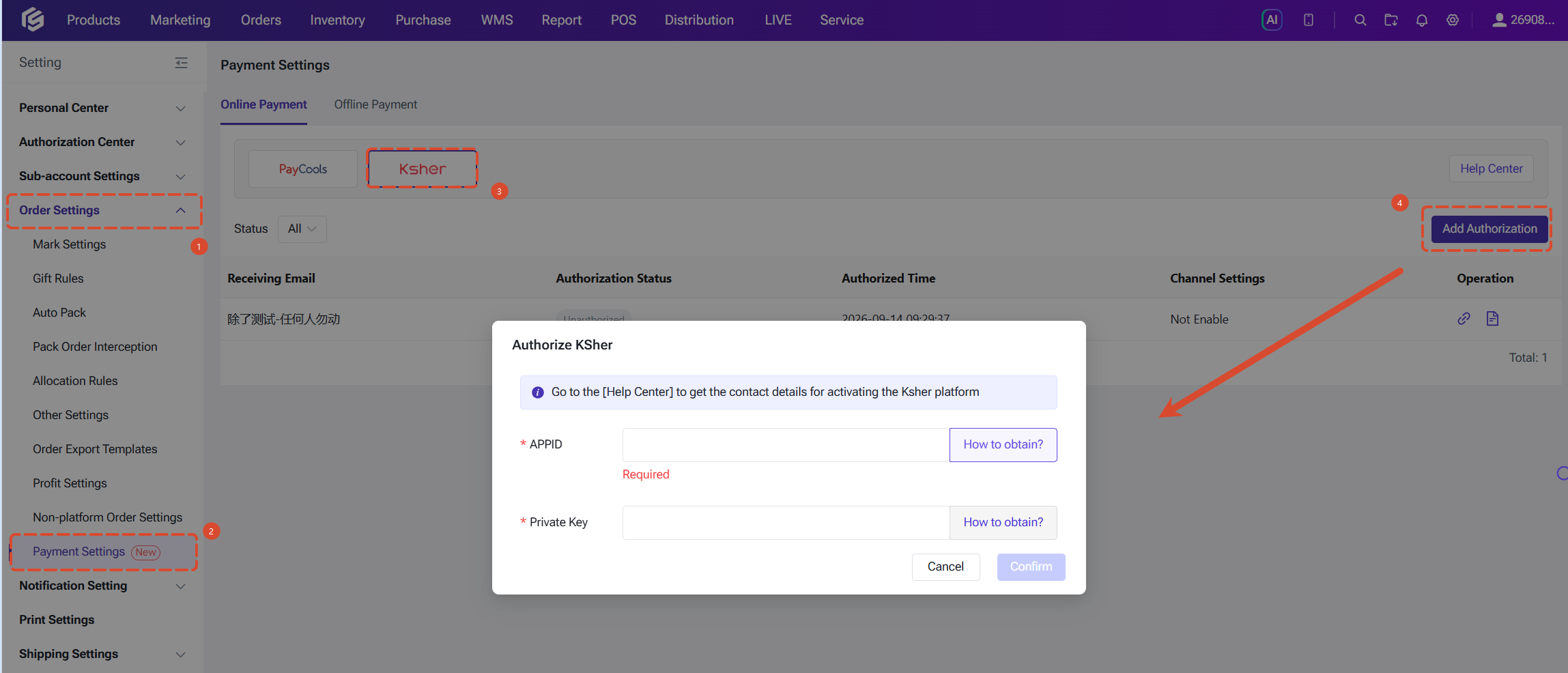
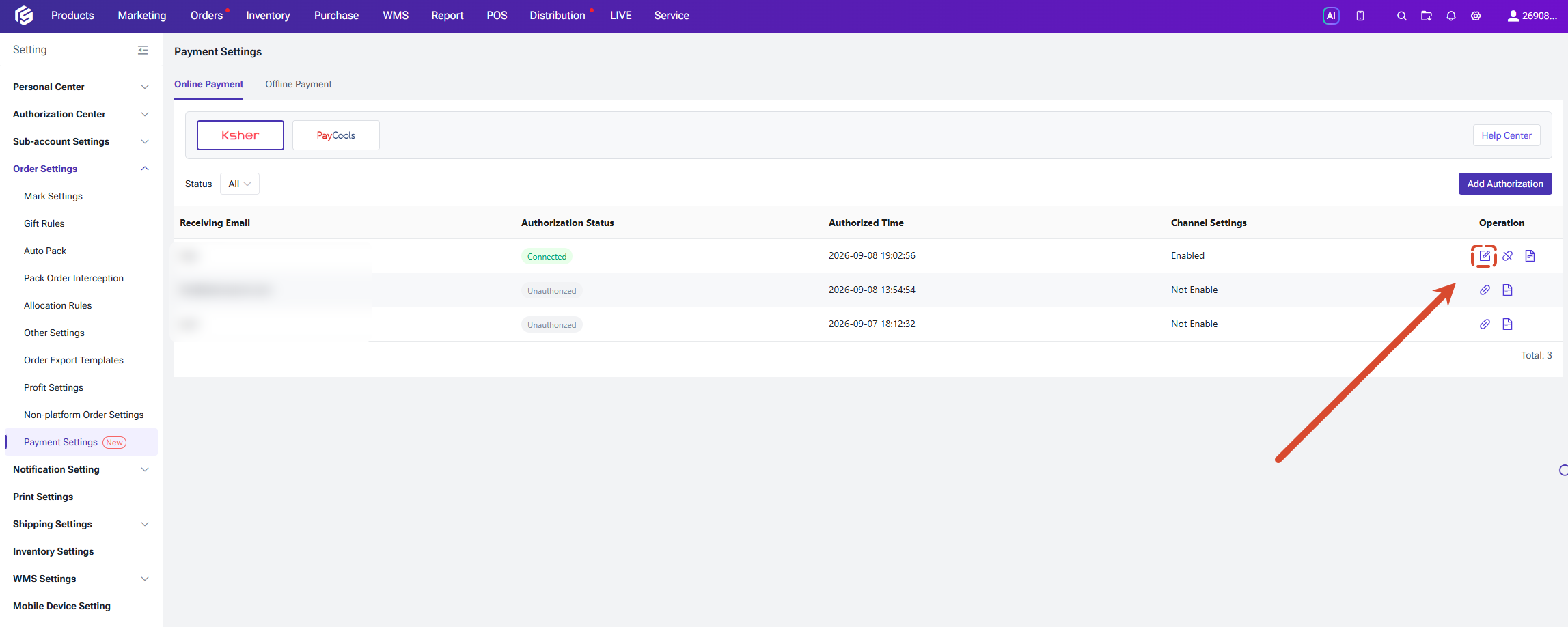
Go to Settings > Order Setting > Payment Settings > Online Payment > Ksher > Add New Connection. Enter the APP ID and the Private Key, then click Confirm.
💡 How to find your APP ID and Private Key:
Go to Settings > Order Setting > Payment Settings > Online Payment > Ksher > Add New Connection. Enter the APP ID and the Private Key, then click Confirm.
💡 How to find your APP ID and Private Key:
- Log in to Ksher 👉 https://merchant.ksher.cn/th/login
- Go to the IT Integration menu, copy the APP ID, and enter it in BigSeller.
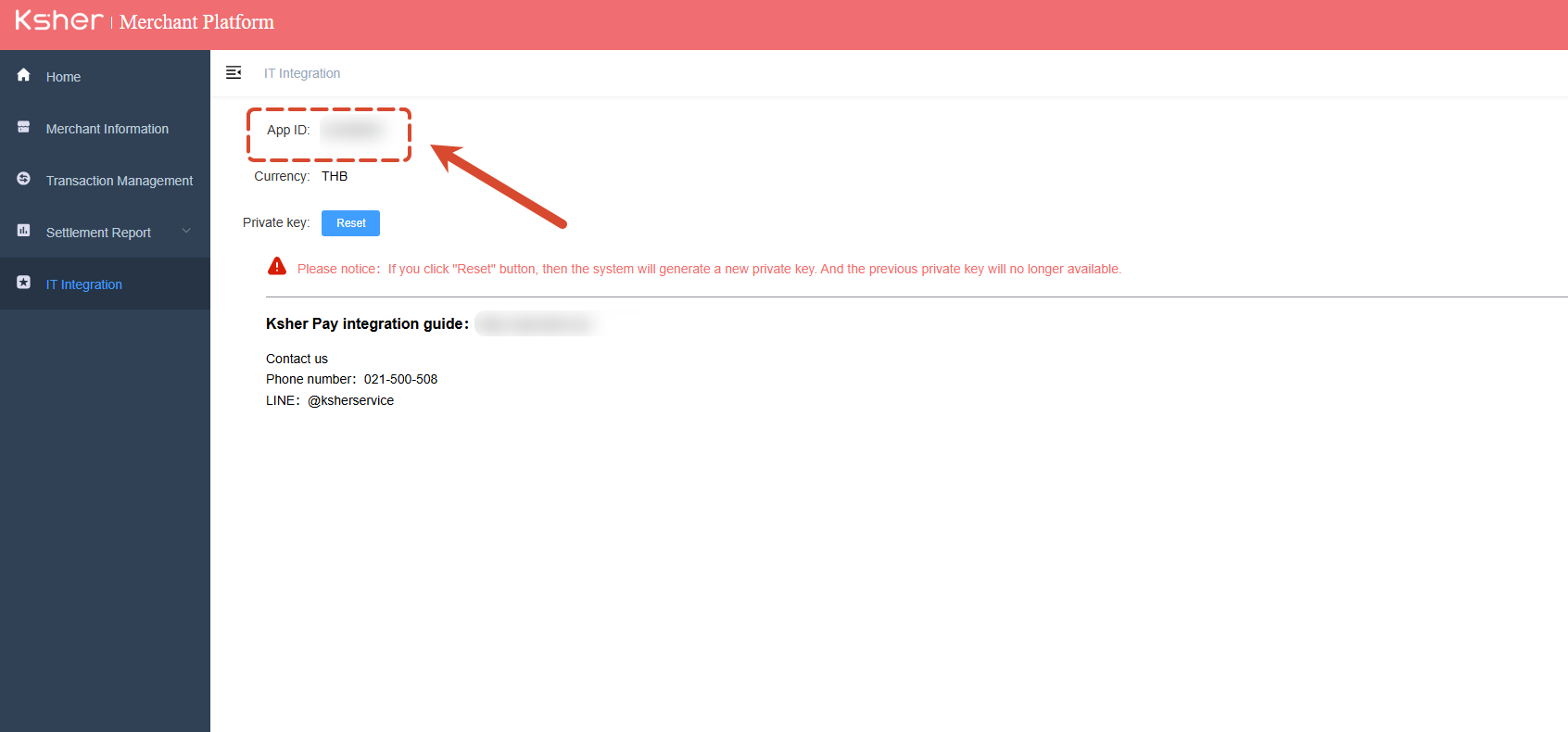
- Click Reset, set the Private Key (your Ksher login password), and click Confirm.
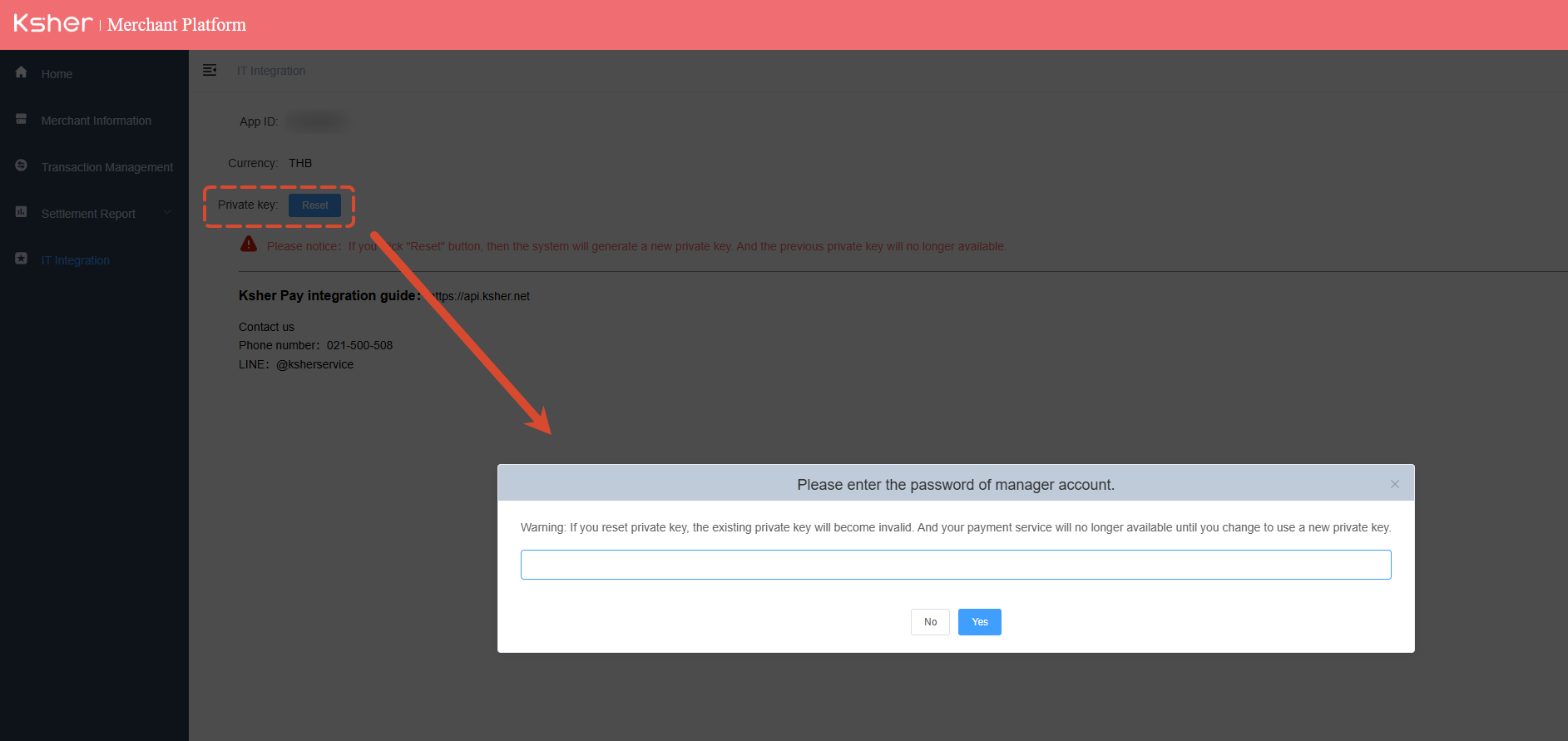
- Then download the file generated by Ksher, and open it with Notepad on your computer.
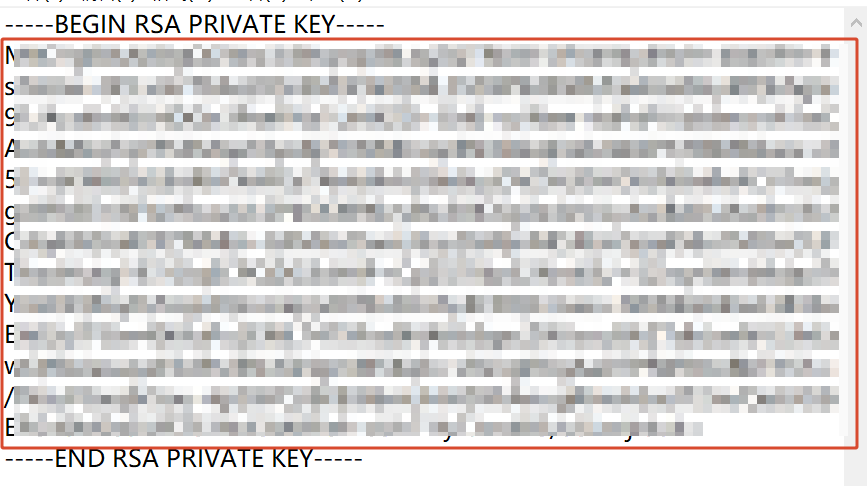
- Copy the Private Key in the red box and enter it in BigSeller to complete the connection, and click Confirm.
You will also need to enter the email address of the payment receiving account, select the stores to enable, turn on the status of the channel, and click Save.
💡 Notes:
💡 Notes:
- Payment receiving account email: you can enter the email address you use to log in to Ksher, to specify the account that receives the payment.
- One store can connect to only one online payment account. After you save the settings, you can still edit the payment channel settings.
2. Pay via Ksher
2.1 Messenger Orders and Facebook Orders
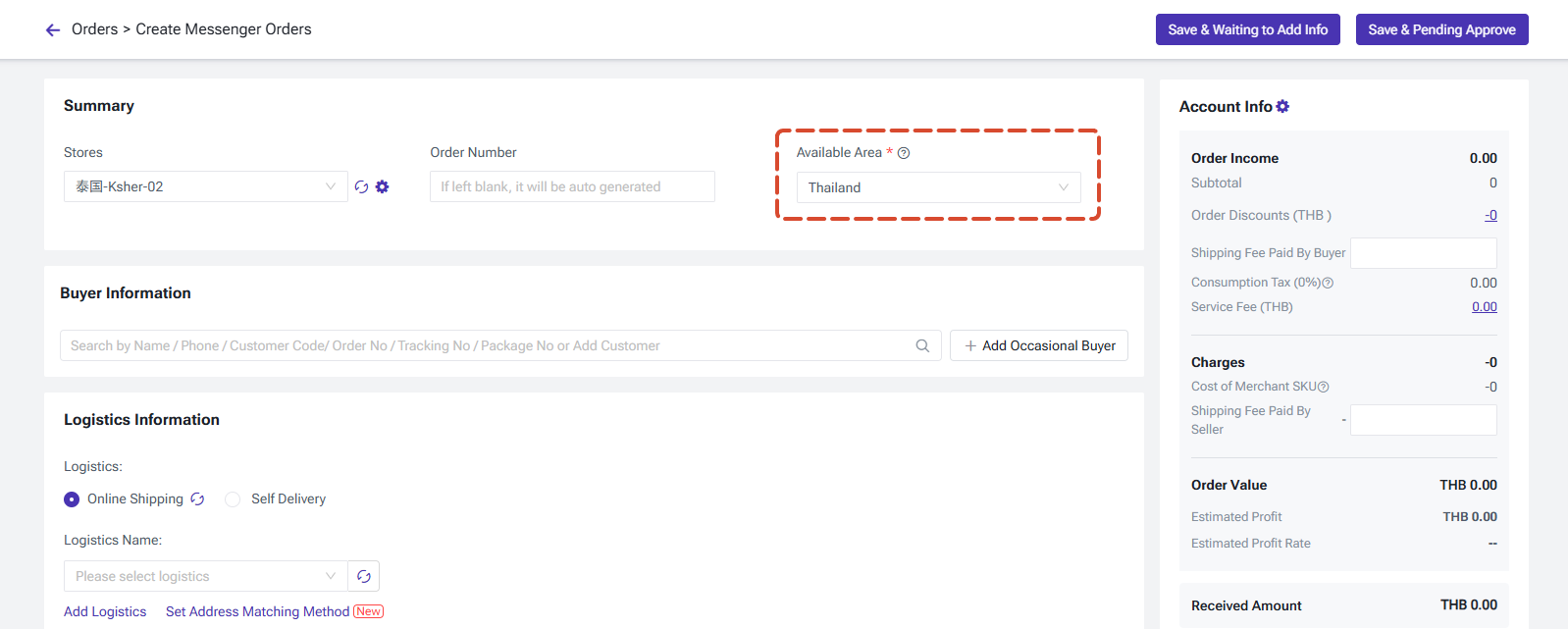
Take a messenger order as an example.
Select the store that has been connected to a Ksher account, and set the sales region to Thailand.
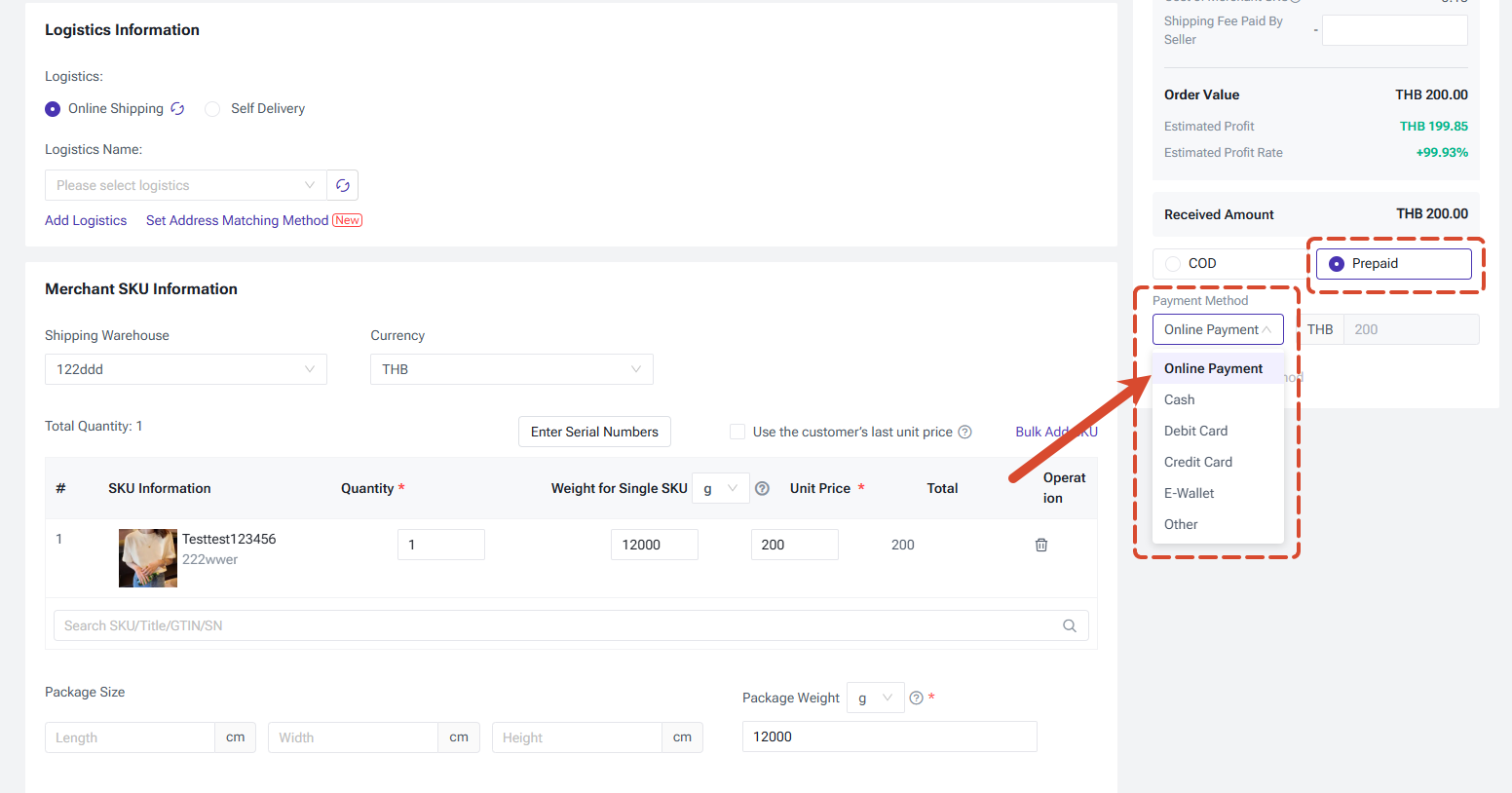
After adding products, you can select the Payment Method as Prepaid > Online Payment.
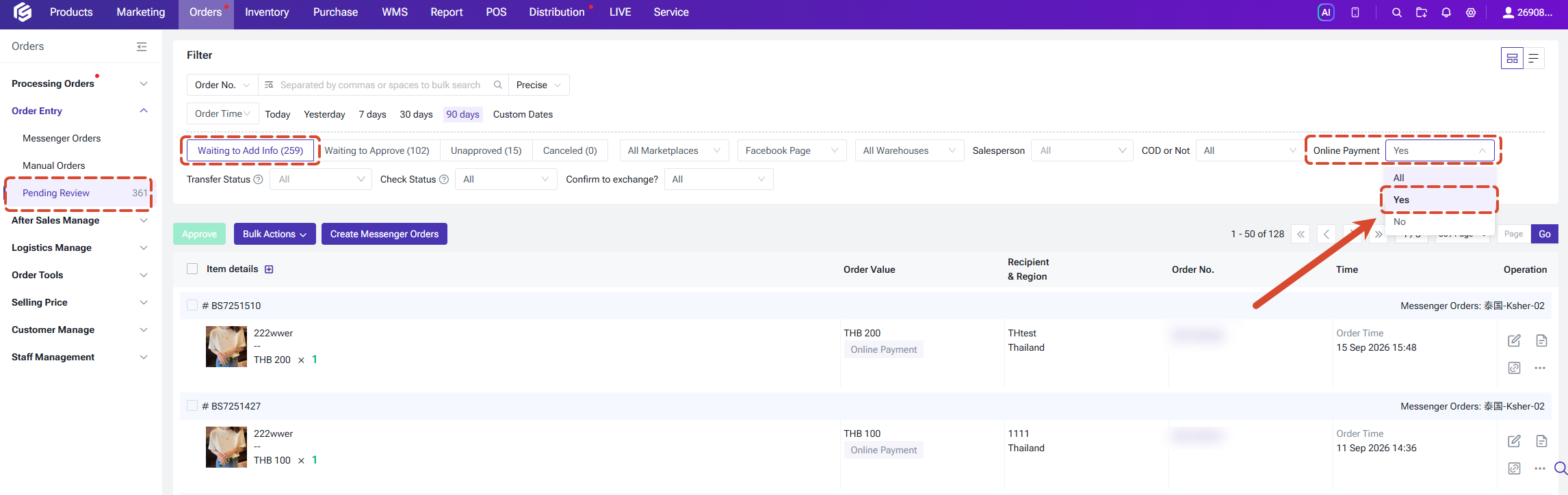
Go to Orders > Order Entry> Pending Review Orders, select the status Waiting to Add Info, and use the Online Payment filter to find the orders for which you have set online payment. Then copy the link and send it to the buyer.
Then when buyer opens the order link, selects the payment method as Prepaid > Online Payment, and clicks Pay.
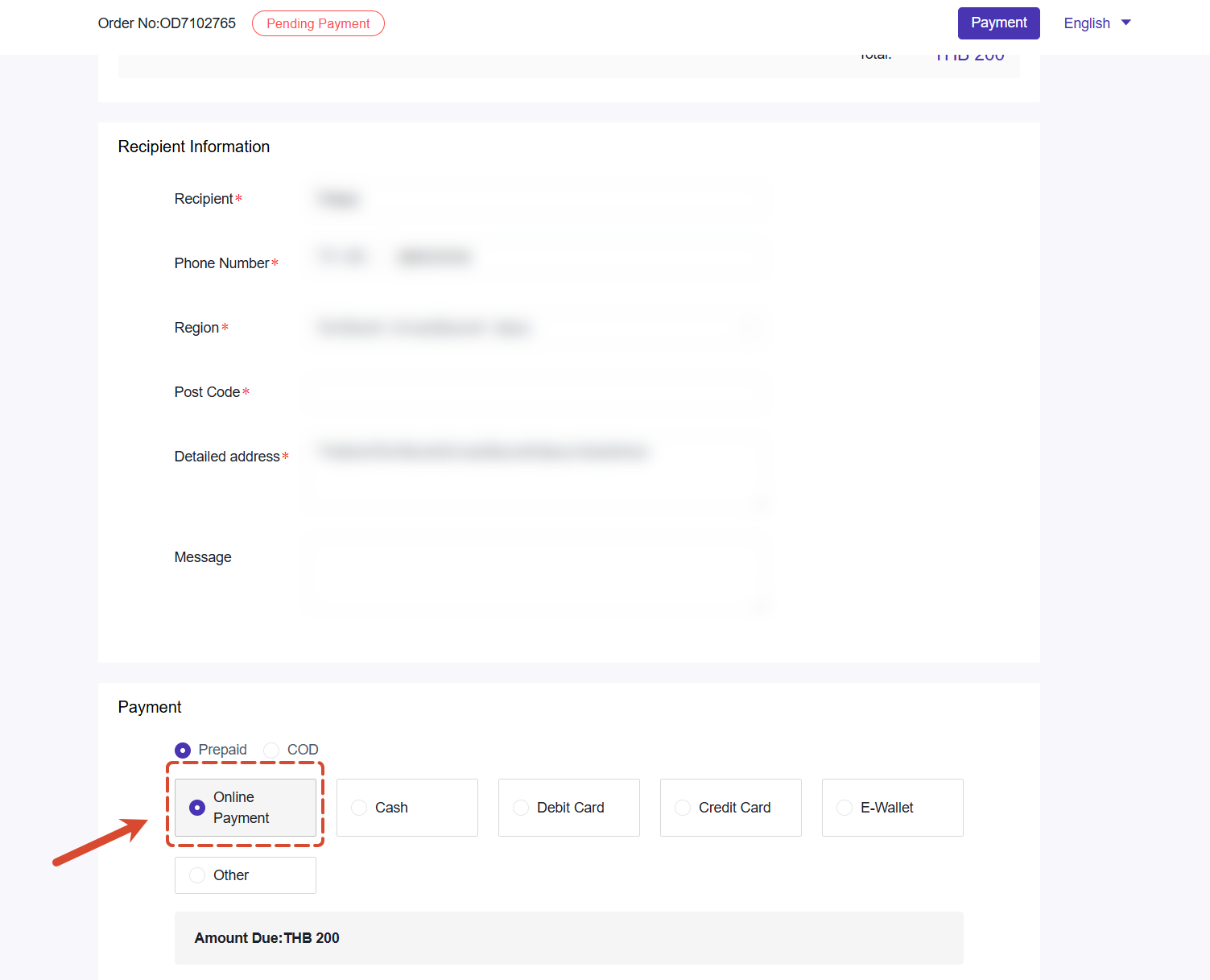
After the buyer scans the QR code and completes the payment, the buyer can submit the order. The system will then move the order to the Waiting to Approve status automatically.
You can continue to process the order by following the normal steps.
2.2 POS Orders
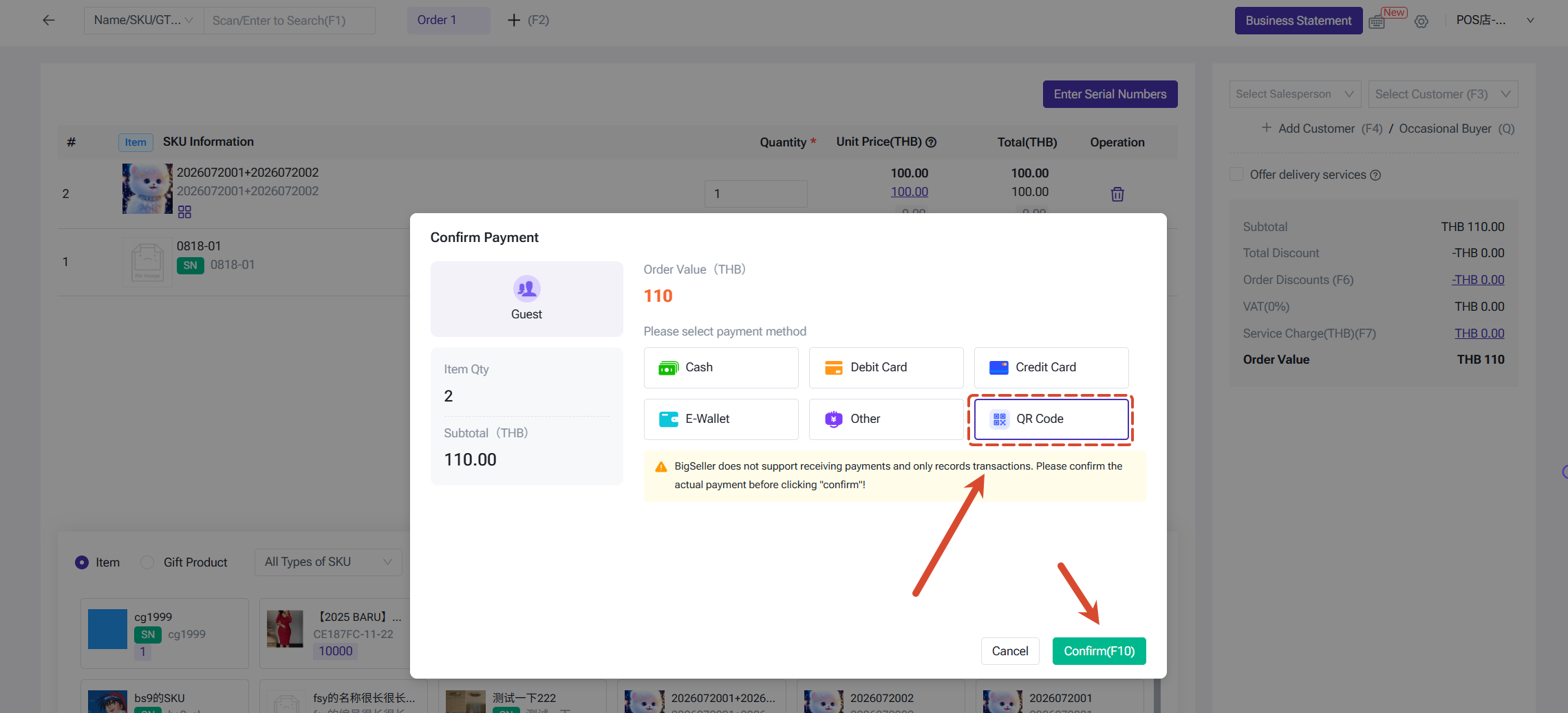
You can select the payment method as QR Code, and ask the buyer to scan the QR code to pay.
After the buyer completes the payment, the system will update the status automatically and print the receipt. If the status is occasionally updated late due to network issues, you can click Confirm Payment manually.
💡 Note:
- When you click Cancel, the system will check whether the buyer has paid. If the system detects that the payment has been completed, the cancellation will not be allowed.
2.3 Distributor Top-up/Recharge
A distributor can top up through Ksher only if the following conditions are met:
- The supplier has enabled online payment.
- The supplier is in the Partnered or Closed status.
- The currency the supplier receives matches the currency the distributor uses to pay.
Go to Distribution > My Suppliers > Recharge, select the supplier, enter the amount to top up, and click Confirm. The system will then open the payment page in a new page.
After the distributor completes the payment, a record of the type Online Payment Bill will be added to the reconciliation on both the distributor side and the supplier side.
3. Check Ksher Payment Records
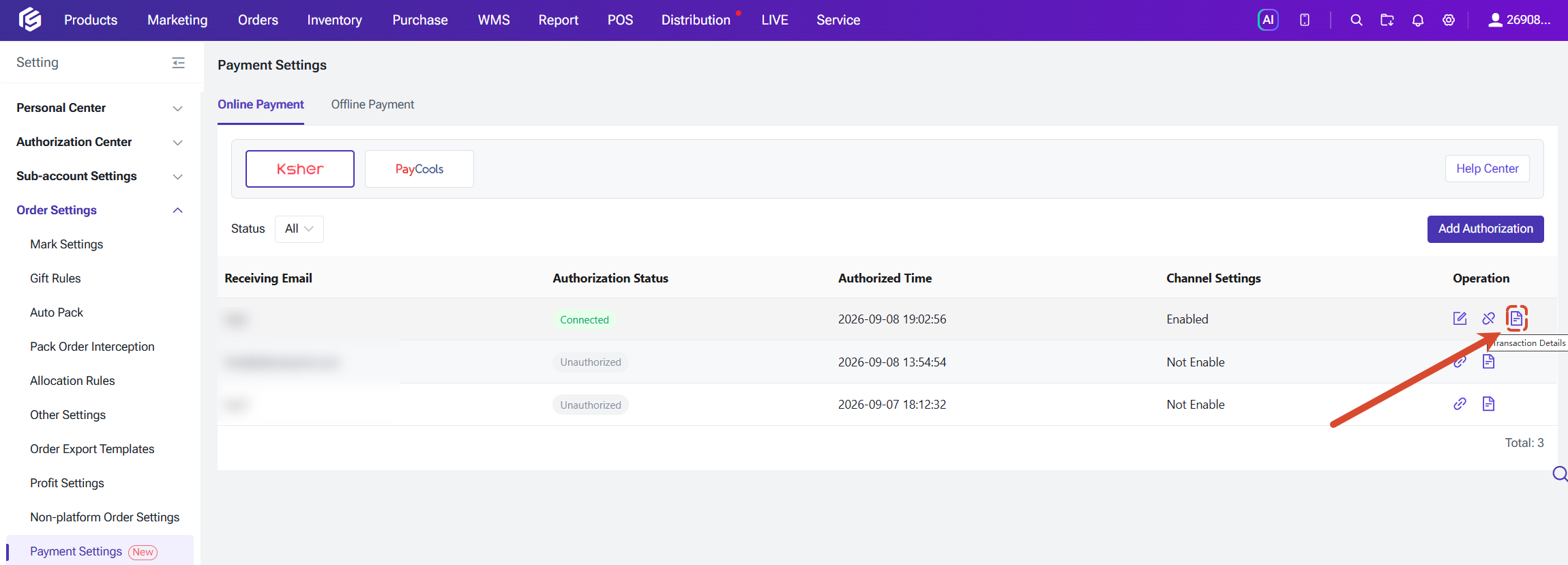
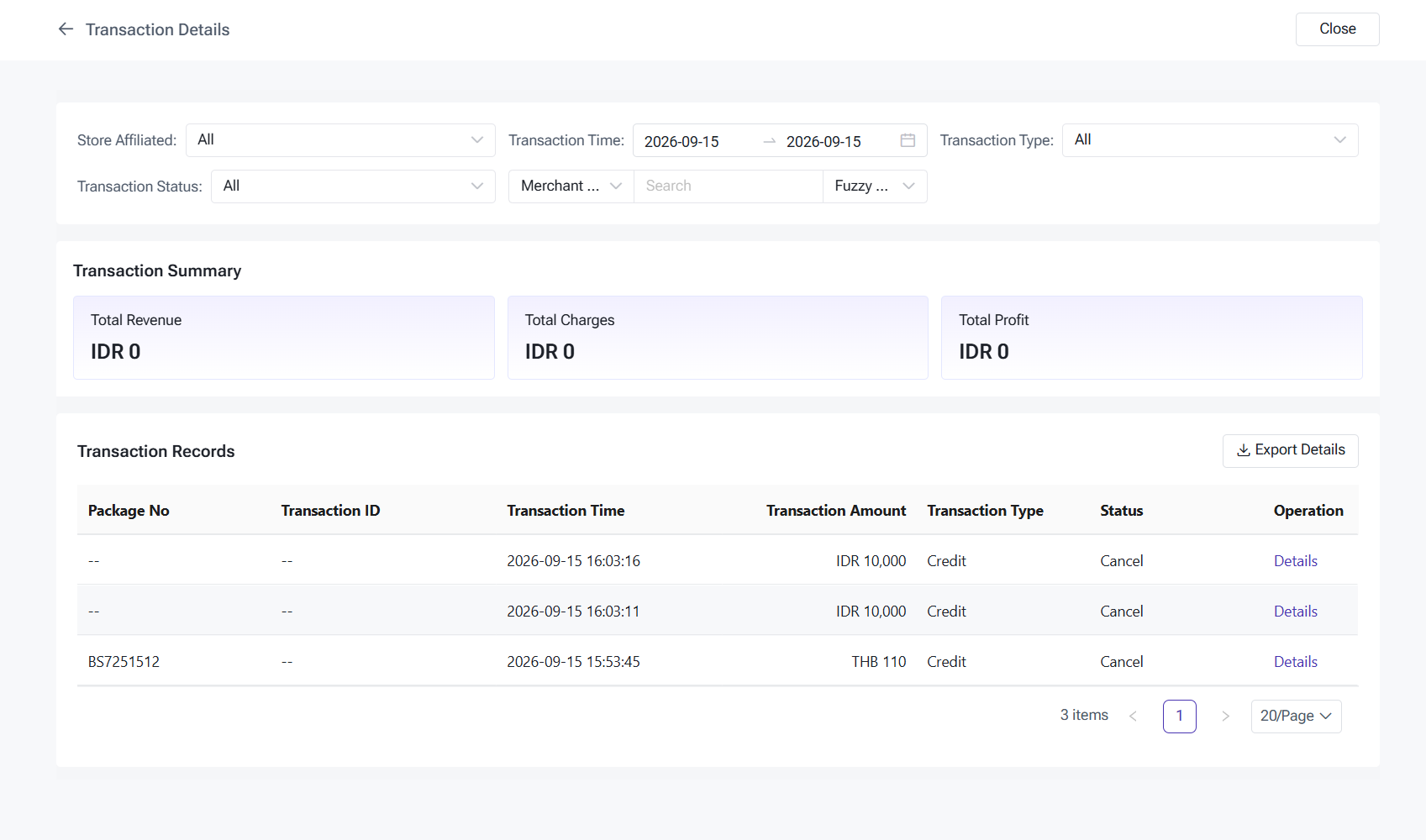
You can check the details of payments made through Ksher in Settings > Order Setting > Payment Settings > Online Payment > Ksher > Transaction Details.
After the distributor completes the payment, a record of the type Online Payment Bill will be added to the reconciliation on both the distributor side and the supplier side.
3. Check Ksher Payment Records
You can check the details of payments made through Ksher in Settings > Order Setting > Payment Settings > Online Payment > Ksher > Transaction Details.
Ksher Contact Information
Website: http://www.ksher.com
E-mail (Thailand): thaics@ksher.com
Tel. (Thailand): +66 (0) 2-150-0508
LINE ID: @ksherservice
E-mail (Thailand): thaics@ksher.com
Tel. (Thailand): +66 (0) 2-150-0508
LINE ID: @ksherservice
Is this content helpful?
Thank you for your feedback. It drives us to provide better service.
Please contact us if the document can't answer your questions