🔥 [New] How to Push Sales Invoice from BigSeller to Malaysia's MyInvois System
Update Time: 17 Dec 2025 06:23
Supported order types: Manual Order; Messenger Order; POS Retail Order
1. How to Authorize MyInvois
Step 1: Go to Settings > Store Authorization > Other Authorizations.
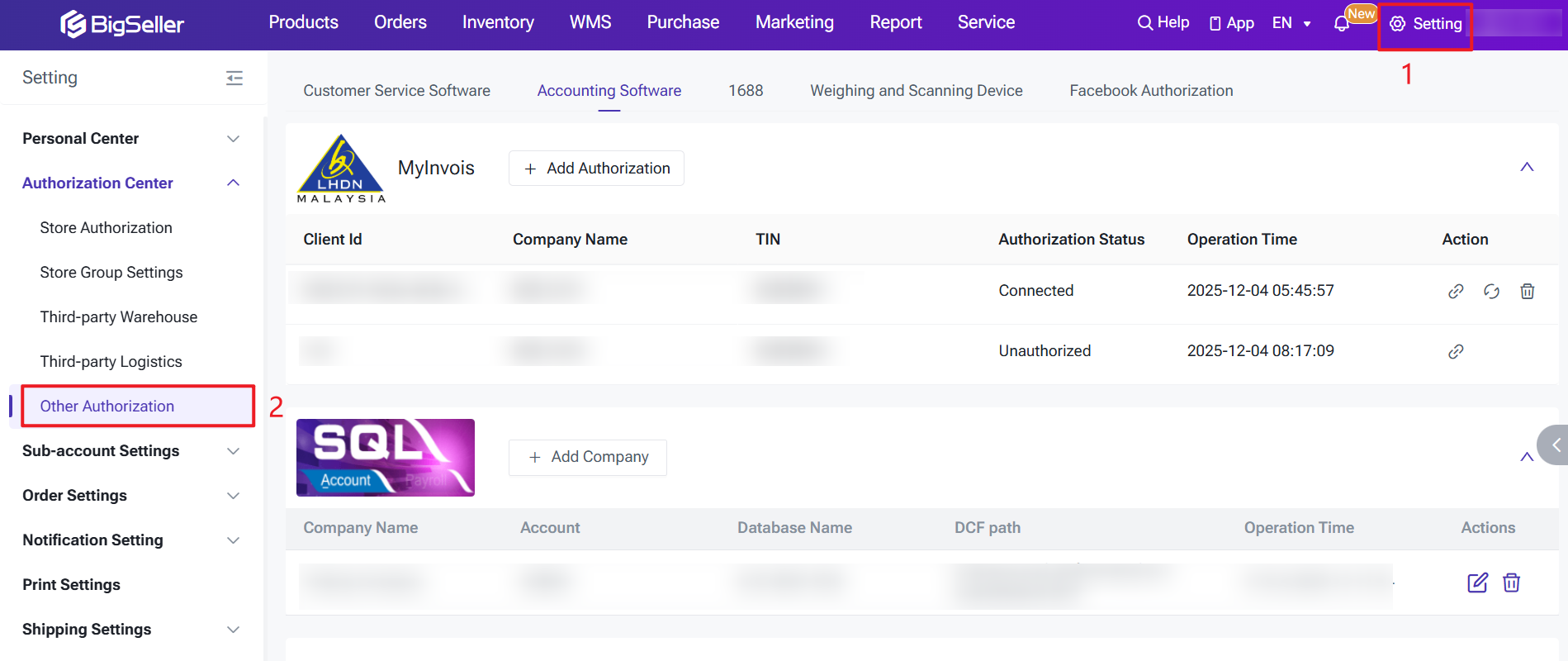
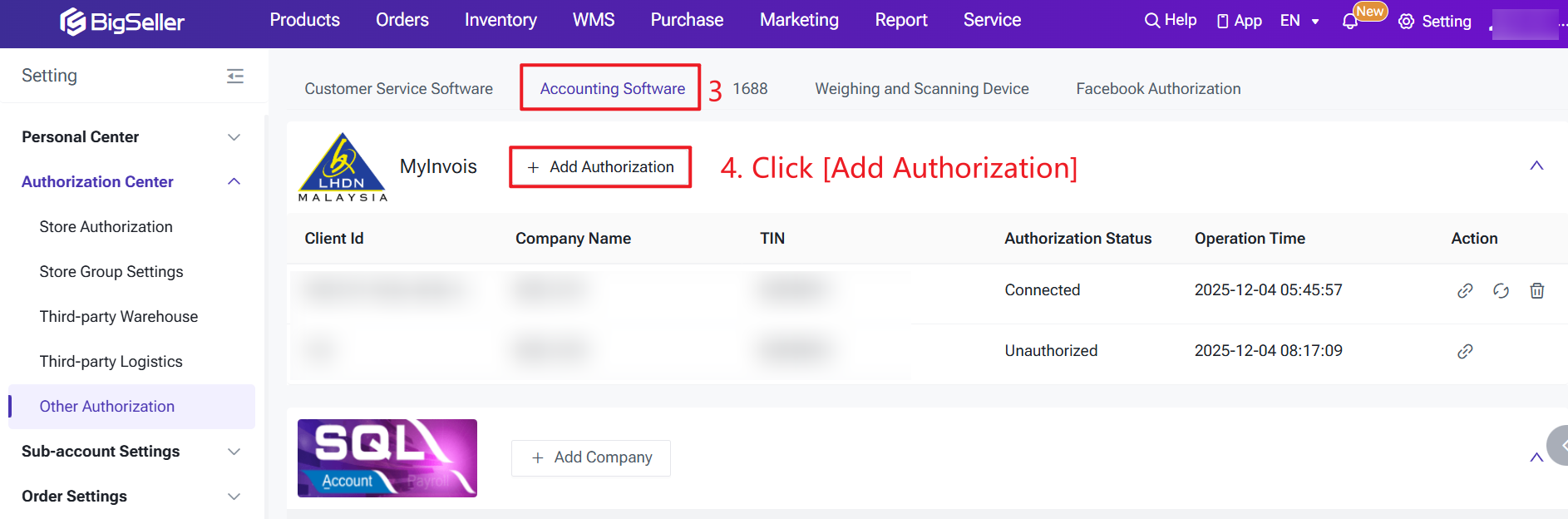
Step 2: Select Accounting Software > MyInvois and click Authorize.
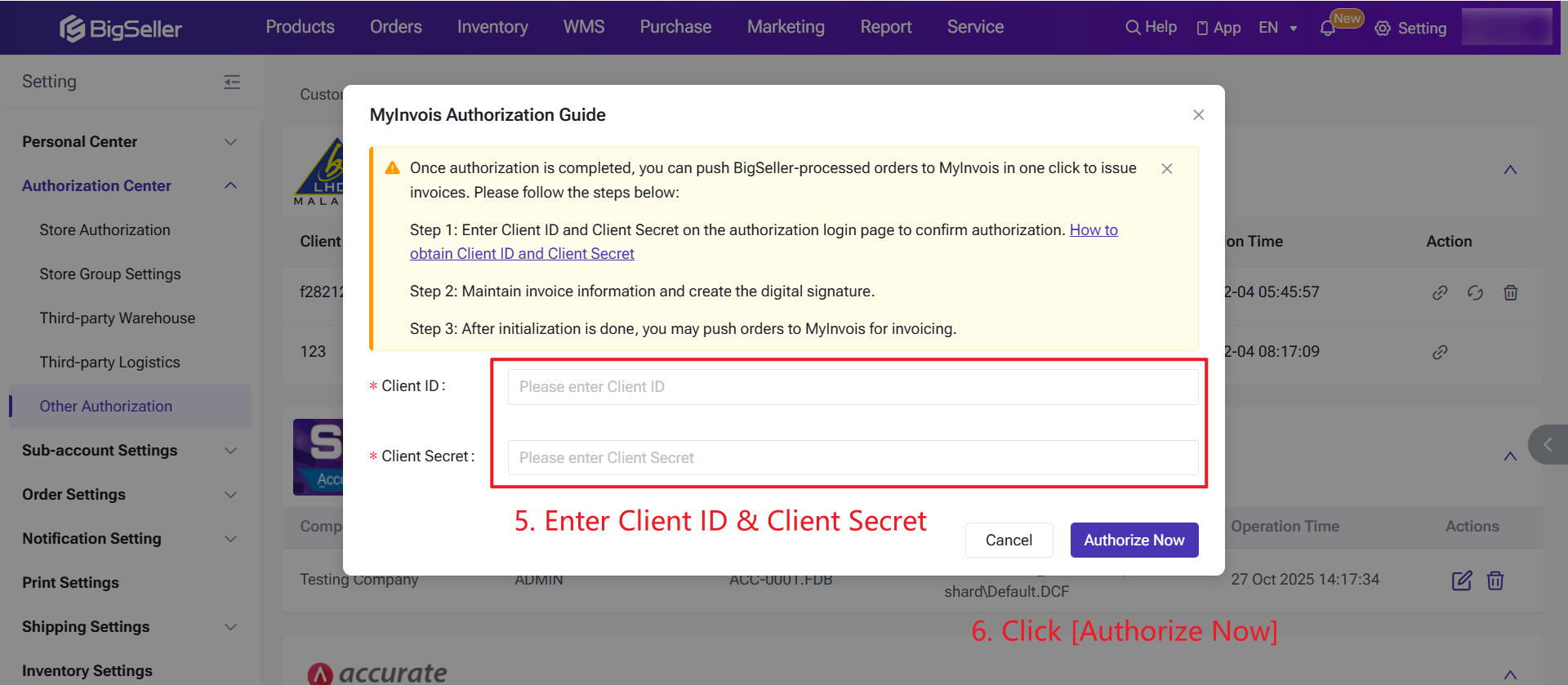
Step 3: Enter the Client Secret and Client ID.
💡 How to Get Client Secret and Client ID?
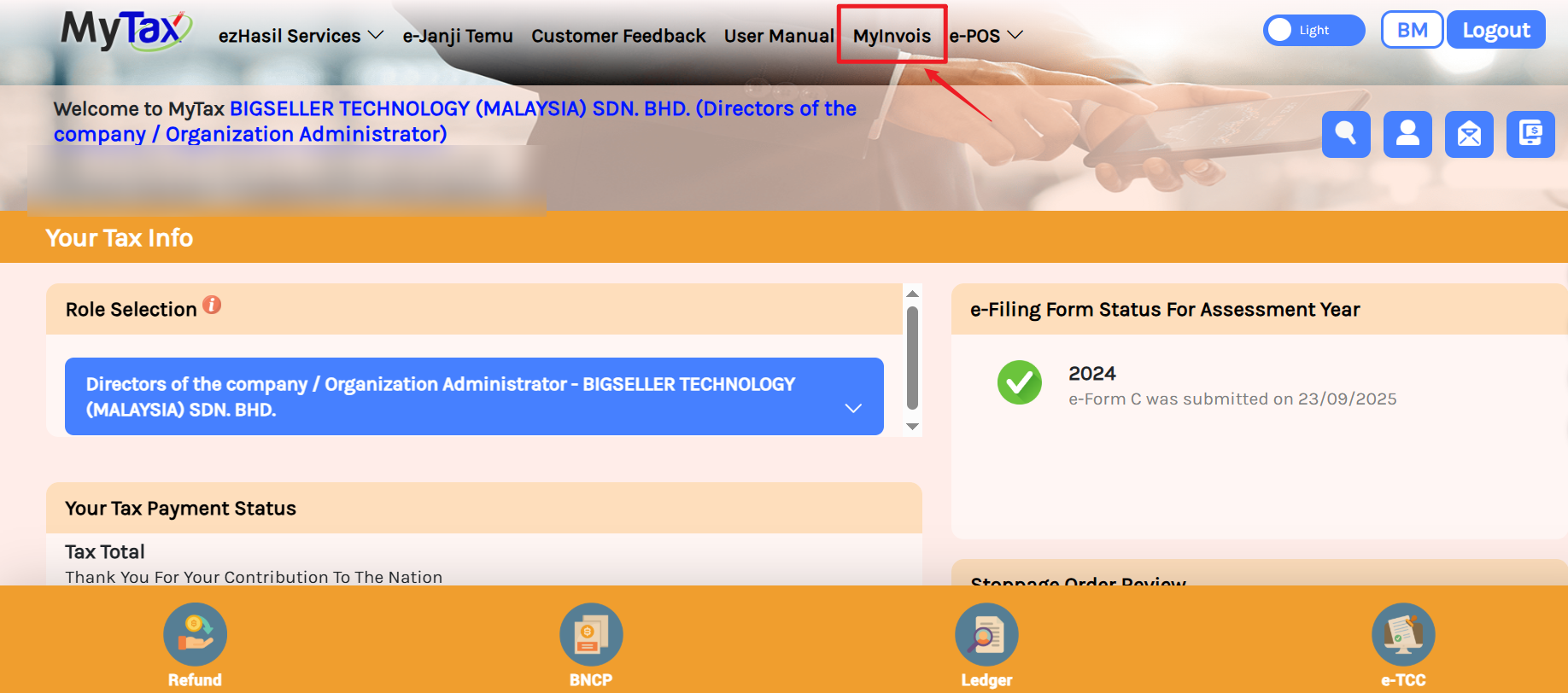
1) Log in to the Malaysian tax authority's MyTax portal. https://mytax.hasil.gov.my
2) In the navigation bar, find MyInvois.
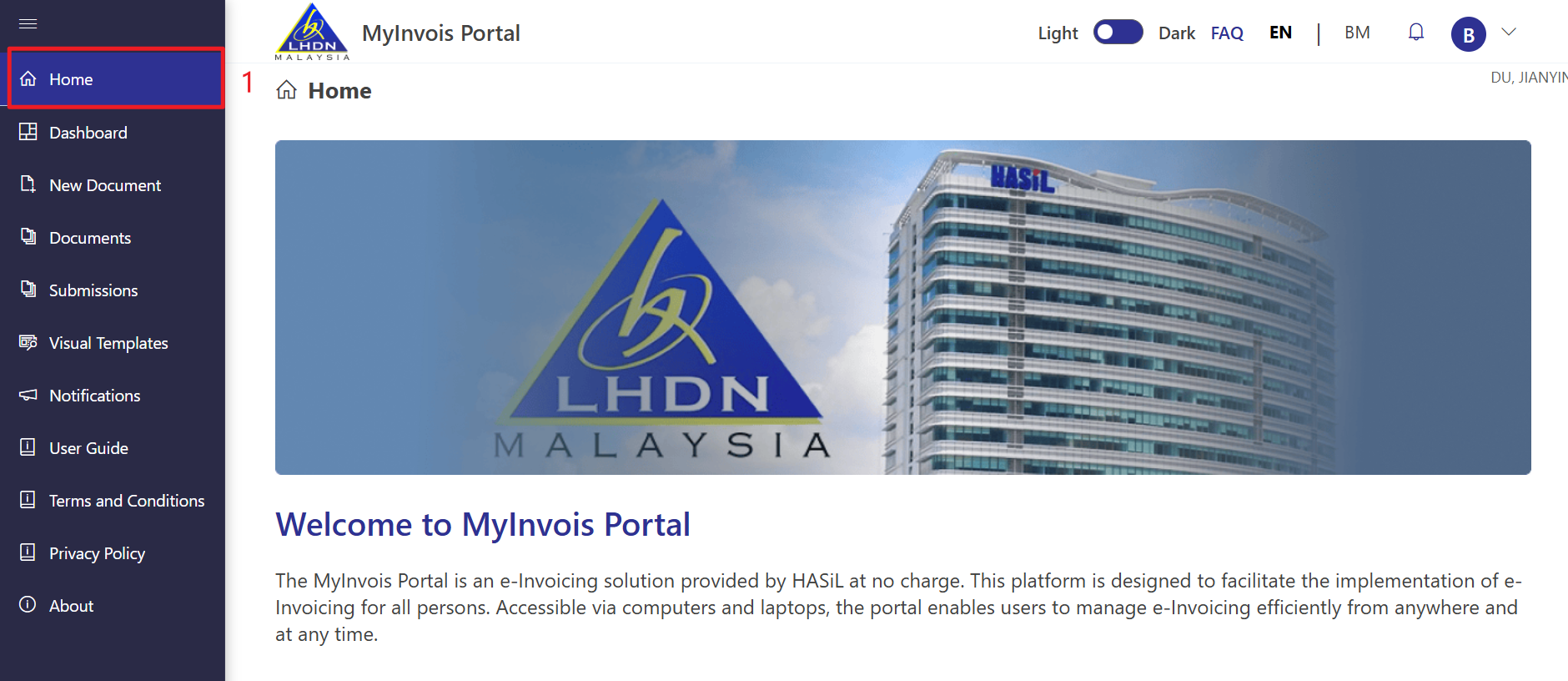
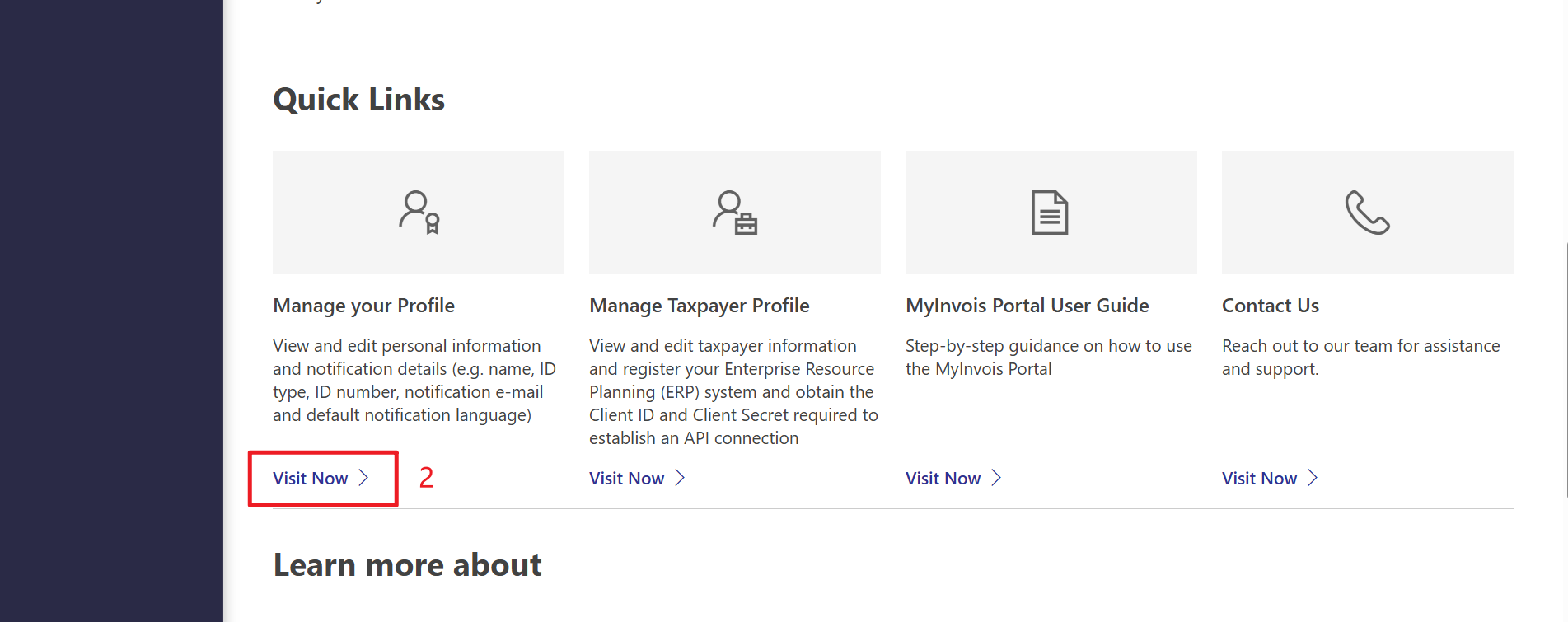
3) Click Home, then click Visit Now under Manage Your Profile.
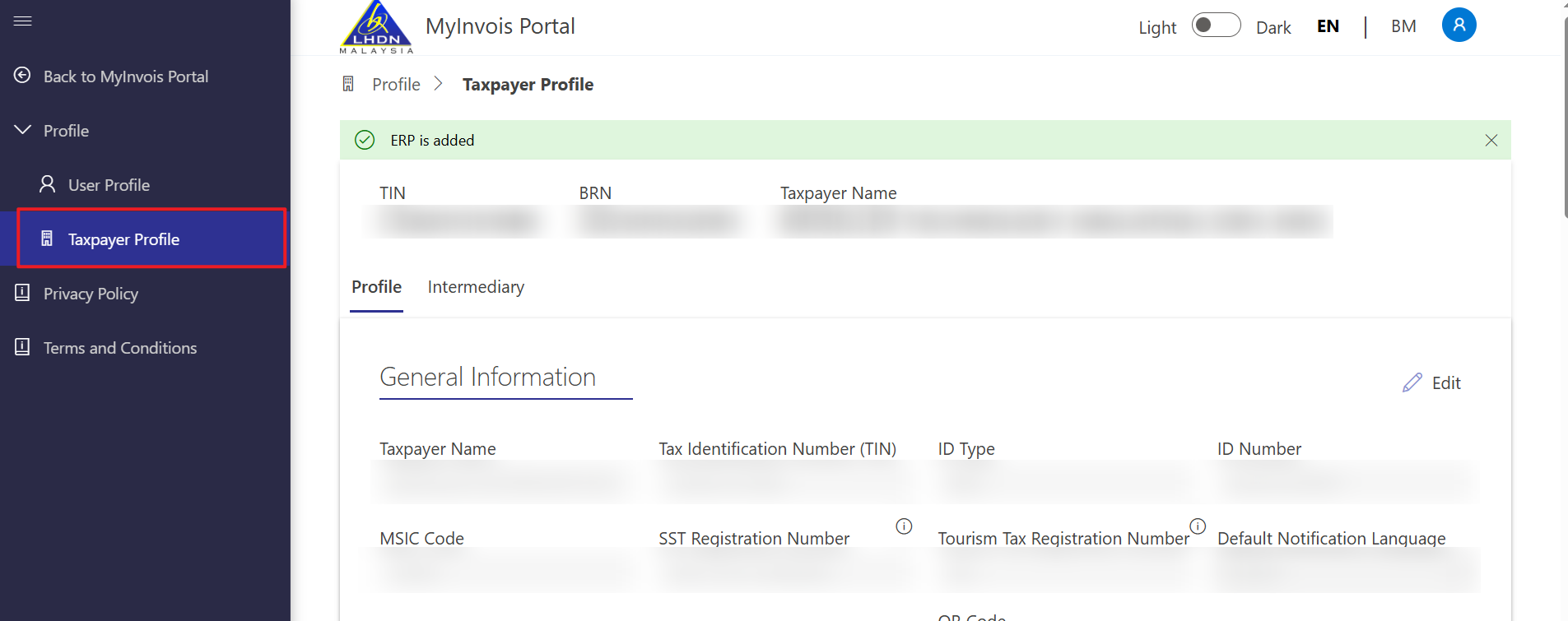
4) Select Taxpayer Profile.
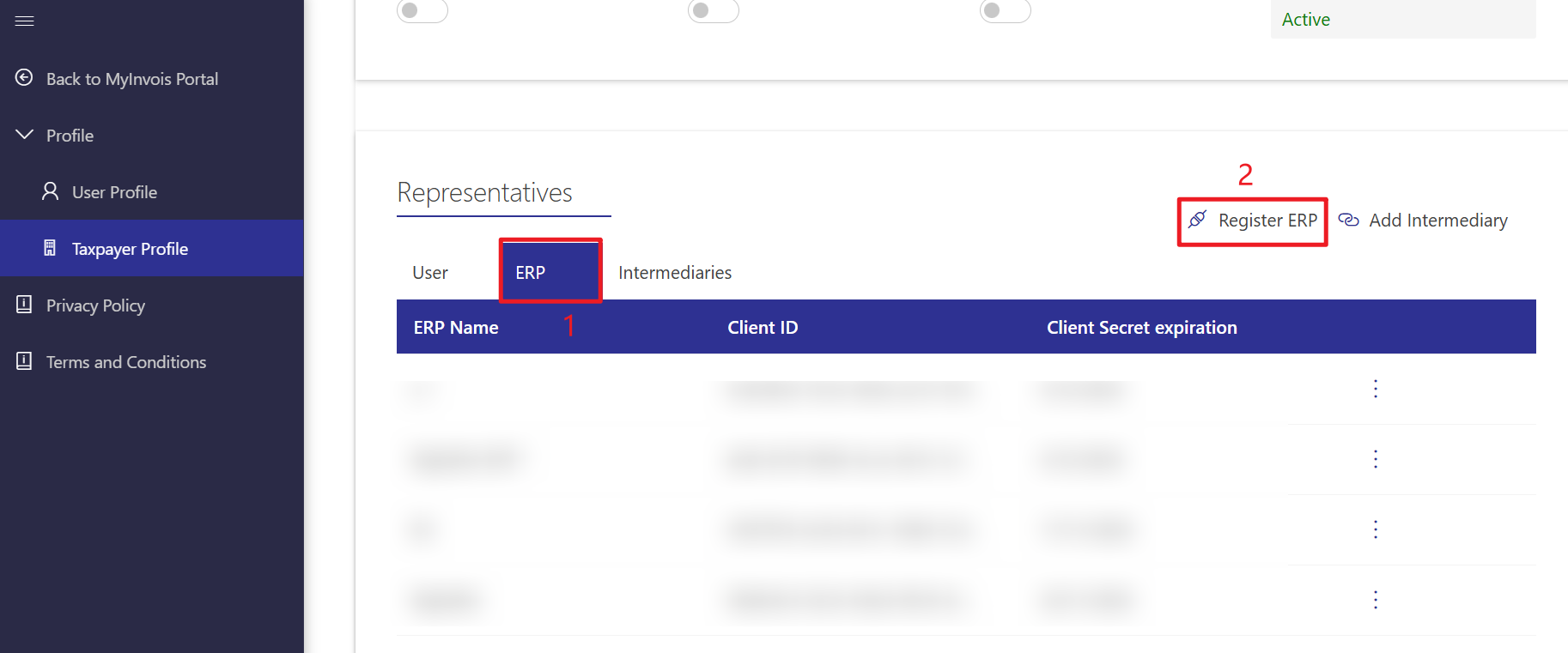
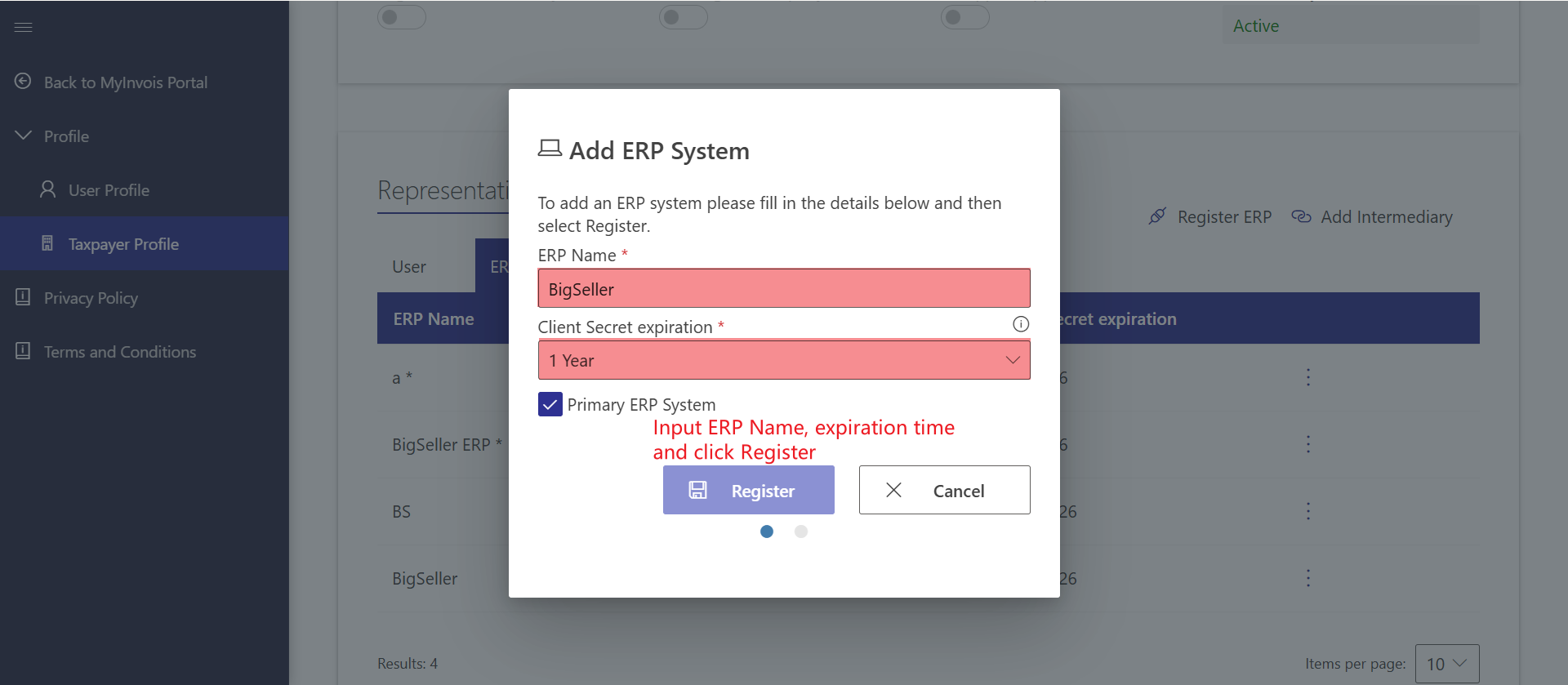
5) Choose ERP and click Register ERP.
6) Enter "BigSeller" as the ERP name, select the authorization duration, and click Register.
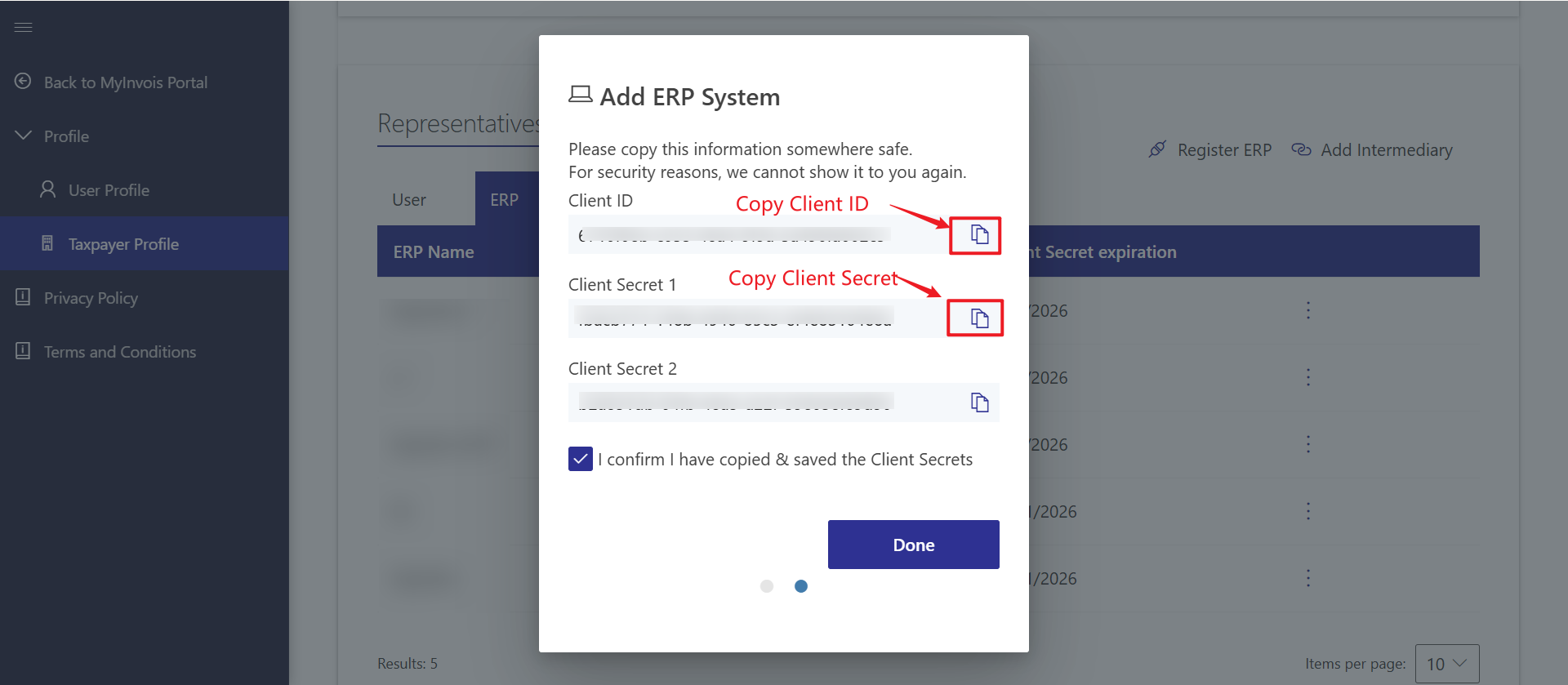
7) Copy the Client ID and Client Secret from the screen into the corresponding fields in BigSeller.
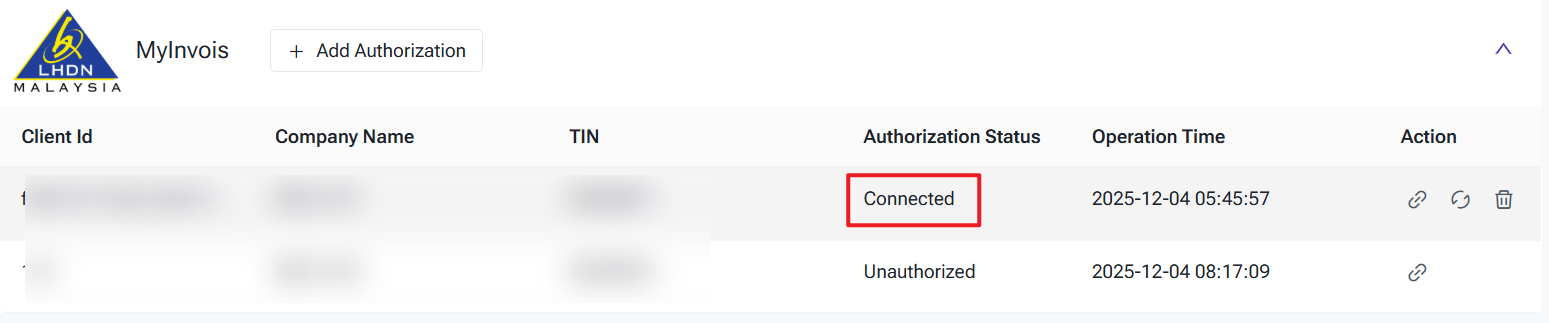
Step 4: Complete the authorization process.
2. How to Create a Sales Invoice (Applicable only to Manual Orders, POS Orders, Messenger Order)
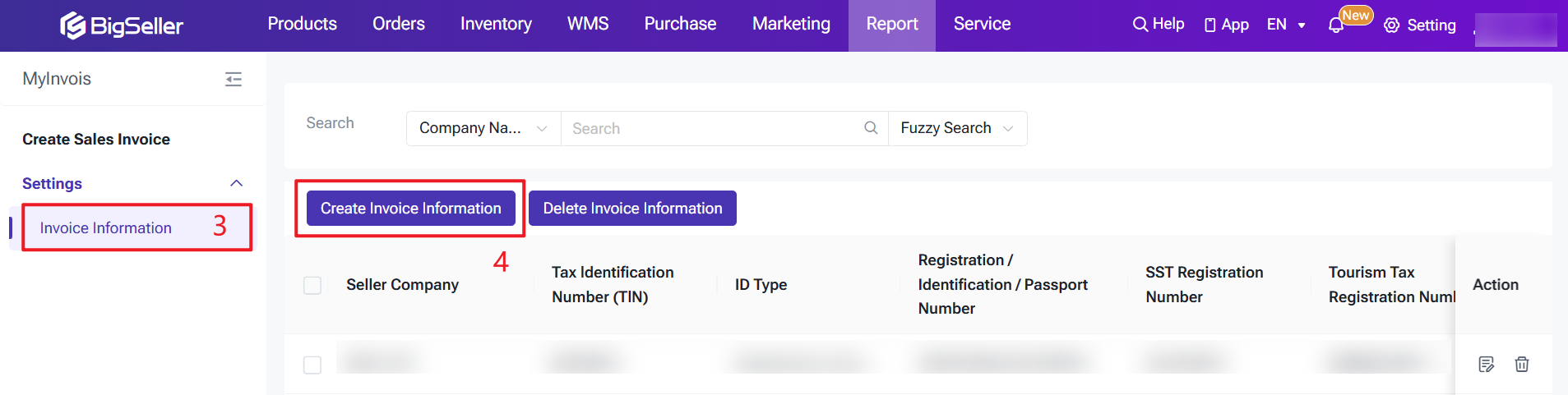
1) Go to Settings > Invoice Information and click Add New Invoice Info
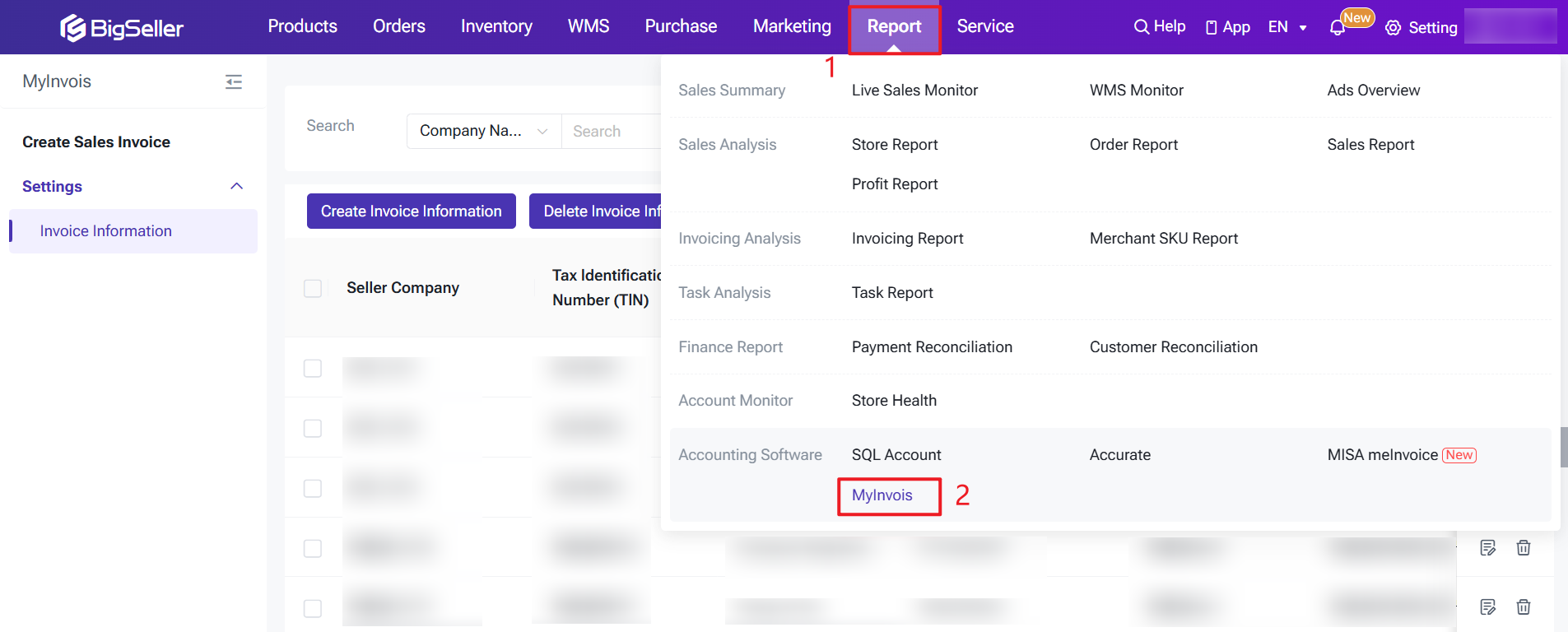
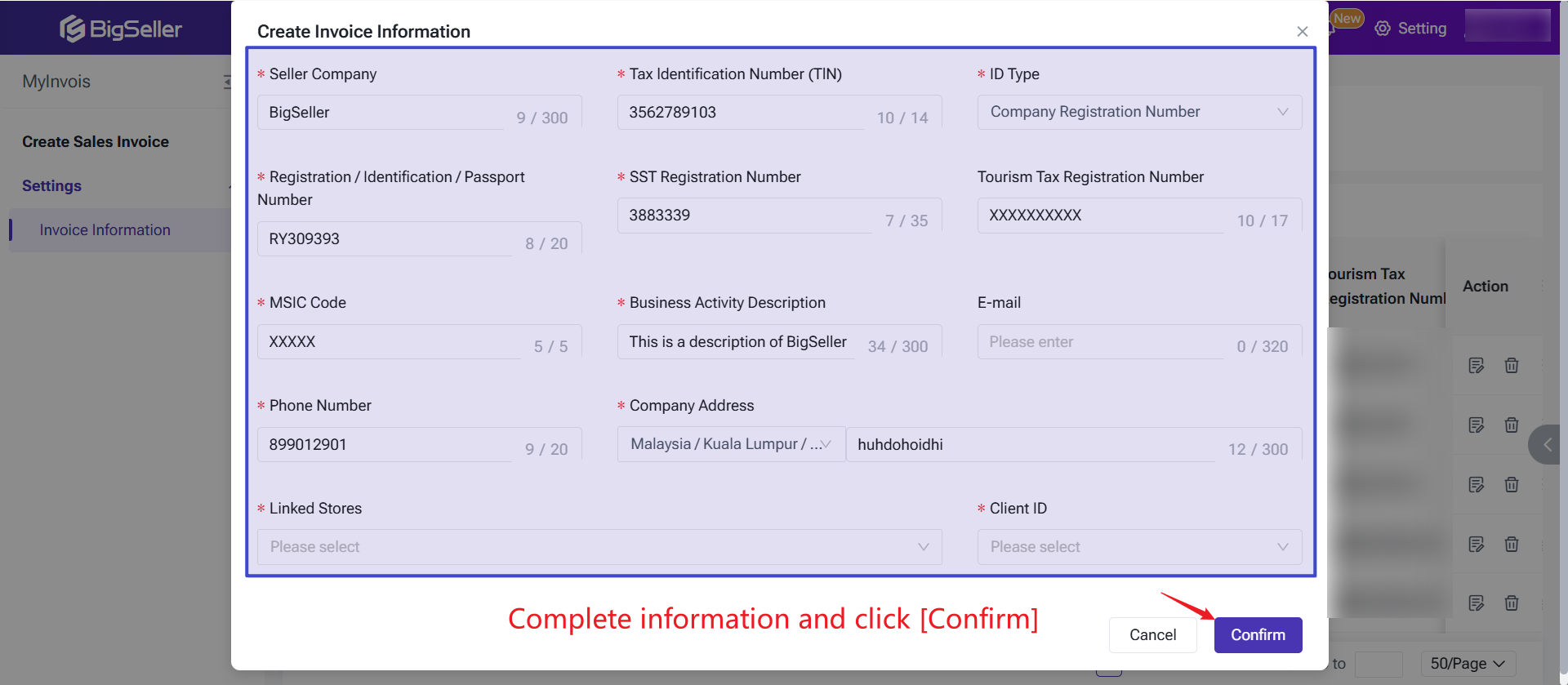
2) Fill in the seller company details.
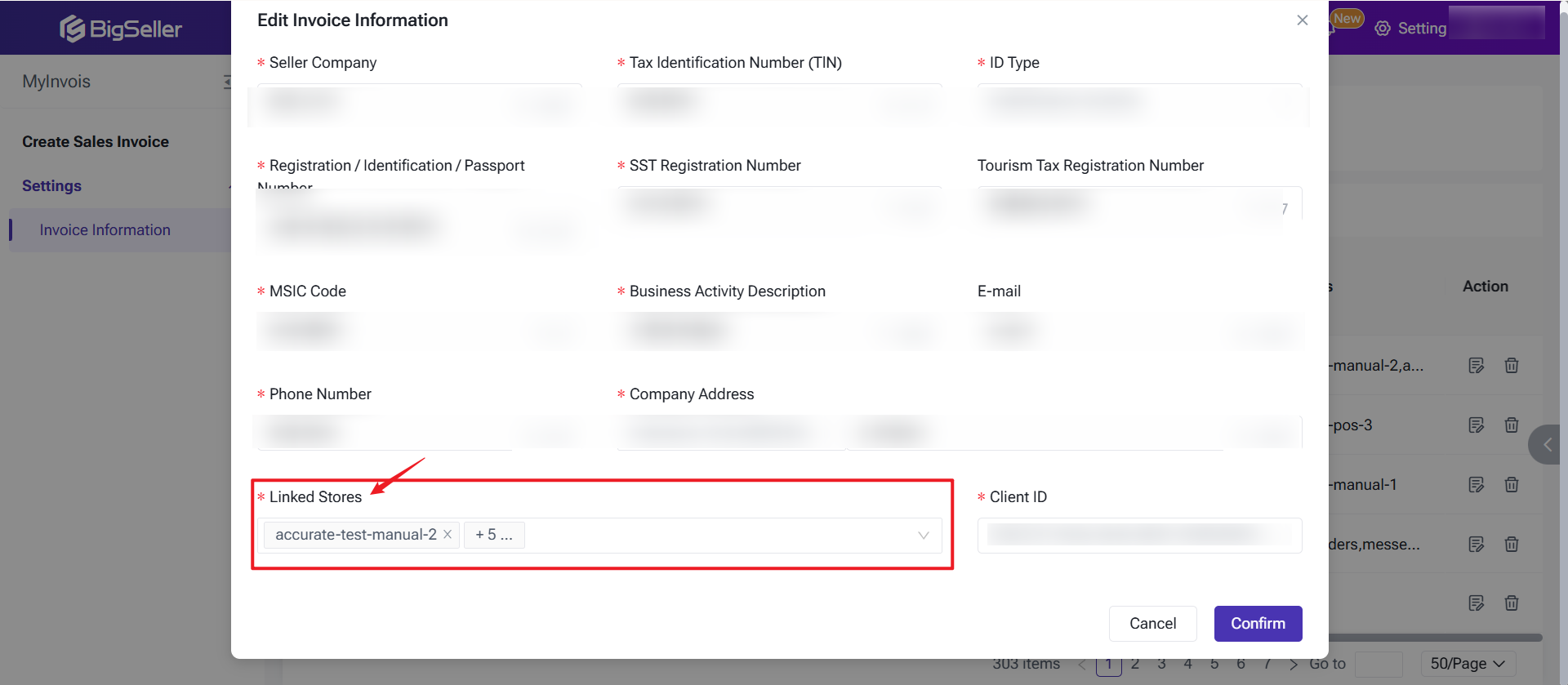
Note: Each Seller Company must be linked to specific stores.
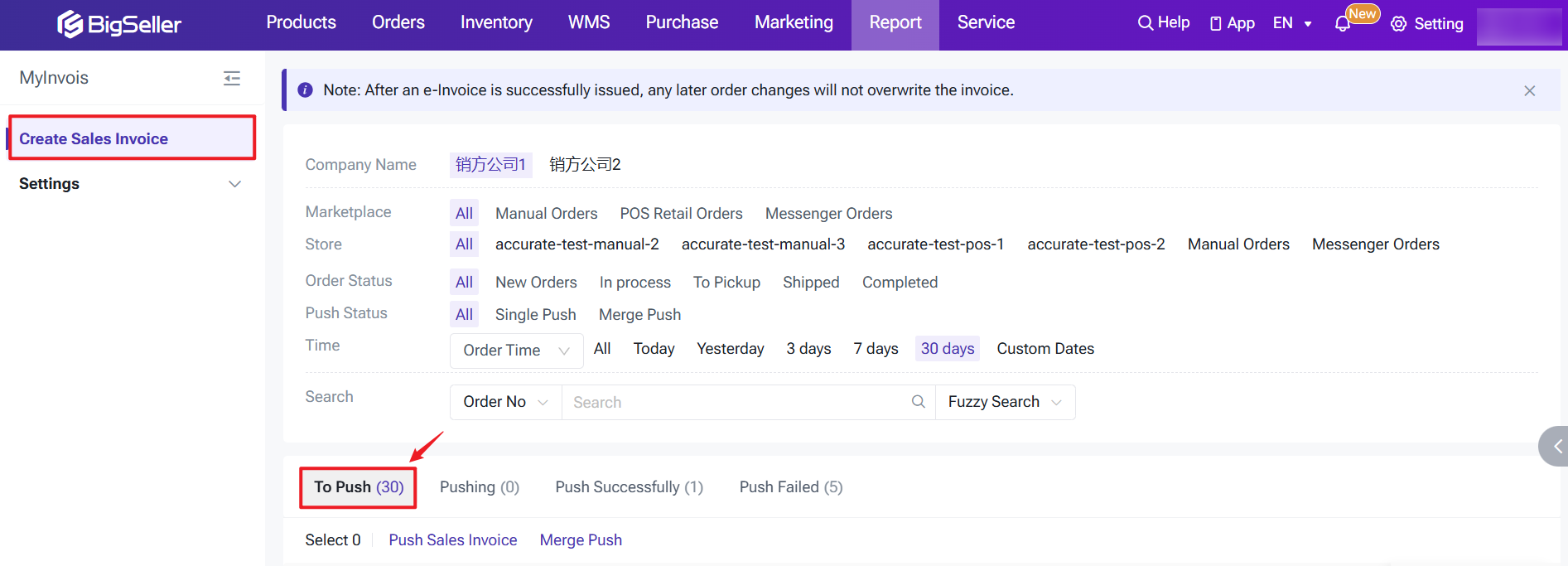
Step 2: Create Sales Invoice in BigSeller
-
Once the invoicing information is set up, BigSeller will sync order data from the current and previous months, including manual orders, messenger orders, and POS retail orders that have been shipped or completed. These orders will automatically be added to the [To Push] list.
-
For future orders, when the order status is New Order, In Process, To Pickup, Shipped, or Completed, the orders will automatically be added to the [To Push] list.
Step 3: Edit and Push the Sales Invoice
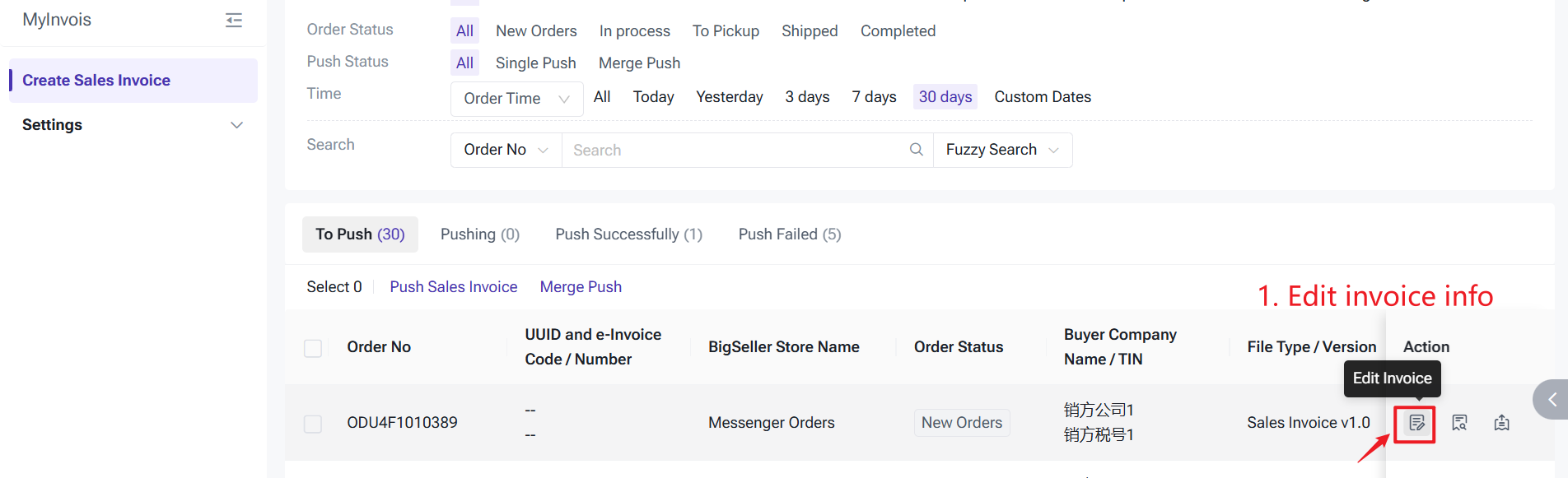
You can edit basic information, supplier information, buyer information, and item information.
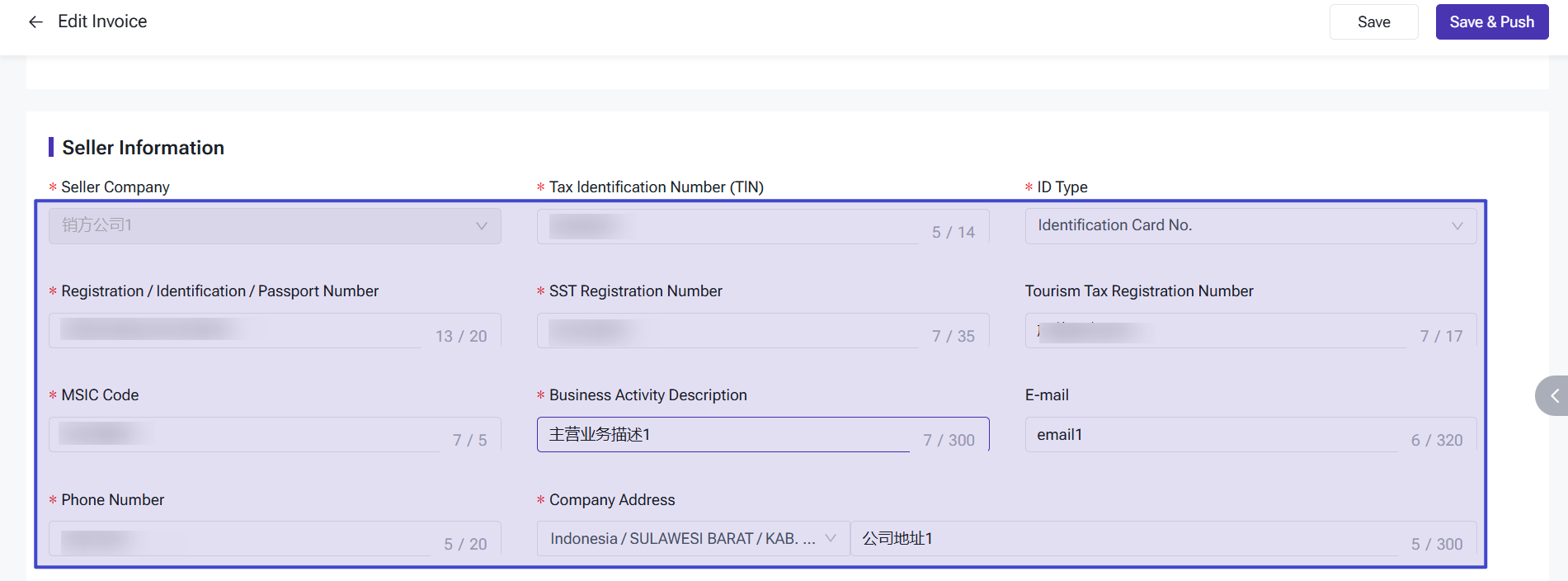
- Seller Information: Select the seller company, and the system will automatically populate the details from the Setting > My Invoice page.
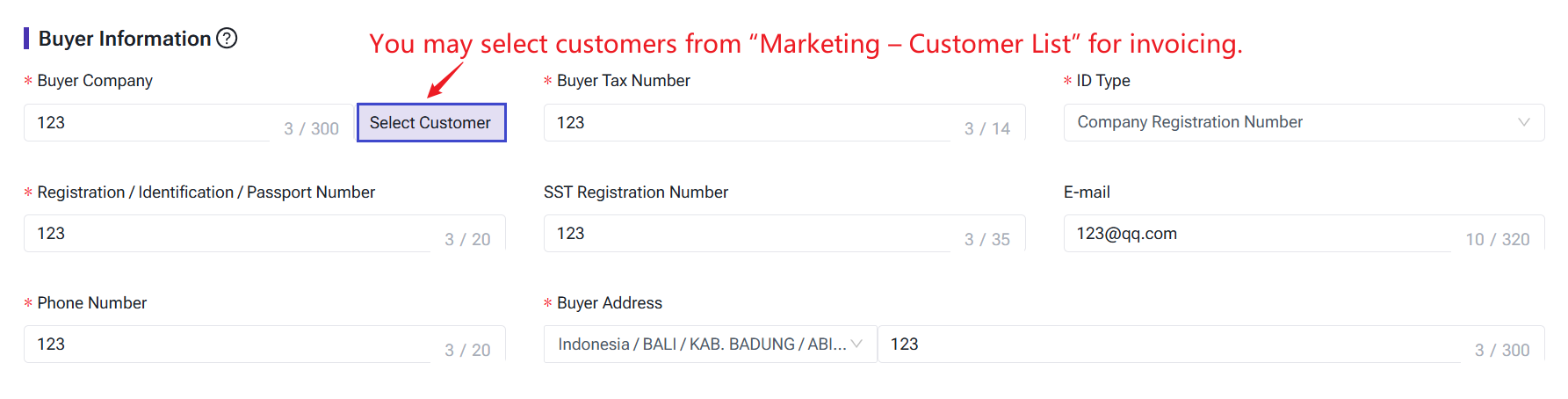
- Buyer Information: If the customer's Malaysian invoicing details are available in BigSeller's Marketing > Customer Manage > Customer List module, they will be auto-filled. Otherwise, you'll need to enter them manually.
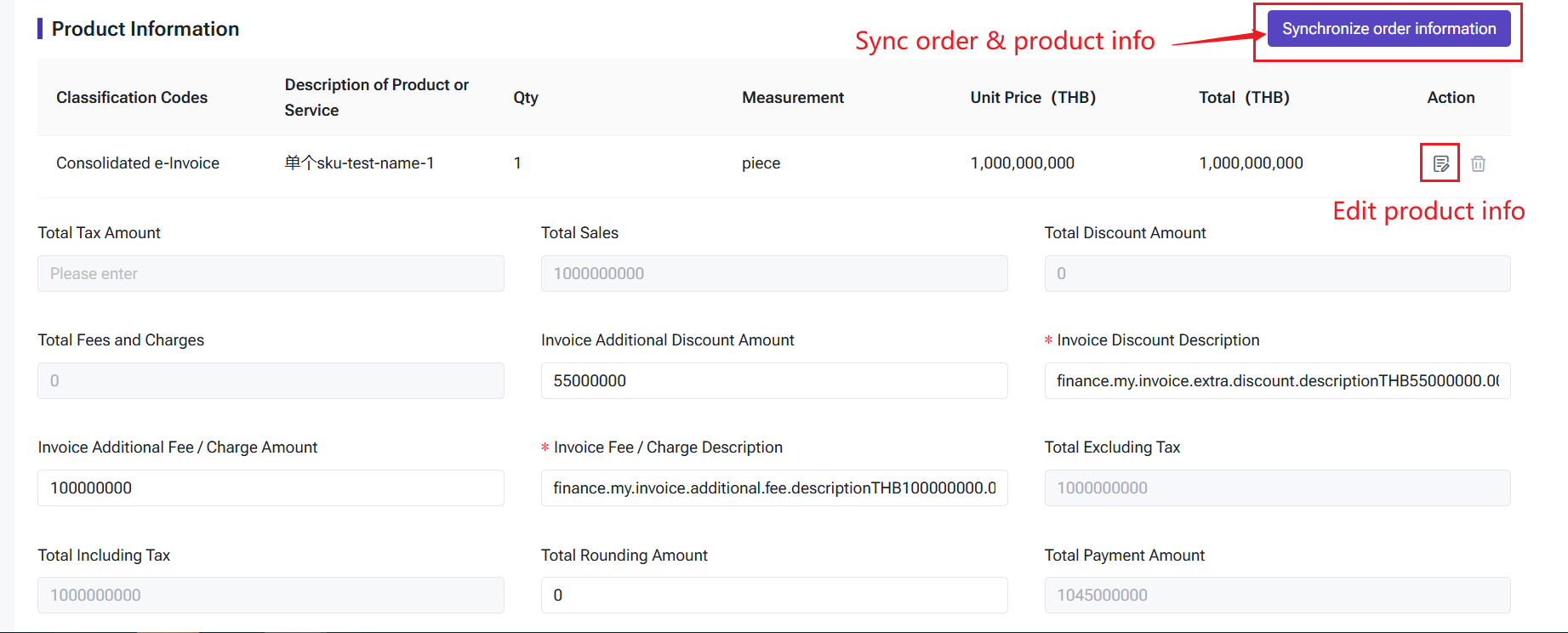
- Product Information: Click Sync Product Info to retrieve the product details from the order. You can edit or remove products as needed.
-
Invoice Additional Fee / Charge Amount
-
Manual Orders: The shipping fee paid by the buyer is taken.
-
POS Orders: The sum of the shipping fee + service fee paid by the buyer is taken.
-
Messenger Orders: The shipping fee paid by the buyer is taken.
-
-
Invoice Additional Discount Amount
By default, this will take the order discount amount. -
Total Tax Amount
The sum of (total product amount) * (each applicable tax rate) for each product. This represents the total tax amount for each product based on its respective tax rates. -
Total Discount Amount
The total discount amount for all products. -
Total Fees and Charges
The sum of the fee amounts for each product. -
Total Excluding Tax
= Total Sales - Invoice Additional Discount Amount + Invoice Additional Fee / Charge Amount -
Total Including Tax
= Total Sales - Invoice Additional Discount Amount + Invoice Additional Fee / Charge Amount + Total Tax Amount -
Total Rounding Amount
The difference between the total product prices and the total tax amount is calculated to ensure the total payment amount matches the order amount.
Total Rounding Amount = Total Payment Amount - Total Including Tax -
Total Payment Amount
The buyer's payment amount in the order (order amount).
Total Payment Amount = Total Sales - Invoice Additional Discount Amount + Invoice Additional Fee / Charge Amount + Total Tax Amount + Total Rounding Amount
1. After clicking Save, the invoice will remain in the To Push list.
2. After clicking Save & Push, the invoice will enter the Pushing status. If the push is successful, the status will change to Push Successfully.

3. If the push fails, the status will be updated to Push Failed, and you can retry pushing the invoice.
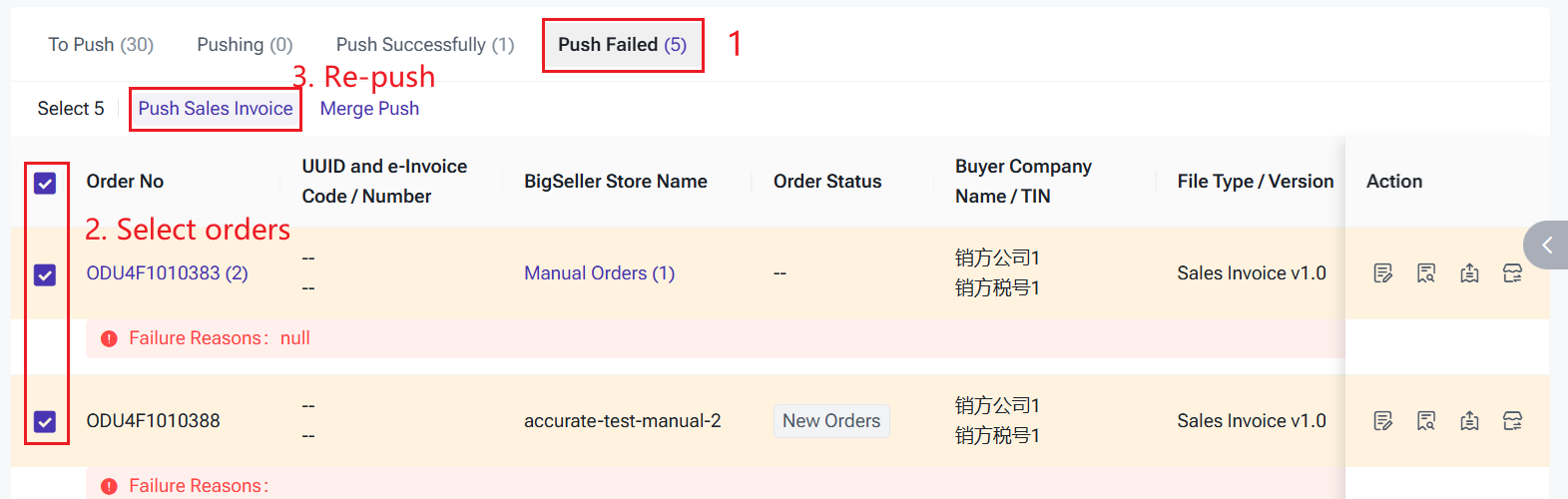
3. How to Merge and Push Invoices
If your customer requires an invoice for the order, you must enter buyer information for each one. However, if the purpose is simply to submit data to the Malaysian tax authorities, you can merge multiple orders into a single consolidated invoice.
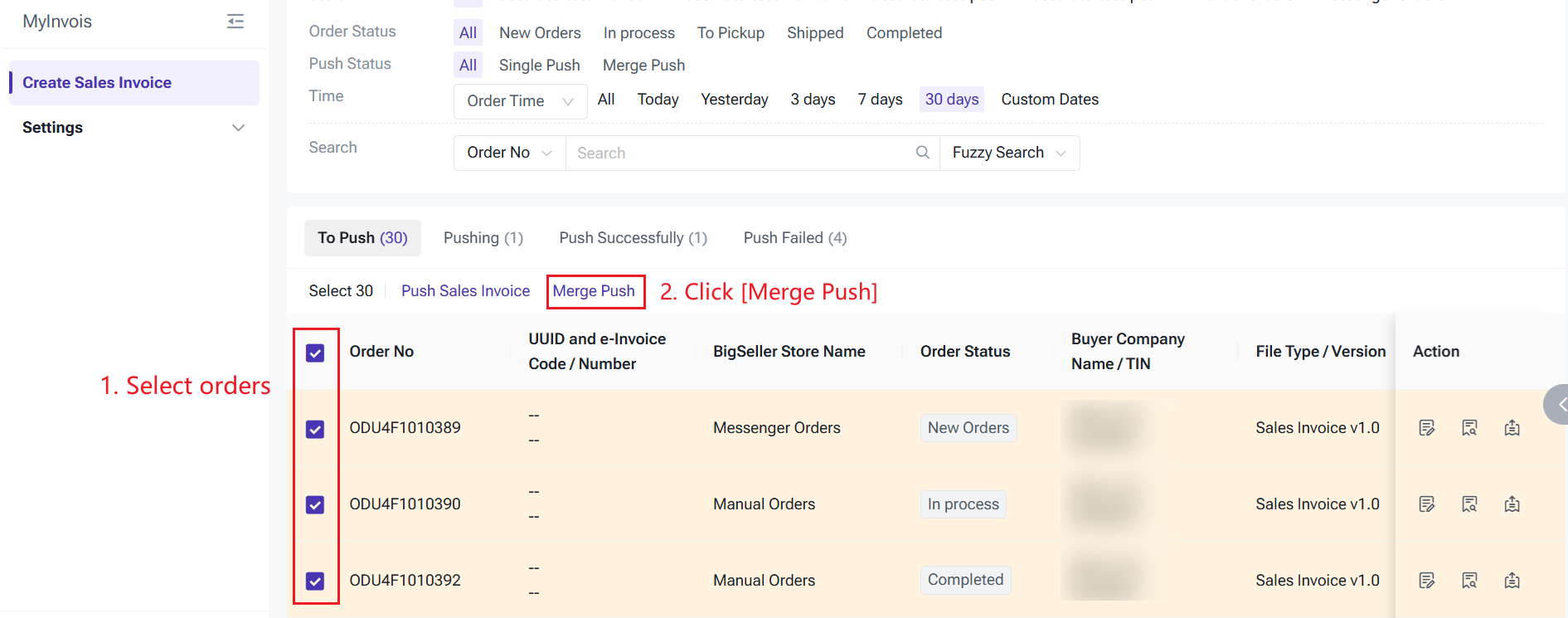
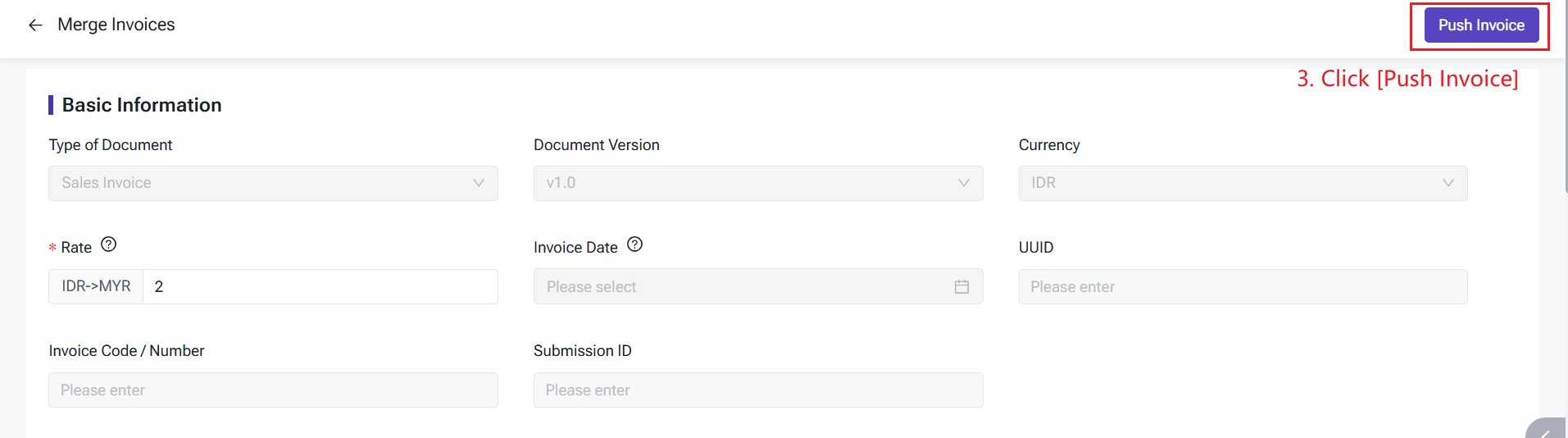
1. The currency of the selected orders must be the same if the invoices are merged.
2. When merging invoices, you do not need to enter the buyer's information. The system will automatically use General Public as the default company name.
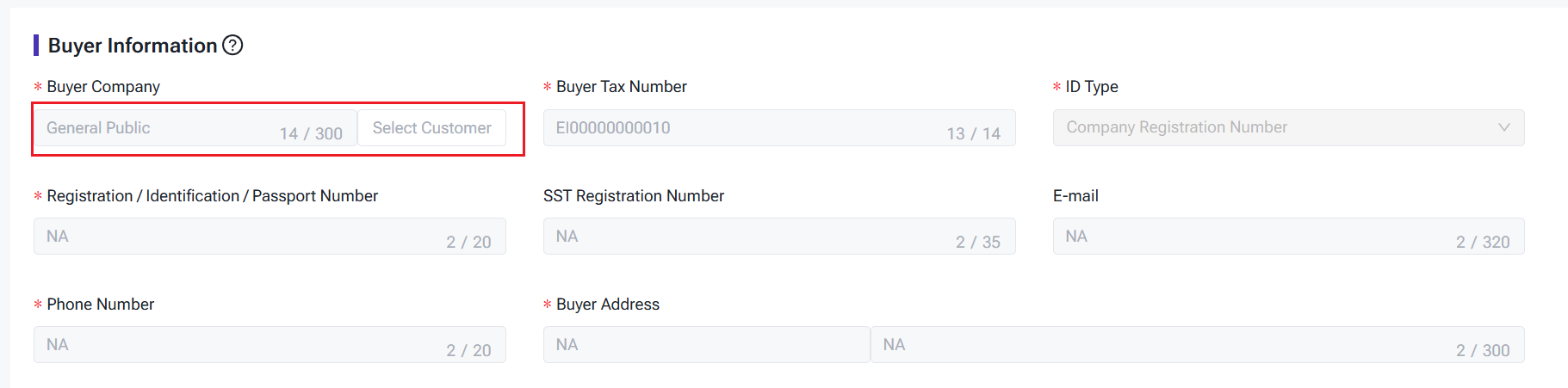
4. How to Add Invoicing Information for Buyer in BigSeller's Customer List
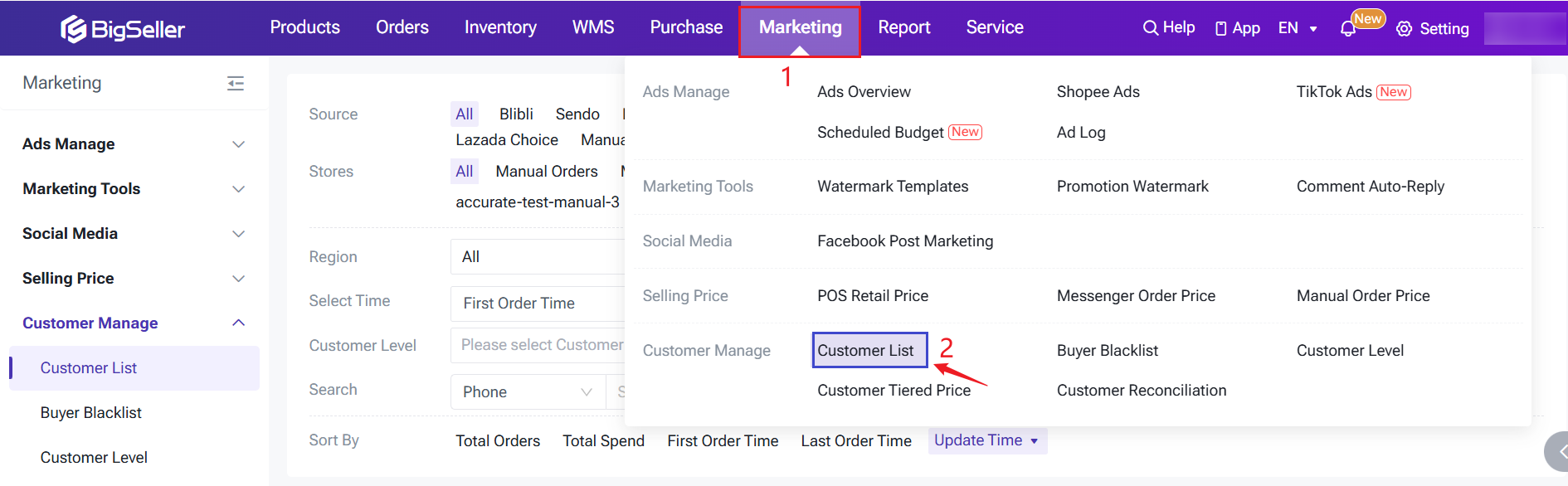
Step 1: Go to Marketing Module > Customer Manage > Customer List
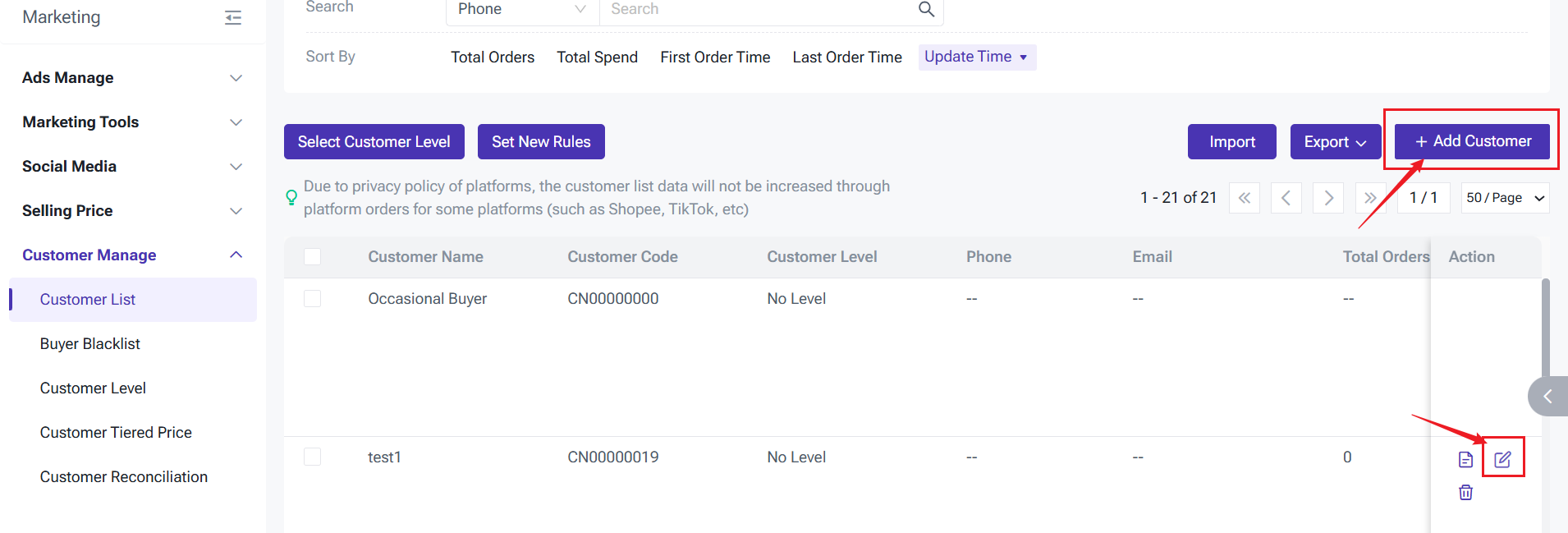
Step 2: Add new customer or edit an existing customer.
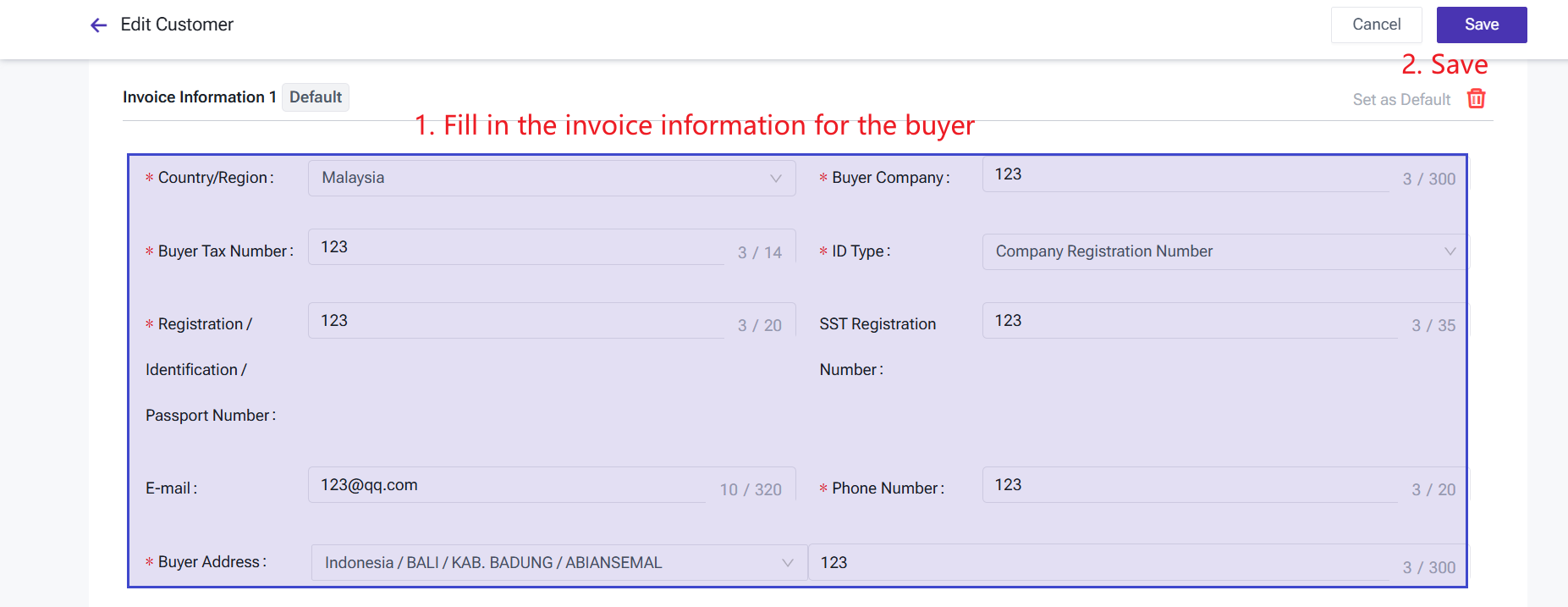
Step 3: Add the invoice information and save.
▶ Video Tutorial
Is this content helpful?
Thank you for your feedback. It drives us to provide better service.
Please contact us if the document can't answer your questions