How to Auto Pack Orders?
Update Time: 01 Jun 2026 08:57
Managing orders manually at scale may lead to missed shipments, wrong logistics assignments, and last-minute panics before deadlines.
Now, BigSeller's upgraded Auto Pack feature lets you create multiple independent rules that automatically match and arrange orders around the clock — so you can focus on growing your business instead of chasing shipments.
Set your rules once, and the system handles the rest: matching orders by store, logistics, and warehouse; running on your schedule; filtering out risky orders; and ensuring nothing slips through even when you're offline.
Getting Started
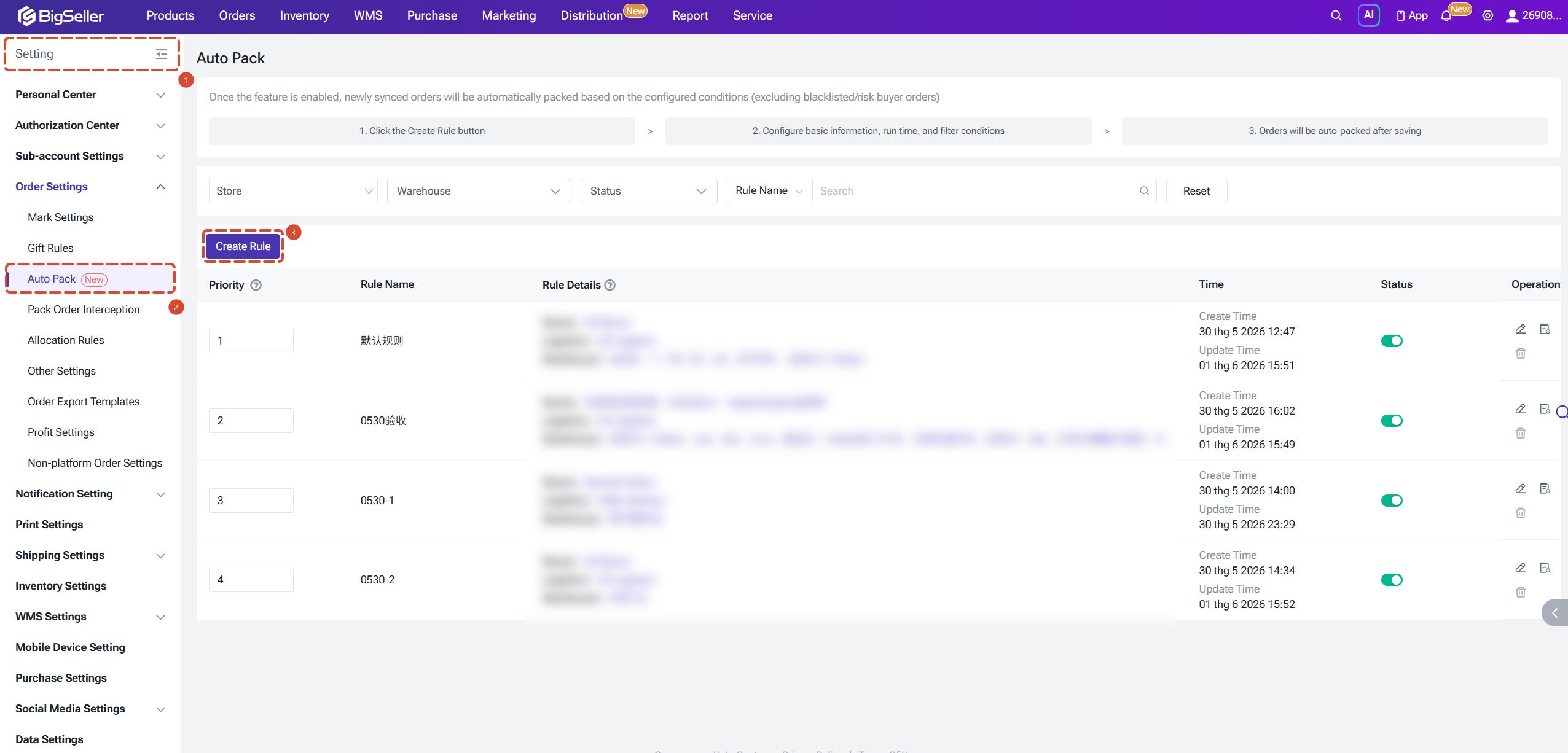
Navigation: BigSeller Dashboard → Order Settings → Auto Pack
Three steps to get up and running:
1. Click Create Rule
2. Configure the scope, schedule, and filters
3. Save — new orders will be automatically arranged according to your rules
Orders flagged as blacklisted buyers or risk buyers are excluded from Auto Pack regardless of rule settings.
Creating a Rule
1. Rule Name
Give the rule a clear, recognizable name (up to 50 characters). A good naming convention helps when managing multiple rules — for example: "Shopee-MY-Warehouse A".

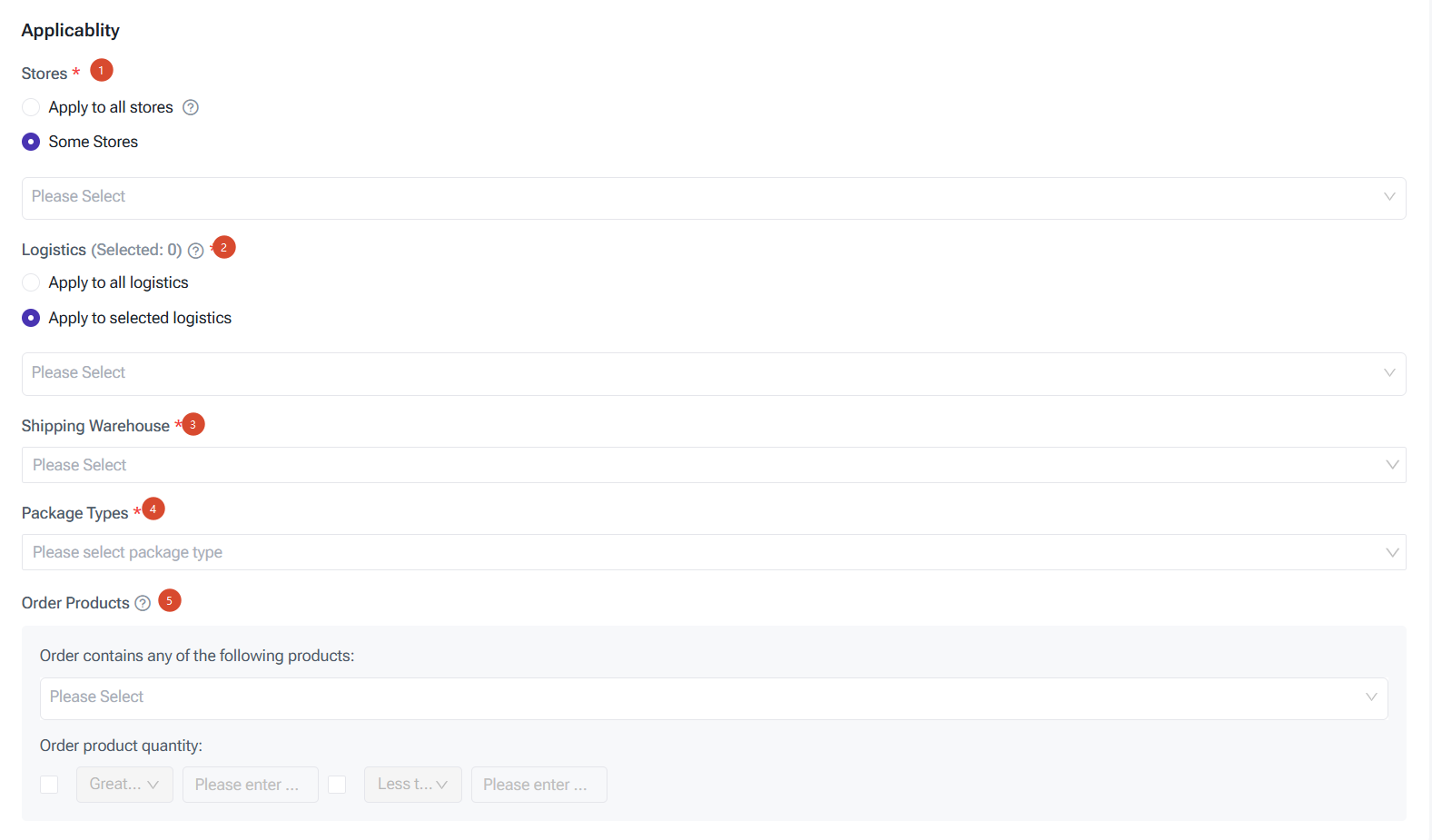
2 Applicable Scope
Defines which orders this rule applies to. All conditions below use AND logic — an order must match every selected condition to be picked up by this rule.
Store
- All Stores: newly added stores are included automatically
- Selected Stores: manually choose one or more stores
Logistics
- All Logistics: newly added logistics channels are included automatically
- Selected Logistics: manually choose specific channels
Shipping Warehouse (required)
- Select one or more warehouses this rule applies to.
Package Type (required)
- Single item, single quantity
- Single item, multiple quantities
- Mixed items
- Select all types that apply to this rule.
Order Products (optional)
- Trigger this rule only when an order contains specific products. You can also set a quantity condition (greater than / less than a specified number). Useful for setting dedicated fulfillment strategies for certain SKUs.
3. Run Schedule
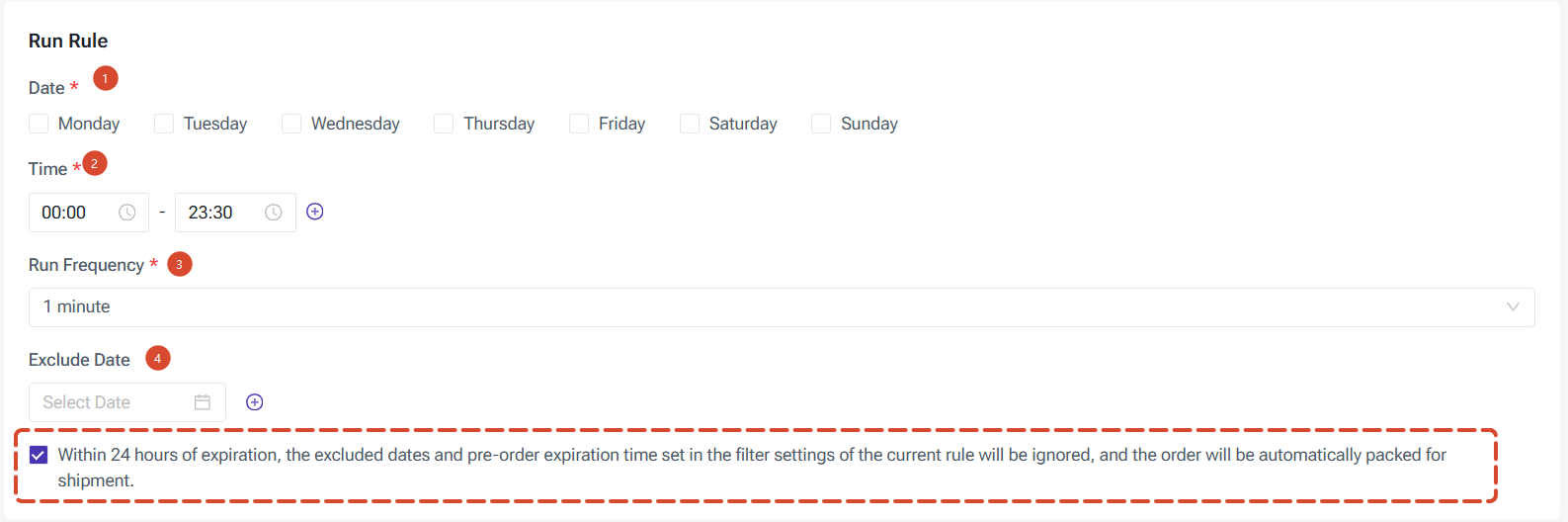
Controls when the rule is allowed to execute and how often it scans for orders. This does not affect which orders are in scope.
Run Days (required)
- Select which days of the week the rule is active. The rule will not run on unselected days.
Run Time (required)
- Set one or more daily time windows during which the rule can execute (e.g. 09:00–18:00).
Run Frequency (required)
- How often the system scans for orders within the active time window. Enter a whole number (minimum: 1 minute).
Exclude Dates (optional)
- Specify dates when the rule should not run, such as public holidays.
24-Hour Deadline Override (highly recommended)
- When enabled: if an order is within 24 hours of its fulfillment deadline, the system ignores the run day, run time, run frequency, and pre-order expiry settings and arranges the order immediately.
This is your last line of defense against late shipments. It is strongly recommended to enable this for every rule.
4. Pickup Time (Shopee Pickup Orders Only)
This setting only applies to Shopee pickup orders. Other platforms and logistics methods are not affected.
- Do not auto-select pickup time: System does not assign a time; handle manually
- Default to earliest pickup time: Automatically selects the earliest available slot
- Default to latest pickup time: Automatically selects the latest available slot

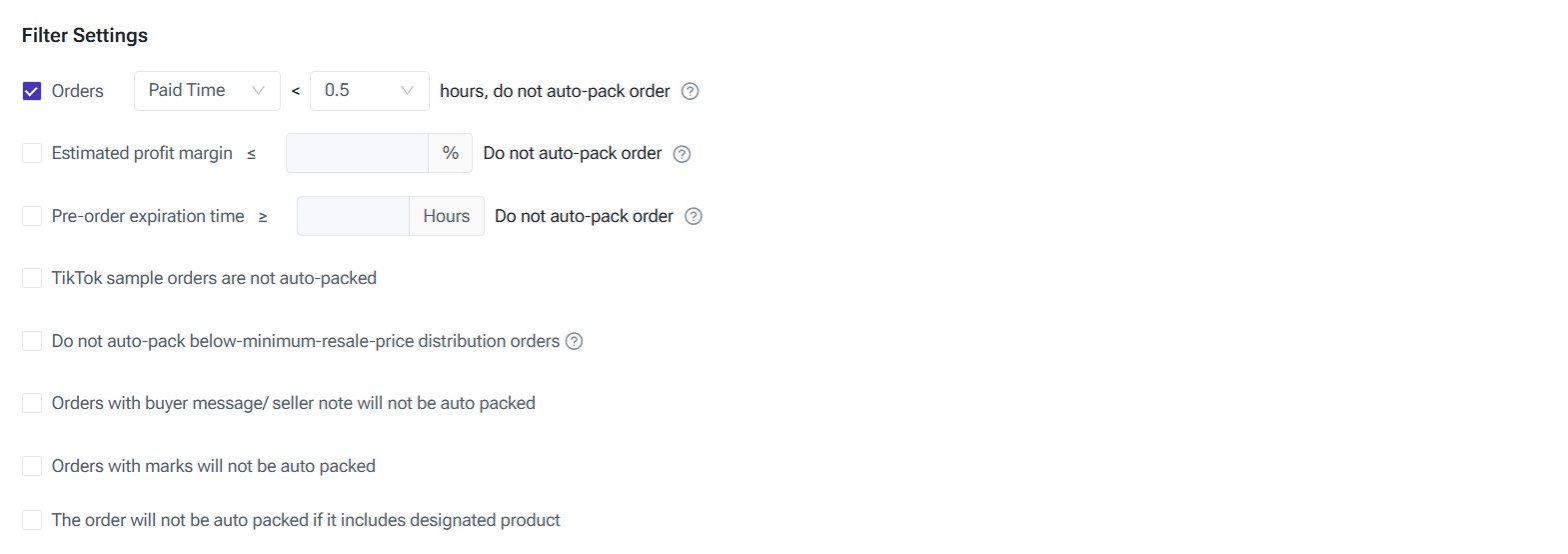
5. Filter Settings
Orders that have passed the scope check are excluded from this rule if they match any of the following filters.
Filters only apply to the current rule — they do not affect other rules. Time-based filters (such as payment time) are recalculated on every scan, so orders become eligible automatically once the condition is met.
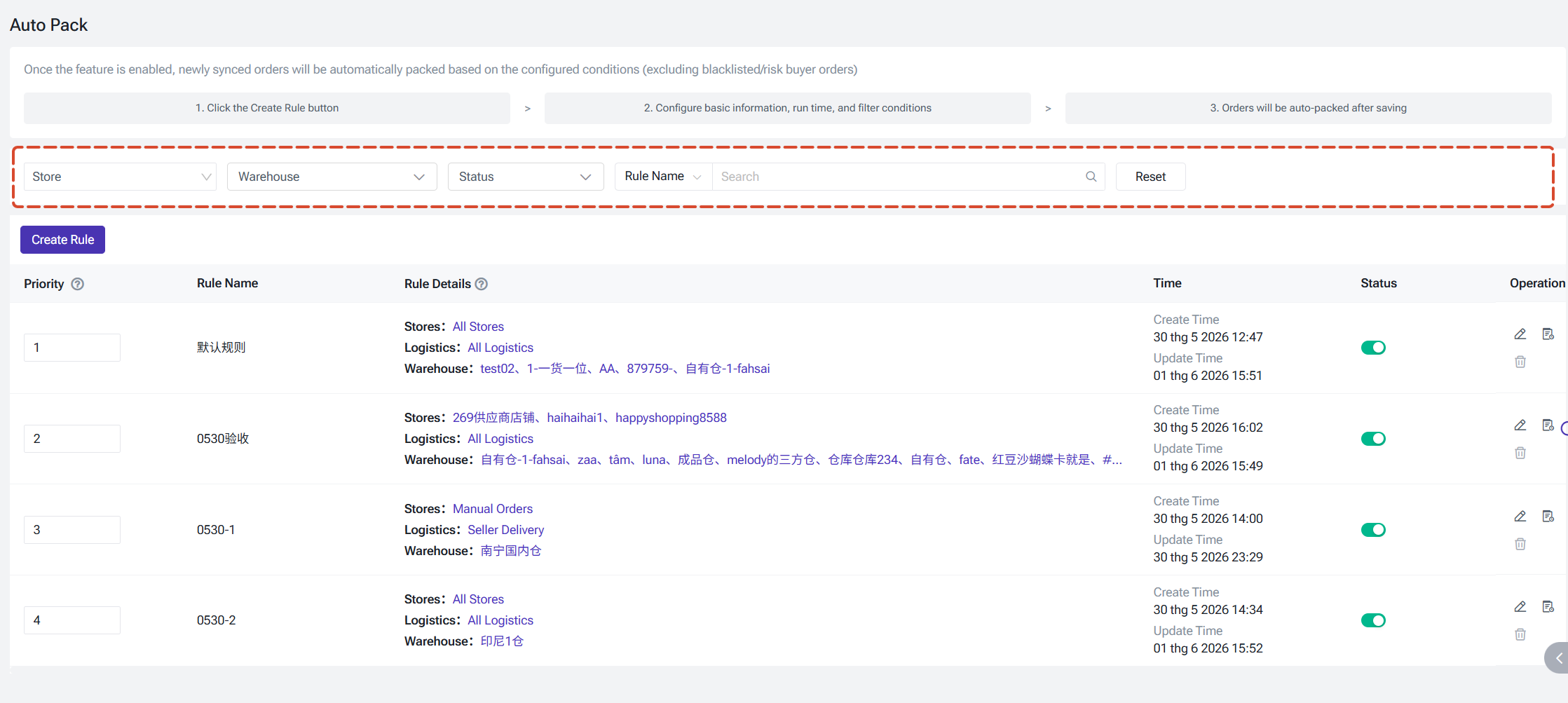
Rule List
The rule list shows all configured Auto Pack rules. Use the filters at the top to narrow down by store, warehouse, status, or rule name.
Note: Deletion is permanent and cannot be undone
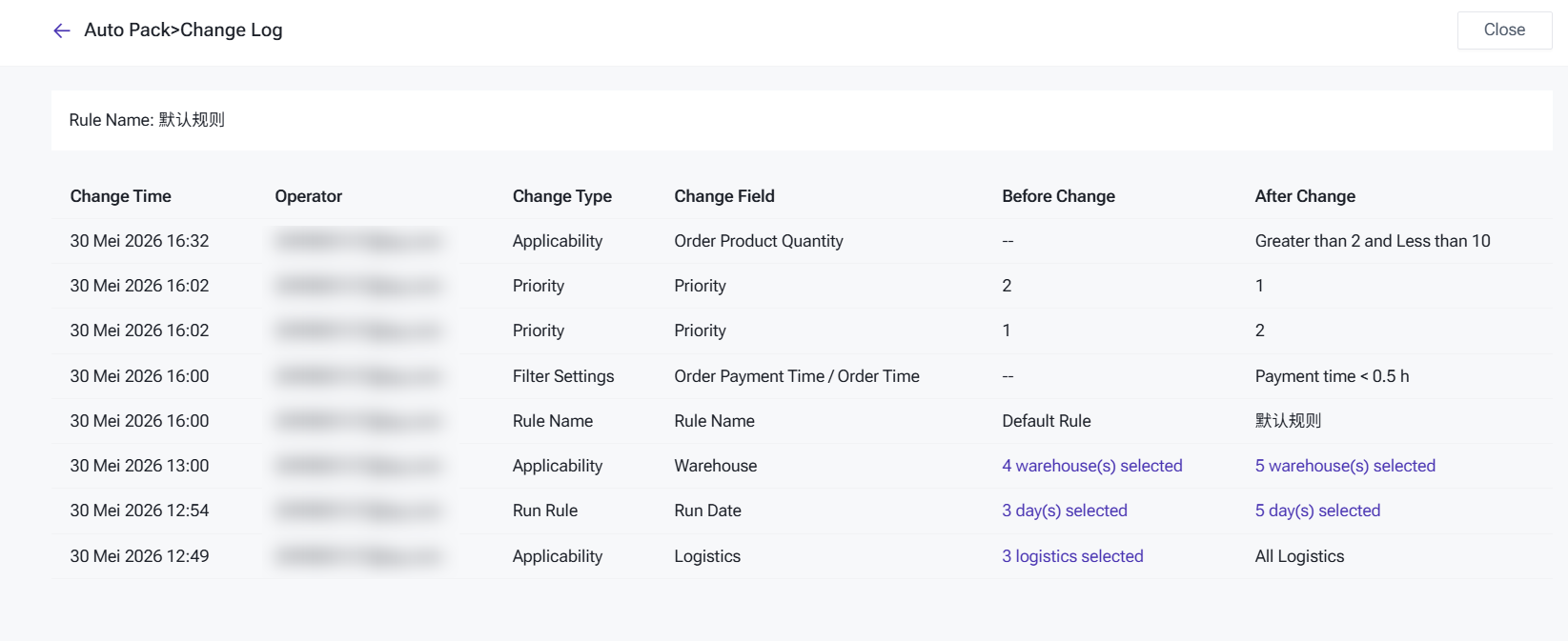
Change Log
Every time a rule is saved, the system checks whether any of the following have changed and records the differences automatically:

Important Notes
- An order is processed by the first rule it matches in priority order. Plan your rule priority carefully to avoid unintended overlaps.
- Selecting "All Logistics" means newly added logistics channels will be automatically included in the rule — no manual updates needed.
- Auto Pack does not apply to blacklisted or risk buyer orders under any circumstances.
- Time-based filters (e.g. payment time threshold) are recalculated on every scan. Once an order meets the condition, it will be picked up in the next scan cycle.
- Before deleting a rule, consider disabling it first to confirm no active orders depend on it.
Is this content helpful?
Thank you for your feedback. It drives us to provide better service.
Please contact us if the document can't answer your questions