How to Deal with Risk Buyers on BigSeller?
Copy link & title
Update Time: 27 May 2026 07:51
Sellers in Southeast Asia frequently deal with two costly issues: buyers placing duplicate orders by mistake — leading to disputes, negative reviews, and wasted fulfillment effort; and high-risk buyers with habitual refusals or return fraud that manual blacklisting alone can't catch in time.
To help deal with such issues, BigSeller launched a new Risk Buyer feature which automatically detects duplicate orders and monitors buyer after-sales behavior across multiple dimensions, enabling you to intervene early, intercept risky orders, and reduce unnecessary shipping costs and dispute losses.
To help deal with such issues, BigSeller launched a new Risk Buyer feature which automatically detects duplicate orders and monitors buyer after-sales behavior across multiple dimensions, enabling you to intervene early, intercept risky orders, and reduce unnecessary shipping costs and dispute losses.
- 💡 Supported Platforms: Shopee, Lazada, TikTok
- 💡 Supported Plans: Basic plan and above
Duplicate Order Mark Setup
A Duplicate Order system mark has been added under Label Management, allowing the system to automatically detect repeated orders from the same buyer when orders are synced.
How the System Identifies the Same Buyer
The system uses the following criteria — matching any one of them is sufficient to identify a buyer as the same person:
How the System Identifies the Same Buyer
The system uses the following criteria — matching any one of them is sufficient to identify a buyer as the same person:
- Same Buyer ID (valid for Shopee, Lazada, and TikTok only)
- Same recipient name
- Same shipping address (country, province, city, district, and street address must all match)
- Same recipient phone number
⚠️ Note: If the platform has encrypted the recipient's information (indicated by "***"), the system will skip same-buyer detection for those orders. Shopee Taiwan orders are fully encrypted and cannot be identified as duplicates.
Configuration Steps
You can go to Order Settings > Label Management > Duplicate Order > Edit and follow the steps below.
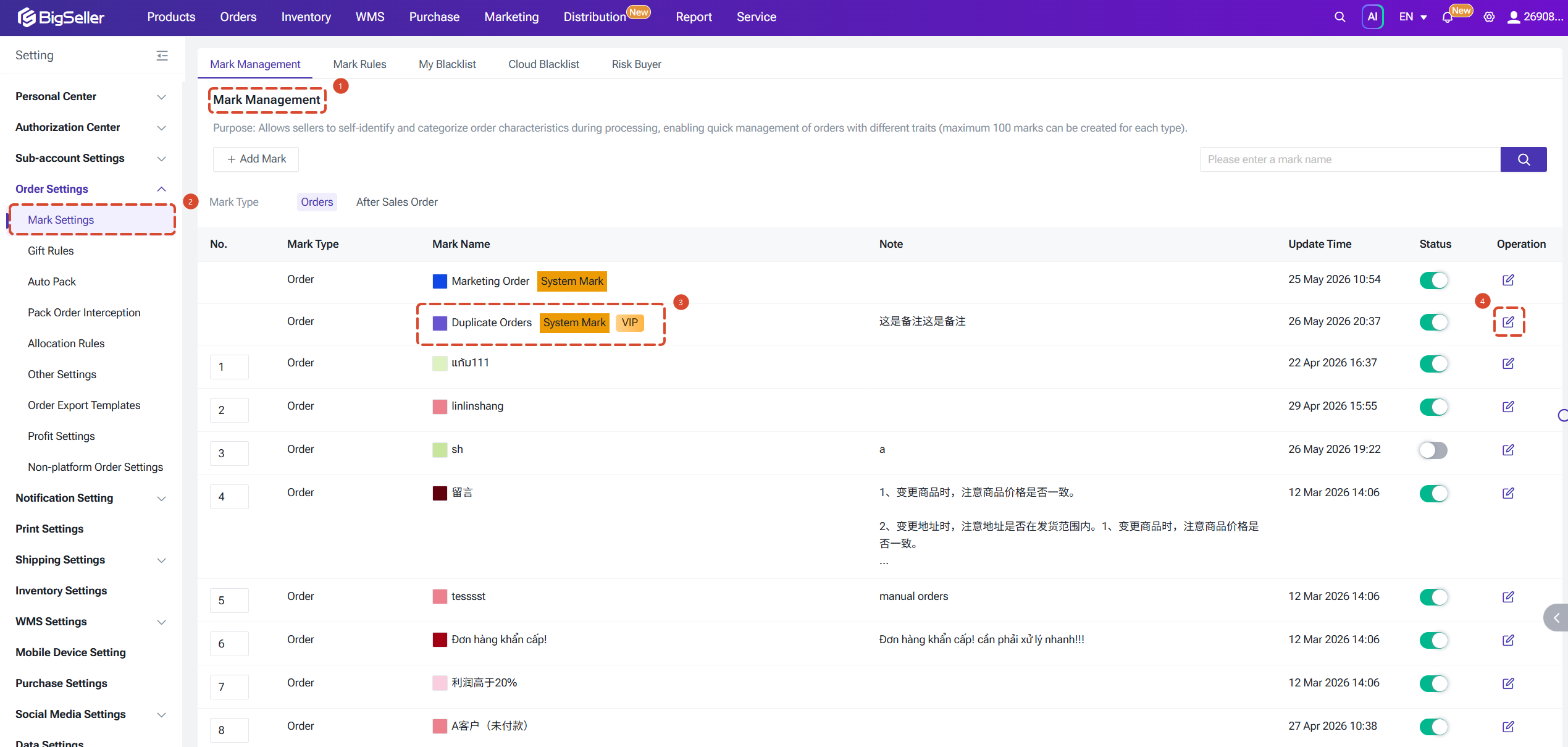
Step 1: Select a Validation Rule
Configuration Steps
You can go to Order Settings > Label Management > Duplicate Order > Edit and follow the steps below.
Step 1: Select a Validation Rule
- Meet Any Condition (Default): If any one of the following matches — same Buyer ID, same recipient name, same shipping address, or same phone number — the order is flagged as a duplicate.
- Meet All Conditions: Both same Buyer ID and same SKU ID must be present for an order to be flagged as a duplicate.
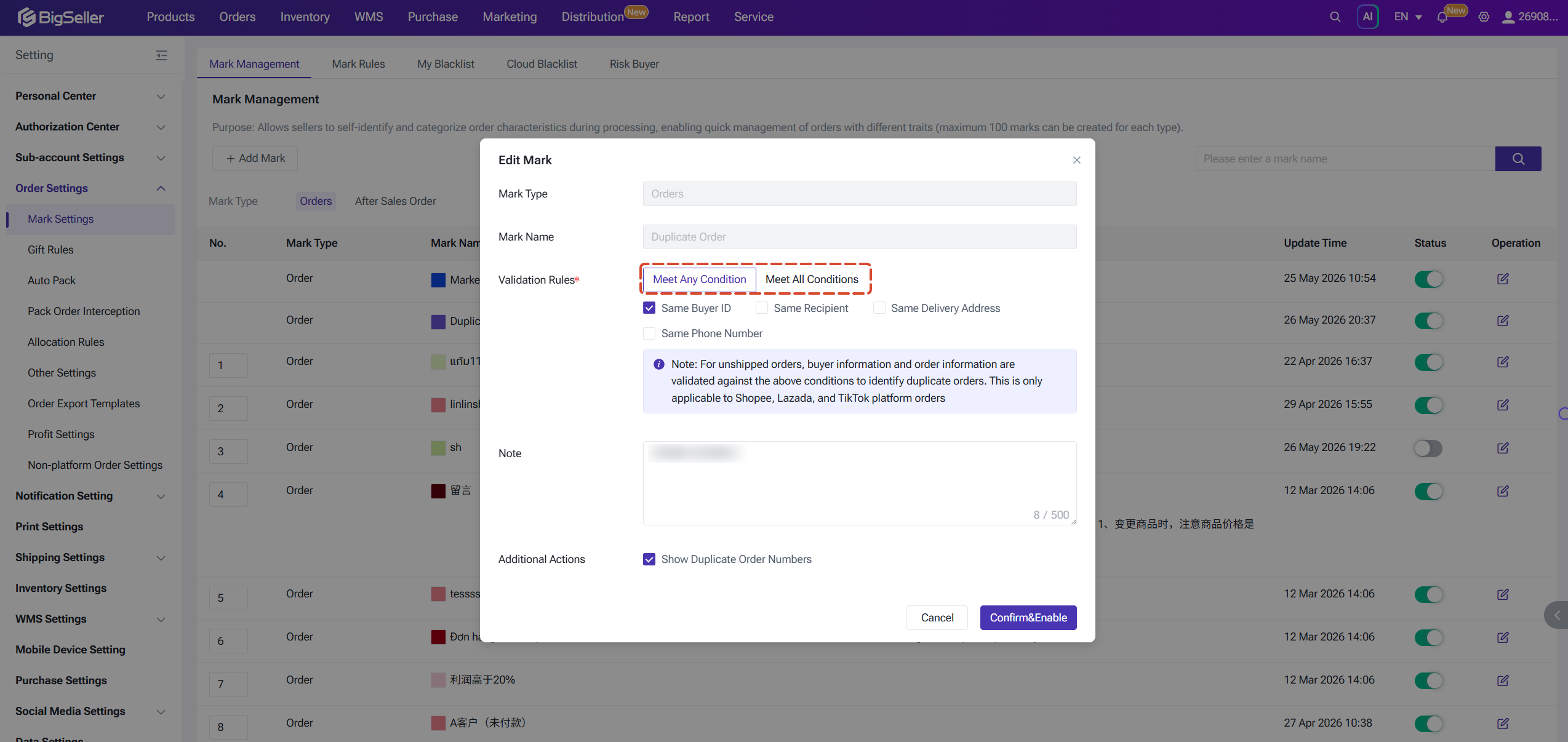
Step 2: Configure Additional Actions (Optional)
Enable Show Duplicate Order Numbers to have the system automatically display other unshipped orders from the same buyer beneath the flagged order, making it easy to review and merge them.
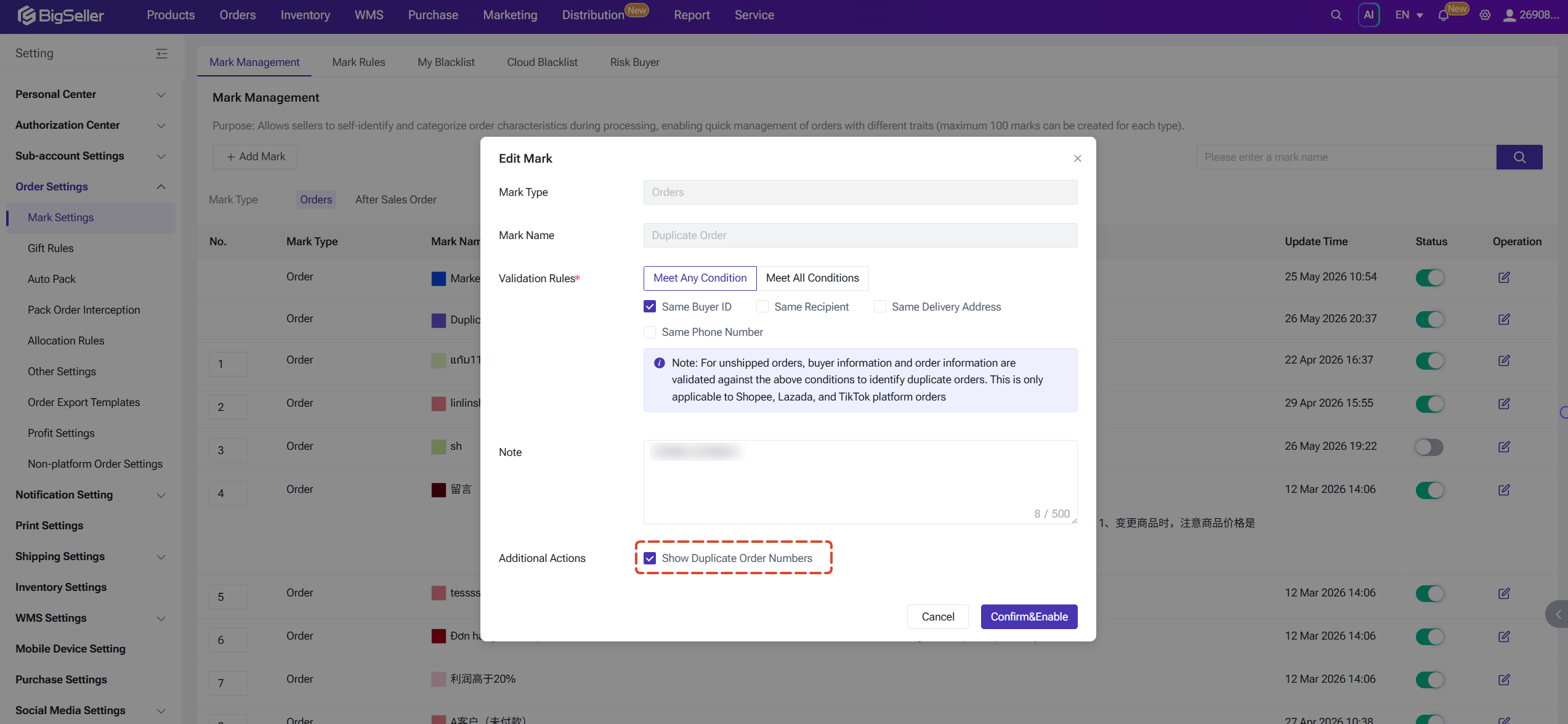
Step 3: Save and Enable
Click "Confirm & Enable" to complete the setup. If no validation rule has been selected, the system will prompt you to choose one before the feature can be turned on.
Note:
- The system only checks for duplicate orders among orders in the following pre-shipment statuses: New Orders, In Processing Orders (including 3PL warehouse and distributor pages), To Pickup Orders, Unpaid, and Voided.
- Detection is triggered at the moment of first sync only, and applies to newly synced orders.
Risk Buyer Rule Setup
Risk Buyer Rules let you define custom risk criteria based on a buyer's historical after-sales behavior. When a new order from a matching buyer is synced, the system automatically takes the configured action — no manual review required.
Rules are executed in priority order. Only the highest-priority matching rule is applied per buyer per trigger. Up to 10 rules can be configured.
Go to Order Settings > Mark Rules > Risk Buyer > Add Rule and follow the steps below.
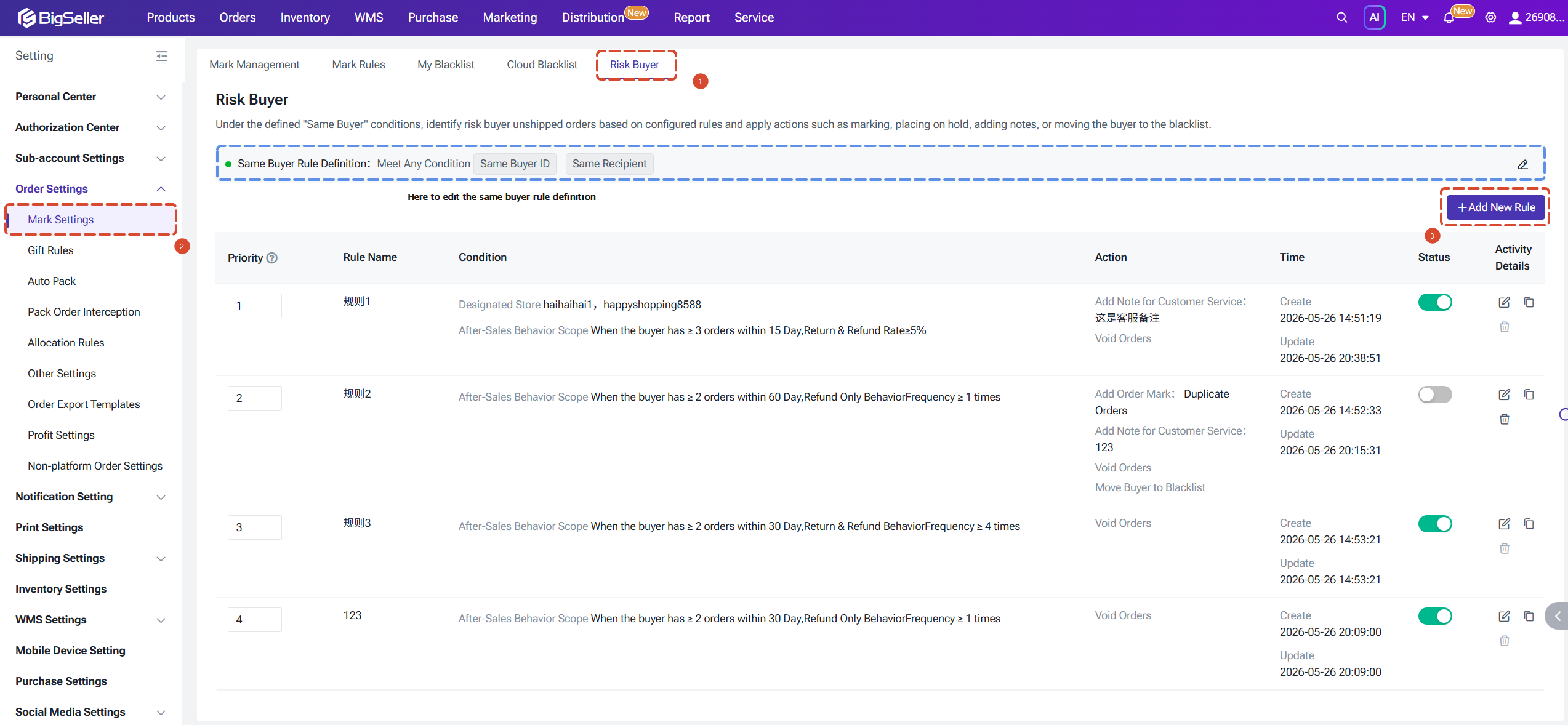
Step 1: Enter a Rule Name
Give the rule a descriptive name to help distinguish between different risk levels or applicable scenarios.
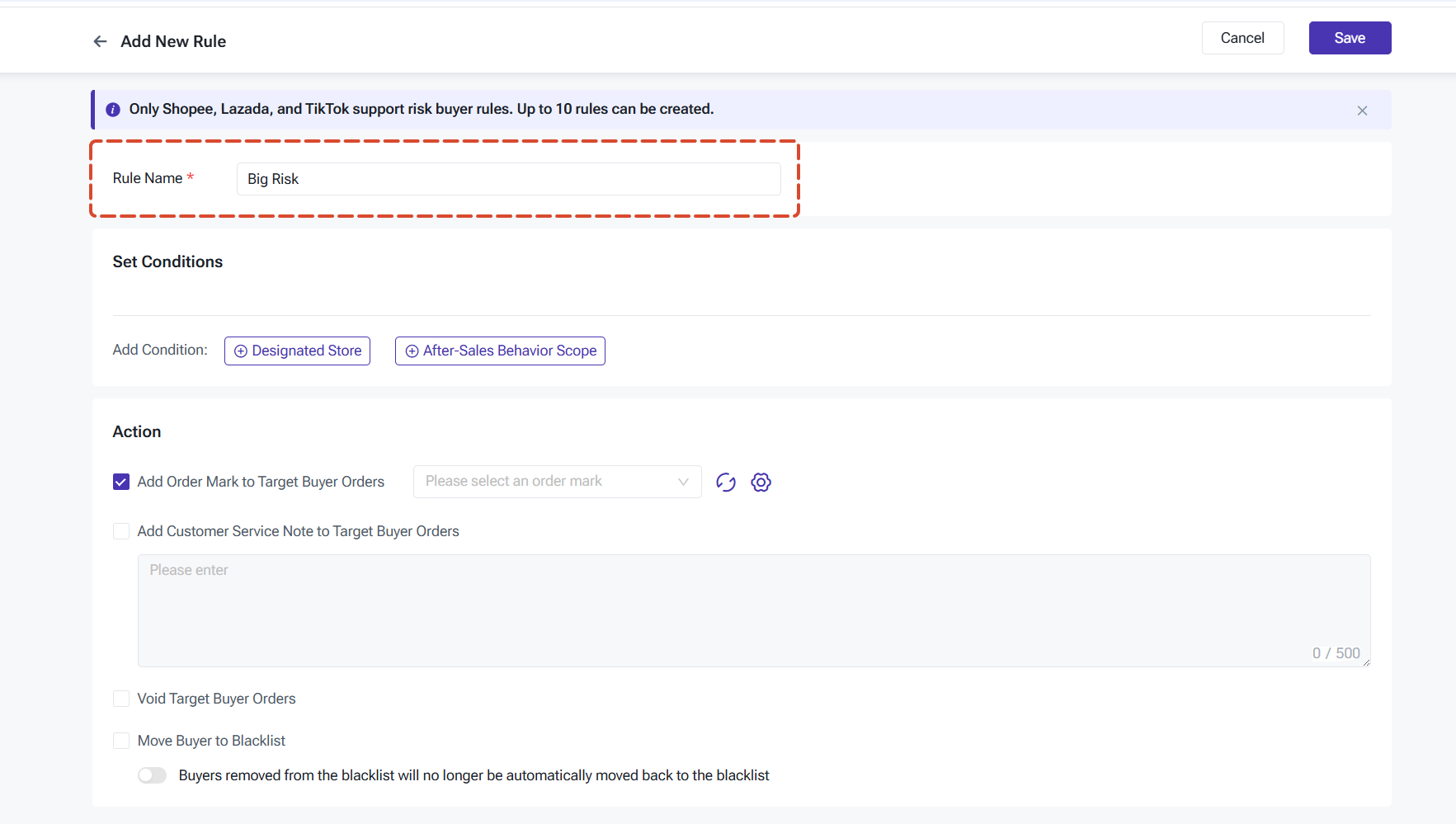
Step 2: Set Trigger Conditions
Condition 1: Specify the platform and store(s) where this rule should apply.
Condition 2: Define the after-sales behavior scope. The following two behavior types can be configured independently:
1) Refund-Only Behavior (includes rejection and failed delivery)
Choose a time window of 15 / 30 / 60 / 90 days. Set one of the following thresholds:
when a buyer's order count ≥ M within the period, trigger if refund-only frequency ≥ N times; or if refund-only rate ≥ N%.
2) Return & Refund Behavior
Choose a time window of 15 / 30 / 60 / 90 days. Set one of the following thresholds:
when a buyer's order count ≥ M within the period, trigger if return & refund frequency ≥ N times; or if return & refund rate ≥ N%.
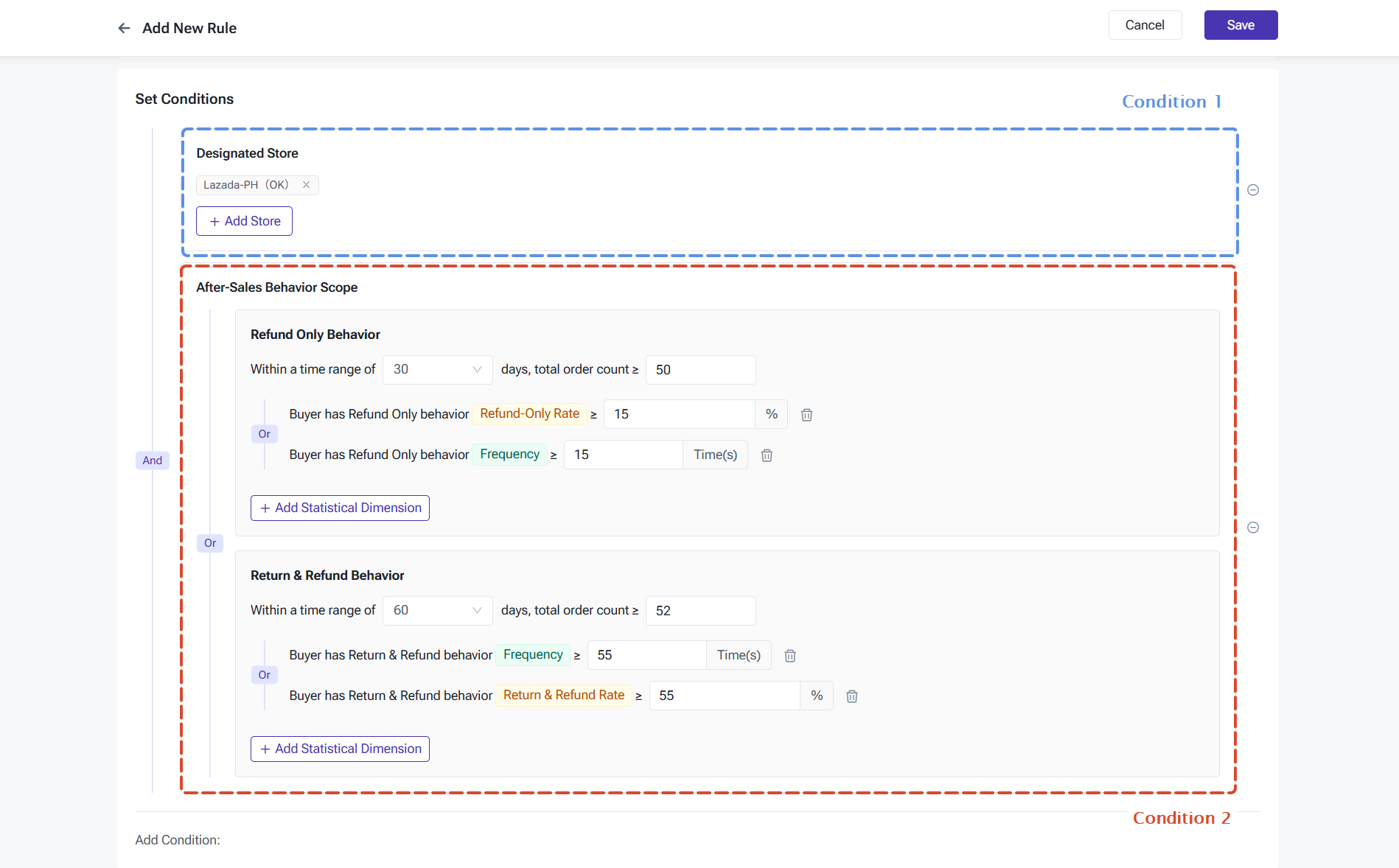
📌 Calculation Notes: Order count is based on platform order date within the past N days. Refund/return frequency and rate are calculated from after-sales events within the past 30 days, regardless of the original order creation date.
Step 3: Set Automated Actions
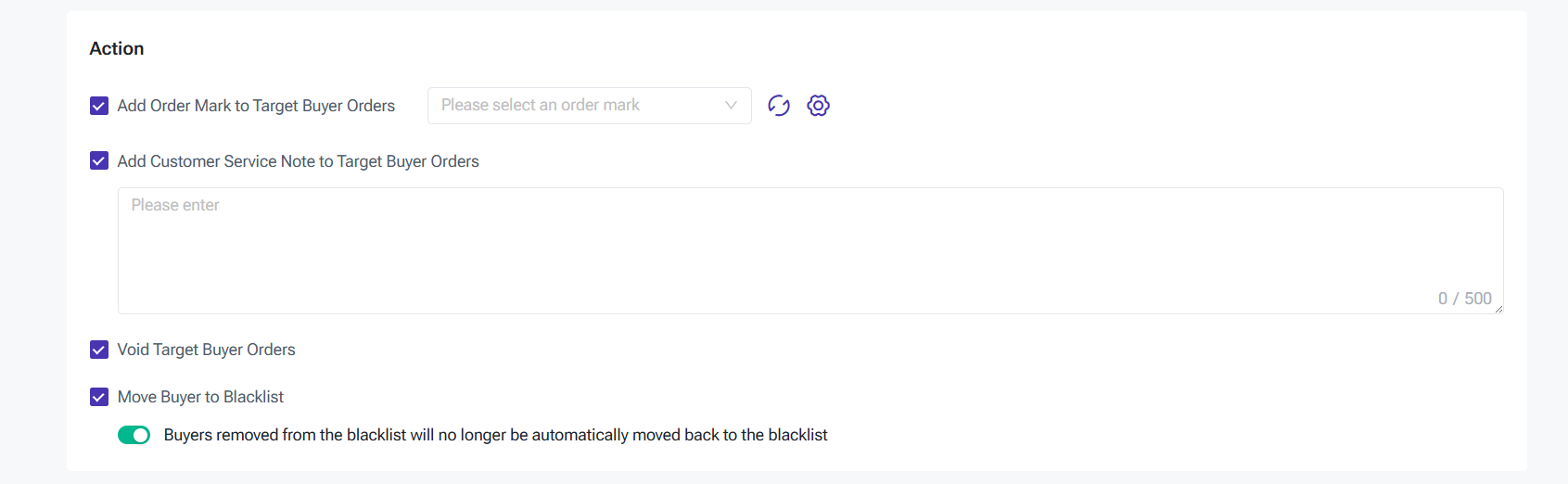
Once a buyer triggers a rule, the system can act on both the order and the buyer. Multiple actions can be selected:
Rules are executed in priority order. Only the highest-priority matching rule is applied per buyer per trigger. Up to 10 rules can be configured.
Go to Order Settings > Mark Rules > Risk Buyer > Add Rule and follow the steps below.
Step 1: Enter a Rule Name
Give the rule a descriptive name to help distinguish between different risk levels or applicable scenarios.
Step 2: Set Trigger Conditions
Condition 1: Specify the platform and store(s) where this rule should apply.
Condition 2: Define the after-sales behavior scope. The following two behavior types can be configured independently:
1) Refund-Only Behavior (includes rejection and failed delivery)
Choose a time window of 15 / 30 / 60 / 90 days. Set one of the following thresholds:
when a buyer's order count ≥ M within the period, trigger if refund-only frequency ≥ N times; or if refund-only rate ≥ N%.
2) Return & Refund Behavior
Choose a time window of 15 / 30 / 60 / 90 days. Set one of the following thresholds:
when a buyer's order count ≥ M within the period, trigger if return & refund frequency ≥ N times; or if return & refund rate ≥ N%.
📌 Calculation Notes: Order count is based on platform order date within the past N days. Refund/return frequency and rate are calculated from after-sales events within the past 30 days, regardless of the original order creation date.
Step 3: Set Automated Actions
Once a buyer triggers a rule, the system can act on both the order and the buyer. Multiple actions can be selected:
- For the order, you can choose one or more of the following actions applied to the buyer's newly synced orders: void order, add an order mark, or add a customer service note.
- For the buyer, you can move them to the blacklist. This is supported on Shopee, Lazada, and TikTok only. The default reason recorded is: "Frequent returns and refunds (auto-added)."
- If a buyer has been manually removed from the blacklist, the system will not automatically add them back.
Note: Risk Buyer rules are triggered when an order experiences a failed delivery or an after-sales request is raised. The system evaluates the corresponding buyer against all active rules and executes the highest-priority matching one. Rules only apply to pre-shipment orders. Auto-pack will skip Risk Buyer orders by default.
Risk Buyer Features in Order Processing
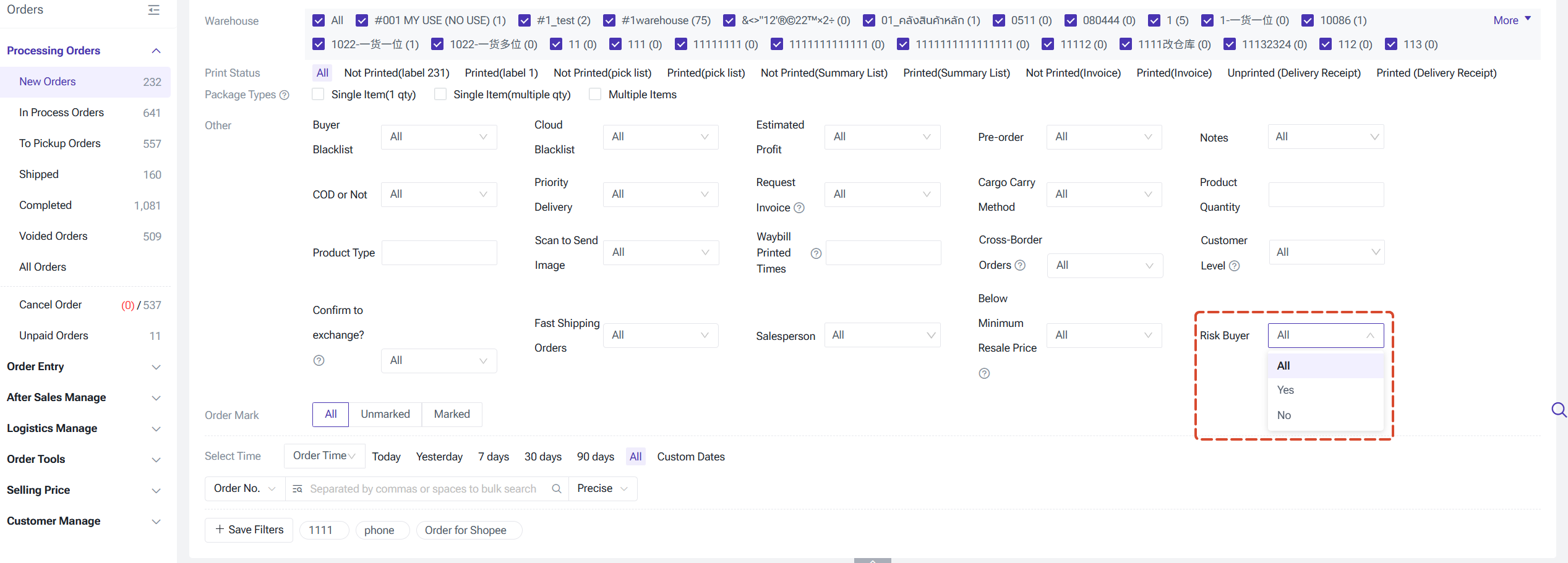
1. Filtering by Risk Buyer
On the New Orders, In Processing Orders (including 3PL warehouse and distributor pages), To Pickup Orders, and Voided pages, you can filter orders by the Risk Buyer field (All / Yes / No).
2. Duplicate Order Reminders
When "Show Duplicate Order Numbers" is enabled, the system displays a reminder beneath each flagged order on the New Orders page:
3. Order Arrangement Intercept
On the New Orders, In Processing Orders (including 3PL warehouse and distributor pages), To Pickup Orders, and Voided pages, you can filter orders by the Risk Buyer field (All / Yes / No).
2. Duplicate Order Reminders
When "Show Duplicate Order Numbers" is enabled, the system displays a reminder beneath each flagged order on the New Orders page:
3. Order Arrangement Intercept
- Single order: When the buyer of an order being packed matches a Risk Buyer rule, a confirmation pop-up appears asking whether you want to proceed.
- Batch arrangement: The system aggregates all orders in the current batch that match Risk Buyer rules, displaying their count and order numbers in an intercept pop-up for you to review and decide on together.
4. Auto-pack Behavior
When Auto-pack is enabled, orders belonging to blacklisted buyers or buyers matching any Risk Buyer rule are automatically skipped and excluded from the auto-pack flow.
5. Permission Management
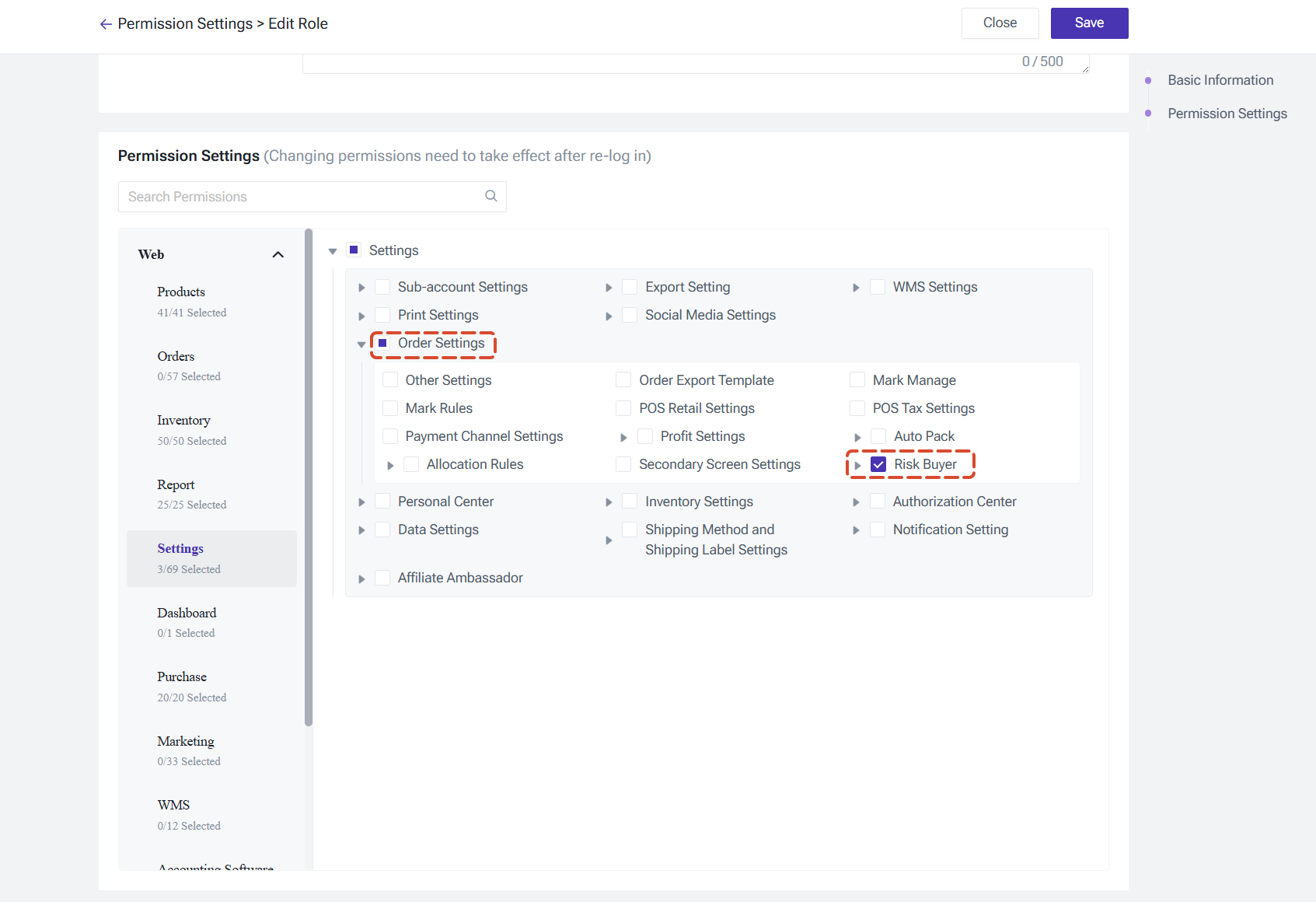
A Risk Buyer permission entry has been added to sub-account role management under Settings > Role Settings > Order Settings. Permissions can be configured separately for: view access, editing (including add, copy, and edit), and deletion.
Is this content helpful?
Thank you for your feedback. It drives us to provide better service.
Please contact us if the document can't answer your questions