How to Set Facebook Live Order Capture Rule?
Update Time: 09 Sep 2026 06:42
Before You Start
- Facebook Authorization → Social Media Order Settings (Order Settings / Capture Rules / Message Templates / Shipping Fee Rules) → Create a BigSeller Live and Add Products → Start the Live on Facebook → Link the Facebook Live with BigSeller Live Event → Enable Order Capture → Review Orders

Facebook authorization must be completed first — order capture rules and live linking are only available once your Facebook Page is authorized. Make sure your Page's authorization is active (not expired or unlinked).
1. Order Capture Rules
These settings determine where the system looks for keywords, how it matches them, and how it handles repeat messages.
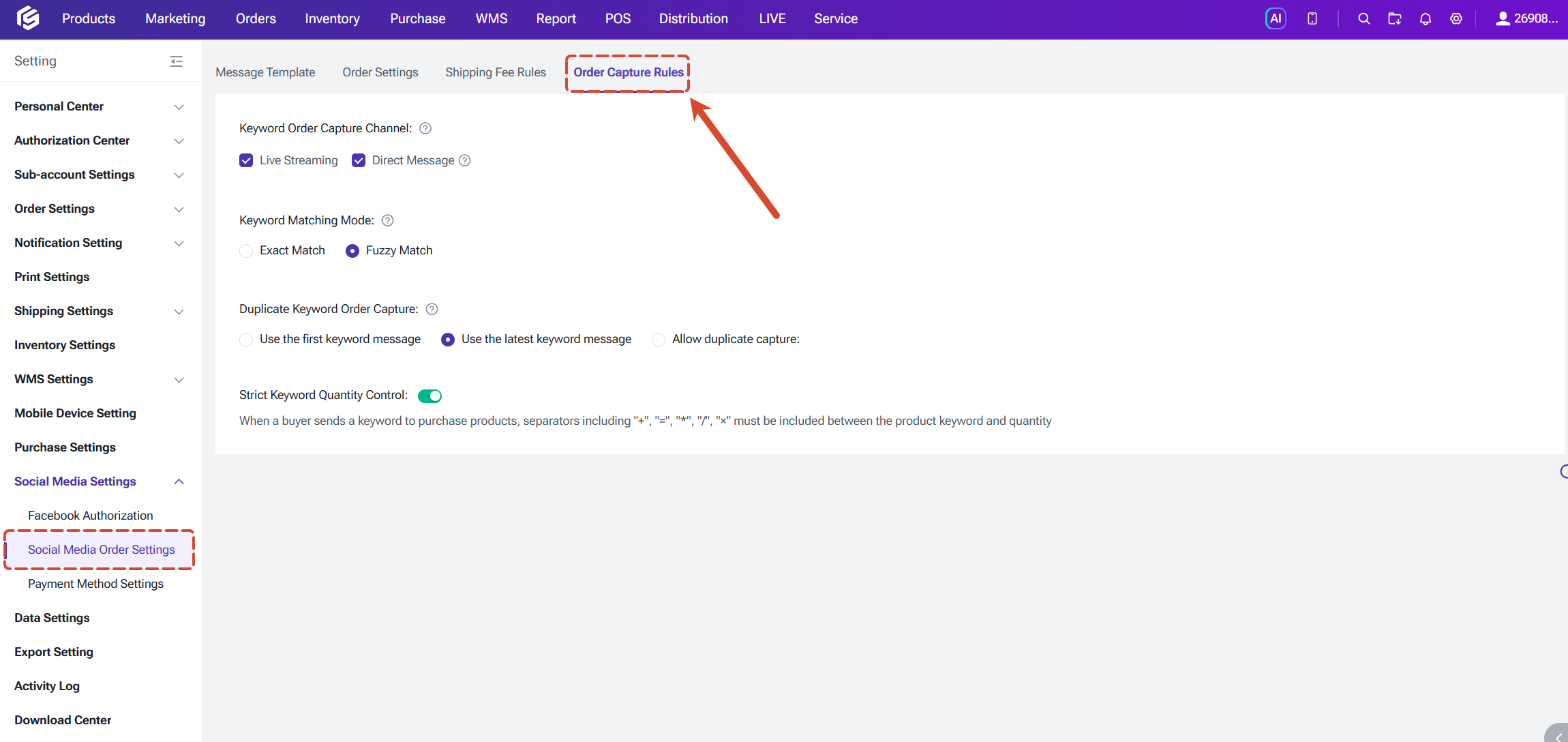
1.1 Capture Channels
Choose which channels the system reads keywords from: Live or Message. "Live" is selected by default. Channels that aren't selected won't be scanned for keywords.
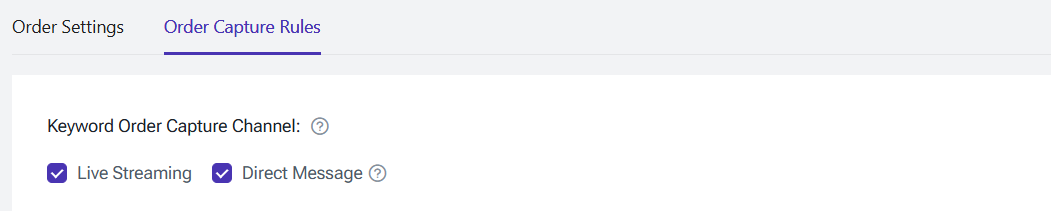
1.2 Keyword Matching Mode
Two modes are available:
- Exact Match (default): the buyer's keyword must exactly match the product's configured keyword
- Fuzzy Match: allows near matches, but this mode has no effect on the Message channel, which always uses exact matching

1.3 Capture Mode for Repeated Keywords
Buyers often resend the same keyword within seconds, whether by mistake or out of uncertainty. The system identifies a repeat message using the combination of buyer + Page + keyword + a 60-second window, and you can choose which message it acts on:
- Use the first keyword message (default)
- Use the latest keyword message
- Allow duplicate capture: every qualifying message generates its own order

1.4 Reorder Keyword
This option only appears when "Allow duplicate capture" is selected. You can set one or more keywords (comma-separated) that must appear in a buyer's message before the system will create an additional order for the same product, preventing accidental duplicate orders.

1.5 Strict Quantity Format
When enabled, buyers must separate the product keyword and quantity with one of +, =, *, /, or ×. This reduces misreads caused by inconsistent formatting.

2. Order Settings
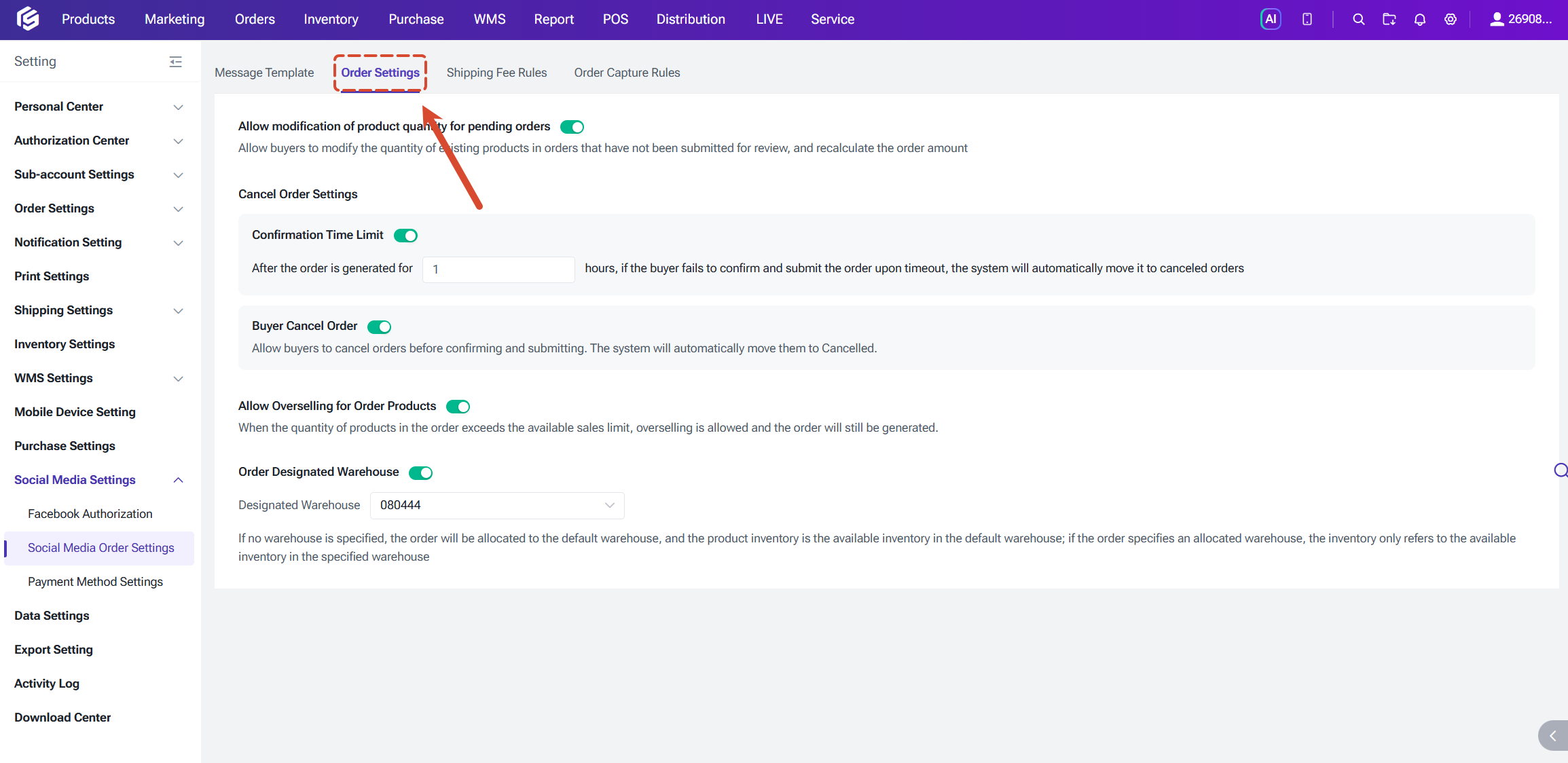
2.1 Allow Quantity Changes on Unconfirmed Orders
Off by default. When enabled, buyers can adjust product quantities on the buyer link before submitting it and before the order reaches "Pending Review" — the total, shipping fee, and amount due update in real time. Once the order moves past this stage, only the quantity is shown and can no longer be edited.

2.2 Cancel Order Settings
- Confirmation Time Limit: if the order isn't confirmed by the buyer or seller within N hours of creation, it automatically moves from "Pending" to "Cancelled," and the buyer link shows "Order cancelled, review failed"
- Buyer Cancel Order: when enabled, buyers can cancel their own order any time before submitting it, and it's automatically moved to "Cancelled"

2.3 Allow Overselling
Off by default. When enabled, orders can still be created or updated even if the quantity exceeds current available stock — useful for sellers running pre-orders or flexible restocking.

2.4 Assign Warehouse to Orders
Off by default, meaning orders aren't assigned to a specific warehouse and stock is calculated across all warehouses. When enabled with a warehouse assigned, stock is calculated only from that warehouse — helpful for sellers managing multiple warehouses.

3.Creating and Managing Facebook Live Events
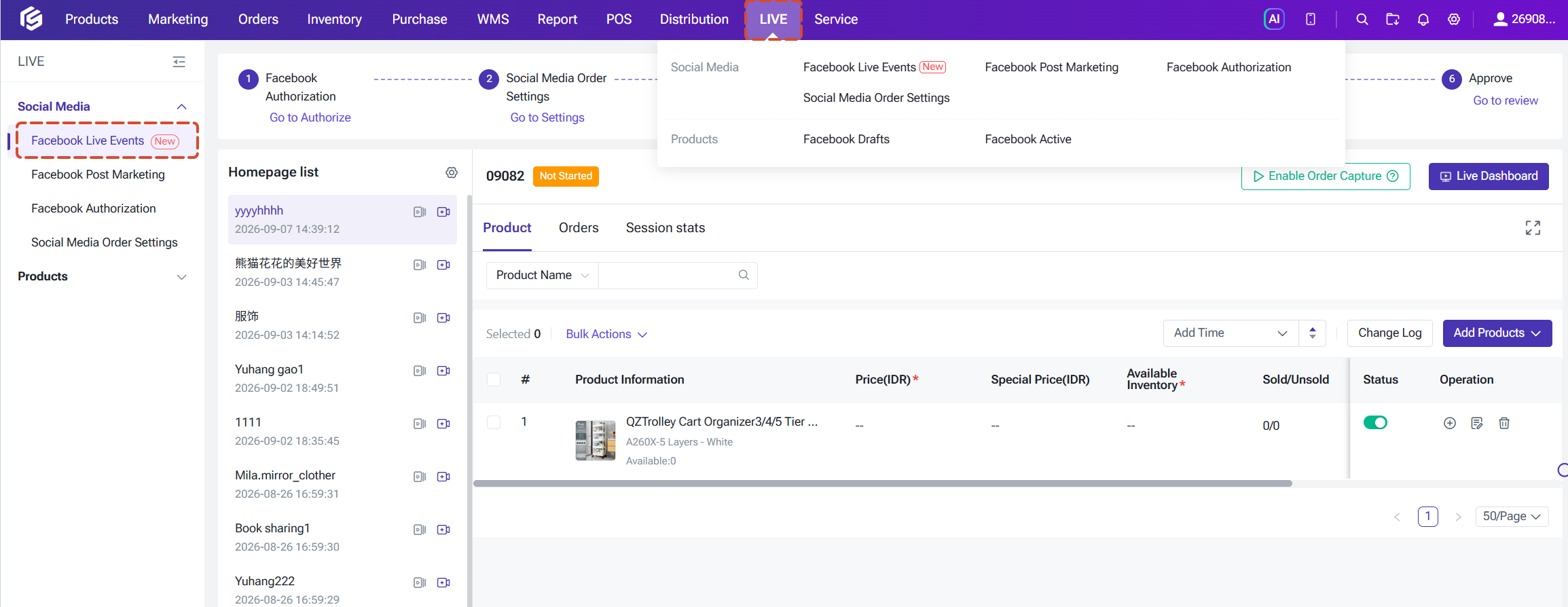
3.1 HomePage List
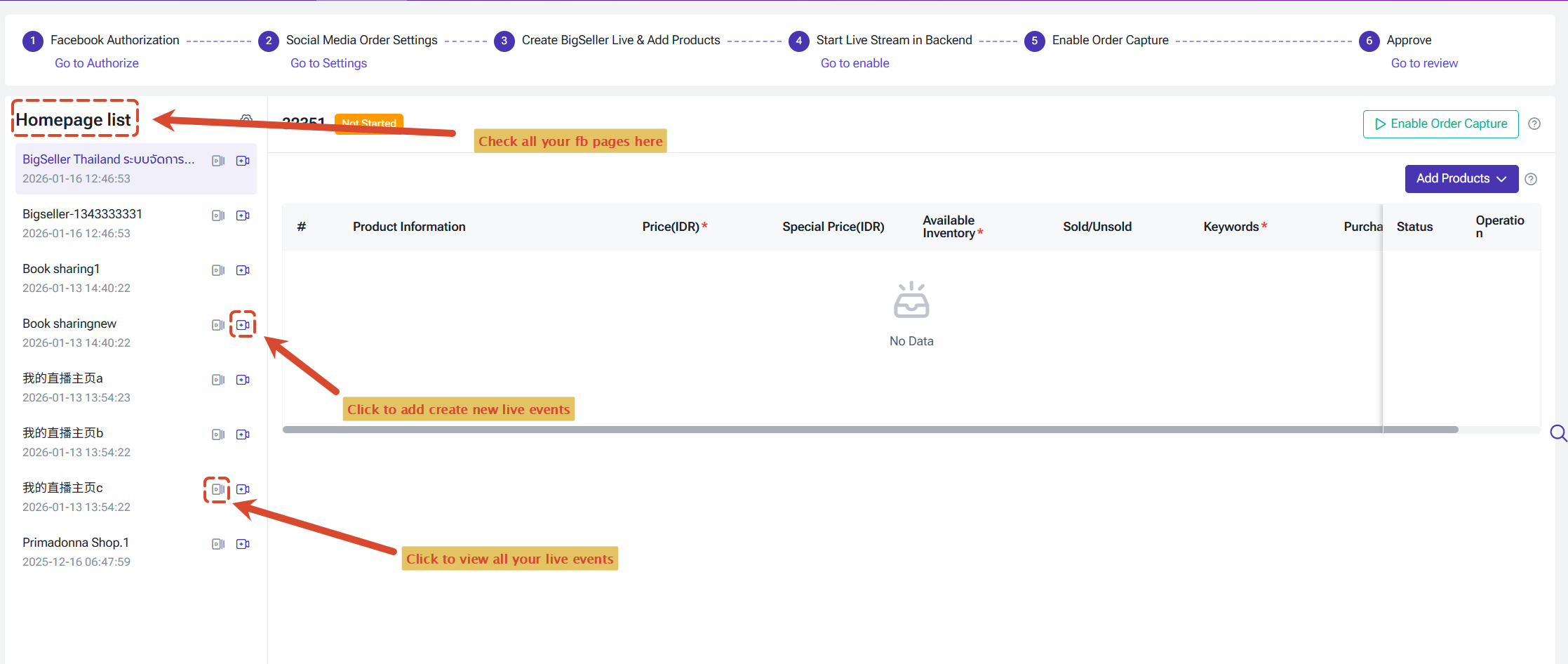
This shows all your authorized Facebook Pages, including those with expired or unlinked authorization, or deleted pages, so you can review your full history. Select any Page to view its live history or create a new live event.
3.2 Create a Live Event
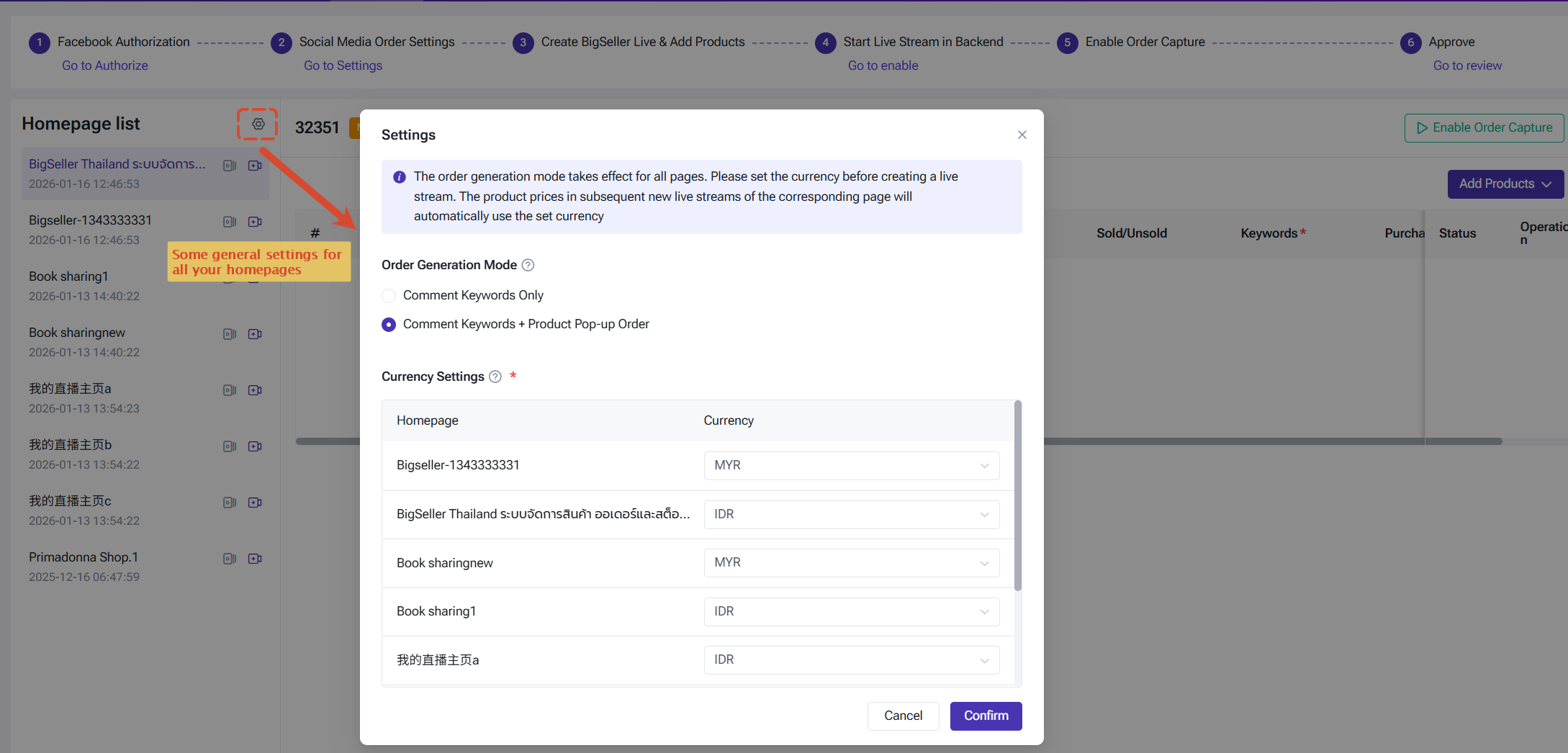
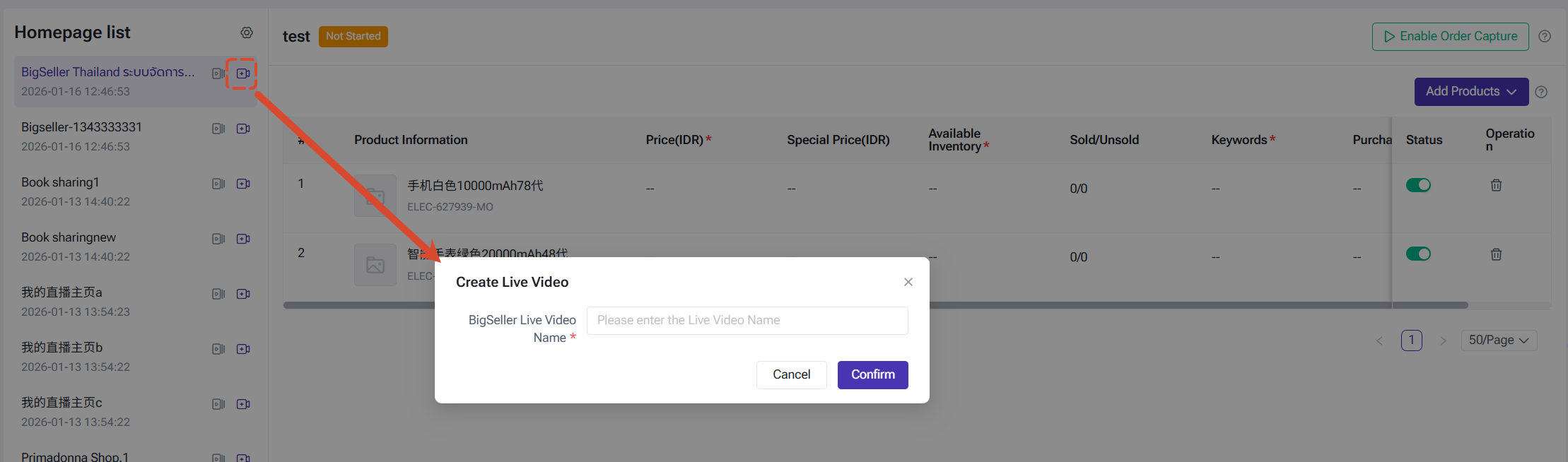
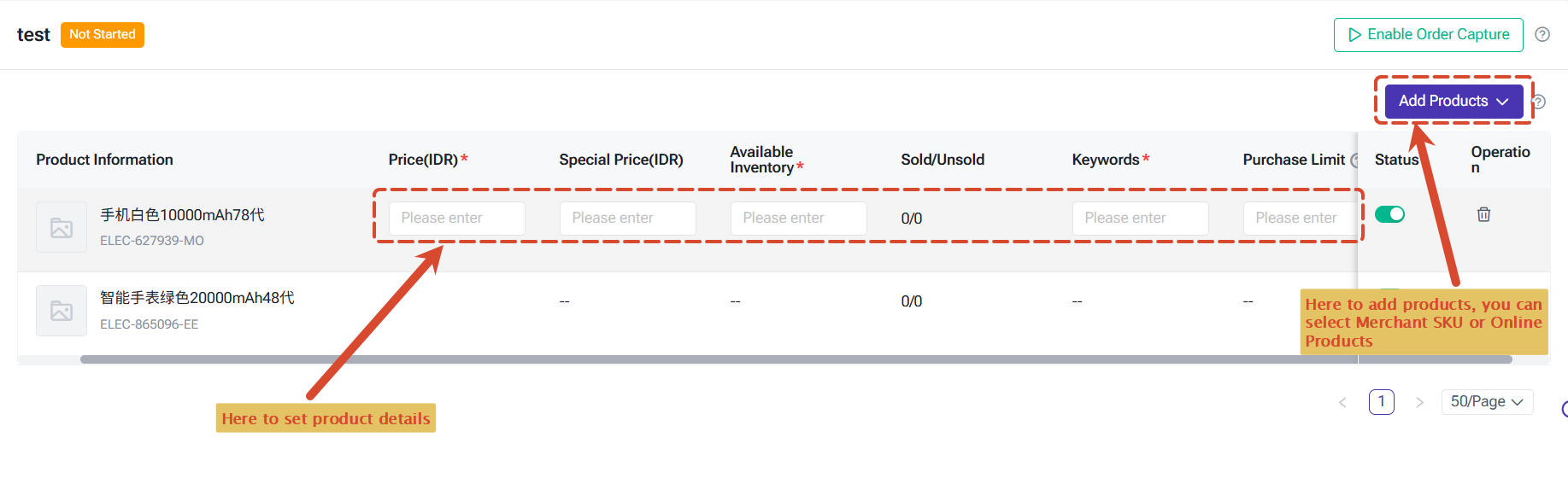
Enter a BigSeller live name (up to 100 characters). The first time you create a live activity for a Page, you can also set a currency — all products added to live activities under that Page will default to this currency. Once created, add products from your online listings and configure price, available stock, keyword, and purchase limit for each.
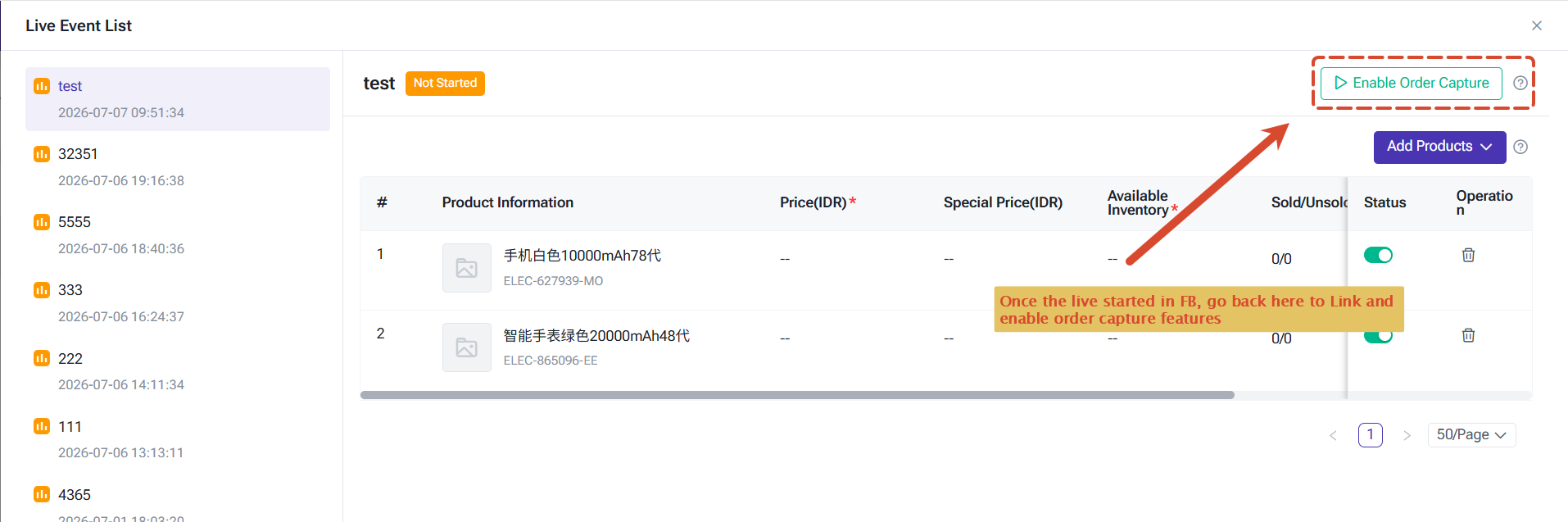
3.3 Link the Facebook Live and Enable Order Capture
After starting the live on Facebook, go back to the BigSeller live activity page and select "Link." The system will show the Facebook live session currently in progress (name and description) for you to confirm. Before order capture can be enabled, the system checks:
- Whether the Page's authorization is active — an expired or unlinked Page will cause failure
- Whether another activity under the same Page is already live — only one live activity per Page can have order capture enabled at a time
- Whether the live is actually running on Facebook — if not, it will cause failure
3.4 Live Event Status
A live event moves through three statuses — Not Started, Live, and Ended — and this progression can't be reversed. New activities start as "Not Started," switch to "Live" once order capture is enabled, and become "Ended" once order capture is turned off.
4. Other Settings
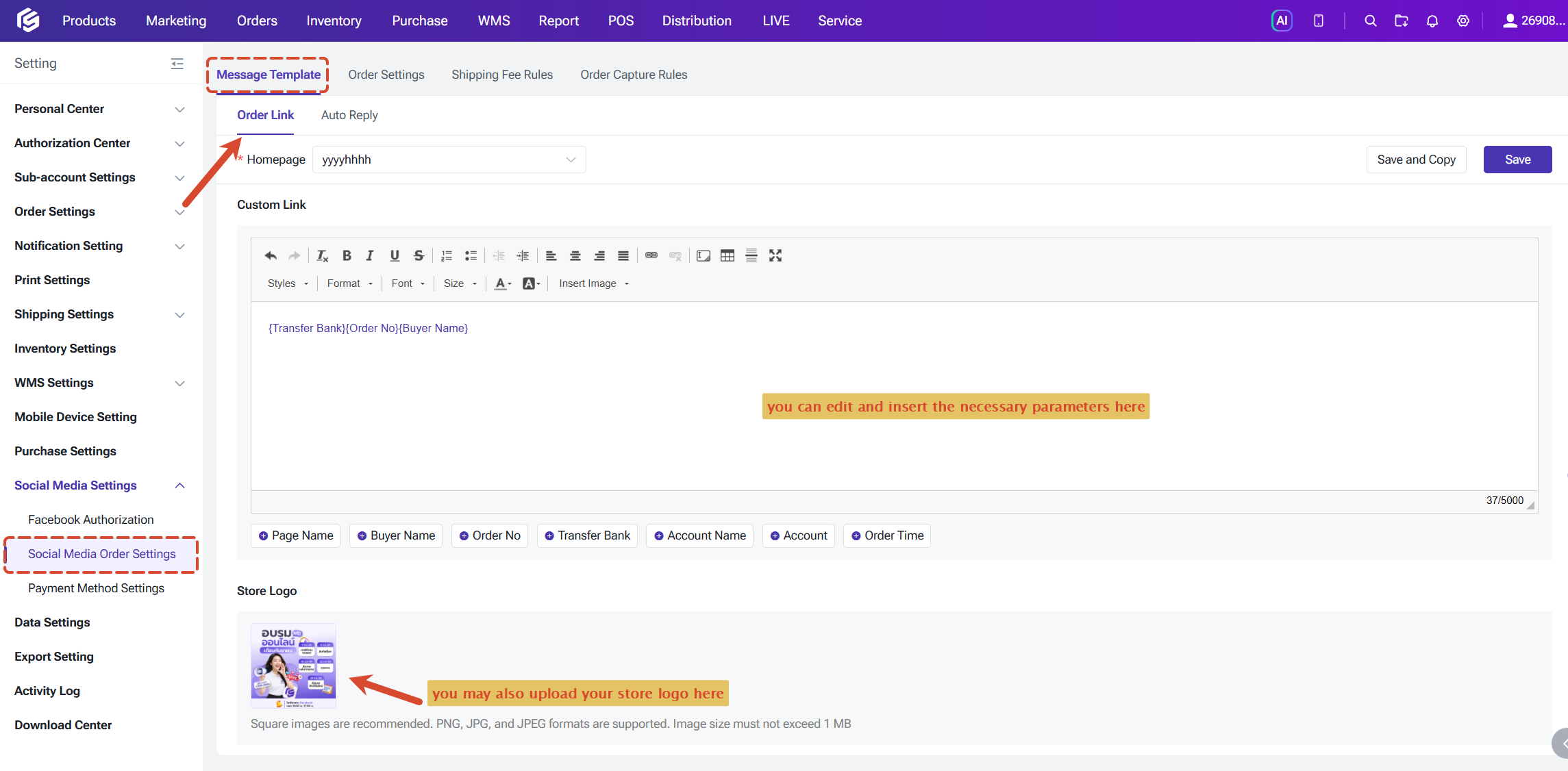
4.1 Message Template
You can set different message templates for different Pages.
After a buyer successfully places an order, you can customize the message details to be sent to the buyer. Path: Social Media Order Setting - Message Template - Order Link.
You can also set up automatic replies to enhance the buyer's shopping experience.
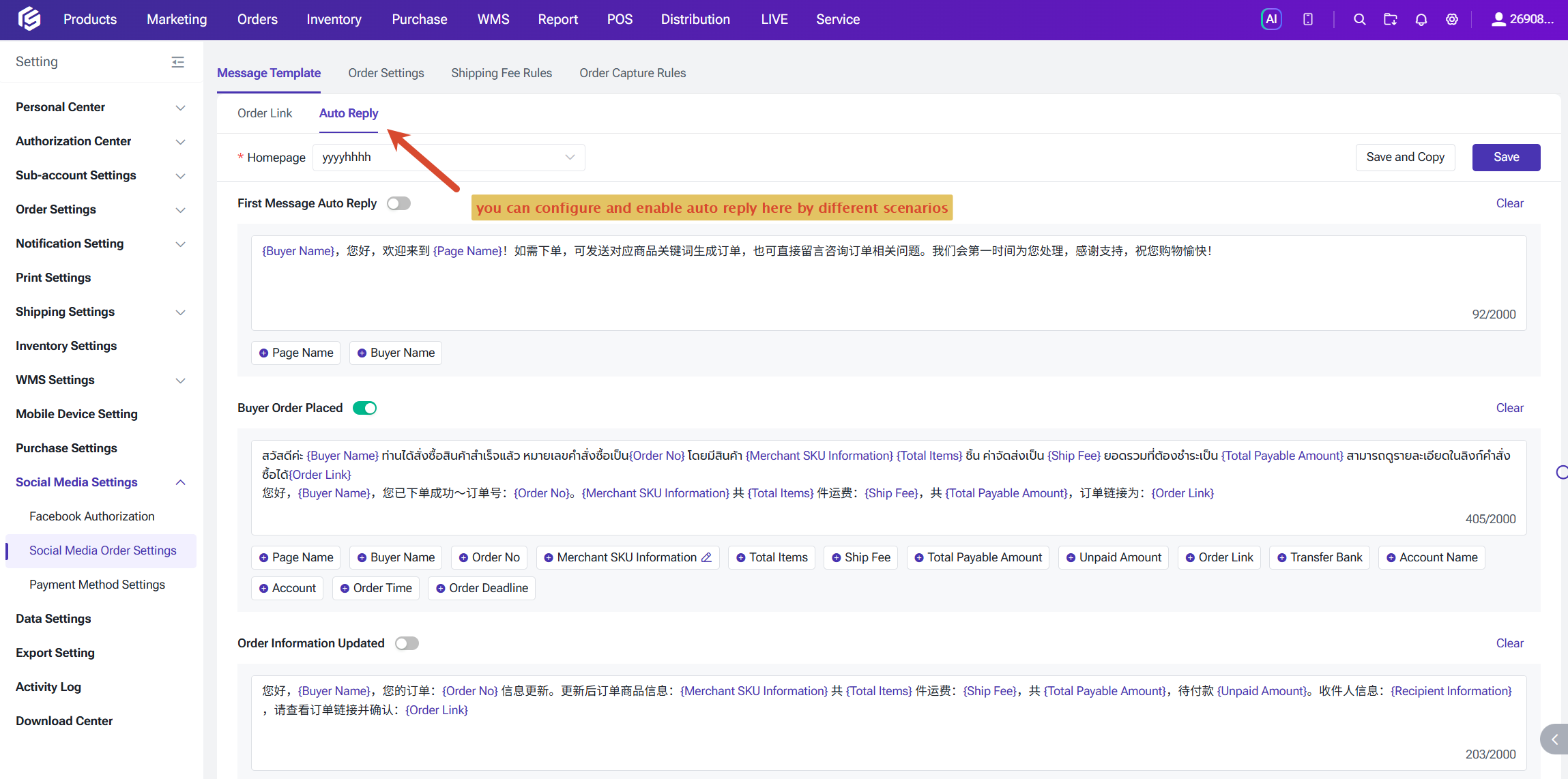
Note: When using the Message Template auto reply feature for the first time, you must go to this tab, confirm the automatic reply content for the authorized Pages, and click [Save] for the feature to take effect.
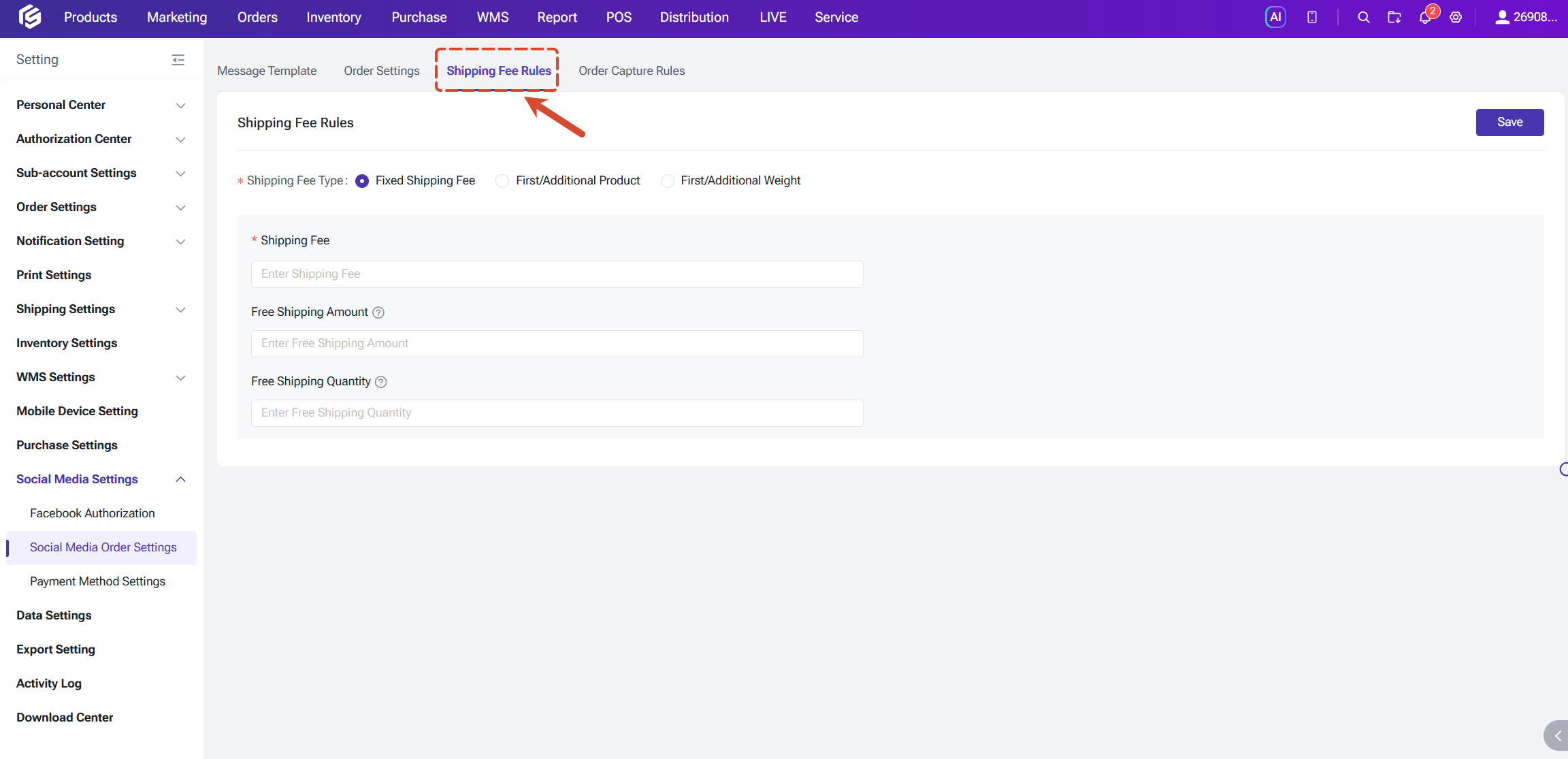
4.2 Shipping Fee Rules
You can also set default shipping fee rules and additional shipping fee rules for specified products.
- Fixed Shipping Fee: A fixed shipping fee is charged regardless of the package weight or the number of products in the package.
- First/Additional Product: Define the shipping fee for the first product and additional products, as well as the maximum shipping fee and the minimum order amount and quantity for free shipping.
- First/Additional Weight: Define the shipping fee for the first and additional weight (kg), as well as the maximum shipping fee and the minimum quantity for free shipping.
5. The Buyer Experience
After buyer complete the order link, you can process the orders in by normal step.
For more details about this, you may refer to:
Moreover, the Pending Review list now shows a "Cancelled" status covering three cases where an order was automatically cancelled based on your order settings:
- Confirmation time limit exceeded: the order timed out and was cancelled by the system
- Payment time limit exceeded
- Cancelled by the buyer
6. Permissions
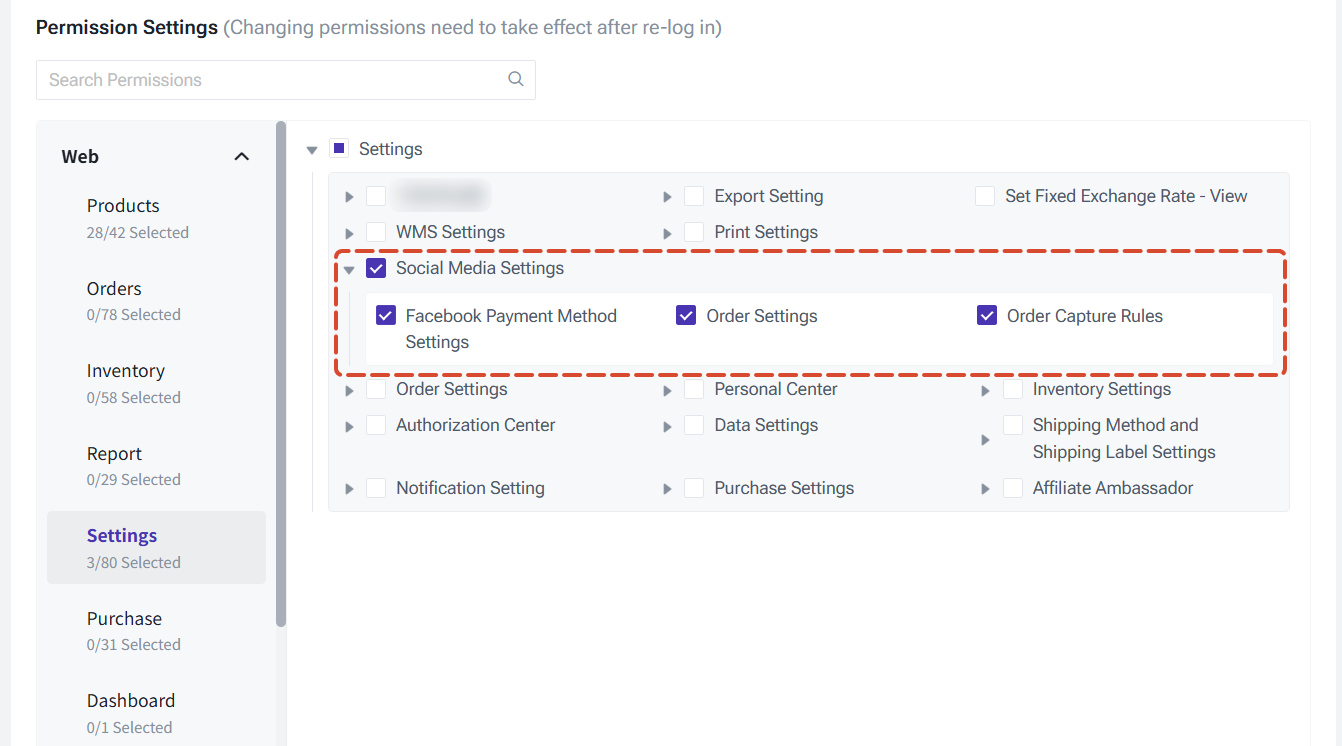
Is this content helpful?
Thank you for your feedback. It drives us to provide better service.
Please contact us if the document can't answer your questions