How to Use Staff Management and Performance Tracking?
Copy link & title
Update Time: 29 Jul 2026 08:40
For retail stores with multiple sales staff, accurately tracking each employee's sales performance is a common challenge in daily management.
BigSeller's Staff Management and Staff Performance features help you manage store employees, associate sales orders with staff, and automatically generate employee sales data, making performance tracking easier.
With BigSeller Staff Management, you can:
BigSeller's Staff Management and Staff Performance features help you manage store employees, associate sales orders with staff, and automatically generate employee sales data, making performance tracking easier.
With BigSeller Staff Management, you can:
- Centralized staff management: Create staff profiles and bind them to stores to organize sales personnel information efficiently.
- Automatic sales performance tracking: Once orders are assigned to sales staff, the system automatically calculates employee sales amount, order quantity, and other performance data.
- Clearer store management: View sales performance by employee and store, making performance management easier.
1. Create Staff
Before tracking employee sales performance, you need to create staff profiles first. You can maintain staff information in BigSeller and configure their business scope, assigned stores, and roles, making it easier to select the corresponding sales staff when creating orders.
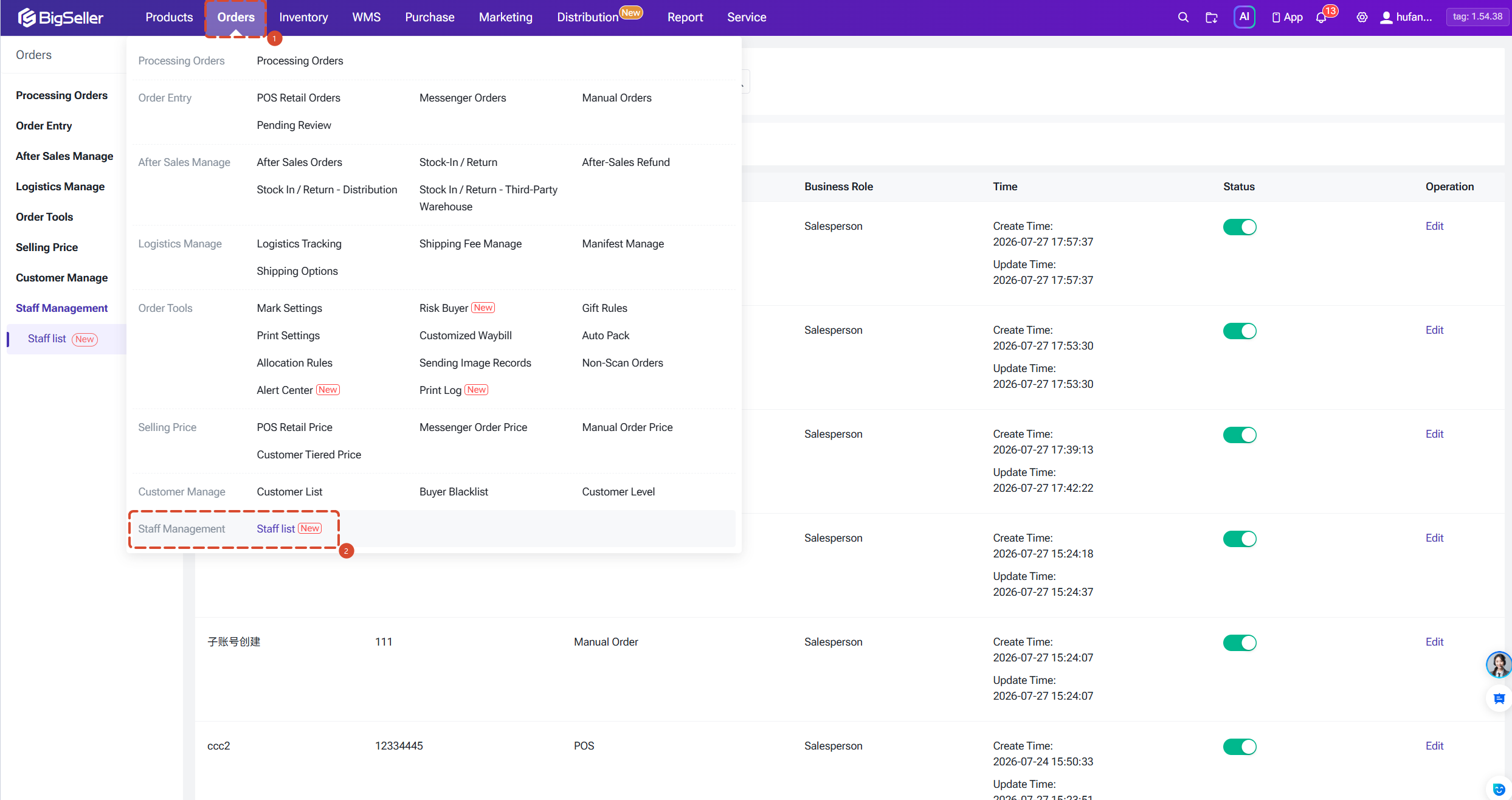
Path 1: Orders > Staff Management > Staff List
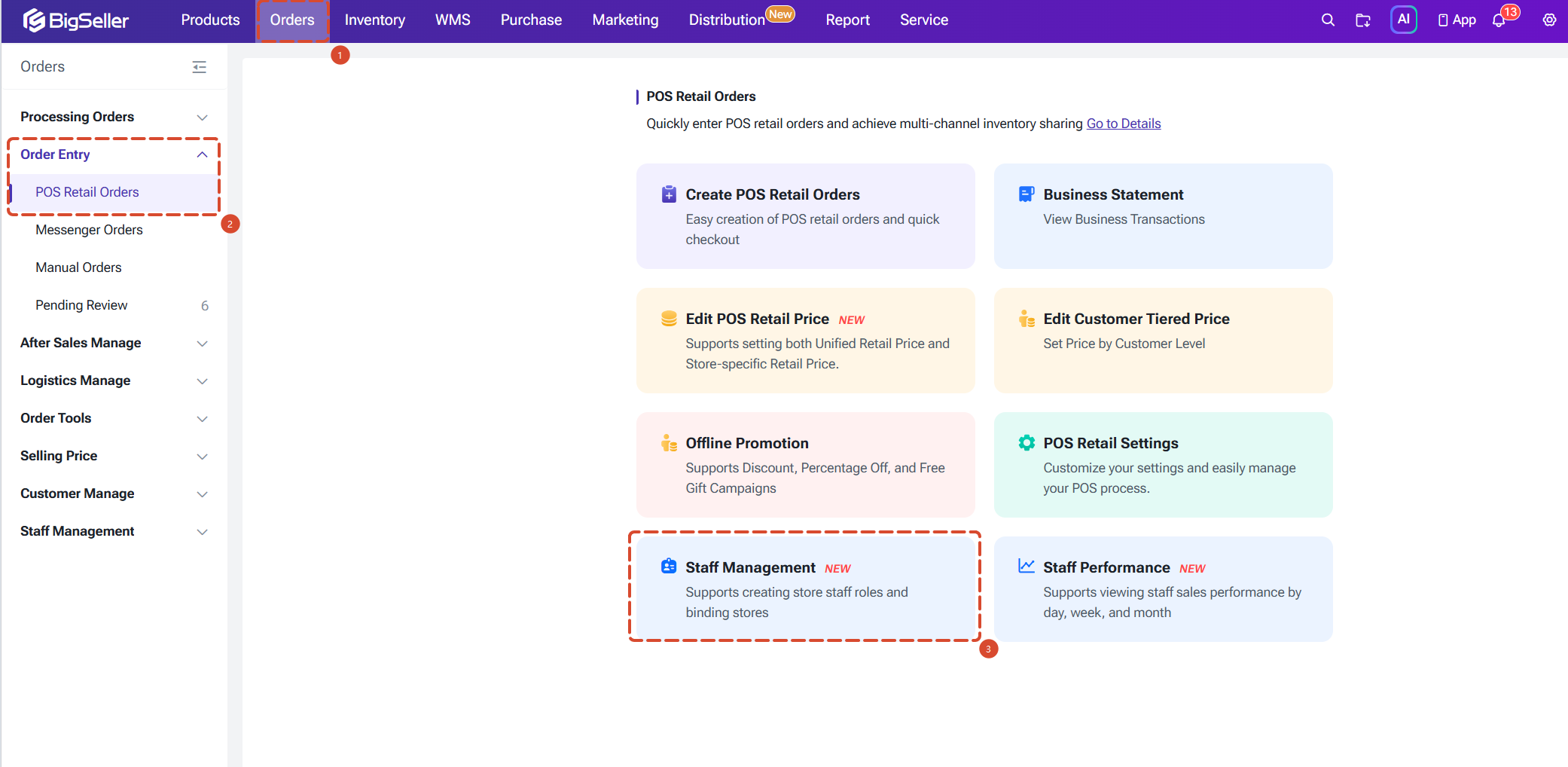
Path 2: Orders > Order Entry > POS Retail Orders > Staff Management
Steps to create staff:
① Go to the Staff List page.
② Click Add Staff.
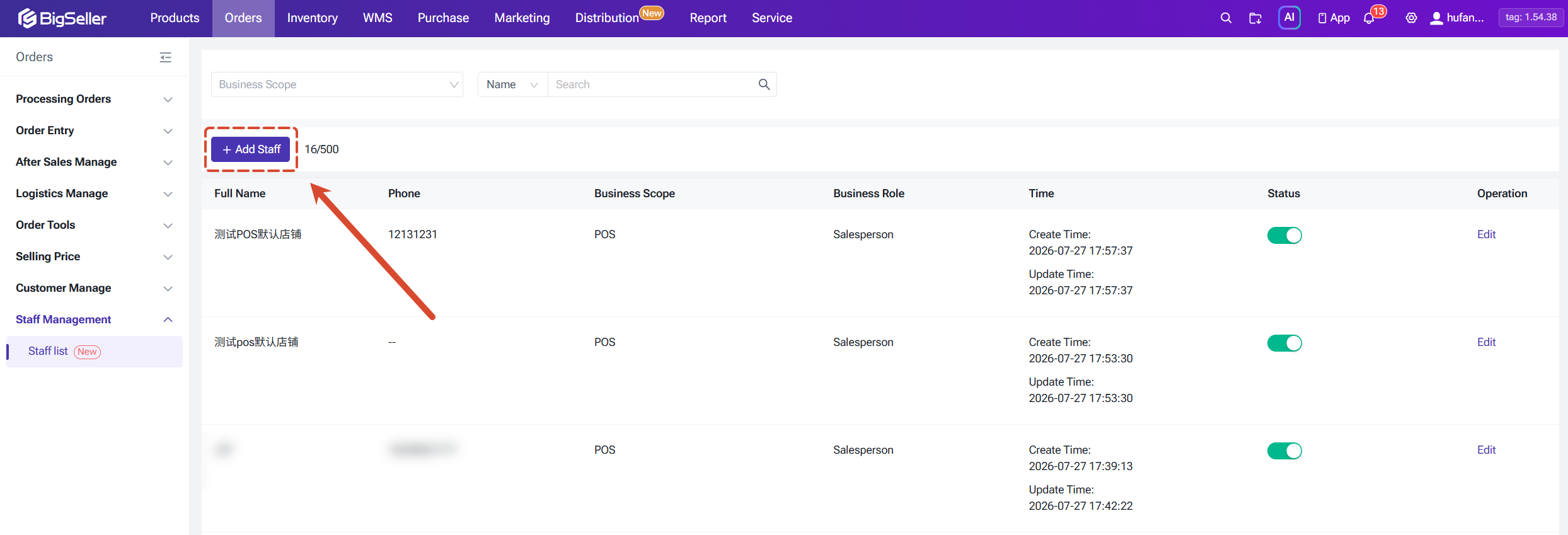
Path 1: Orders > Staff Management > Staff List
Path 2: Orders > Order Entry > POS Retail Orders > Staff Management
Steps to create staff:
① Go to the Staff List page.
② Click Add Staff.
2. Configure Staff Information
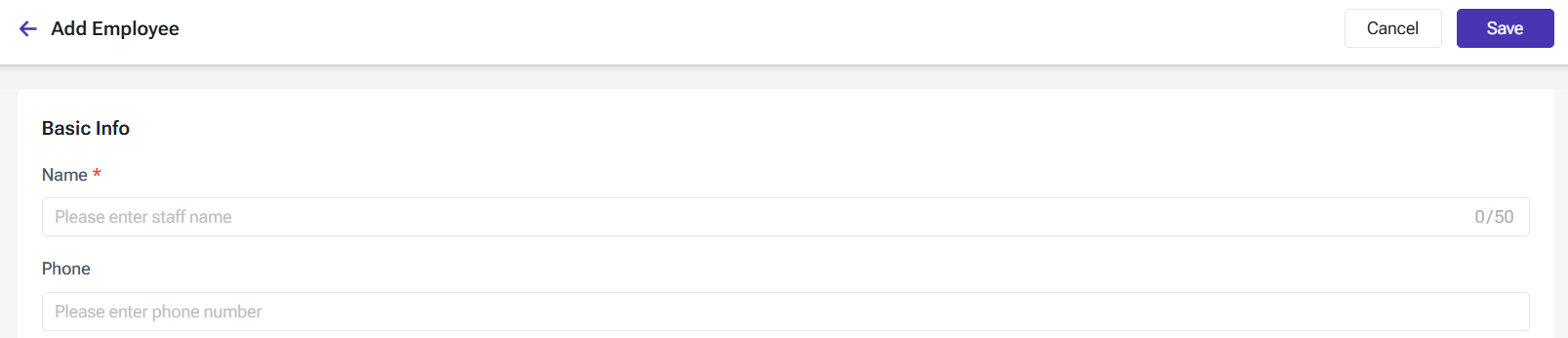
Step 1: Enter Staff Basic Information
After entering staff information, you can easily identify the corresponding staff in orders and performance reports.
Step 2: Set Business Scope
Business scope determines which business scenarios the staff can participate in.
Currently supported:
After entering staff information, you can easily identify the corresponding staff in orders and performance reports.
Step 2: Set Business Scope
Business scope determines which business scenarios the staff can participate in.
Currently supported:
- POS
- Manual Orders
- Meseneger Orders
- Distribution Orders
If the staff only handles store sales, you can select POS. If the staff also handles online order processing, you can select multiple business scopes.

Step 3: Bind Assigned Store
Currently, only POS stores can be bound, because in POS retail scenarios, sales staff are usually assigned to specific stores.
After binding stores:
Step 3: Bind Assigned Store
Currently, only POS stores can be bound, because in POS retail scenarios, sales staff are usually assigned to specific stores.
After binding stores:
- You can quickly select the corresponding staff when creating orders;
- Sales data from different stores will not affect each other;
- You can analyze performance by store.
Staff can be bound to multiple stores and can have multiple roles within the same store.
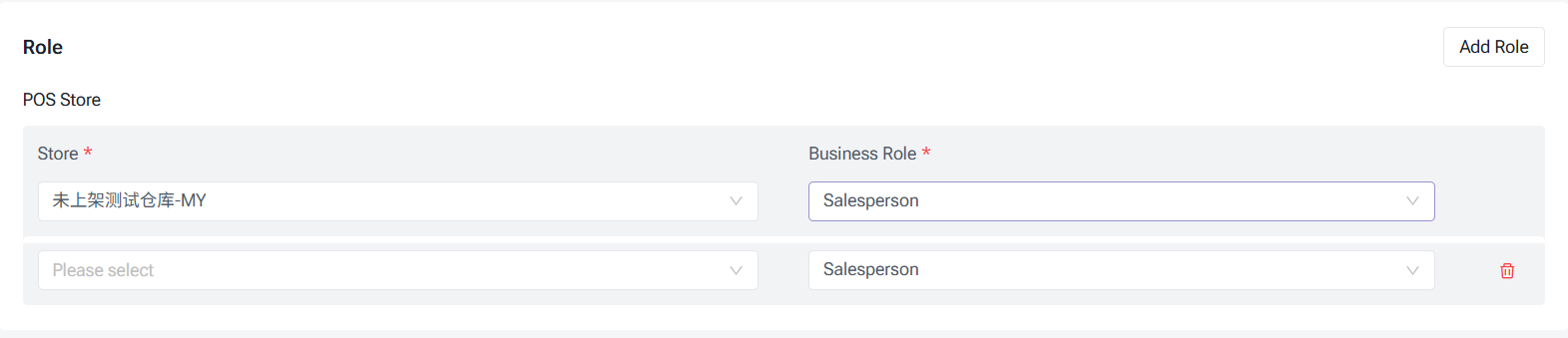
Step 4: Add Business Role
Staff roles define where the staff can be selected in different business scenarios. Currently, only the Salesperson role is supported.

Step 4: Add Business Role
Staff roles define where the staff can be selected in different business scenarios. Currently, only the Salesperson role is supported.
3. Select Salesperson When Creating Orders
After staff are created, you can select the corresponding salesperson when creating POS orders.
Operation steps:
① Go to the POS checkout page.
② Select products.
③ Select salesperson.
④ Complete order checkout.
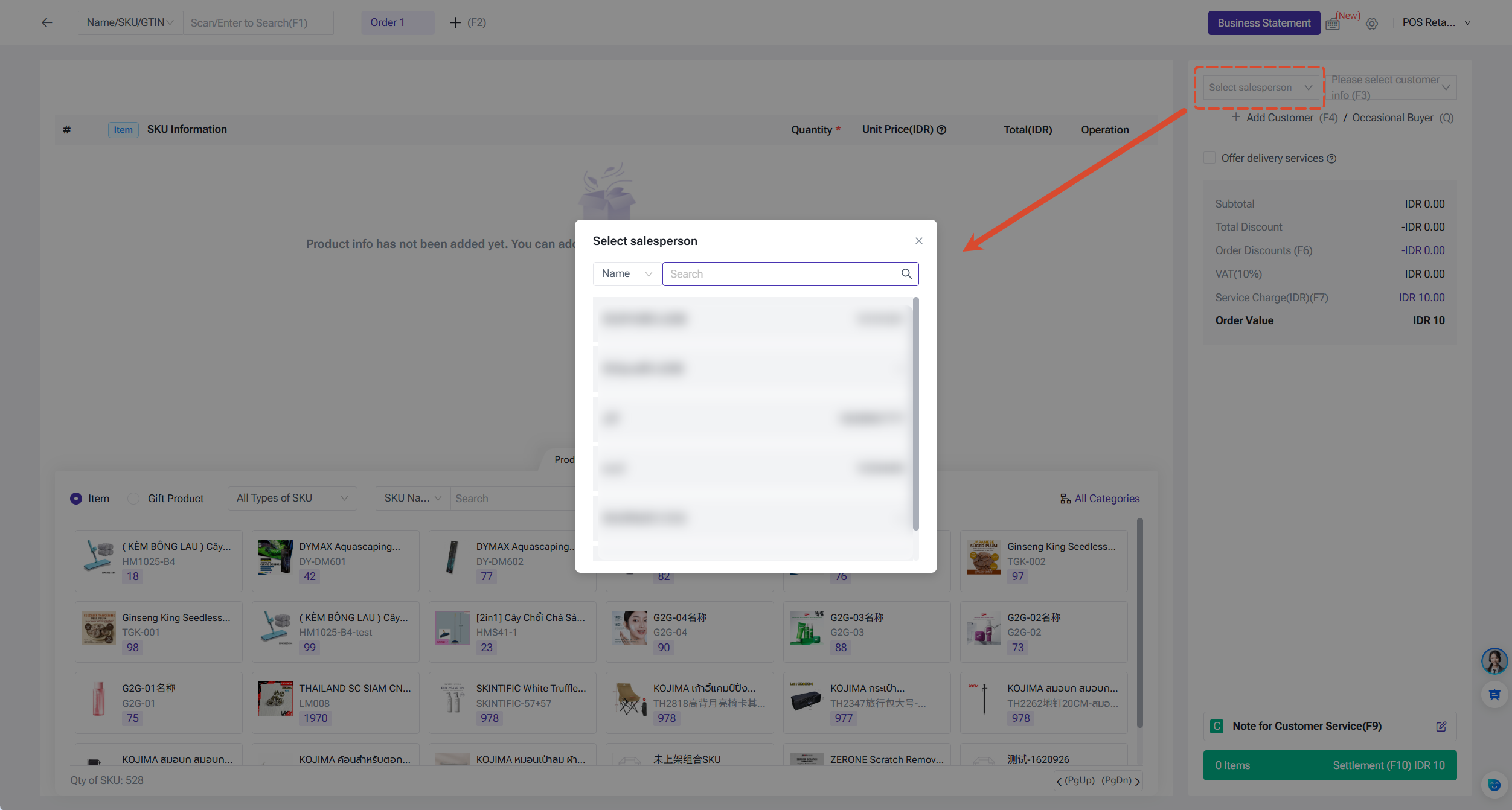
After the order is created successfully, the system will automatically record the assigned staff and use the data for staff performance statistics.
If no staff is assigned to the order, the sales data cannot be attributed to a specific salesperson.
Operation steps:
① Go to the POS checkout page.
② Select products.
③ Select salesperson.
④ Complete order checkout.
After the order is created successfully, the system will automatically record the assigned staff and use the data for staff performance statistics.
If no staff is assigned to the order, the sales data cannot be attributed to a specific salesperson.
4. View Staff Performance
After orders are created, you can view sales data through the Staff Performance page.
Path: Report > Staff Performance
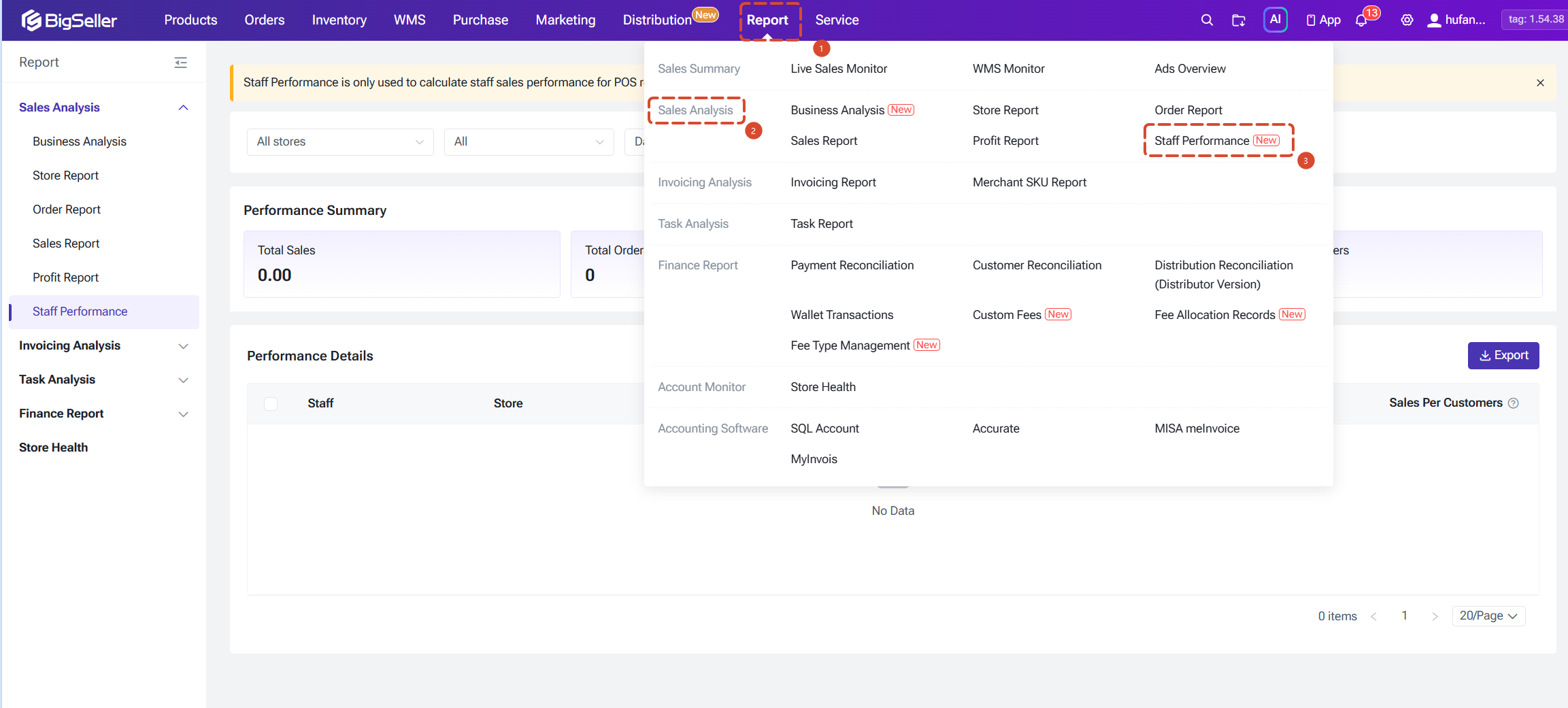
1) Supported Data
You can filter data by employee, store, and time range.
Supported data includes:
Path: Report > Staff Performance
1) Supported Data
You can filter data by employee, store, and time range.
Supported data includes:
- Total staff sales amount
- Order quantity
- Refund amount
- Sales Per Customers
You can also export performance data for internal statistics and performance management.

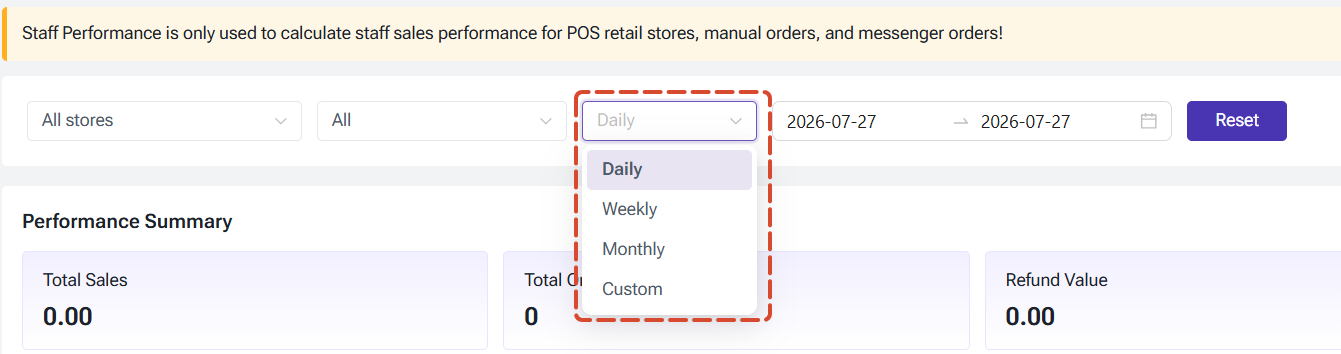
2) View Performance by Time Period
You can view employee performance based on different time periods:
2) View Performance by Time Period
You can view employee performance based on different time periods:
- Daily report: View sales performance for the current day;
- Weekly report: Analyze recent sales trends;
- Monthly report: Used for monthly performance statistics.
Daily reports provide real-time data, while weekly and monthly reports are based on T-1 data. You can also customize the date range to view specific performance data.
5. Other POS Related Updates and Improvements
To better adapt to different store operation needs, BigSeller has also introduced several other POS order improvements.
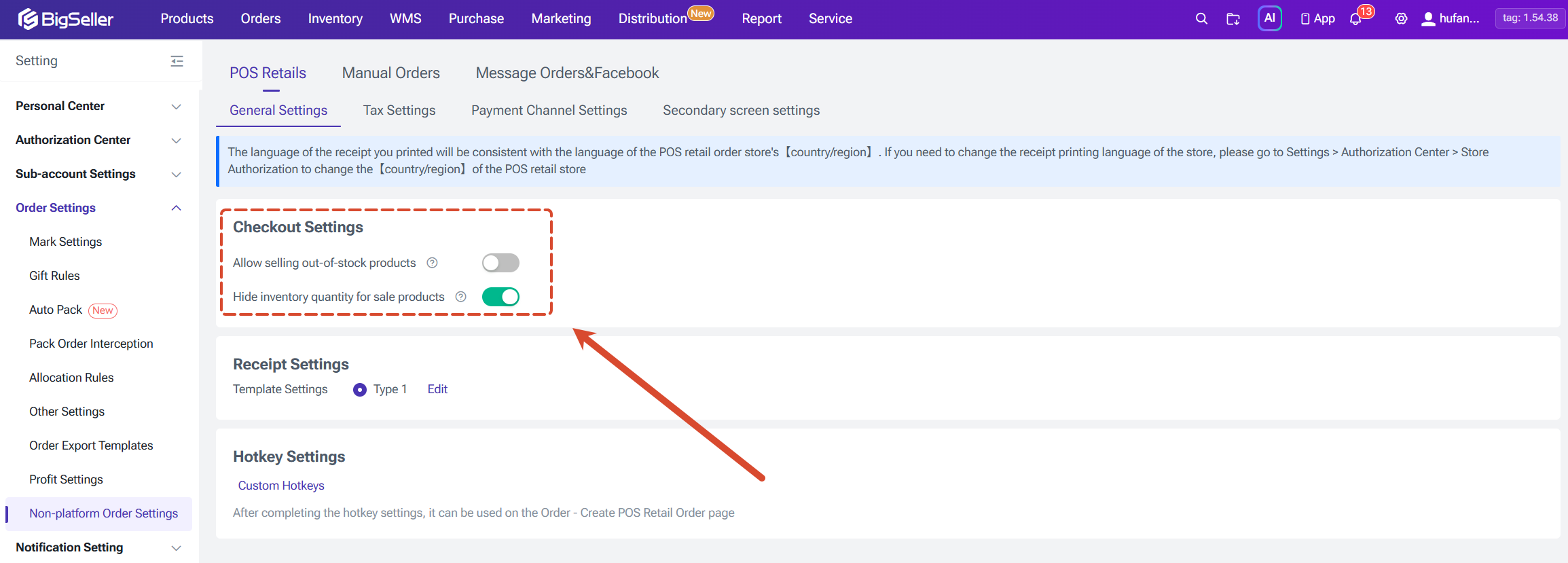
1) Configure POS Checkout Display Settings
BigSeller allows you to customize the information displayed on the POS checkout page. Path: POS Retail Settings > Checkout Settings
① Allow Selling Out-of-Stock Products
After enabling this option, you can continue selling products even when the inventory quantity is insufficient.
② Hide Product Inventory Quantity
After enabling this option, cashiers cannot view product inventory quantities on the POS page.
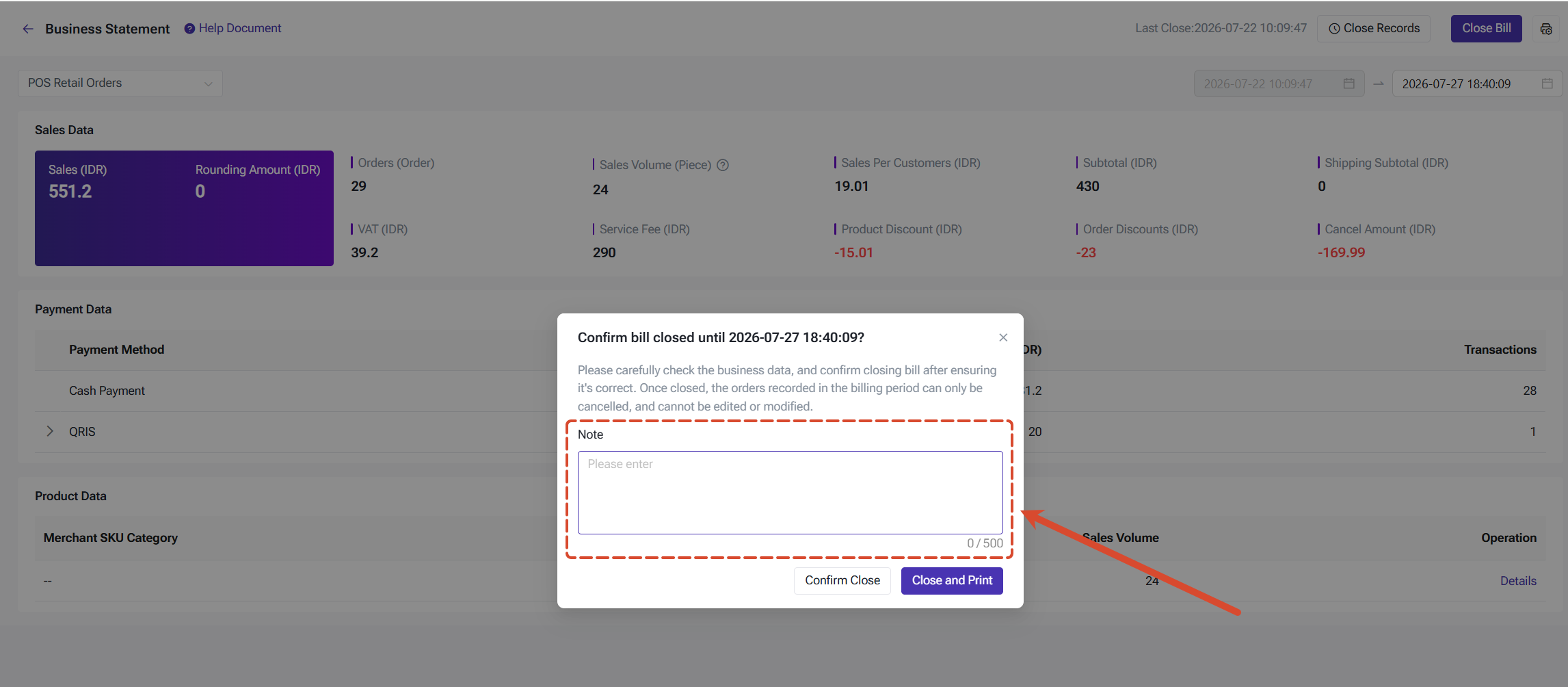
2) Add Business Statement Notes
When closing business statements, you now can add notes. This feature is supported on both PC and APP.
Order notes help merchants record additional transaction information for:
1) Configure POS Checkout Display Settings
BigSeller allows you to customize the information displayed on the POS checkout page. Path: POS Retail Settings > Checkout Settings
① Allow Selling Out-of-Stock Products
After enabling this option, you can continue selling products even when the inventory quantity is insufficient.
② Hide Product Inventory Quantity
After enabling this option, cashiers cannot view product inventory quantities on the POS page.
2) Add Business Statement Notes
When closing business statements, you now can add notes. This feature is supported on both PC and APP.
Order notes help merchants record additional transaction information for:
- Order information lookup;
- Financial reconciliation;
- Issue tracking.
3) Automatically Sync After-Sales Order Status
When POS retail orders, manual orders, or chat orders generate after-sales refunds, the system will automatically update the original order status.
After processing:
- The original order status is updated automatically;
- The order is moved to the corresponding after-sales status category;
- Manual order status updates are reduced.
This helps merchants keep order data consistent with after-sales processes and improves order management efficiency.
Important Notes
Important Notes
- Staff performance statistics depend on assigning a salesperson when creating orders. Please select the correct staff member when creating POS orders.
- Currently, staff performance mainly applies to staff sales data from POS retail orders, manual orders, and chat orders.
- Staff roles and sub-account roles are different. Staff roles are used for business assignment management, while sub-account roles are used for system permission management. Please configure them according to your actual needs.
Is this content helpful?
Thank you for your feedback. It drives us to provide better service.
Please contact us if the document can't answer your questions