What is Slip2GO Auto-check Payment Certificate?
Copy link & title
Update Time: 17 Aug 2026 11:20
Auto-check Payment Certificate is a payment certificate auto-verification feature provided by BigSeller for offline transfer payment scenarios. After buyers pay, they upload their transfer certificate (Slip), and the system automatically identifies and verifies its authenticity, replacing manual verification and helping you avoid risks such as forged or reused certificates and amount mismatches.
- Checks whether the receiving account in the certificate matches the payment account maintained by the seller;
- Intercepts duplicate certificates and compares the actual paid amount with the order amount;
- Automatically records verification results for review and tracing at any time.
📌 Note: Certificate verification currently supports Thailand only (Thai bank transfer Slip certificates).
1. How to Set Up Facebook Auto-check Payment Certificate?
Before enabling auto-check, you need to maintain your payment accounts and complete the Slip2GO authorization first. It is recommended to configure the following steps in order:
Step 1: Maintain Offline Payment Accounts
The system relies on the payment account to determine whether the receiving account in the certificate matches. Please maintain your payment information first.
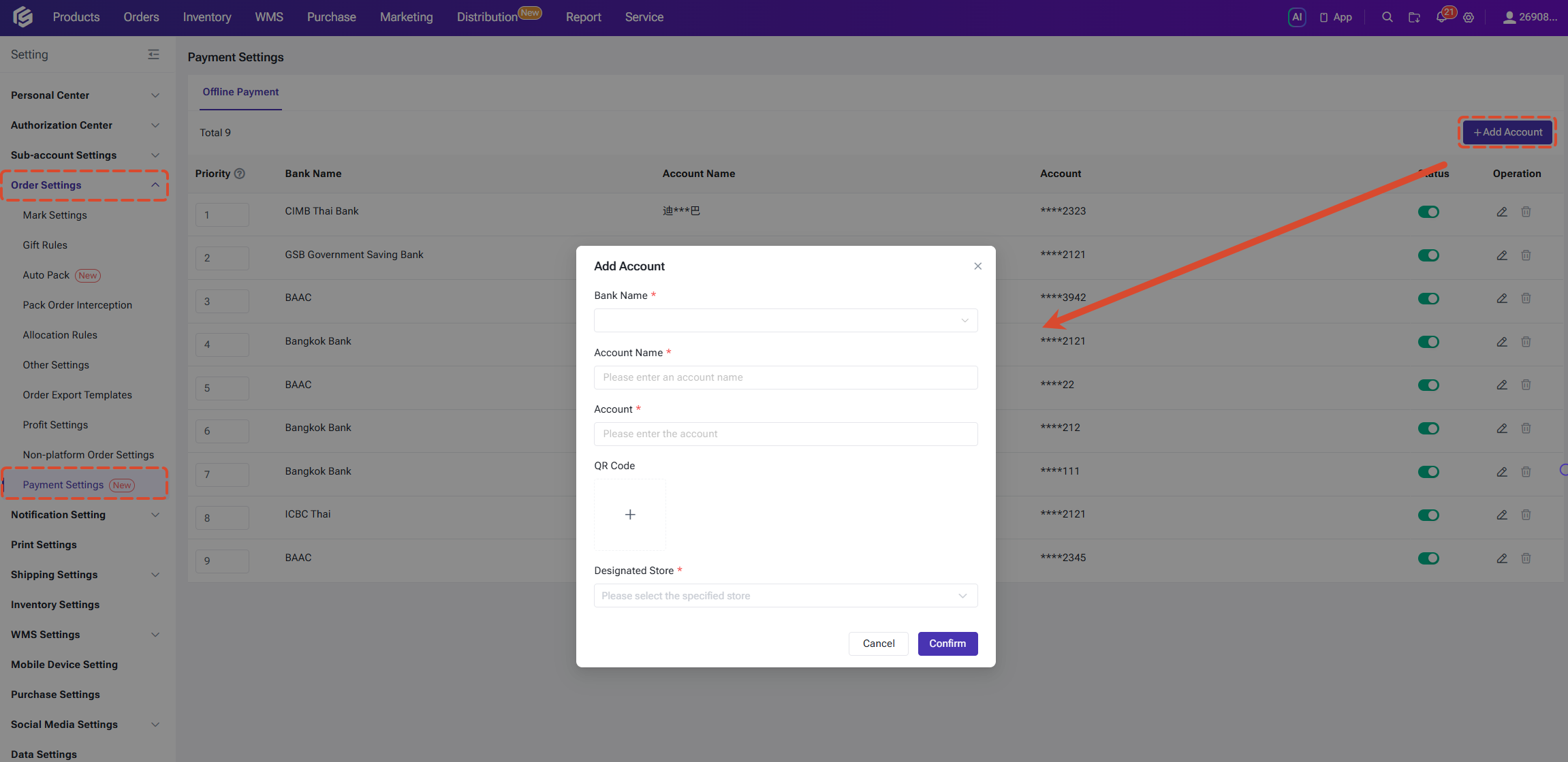
Path: Settings > Order Settings > Payment Settings > Offline Payment
Click Add Account, fill in the bank name, account name, account number, and QR code, and specify the applicable store and priority for the account. You can add multiple payment accounts, and the system will match them automatically when verifying certificates.
Step 2: Enable Auto-check Payment Certificate
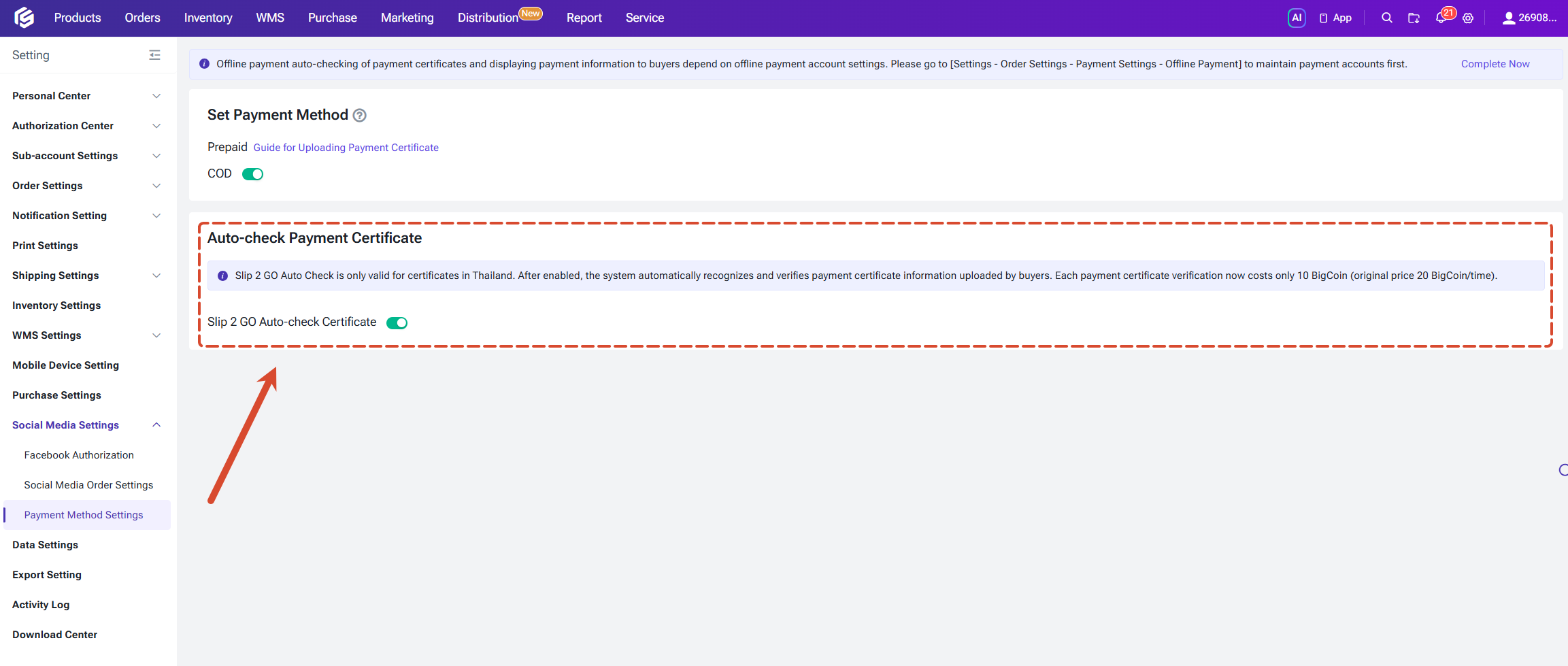
After maintaining your payment accounts, turn on the Auto-check Payment Certificate toggle. Once enabled, the system will automatically identify and verify the transfer certificates uploaded by buyers, with no manual involvement required.
Path: Setting > Social Media Setting > Payment Method Setting
After completing the above configuration, you can start using auto-check. When a buyer uploads a transfer certificate on the order, the system will automatically verify it and update the payment status of the order.
Step 1: Maintain Offline Payment Accounts
The system relies on the payment account to determine whether the receiving account in the certificate matches. Please maintain your payment information first.
Path: Settings > Order Settings > Payment Settings > Offline Payment
Click Add Account, fill in the bank name, account name, account number, and QR code, and specify the applicable store and priority for the account. You can add multiple payment accounts, and the system will match them automatically when verifying certificates.
Step 2: Enable Auto-check Payment Certificate
After maintaining your payment accounts, turn on the Auto-check Payment Certificate toggle. Once enabled, the system will automatically identify and verify the transfer certificates uploaded by buyers, with no manual involvement required.
Path: Setting > Social Media Setting > Payment Method Setting
After completing the above configuration, you can start using auto-check. When a buyer uploads a transfer certificate on the order, the system will automatically verify it and update the payment status of the order.
2. How Are Payment Certificates Checked After Upload?
When submitting an order on the buyer link, buyers can upload a transfer certificate image. The system automatically extracts information such as the receiving account, transfer amount, reference number, and transfer time from the certificate, and calls the API to verify its authenticity.
- Once the certificate passes verification, the actual paid amount is automatically added to the order;
- When a certificate is deleted, the corresponding actual paid amount is automatically removed;
- When a certificate is replaced, the system re-verifies the new certificate.
The system compares the actual paid amount with the order amount and marks the transfer status of the order. The main statuses are:
- Unpaid: The buyer has not uploaded a payment certificate, and no payment certificate has been received for the order;
- Partially Paid: The certificate is valid, but the actual paid amount is less than the order amount. The buyer has only paid part of the amount and follow-up is required;
- Paid: The certificate is valid and the actual paid amount equals the order amount. The payment has been received in full;
- Overpaid: The certificate is valid, but the actual paid amount is greater than the order amount. The received amount exceeds the order amount; you need to confirm a refund or handle it otherwise;
- Invalid Certificate: The certificate is blurry or damaged, the reference number is duplicated, or the receiving account does not match. Ask the buyer to upload a valid certificate again.
3. How to View and Handle the Check Results?
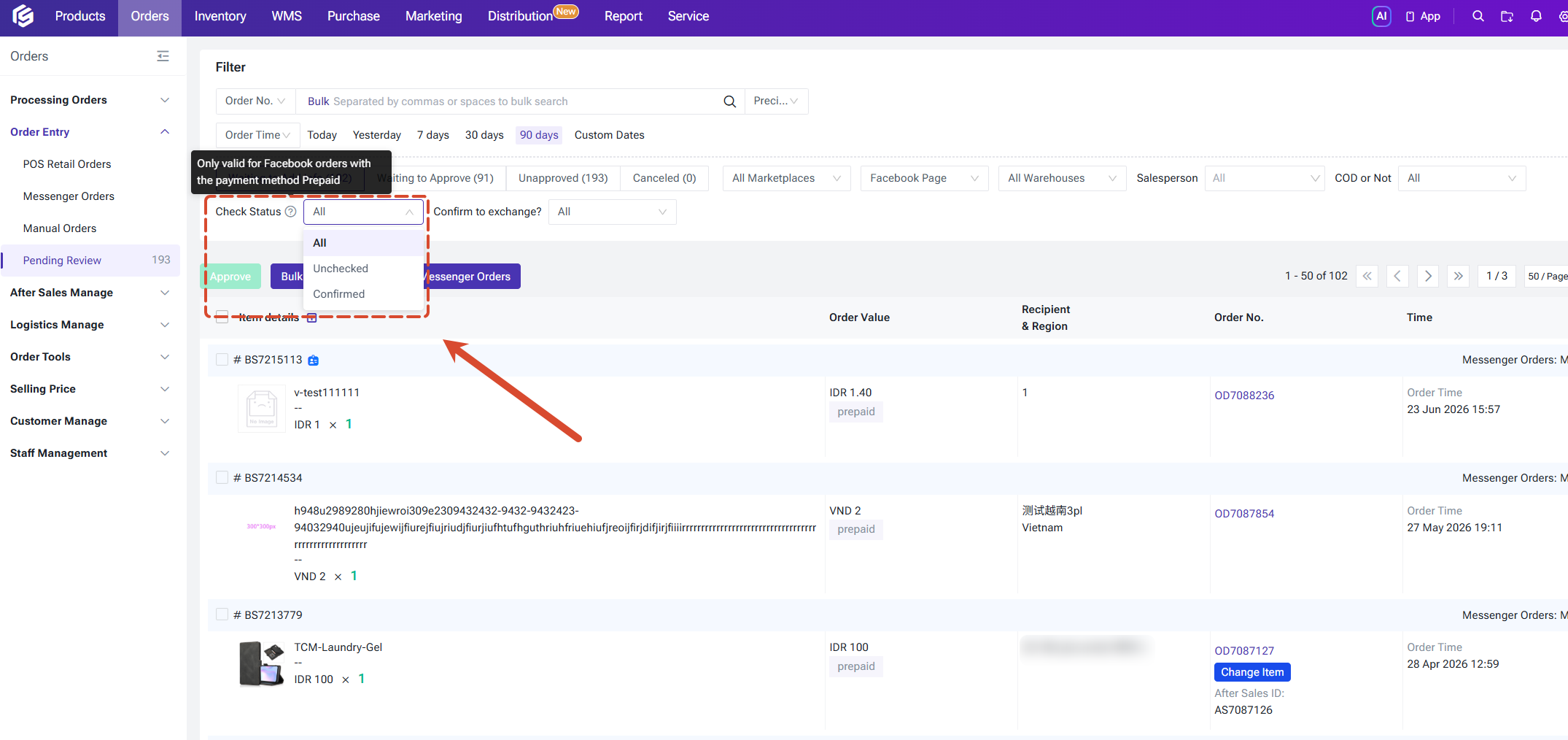
In addition to the transfer status, the system records a check status for each certificate:
- Unchecked: The default initial status of the order; it remains in this status when auto-check fails, the certificate is invalid, or the payment is partial;
- Confirmed: The system verification passed (Paid or Overpaid), or it was updated after the seller manually confirmed it.
For orders that require manual handling, you can select orders in the pending review list and use Mark Check Status to batch-mark them as Confirmed or Unchecked.
Check results can be viewed directly in orders:
Check results can be viewed directly in orders:
- In the order list, the actual paid amount and the transfer status tag are displayed below the order amount, and the check status indicator is shown on the right of the amount;
- In the order details, you can view the transfer status and payment certificate information of the order;
- The list supports filtering by check status and transfer status to quickly locate pending orders.
Certificate auto-check is provided by a third-party service, and each verification consumes BigCoin. You can view the deduction records for each verification in the BigCoin details, including the verified order and the amount consumed.
We recommend keeping an eye on your BigCoin balance. Verification will fail when the balance is insufficient, so please top up in time.
4. How to Manage Permissions for Auto-check Payment Certificate?
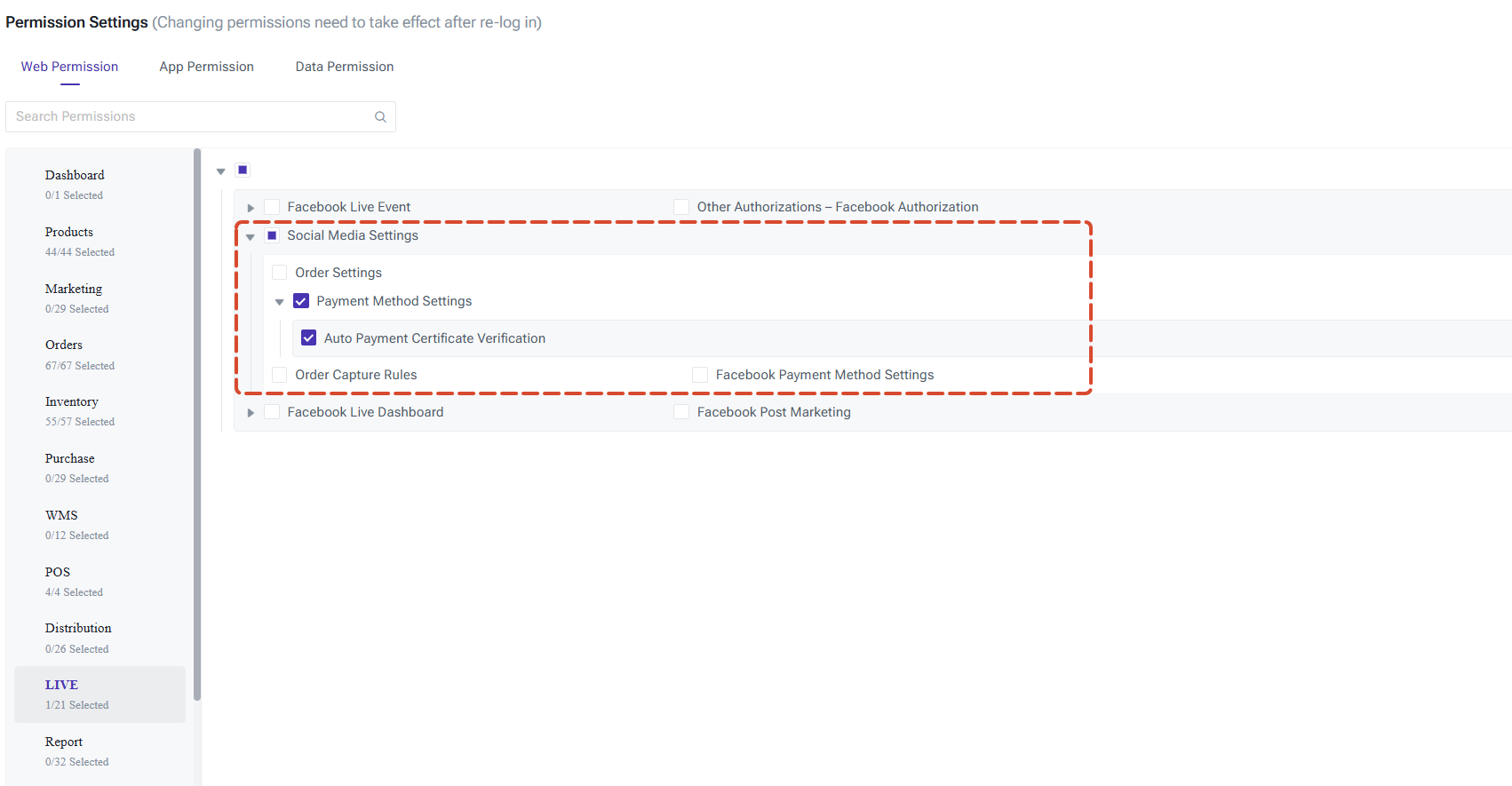
For multi-member collaboration on payment verification, you can configure the following permissions in Role Permissions:
- Offline Payment: View the offline payment account list (the page is hidden without this permission);
- Add Account / Edit / Delete: Entries for managing payment accounts, which can be allocated by role;
- Auto-check Payment Certificate: The auto-check toggle and configuration information in Payment Method Settings.
Entries without permission will be automatically hidden to prevent unauthorized operations.
Is this content helpful?
Thank you for your feedback. It drives us to provide better service.
Please contact us if the document can't answer your questions
Related Articles