How to Use Inventory Batch & Expiry Management?
Update Time: 28 Jul 2026 12:17
BigSeller's Expiry and Batch Management feature are designed to help sellers efficiently manage products with expiration dates or expriy period, while ensuring precise batch tracking.
For products with expiry dates—such as food, cosmetics, pharmaceuticals, and baby products—proper management of expiry and batch information is essential. It directly influences inventory cost control and customer satisfaction.
This article will cover:
-
Key concepts of expiry dates and batches
-
Functional uses
-
How to enable and use these features in BigSeller
1. Basic Concepts of Expiry Dates and Batches
- Batch
A batch refers to a group of products stored under the same conditions and at the same time. The system generates a unique batch number for each inventory entry, allowing products stored at different times to be easily distinguished. Each batch typically includes key attributes such as the entry date, production date, expiry date, supplier information, and stock quantity.
In warehouse management, the batch number acts as an "ID card" for each product, enabling the system to track the origin, timing, and status of every batch.
- Expiry Date
The expiry date represents the period during which a product maintains its quality under normal conditions from the point of production. In the system, four main concepts are used to manage expiry dates:
---> Production Date: The date when the product is manufactured or completed.
---> Expiry Date: The last date the product is safe to use.
---> Expiry Period: The number of days from production during which the product remains in optimal condition.
---> Expiry Alert (Days): The number of days before the expiry date when the system sends an alert to notify stakeholders.
The goal of expiry management is to ensure products are sold and shipped before they expire, preventing losses from warehouse mismanagement, stockpiling, or misdispatch.
2. Functional Uses
- FEFO & FIFO Stock Management: Once Batch Management is enabled, the system will prioritize the FEFO (First-Expired, First-Out) principle, meaning that for products with recorded expiry dates, stock that expires earliest will be allocated first; while for products without expiration dates, the system will follow the FIFO (First-In, First-Out) principle where inventory entered into the system earlier will be allocated first. Therefore, if you wish to utilize FEFO, please make sure to set expiray dates for the corresponding products.
- Preventing Expiry Issues: Expiry dates alert help facilitate the turnover of stock, eliminating losses from warehouse mismanagement.
- Cost Control: Batch data provides insight into inventory age and costs, helping manage stock turnover and reordering.
- Quality Traceability: Batch numbers enable quick identification and tracking of affected products during recalls or quality issues, minimizing risk.
3. How to Use Expiry and Batch Management in BigSeller
3.1 Enable Batch Management
Once enabled, the system will track inventory by batch, recording entry dates and managing product aging.
Product Types: Batch-Only & Batch and Expiry Management
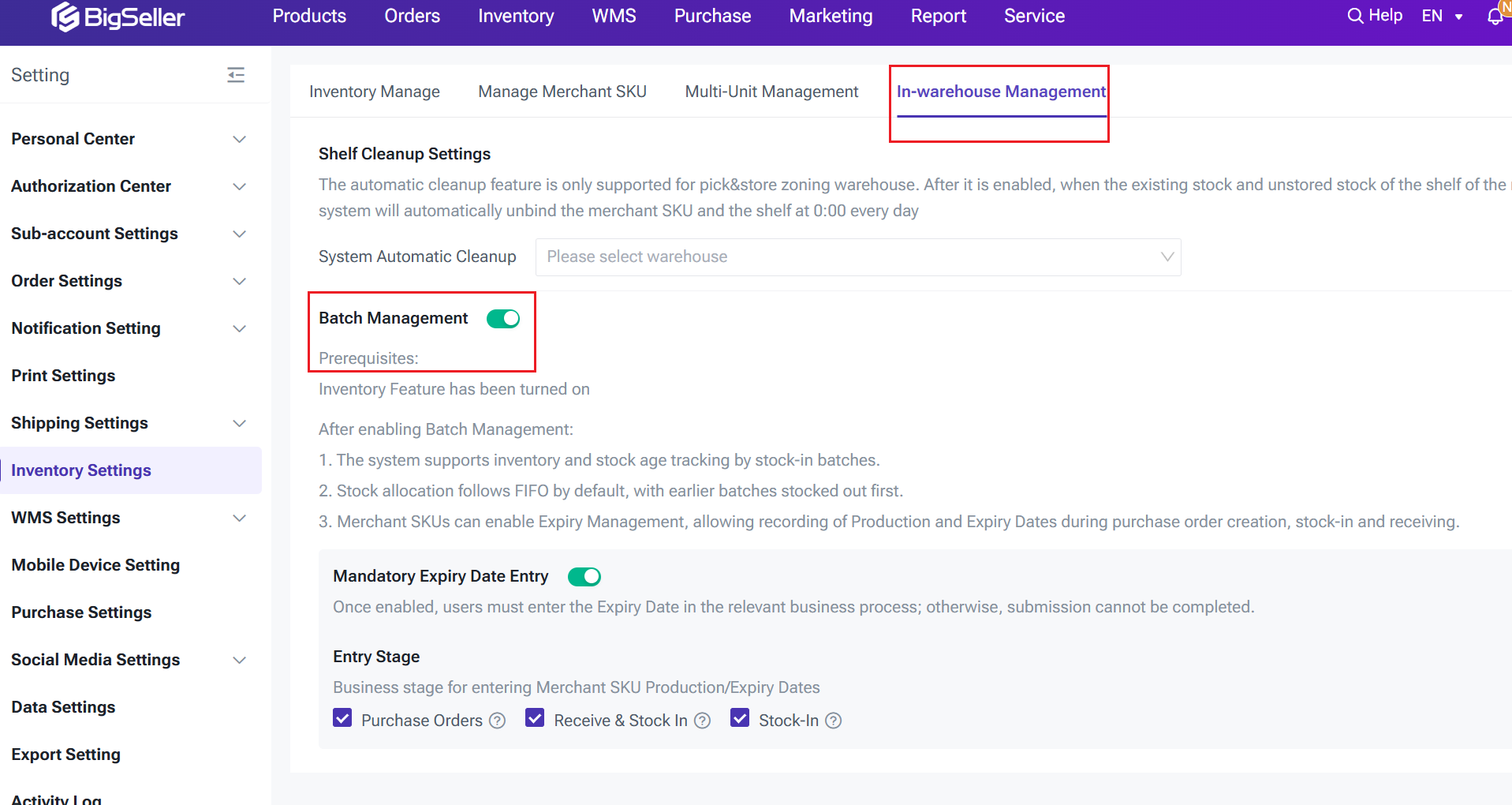
- Batch-Only Products
No need to input production or expiration dates. This option allows users to track batch stock-in, product aging, and inventory turnover.
If products (e.g. footwear or apparel) don't have expiration dates and do not need follow FEFO principle, users can choose not to enable expiry management, and production/expiration dates will not be required during stock in.
- Expiry Products (Batch and Expiry Management Enabled)
Both production and expiration dates are mandatory. The system provides automatic reminders for items nearing expiry and help manage their expiry date.
For products like food, pharmaceuticals, or cosmetics, you can enable Batch Management in Inventory setting before setting up expiry management tracking at the SKU level on the Merchant SKU page.
Additionally, you can enforce "Expiration Date Mandatory Entry" for stages such as Purchase Orders, Receive & Stock-In, and Stock in if needed.
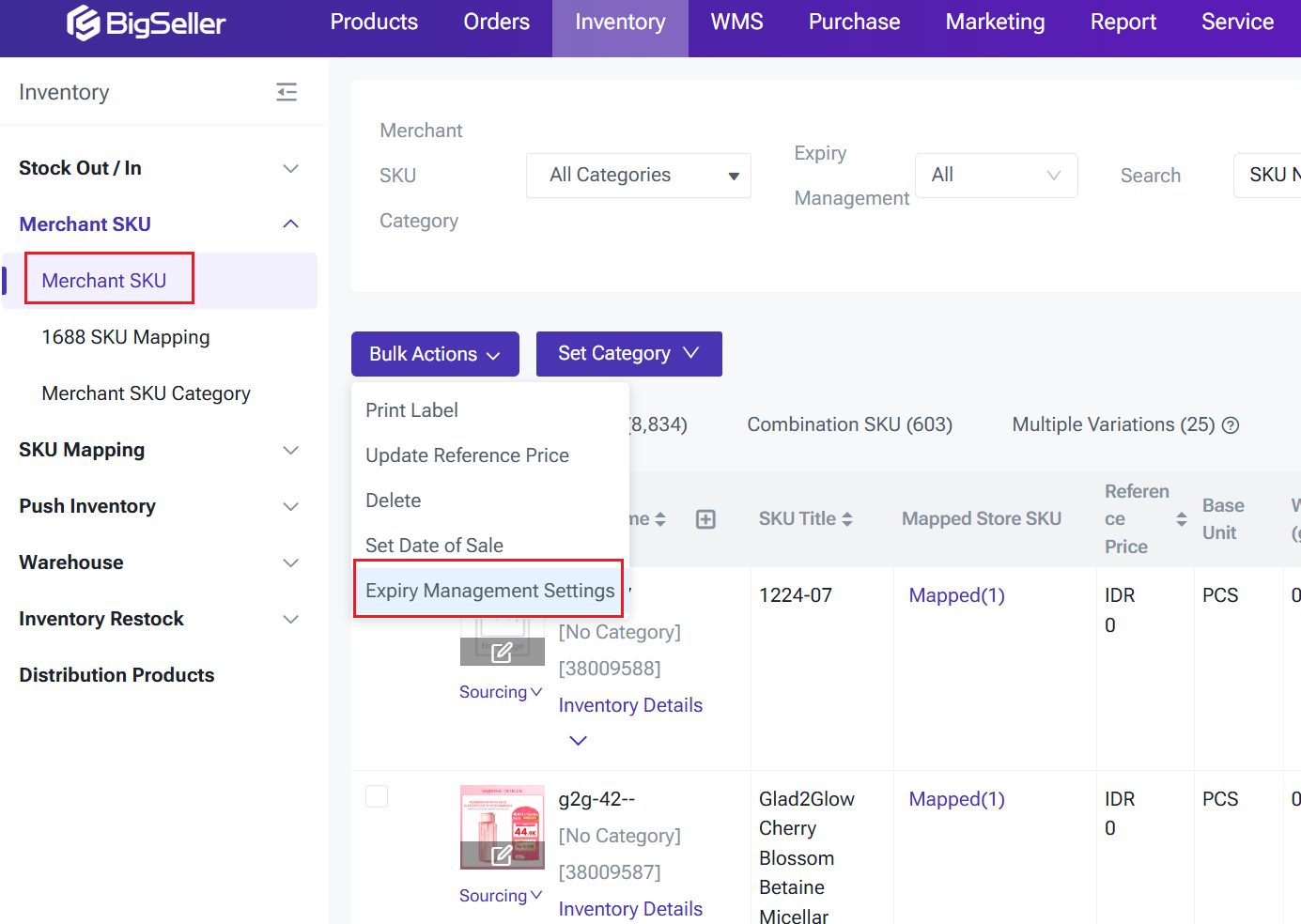
3.2 Enable Expiry Management for Merchant SKUs
Once batch management is enabled, for specific SKUs can activated expiry management.
When enabled, the SKU will enter expiry management mode, allowing users to manage expiry date, set expiry notifications, and track related details.
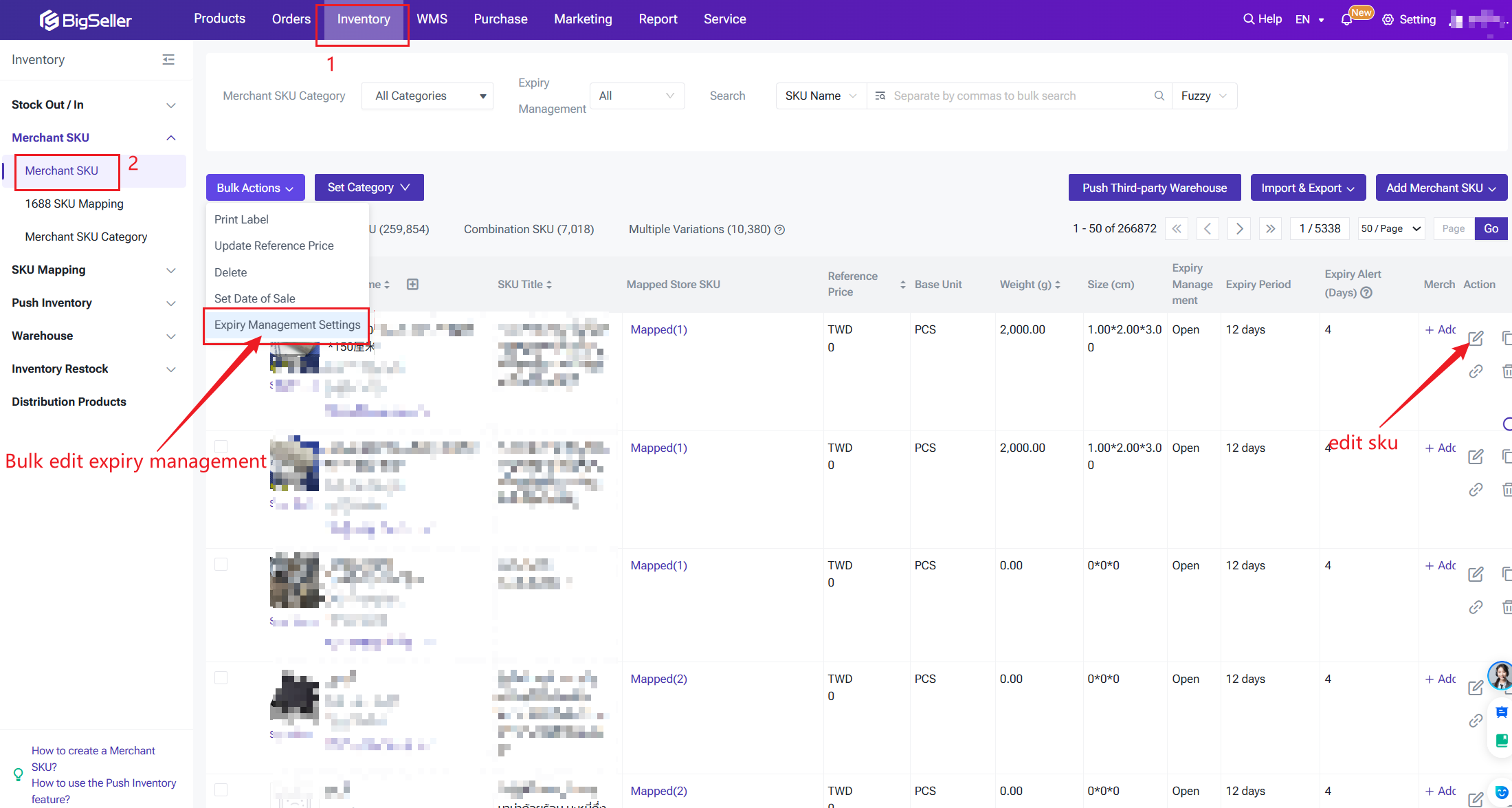
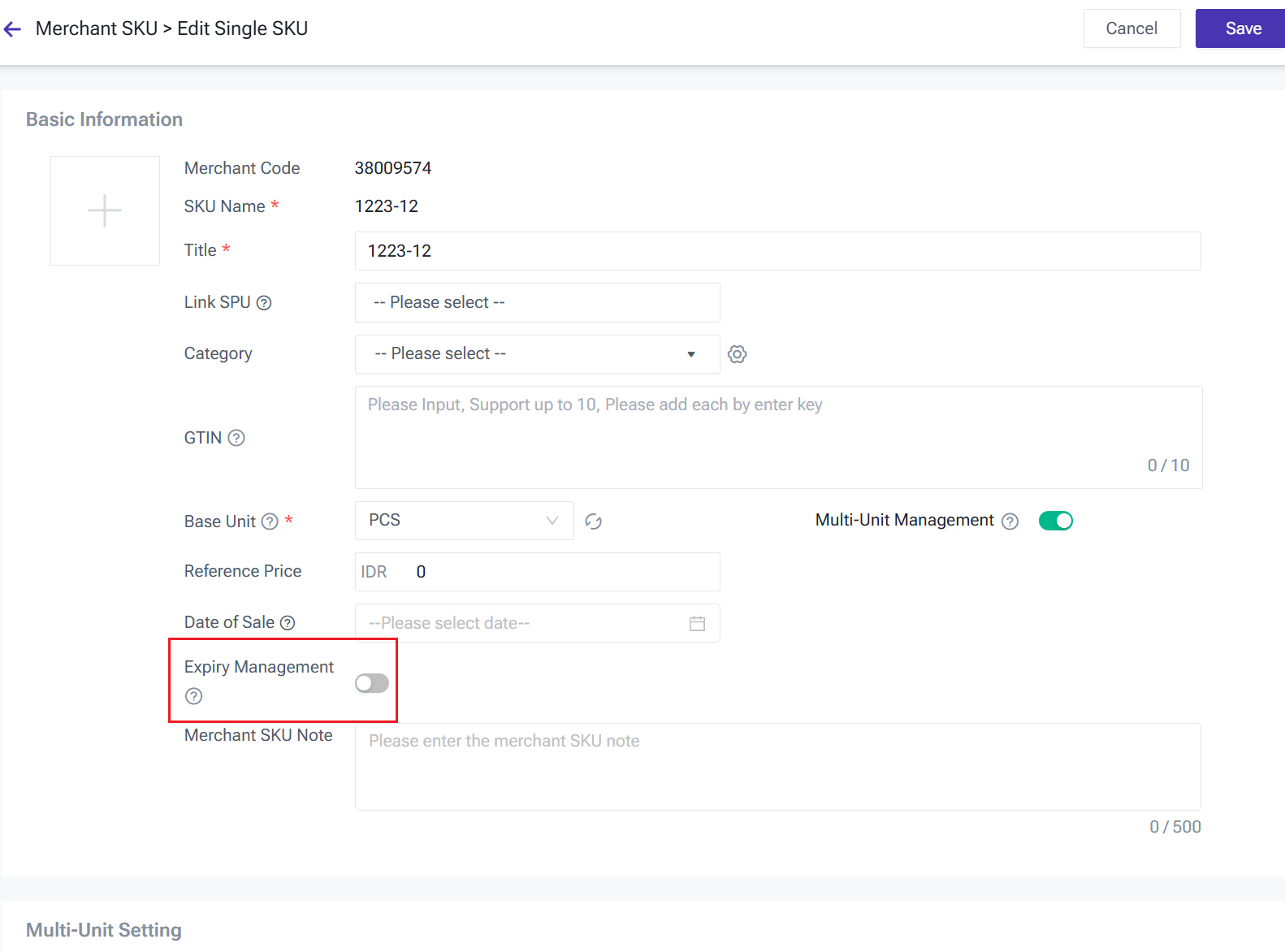
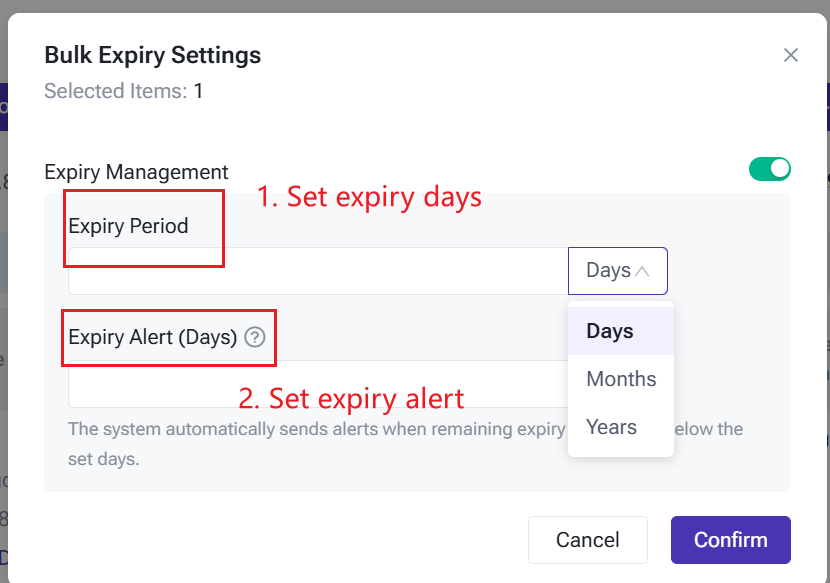
- Set Expiry Date
After enabling expiry management, a "Expiry Date" field will appear. Here, users can input the SKU’s expiry date, with support for different units such as days, months, or years. The system will automatically calculate the estimated expiration date (EXP) based on the expiry date entered.
- Set Expiry Alert Days
This field lets users set a reminder for number of days in advance to be notified before a product expires.
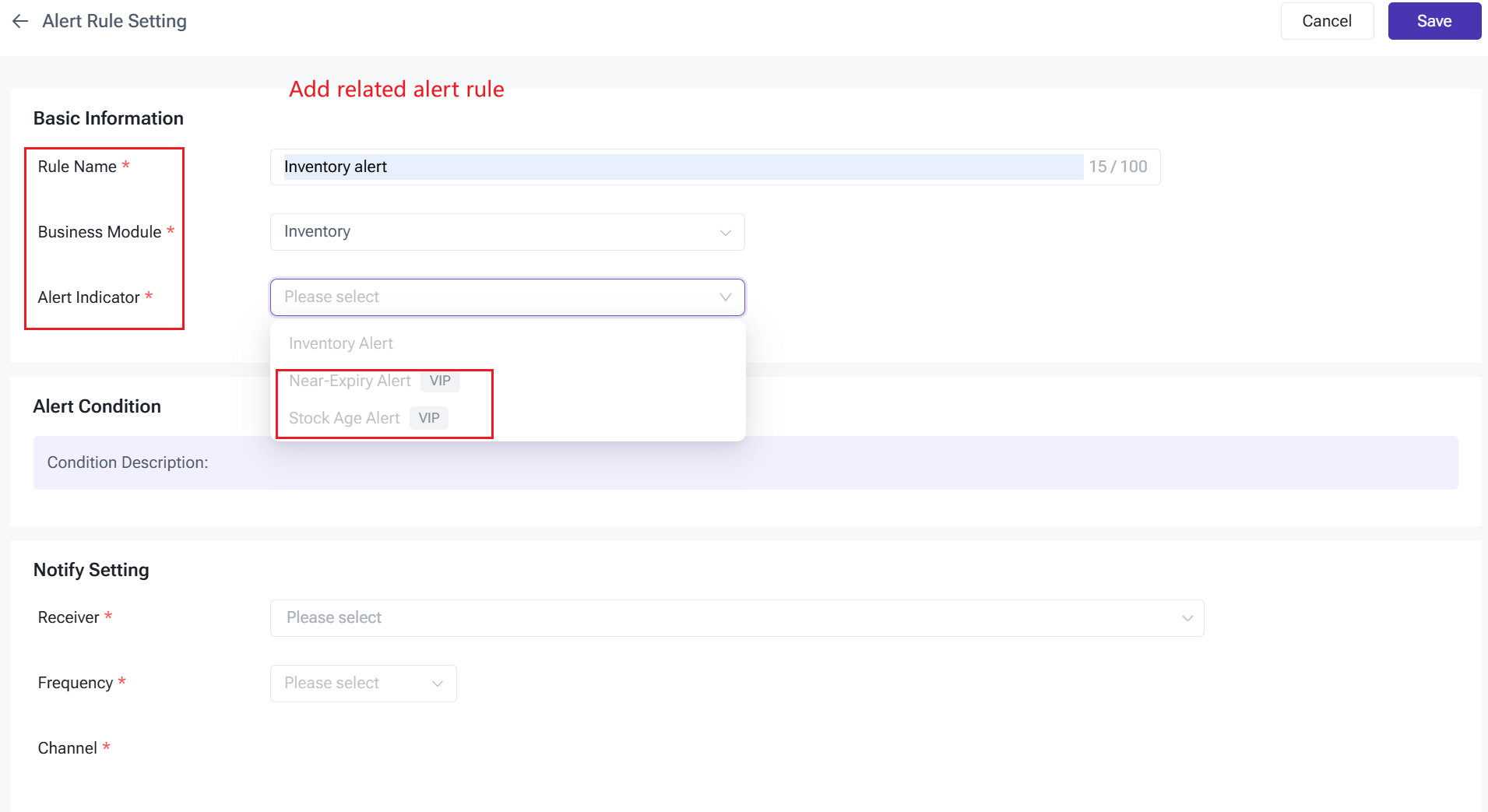
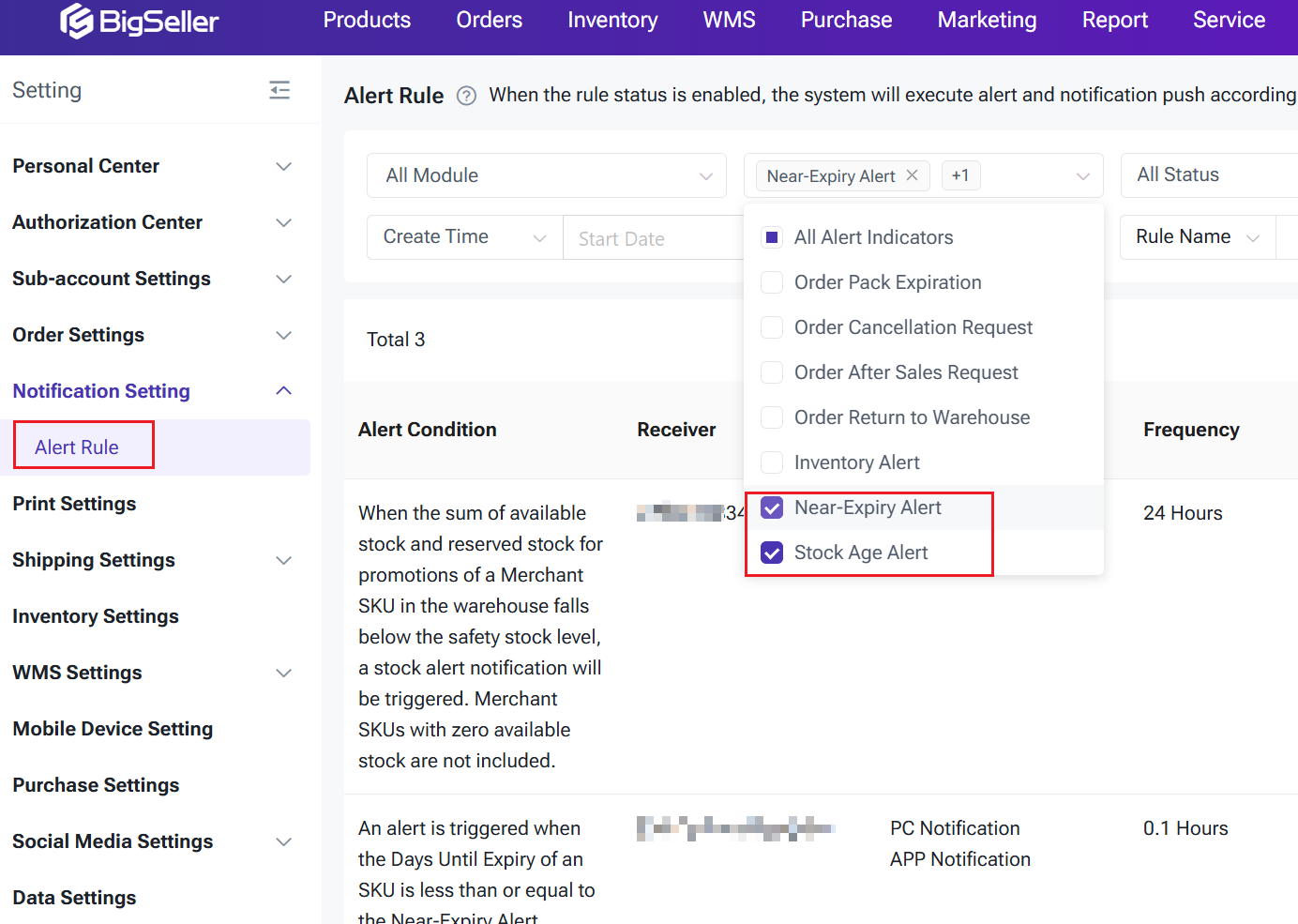
💡Note: Expiry alert notifications only work after enabling the corresponding alert rules in the Alert Center.
- Example: If set to 30 days, an expiry notification will be automatically sent when the product's remaining expiry date is ≤ 30 days.
3.3 Purchase, Receiving, and Stock-in Process
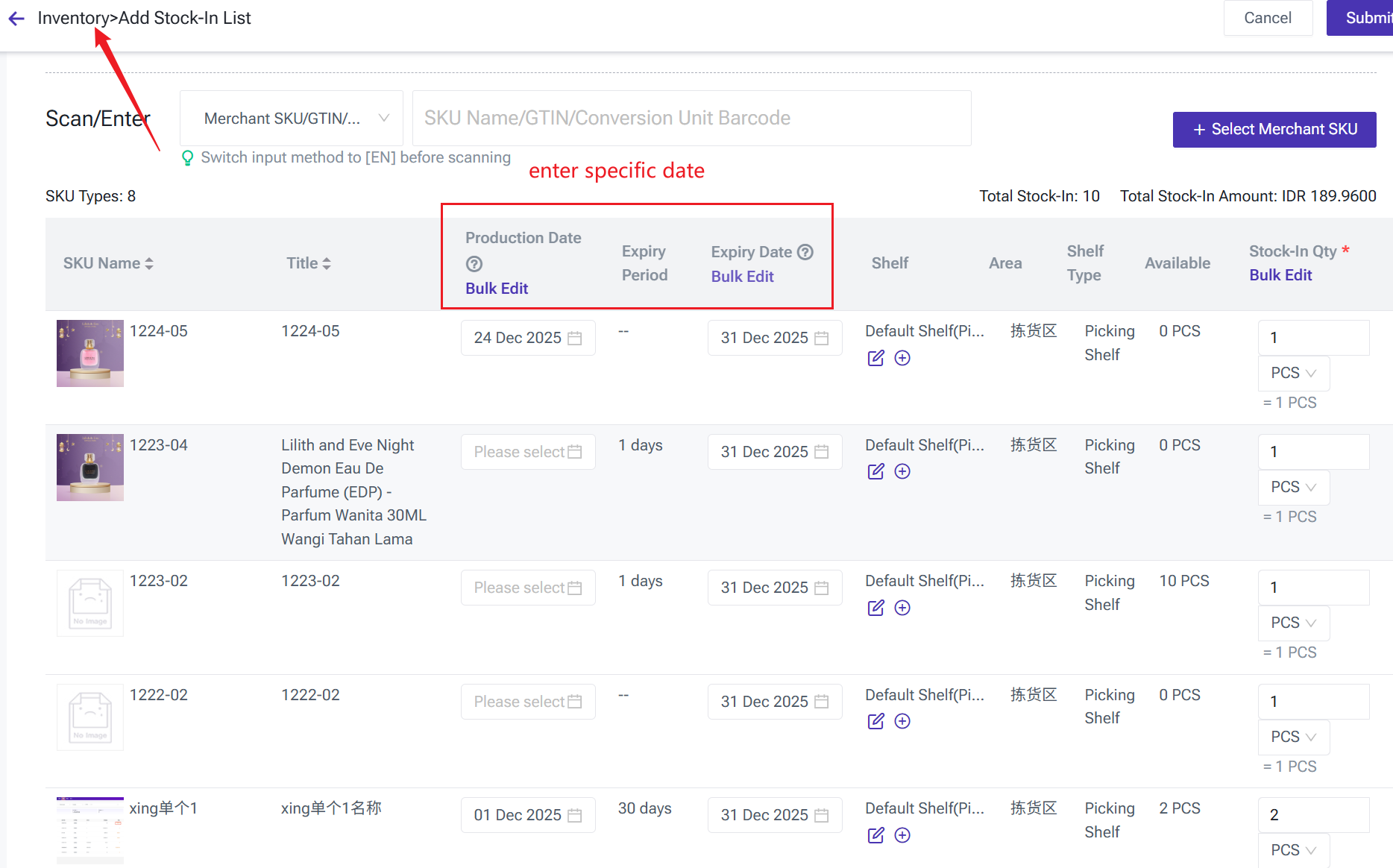
Once batch management is enabled, production date, expiry date (in days), and expiry date on relevant pages will be displayed, such as when creating purchase orders, receiving goods, manually stock in, processing returns, or creating SKUs and entering initial stock levels.
The "expiry date" will only be required under the following conditions:
- The "Expiry Date Mandatory Entry" option is enabled in the system settings.
- Expiry date management is activated for the Merchant SKU.
When these conditions are met, all stock-in operations involving the SKU require the expiry date to be filled in before submission.
3.4 Batch Stock (New Page)
Prerequisites
Sub-accounts must be authorized in role settings: Inventory > Batch Inventory.
Key Features:
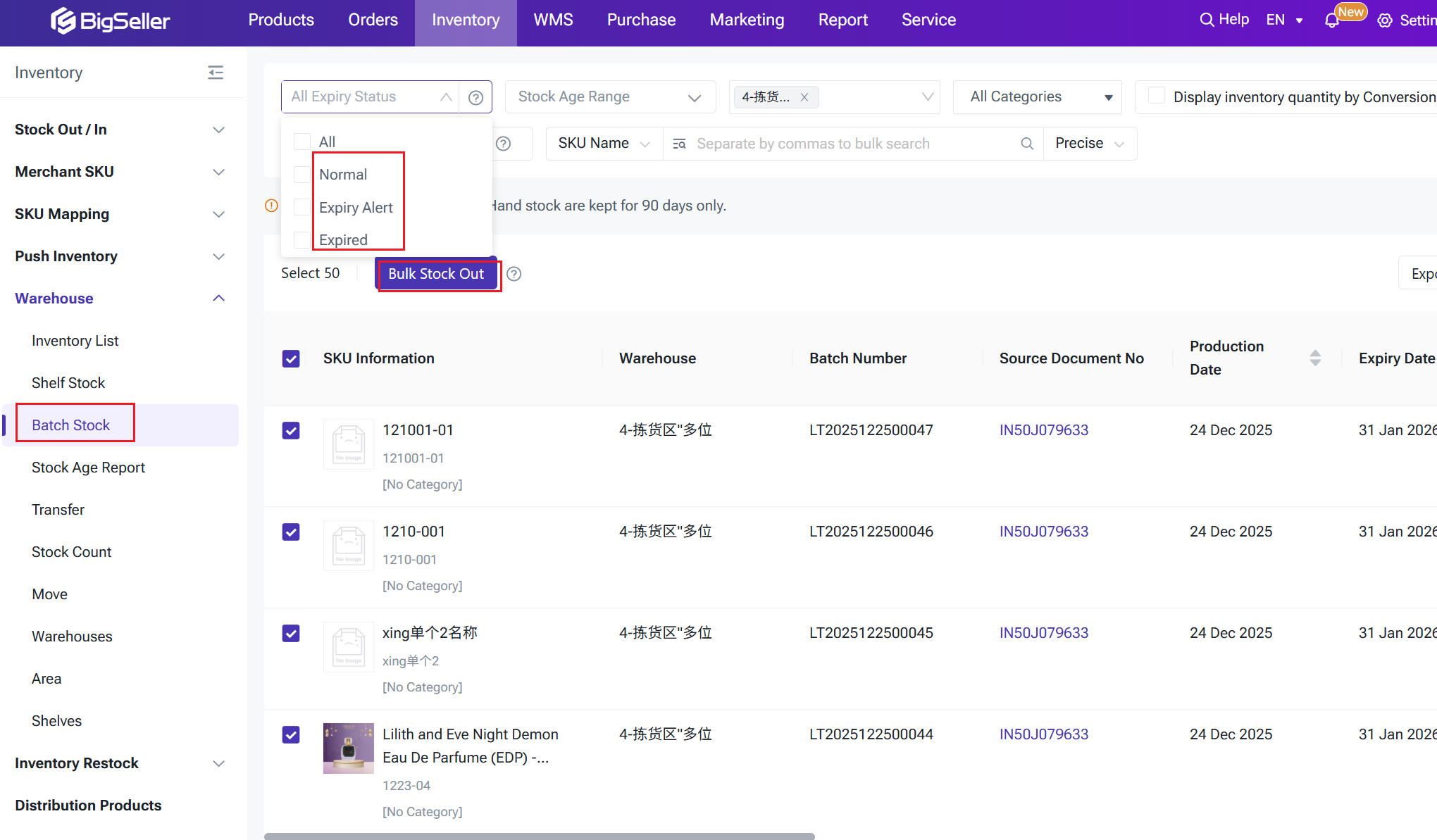
Bulk Stock out: Perform bulk operations on selected batches to quickly clear inventory, particularly useful for expired stock.
Import to Update Expiry Date: You can now import to update the expiry dates for Merchant SKU, which can better your process to modify manual entry mistakes.
Filter: Filter batch inventory by expiry date
- Normal: Remaining expiry date is greater than the SKU's expiry warning threshold.
- Expiry Alert: Remaining expiry date is less than or equal to the SKU’s expiry alert threshold.
- Expired: Remaining expiry date is 0 or less (past the expiry date).
Explanation of each field:
|
Field
|
Description
|
|
Batch Number
|
Unique batch identifier
|
|
Document Number
|
Corresponding stock out/stock in order, purchase order, transfer order, package number, etc.
|
|
Production Date
|
Production date of the products in this batch
|
|
Expiration Date
|
Expiration date of the products in this batch
|
|
Expiry Alert (Days)
|
System-defined number of days for pre-expiration alert
|
|
Days Until Expiry
|
Number of days remaining until the merchant SKU reaches its expiration date
|
|
On Hand
|
Available inventory for the current SKU batch at this shelf location
|
|
Stock in Time
|
Time when the merchant batch was received into inventory
|
|
Stock Age (Days)
|
Latest inventory age as of yesterday for the batch (batches with zero current inventory will not be updated)
|
|
Batch Cost
|
Cost price at the time of batch creation
|
3.5 Stock Age Report (New Feature)
Prerequisites:
- Batch management must be enabled to view the stock age distribution of each SKU in the report.
- Sub-accounts can only access this feature if the main account has granted permission for Inventory > Stock Age Report in the role settings.
-
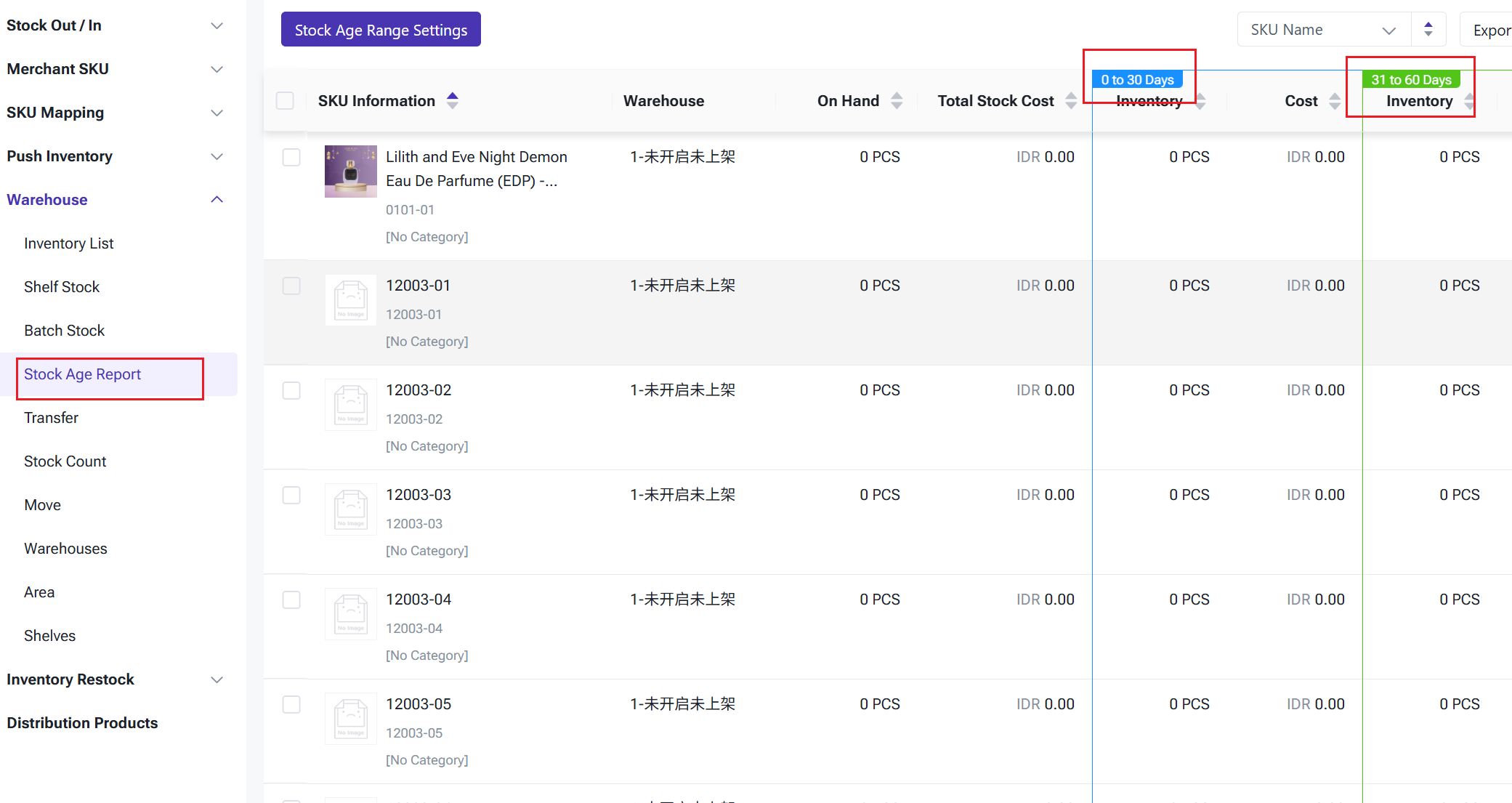
Stock Age Range: Easily view the stock levels of each SKU across different aging intervals, organized by SKU and warehouse.
-
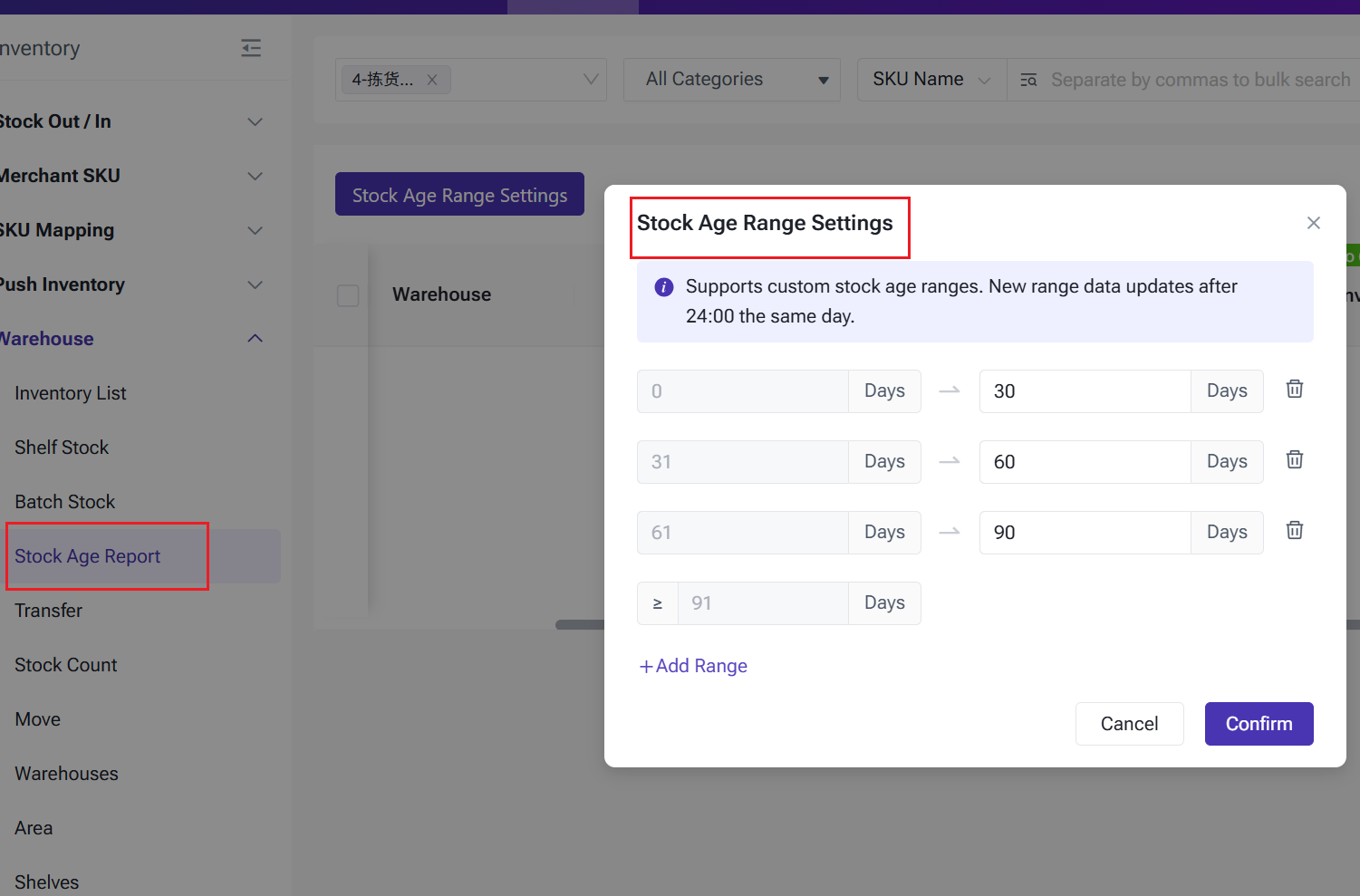
Customizable Stock Age Intervals: Users can define their own stock age ranges, such as 0-30 days, 31-60 days, 61-90 days, and 90+ days, for tailored reporting.
-
Inventory Overview: Provides a comprehensive summary that includes SKU details, warehouse information, current inventory levels, total inventory cost, and the breakdown of stock quantity and cost by stock age interval.
3.6 Batch Stock Movement Records (New Page)
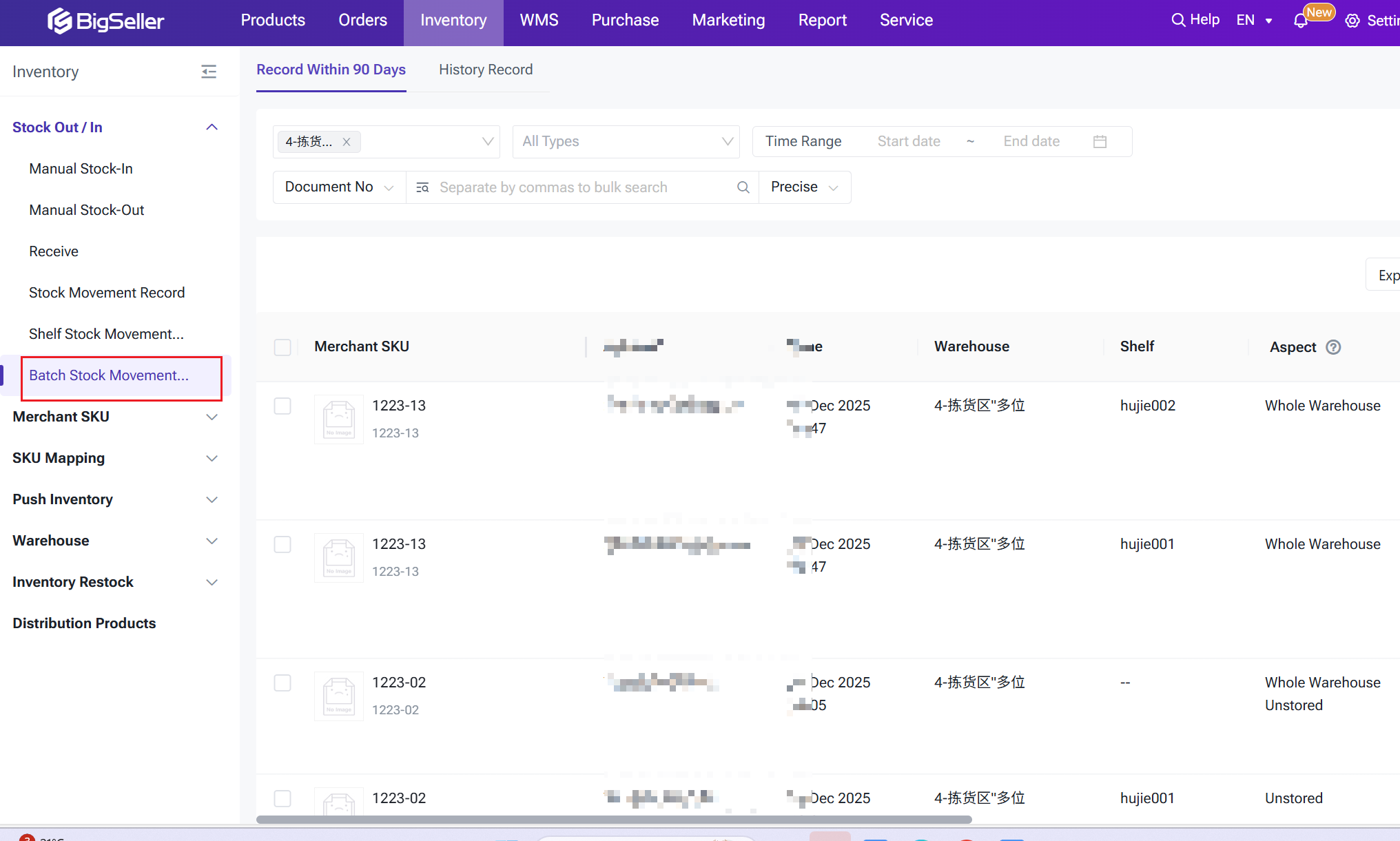
Once batch management is enabled, the Batch Stock Movement Records page provides a detailed overview of inventory changes at the batch level. This allows users to track stock flow for each batch, making it easier to identify the source of inventory increases or decreases.
Note: This page presents data at the batch level, unlike SKU-level inventory update records (Stock Movement Record). If a single SKU is associated with multiple batch changes, the page will display separate records for each batch.
3.7 Impact of Stock Counting on Batch Stock
During warehouse stock counting, batch stock will be adjusted according to the following rules:
-
Inventory Gain (Physical Count > System Stock)
The gain stock will be added to the most recent batch for the relevant shelf location. If no batch exists for the SKU at that location, a new batch will be created to record the gain.
-
Inventory Loss (Physical Count < System Stock)
The system will deduct inventory from batches in chronological order, starting with the earliest batch, until the loss is fully accounted for.
3.8 Profit Settings — Calculate Merchant SKU Cost by Batch Cost
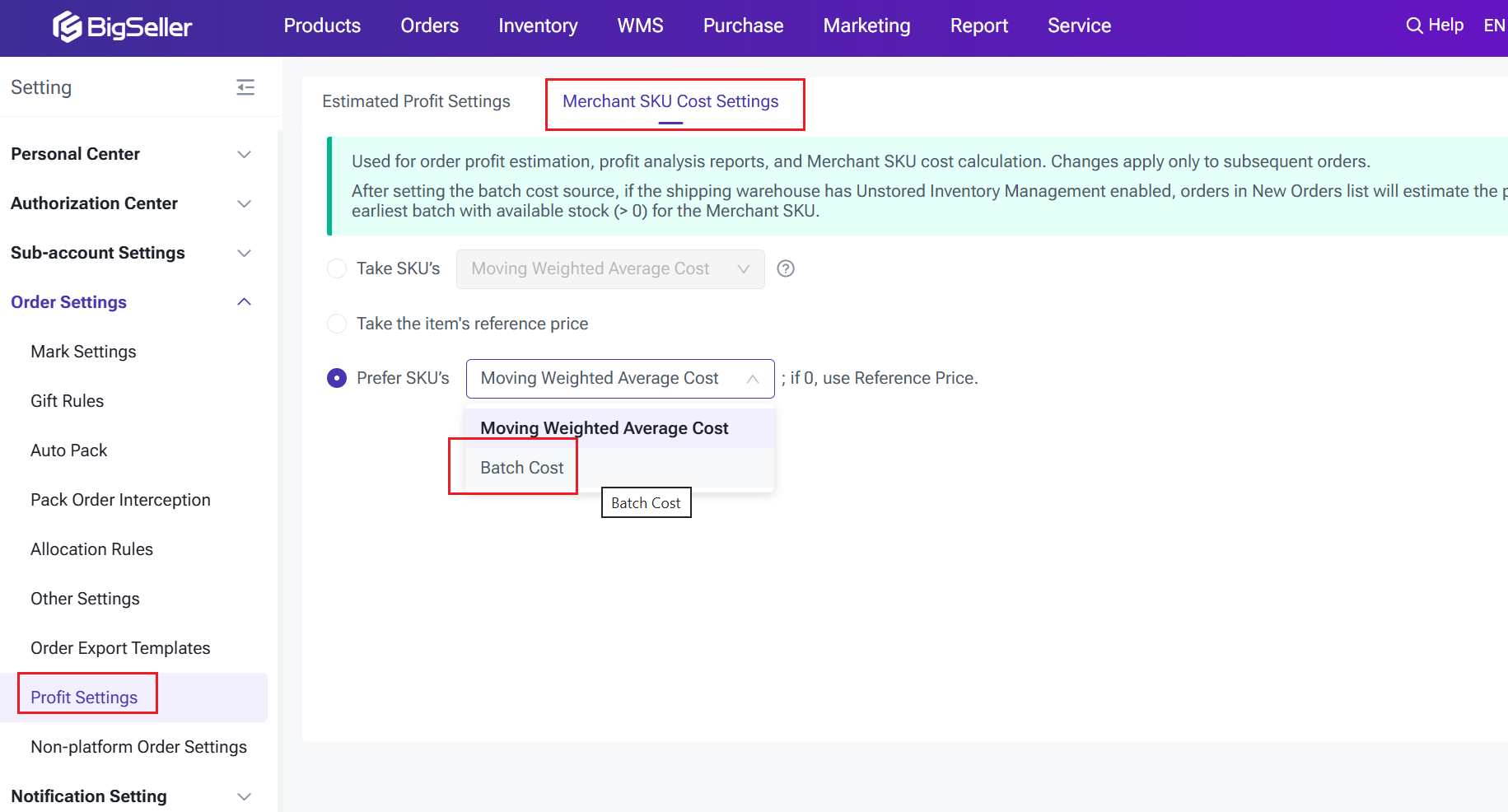
The system now can calculate profit using the cost of each SKU from the specific batch's stock at the time it was created. This approach offers a more accurate reflection of actual inventory costs. Path: Settings > Profit Settings > Merchant SKU Cost Settings > Batch Cost.
Logic for Batch Cost:
- The cost of SKU in an order = the sum of the costs of each SKU.
- The cost of each SKU = the batch cost of each deducted batch * the deducted quantity of each batch.
- If the historical order of the SKU has no batch cost, then the cost is calculated using the moving weighted average cost. The cost of each SKU = moving weighted average cost * the deducted quantity of the SKU.
3.9 Expiry Alert & Aging Alert Notification
Users can set up Expiry Alert and Stock Age Alert, as monitoring indicators in the Alert Center to track product expiry date and inventory turnover.
- Expiry Alert: When the remaining expiry date of a SKU batch in the warehouse is ≤ the set expiry threshold, the system will automatically trigger an alert. This helps manage products nearing expiration.
- Stock Age Alert: If a SKU in the warehouse reaches or exceeds the set aging threshold, the system will trigger an aging notification to alert users about slow-moving or long-unused stock.
3.10 Order Allocation Logic and Deduction Logic
- Order Stock Deduction Logic: The system will prioritize the FEFO (First-Expired, First-Out) principle, meaning that for products with recorded expiry dates, stock that expires earliest will be allocated first; while for products without expiration dates, the system will follow the FIFO (First-In, First-Out) principle where inventory entered into the system earlier will be allocated first.
- Restoring Inventory: When inventory needs to be returned to the warehouse due to order cancellations, seller returns, or transfer order cancellations, the system will accurately identify the original batches from which the items were deducted and restore the exact quantities back to those batches in reverse order (based on the original deduction sequence).
Is this content helpful?
Thank you for your feedback. It drives us to provide better service.
Please contact us if the document can't answer your questions